Switching GPU Brands NVIDIA to AMD (or AMD to NVIDIA)? Driver Leftovers, DDU Clean Install & Boot Verification Guide
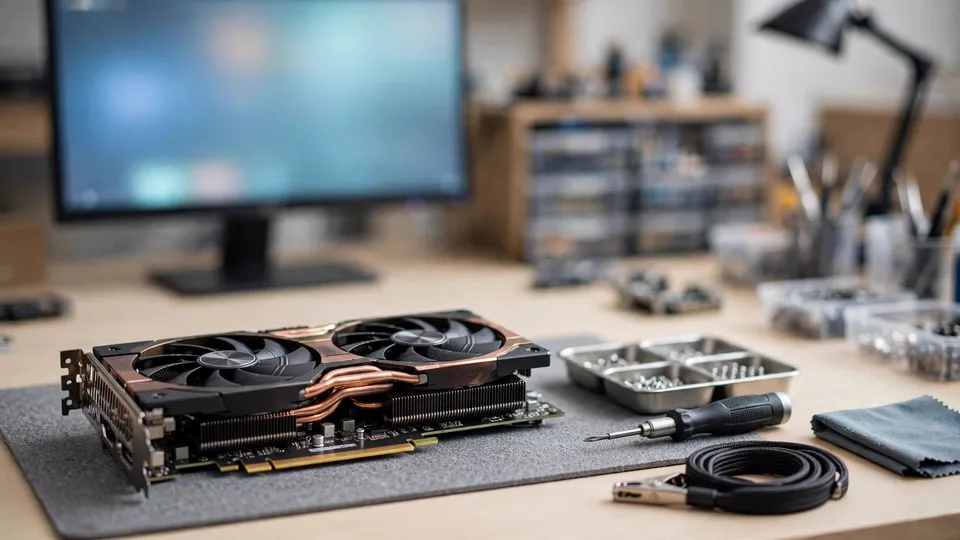
Key Takeaway
Switching graphics card brands is not a three-step swap: the old driver leaves files, services, settings, and Driver Store packages behind, and an uninstall does not remove them all. Clean the old brand out in Safe Mode before the hardware changes, then install the new brand fresh — get the order wrong, and later steps are built on leftovers.
What Switching Brands Really Involves
Swapping a graphics card from NVIDIA to AMD, or from AMD to NVIDIA, looks like a hardware job: remove the old card, fit the new card, install the new driver. In practice it is a driver job with a hardware step in the middle. The old brand's driver is not one file. It is a set of interlocking parts — kernel driver files, control software, background services, settings databases, registry entries, and Driver Store packages — and a standard uninstall only runs the vendor's own removal routine, whose design goal is to remove that program, not to erase every trace of it. Parts of the old brand routinely survive, and the new brand's driver is then installed on top of them. The symptoms can appear at once, with the new driver refusing to install or the screen going black, or they can appear days later, when Windows Update reinstalls the old driver or a game suddenly crashes. The delayed form is the more misleading one, because it is easily mistaken for a fault in the new card.
The single claim of this guide is simple: before the hardware changes, clean the old brand's driver out until the system no longer recognises the old brand at all, and only then change the card and install the new brand's driver. The order is the method. Clean first, shut down, swap the hardware, then install. Reverse any part of that order and every later step is built on leftovers.
This guide covers Windows 10 and Windows 11 desktop computers with a discrete graphics card changing brands. Upgrading to a different card from the same brand is mentioned only as a boundary case: the full process below is usually unnecessary there, and the built-in clean installation in the vendor installer is normally enough.
The Five Layers Where Leftovers Hide
To understand why a plain uninstall is not enough, it helps to see the driver as five layers. Each layer has its own way of surviving an uninstall, and each one causes a different kind of trouble afterwards.
| Layer | What it contains | What happens if it survives a brand switch |
|---|---|---|
| Kernel driver | The core driver files that talk to the hardware, such as nvlddmkm on NVIDIA and amdkmdap on AMD | Old kernel files stay in the Driver Store, and Windows may pick them again when it enumerates devices |
| User-mode driver and runtime parts | DirectX, OpenGL, and Vulkan runtime hooks, encoding and display output components | Old and new runtime parts conflict, and games or editing software load the wrong version |
| Control software | NVIDIA App or GeForce Experience; AMD Software: Adrenalin Edition; plus settings databases such as the NVIDIA DRS profile database at C:\ProgramData\NVIDIA Corporation\Drs | The old control software starts at boot and tries to manage a card that is no longer there; old profiles are applied to the new card |
| Background services | Services such as NVIDIA Display Container LS and the AMD equivalents | Services keep loading at boot, log repeated errors in Event Viewer, slow the boot, or fight the new driver for control of display settings |
| Registry entries and Driver Store | Driver service entries under HKLM\SYSTEM\CurrentControlSet\Services, vendor entries under HKLM\SOFTWARE, and driver packages in C:\Windows\System32\DriverStore\FileRepository | Registry entries point at files that no longer exist, so Windows believes the driver is still present; old packages in the Driver Store let Windows Update or Device Manager find the old driver again |
The important point is that a Control Panel uninstall normally deals with the control software and some of the core driver files. It does not guarantee removal of the Driver Store packages, the registry service entries, or the settings database. That is why Device Manager can still show the old card name after an uninstall, or why a new driver installer can still report that it has detected an old driver.
Four Ways Leftovers Break the New Driver
Saying that leftovers cause conflicts is too vague to act on. There are four distinct chains, and each one needs to be understood separately.
Chain One: Locked Files
In normal mode, some of the old driver's files are in use by the system, so the uninstaller cannot delete them and can only schedule the deletion for the next boot. If Windows loads those files again at the next boot, the deletion never happens. This is why removal must be done in Safe Mode: Safe Mode loads only a minimal set of drivers, the vendor graphics driver is not loaded, and the files are not locked, so they can actually be deleted.
Chain Two: The Driver Store Picks the Old Driver Again
When Windows enumerates display devices, it searches the Driver Store for a compatible driver. If the old brand's driver package is still there, Windows may pair the wrong driver with the new card after it is fitted, or Windows Update may reinstall the old driver later. The visible sign is Device Manager showing the old brand name after the new card is in, or the driver provider changing to Microsoft, which means a generic driver is holding the place.
Chain Three: Old Settings Are Inherited
A new driver installer can inherit an old settings database, for example by reusing the same profile database path or a setting with the same name. Old global settings, such as forced anti-aliasing or a power management mode, are then applied to the new card. The result is a picture that looks wrong in games or performance that does not match expectations, while the driver version number looks correct. This layer is the hardest to notice, because everything appears to be installed properly.
Chain Four: Competing Services
The old brand's background service and the new brand's background service can both start at boot and compete for control of display settings. Settings fail to save, settings are changed back after a reboot, or the two control programs take turns showing notifications. The cause is not a setting being wrong; it is two services fighting over the same job.
What DDU Is — and What It Is Not
Display Driver Uninstaller, known as DDU, is a free third-party tool from Wagnardsoft. Its purpose is to remove NVIDIA, AMD, and Intel graphics drivers thoroughly, including the files, folders, registry entries, and Driver Store packages that a standard uninstall leaves behind. Three points about it need to be stated clearly.
First, DDU is a removal tool, not a driver installer and not a diagnostic tool. It does not decide which driver suits a given card. After cleaning, the correct driver must be downloaded from the vendor's official website and installed separately.
Second, DDU is not a routine step. NVIDIA's own guidance states that an ordinary driver update should be installed directly over the existing driver, and that a clean installation — Custom (Advanced), then Perform a clean installation — is a troubleshooting option. DDU is one level further than that. It is appropriate for a brand switch, for repeated failures of an ordinary clean installation, or where driver leftovers have already been confirmed. It should not be presented as something to run every time a driver is updated.
Third, DDU is a third-party tool, not an official NVIDIA or AMD tool. It should only be obtained from the Wagnardsoft official website or its official forum thread, and drivers should only be obtained from the NVIDIA or AMD official websites. Third-party one-click driver tools and installers from unknown sources should not be used.
The Three DDU Buttons — the Core of This Guide
DDU's main window offers three clean-up buttons. Choosing the wrong one is the same as doing the job wrong, and earlier guides on this site mentioned the choice in passing but never explained the mechanism or the third button.
| Button | What it does | When to use it |
|---|---|---|
| Clean and restart | Removes the selected brand's driver, then restarts into normal mode | Staying on the same card and only reinstalling its driver, for example when the same brand's driver is damaged or repeatedly crashing and needs a clean reinstall |
| Clean and shutdown | Removes the selected brand's driver, then shuts the computer down instead of restarting it | Changing the physical card, including a brand switch between NVIDIA and AMD and a swap to a different card from the same brand |
| Clean and do not restart | Removes the driver but stays in Safe Mode without restarting | Removing two brands in sequence, for example where the system holds both an NVIDIA discrete driver and leftover Intel integrated driver files, or where an old NVIDIA leftover must be cleared before an AMD driver is addressed |
Why Clean and shutdown matters so much: if Clean and restart is used to clear an old NVIDIA driver, the computer restarts with the old card still fitted, and Windows may immediately reinstall the old driver from the Driver Store or Windows Update while enumerating devices at boot. By the time the card is swapped, the old driver is already back. With Clean and shutdown, the computer powers off directly, the old card is never re-enumerated, and the card is then removed and replaced while the machine is off. When the machine is switched on again, Windows meets the new card for the first time, and the driver it gets is the one installed manually afterwards. The choice of button is itself a key step in a brand switch, not a matter of preference.
Sometimes two passes are needed: first clear the old brand with Clean and do not restart, then select the other brand and clear any leftover of it, and only then shut down. That is not routine. It applies only where the system has held drivers from two brands; a double clean is not a standard step for every brand switch.
Why Safe Mode Is Required
In Safe Mode, Windows loads only a minimal set of drivers and services, and the vendor graphics driver is not loaded. Its files are not locked, so DDU can genuinely delete them. Run DDU in normal mode and it will warn that Safe Mode is recommended; ignoring that warning means the clean is incomplete, and leftover files may return at the next boot.
To enter Safe Mode on Windows 10 or Windows 11, hold Shift while selecting Restart, then go to Troubleshoot, Advanced options, Startup Settings, Restart, and press 4 for Safe Mode without networking. Another route is to use msconfig and select Safe boot on the Boot tab, but that setting must be cleared afterwards, or the computer will keep booting into Safe Mode.
Two preparations must be done before entering Safe Mode. First, download the new brand's driver installer in advance and save it on the local machine. Do not rely on downloading it after the clean, because the display may be affected after the old driver is removed, and because the machine should not sit connected for a long time without a driver while Windows Update has a chance to install one first. Second, note the current driver version and branch — Game Ready or Studio on NVIDIA, Recommended or Optional on AMD — so there is a known version to return to if something goes wrong. Also back up important data, and confirm that Safe Mode can be entered and exited again before starting.
One further preparation is worth noting: third-party DDU guides report that a PIN may not work in Safe Mode on Windows 11 24H2, and that the Microsoft account password may be needed instead. This is presented here as a third-party report, not as an official guarantee, and the reader should confirm the account password is known and that password sign-in has been used in normal mode before entering Safe Mode.
The Windows Update Race After Cleaning
Between the clean and the installation of the new driver, Windows Update can automatically download and install a graphics driver from the Driver Store or online. The result is that the reader believes the latest official version is being installed, while Windows has already installed an older or generic version, and the two versions then conflict. On AMD systems this can surface as a version mismatch between AMD Software and the driver, a mechanism covered in detail in the companion guide on drivers disappearing after reboot.
Prevention works in layers, in this order. First, have the new driver installer already downloaded on the machine, and install it immediately after the clean, so the window of exposure is short. Second, DDU offers a setting to prevent Windows Update from automatically downloading drivers; the exact option name should be checked against the DDU version in use at the time, because interface wording changes between versions. Third, AMD's own guidance for its Error 205 case is to temporarily change Device Installation Settings to No, restart, install AMD Software, and then review that setting afterwards — a targeted, temporary measure, not an instruction to switch Windows Update off permanently. Fourth, if a driver has already been replaced by Windows Update, check Device Manager for the driver provider, date, and version before deciding whether to roll back or to clean and install again.
The AMD Equivalents — Not Only NVIDIA
A brand-switch guide that only talks about NVIDIA would be incomplete, so the AMD tools need their own place here.
AMD Cleanup Utility is AMD's official removal tool. It removes previously installed AMD graphics and audio drivers and software in preparation for installing a new driver, and AMD recommends using it in Safe Mode. It does not change AMD chipset drivers.
The AMD installer also has a Factory Reset option. When selected during installation, it removes the previous AMD Software package and pauses Windows Update during the install. This is the built-in clean installation path inside the AMD installer, and it is suitable for reinstalling the same brand. For a switch between brands, the old brand should still be cleared first with DDU.
DDU, AMD Cleanup Utility, and the NVIDIA installer's built-in clean installation are three different levels of tool, and they are not interchangeable. The built-in clean installation is the first level, the vendor cleanup utility is a vendor-specific removal step, and DDU is the deeper third-party removal used when a brand is changing or when the first levels have repeatedly failed.
The Correct Order, Step by Step
This sequence is the backbone of the guide, and it should be followed in this order.
- Record the current state. Note the old card model, the driver provider, date, and version, and the driver branch in use. Back up important data, and confirm that Safe Mode can be entered and exited.
- Download the new driver. Go to the new brand's official website — the NVIDIA official driver download page or AMD Drivers and Support — and download the installer matching the new card model and the Windows version. Save it on the local machine. Do not use a third-party one-click driver tool.
- Disconnect from the network, as a precaution. This reduces the chance of Windows Update intervening during the clean.
- Enter Safe Mode, open DDU, set the device type to GPU, and select the old brand.
- Select Clean and shutdown when the hardware is about to change. If the system holds leftovers from two brands, use Clean and do not restart for the first brand, then select the second brand and clean it, and only then shut down.
- Swap the hardware only after shutdown. Switch the power off, unplug the power cable, press the case power button to discharge remaining power, then remove the old card, fit the new card, connect its power cables, and confirm it is seated firmly. Never change a card while the machine is powered on.
- Switch on and enter normal mode. Check Device Manager: the new card should appear under its correct name, or as Microsoft Basic Display Adapter, and the old brand name should not appear.
- Install the new brand's driver. Run the official installer already downloaded. On NVIDIA, choose Custom (Advanced) and then Perform a clean installation. On AMD, follow the installer prompts, using the Factory Reset option where appropriate.
- Restart, then run the verification in the next section.
Boot Verification — Three Layers, All Must Pass
Verification has three layers, and the job is not finished until all three pass.
- Device Manager layer. The graphics entry shows the new card's correct model, with no yellow warning icon. In the Driver tab, the provider is the new vendor — NVIDIA Corporation or Advanced Micro Devices — not Microsoft, and the date and version match the version just installed. The digital signer is correct.
- Control software layer. NVIDIA App or AMD Software: Adrenalin Edition opens, shows the new card model and the driver version, and the two versions agree, with no message saying the software version does not match the driver version. The old brand's control software should no longer appear in the Start menu or the system tray.
- Function layer. The resolution and refresh rate can be set to the monitor's native values and stay set after a restart. A commonly used game or editing application opens, uses hardware acceleration, and does not crash immediately. In Task Manager, under Performance and then GPU, the new card name and its usage appear. Then use the machine normally for several days and watch for the driver version rolling back after a restart; if it does, the companion guide on drivers disappearing after reboot applies.
If any layer fails, do not immediately repeat DDU. First note which layer failed, the exact error message, and the driver version, and then work through the diagnostic table in the next section.
Diagnostic Logic: Reading the Symptom
| Symptom | Most likely cause | Next step |
|---|---|---|
| The new driver installer reports an old driver detected, or the install fails and rolls back | Old driver leftovers were not fully cleared, or the installer conflicts with an old service | Check whether DDU ran in Safe Mode, whether the wrong brand was selected, or whether the wrong button was used; then work through the layers for installation failure |
| Device Manager shows the old brand name | The old driver was reinstalled by Windows before the card was swapped, or it was never cleared | Check the driver provider and date, then repeat the full DDU process using Clean and shutdown |
| Device Manager shows Microsoft Basic Display Adapter | The vendor driver is not loaded, either because the system is in a fresh state or because the clean removed it and nothing has been installed yet | This is not a fault; install the vendor driver directly |
| The old control software still appears or starts at boot | Control software leftovers remain | Check the Start menu, the system tray, and the services list, then run DDU again for that brand |
| Games look wrong or settings seem inherited after the new driver is installed | Settings profile leftovers remain | Reset the settings to defaults inside the control software; if that does not work, clean again with DDU |
| The driver version changes back to an older version after a few days | Windows Update reinstalled a driver, or a restore took place | Check the update history and the driver date, and follow the guide on drivers disappearing after reboot |
| Black screen, coloured artefacts, or driver crashes | Not necessarily leftovers; the driver layer and the hardware layer must be separated | Follow the TDR diagnosis first — Event 4101, when the crash happens, and a stress-test comparison — before blaming leftovers |
Edge Cases
Same-brand card swap. Swapping one NVIDIA card for another NVIDIA card, or one AMD card for another AMD card, normally does not need DDU. The clean installation inside the vendor installer is usually enough. DDU is reserved for repeated failures or confirmed leftovers. The brand-switch process in this guide should not be presented as required for every card change.
Integrated graphics plus discrete graphics. On a laptop, or a desktop with integrated graphics, DDU must be set to the correct device type and vendor. Clearing the discrete driver should not also clear the integrated driver. When switching the discrete brand, the integrated driver normally does not need to be touched.
An older card no longer supported by the newest driver. If the new card is an older model, the latest driver may not support it. Check the vendor's compatibility list before installing, and do not assume the newest version is always the right one.
No picture after the clean, before the new driver is installed. After cleaning and before the new driver is installed, Windows uses Microsoft Basic Display Adapter, and the resolution drops. This is a normal transitional state, not a fault, and the new card should not be judged as broken while it is in this state.
Not comfortable with Safe Mode or opening the case. DDU and opening a case are advanced operations. A reader who is not confident should not experiment, and can seek professional help instead. In-store inspection is available at Room 1209, Dali Plaza, Shek Mun; call 2186 8010, or reach the shop on WhatsApp at 6558 6806. Inspection is charged at the site's published three-tier fees of HK$400–2,800, quoted after inspection. There is no home-visit service and no Mong Kok shop.
Windows reinstalls the old driver after every clean. This does not mean DDU failed. It means the automatic installation source — Windows Update or the Driver Store's automatic pairing — is the problem. The automatic source must be addressed, rather than repeating DDU endlessly. A thorough clean should be used once, its result recorded, and not repeated as a form of troubleshooting.
Ten Common Mistakes
- Treating a Control Panel uninstall as a complete clean. The Control Panel only runs the vendor's own removal routine. Driver Store packages, registry service entries, and settings databases are very likely to survive.
- Running DDU in normal mode instead of Safe Mode. Files are locked, the clean is incomplete, and DDU itself warns about this. Ignoring the warning gives up the most important safeguard in the process.
- Using the wrong button — Clean and restart for a hardware swap. The machine restarts with the old card still fitted, Windows may reinstall the old driver immediately, and the whole clean is wasted. Changing hardware requires Clean and shutdown.
- Swapping the card before cleaning the driver. Once the new card is fitted, Windows tries to pair a driver with it at once, and old driver leftovers may already be loaded before the clean begins.
- Not downloading the new driver before cleaning. After the clean there is no driver to install, the machine must go online to find one, and Windows Update may install an unsuitable version during that window.
- Installing the wrong driver version. For example, downloading an NVIDIA driver for an AMD card, choosing the wrong Windows version, or choosing the wrong Game Ready or Studio branch without checking the compatibility list. An installer reporting incompatibility is a pairing error, not a fault.
- Believing DDU can fix a hardware problem. DDU only deals with driver leftovers. Insufficient power, a loose slot, or damaged memory cannot be fixed by DDU, and repeating DDU only wastes time and hides the real cause.
- Using DDU for every driver update. This is over-cleaning. NVIDIA's guidance is to install ordinary updates directly over the existing driver. DDU is a troubleshooting tool, not a maintenance routine.
- Getting DDU or a driver from a third-party one-click tool. The source is unknown, and the package may be modified or bundled with other software. DDU comes only from Wagnardsoft's official channel; drivers come only from the NVIDIA or AMD official websites.
- Skipping verification after the clean. Without checking the Device Manager provider and version, and without checking that the control software version agrees, leftovers can sit quietly and surface days later.
When to Stop and Bring the Machine In
Stop when the three verification layers have been checked and the result is still unclear, or when the question has become which part to change rather than which layer is at fault. Stop sooner if the screen goes black, if coloured artefacts appear, or if the machine crashes under load, because those signs have left this guide and belong to a hardware inspection.
Bring the machine in with a complete record: the old and new card models, the driver versions tried, the DDU button used, the Device Manager provider and version, and any error messages in their exact wording. Inspection takes place at Room 1209, Dali Plaza, Shek Mun. You can call 2186 8010, or reach the shop on WhatsApp at 6558 6806. Inspection is charged at the site's published three-tier fees of HK$400–2,800, quoted after inspection. There is no home-visit service and no Mong Kok shop; inspection is carried out in the shop.
Frequently Asked Questions
Before switching GPU brands, must I use DDU to remove the old driver?
For a brand switch, yes. A thorough clean is needed, because a standard uninstall leaves Driver Store packages, registry entries, and settings databases behind. DDU in Safe Mode is the tool for that job. It is not required for every card change: a same-brand swap normally only needs the clean installation inside the vendor installer. The distinction is the brand change itself, not the act of changing a card.
What are the differences between DDU's "Clean and restart", "Clean and shutdown", and "Clean and do not restart"?
Clean and restart removes the driver and restarts into normal mode, and is for staying on the same card and reinstalling its driver. Clean and shutdown removes the driver and powers the machine off, and is for changing the physical card, because the old card is never re-enumerated before it is removed. Clean and do not restart removes the driver and stays in Safe Mode, and is for clearing two brands in sequence before shutting down. The button chosen is part of the method, not a preference.
Why should a brand switch use "Clean and shutdown" instead of "Clean and restart"?
Because Clean and restart reboots the machine with the old card still fitted. During that boot, Windows enumerates the old card and may immediately reinstall the old driver from the Driver Store or Windows Update, so the clean is undone before the card is even swapped. Clean and shutdown powers the machine off instead, so the old card is removed while the machine is off, and Windows first meets the new card after the swap, when the new driver can be installed manually.
Why must DDU run in Safe Mode? Can it not run in normal mode?
In normal mode, parts of the old driver are loaded and their files are locked, so the uninstaller cannot delete them and can only schedule deletion for the next boot. In Safe Mode, Windows loads only a minimal set of drivers, the vendor graphics driver is not loaded, and the files can actually be deleted. DDU itself warns when it is run in normal mode. Running it there and ignoring the warning produces an incomplete clean, and leftovers may return at the next boot.
After uninstalling a driver through Control Panel, what leftovers remain?
The most common survivors are driver packages in the Driver Store, driver service entries in the registry, the vendor's settings database, background services, and the control software's folders. Control Panel only runs the vendor's own removal routine, which is designed to remove that program, not to erase every trace. That is why Device Manager can still show the old card name, or a new driver installer can still report that it detected an old driver, after an uninstall that appeared to succeed.
What preparation is needed before running DDU? Must the new driver be downloaded first?
Yes, the new driver should be downloaded first, from the new brand's official website, matching the new card model and the Windows version, and saved on the local machine. Also note the current driver version and branch, back up important data, and confirm that Safe Mode can be entered and exited. Third-party guides also report that a PIN may not work in Safe Mode on Windows 11 24H2, so the Microsoft account password should be known and password sign-in should have been used in normal mode beforehand. That last point is a third-party report, not an official guarantee.
After cleaning the old driver, before the new driver is installed, what will the computer be like? Is that normal?
The screen will use Microsoft Basic Display Adapter, the resolution will drop, the control software will be gone, and games and editing software may refuse hardware acceleration. That is the normal transitional state after a clean, not a fault. It means the old driver is genuinely gone. The new driver should be installed promptly from the installer already downloaded, rather than leaving the machine in that state while going online to search for one.
After fitting the new card and installing the new driver, how do I verify the job is truly complete?
Check three layers. In Device Manager, the new card shows its correct model with no warning icon, and the driver provider is the new vendor with the date and version matching the version just installed. In the control software, NVIDIA App or AMD Software opens, shows the new card and the same driver version, and the old brand's control software is gone. In use, the resolution and refresh rate hold at native values after a restart, a game or editing application uses hardware acceleration without crashing, and Task Manager shows the new card under Performance and then GPU. Then watch for several days for the version rolling back after a restart.
If Windows Update reinstalls the old driver after cleaning, how should I handle it?
First confirm what happened: check the driver provider, date, and version in Device Manager, and check the update history for a driver update installed at the matching time. Do not simply repeat DDU. Shorten the exposure by installing the new driver immediately after the clean, use the DDU setting that prevents Windows Update from automatically downloading drivers, and for AMD Error 205 follow AMD's guidance to temporarily change Device Installation Settings. If the driver has already been replaced, decide from the evidence whether to roll back or to clean and install again, and record the result.
When is DDU not needed? Does a same-brand card swap need cleaning too?
DDU is not needed for an ordinary driver update, which should be installed directly over the existing driver, or for a same-brand card swap, where the clean installation inside the vendor installer is normally enough. DDU is for a brand switch, for repeated failures of an ordinary clean installation, or where leftovers have already been confirmed. Using it for every update is over-cleaning, and repeating it endlessly as a form of troubleshooting hides the real cause instead of finding it.