Recording Audio Only in One Channel? Channel Mapping, Balance and Mono/Stereo Diagnosis Guide
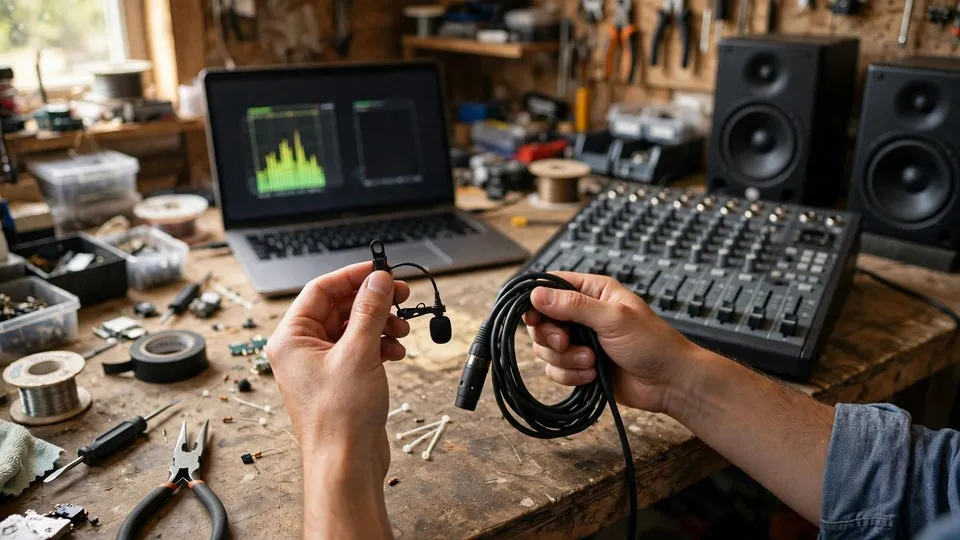
Swap your headphones left to right before changing any recording setting, because if the sound follows the earpiece to the other ear, the fault sits in playback, headphones, or balance, whereas if the same ear stays silent, the recording itself has one empty channel and the investigation must move to channel mapping. That single swap separates the two halves of this problem in about a minute, and it should come before any change to a microphone, a recording preset, or a file, because every later test means something different depending on which side of that line the fault falls.
What this symptom is — and what it is not
The shape of this problem is narrow, and the narrowness matters. A recording file plays, the picture is normal, and sound is present, but it is present in only one channel for the whole recording. With headphones on, the left ear hears the recording and the right ear hears nothing at all, or the reverse. A level meter may move on one side only, while the other side stays on the zero line from start to finish. This is not a file with no sound at all, not a quiet recording, not distortion, and not sound that cuts in and out.
Before testing anything, record three facts in writing: which side has sound, whether the one-sided pattern lasts for the whole file, and whether only this file behaves this way. Which side has sound is itself a clue. According to Fairtoolbox, a single microphone connected to input 1 of an audio interface normally lands on the left channel, so a left-only recording is consistent with a single microphone being recorded onto a stereo track. That observation points toward channel mapping, but it does not prove it on its own; it is one piece of evidence to be checked against the tests below.
The boundary matters because several nearby symptoms look similar and have different causes. A recording file with no sound at all through its whole length is a different problem. A recording that goes silent part-way through and stays silent is a different problem. A recording that is audible throughout but at the wrong pitch or speed is a different problem. A finished edited export in which some clips have sound and others do not is a different problem. A playback chain in which no file produces any sound is a different problem. A file that is silent in some players but normal in others is a different direction again. This guide covers only the one-sided recording: one channel audible, the other channel silent, for the whole file.
The central mechanism: one signal recorded onto two channels
A single microphone produces one signal. In Fairtoolbox's explanation, if that microphone is the only audio source, the audio should be written to a mono track. In practice, many programs, including OBS, open a stereo track by default. The single microphone signal then goes to the left channel only, and the right channel is left empty. The microphone is not necessarily faulty, and the headphones are not necessarily faulty. The recording software has treated a one-channel source as if it were a two-channel source.
The same mapping logic applies at the audio interface. Fairtoolbox and Nearstream both describe input 1 as the left channel and input 2 as the right channel. A single microphone connected to input 1 therefore lands on the left. Nothing about that behaviour is a defect in the microphone. It is the expected result of the mapping that the software and interface are using, and it is why the first question in this diagnosis is about mapping rather than about replacing hardware.
OBS provides a setting that illustrates the mechanism. In Advanced Audio Properties, OBS offers Downmix to Mono. Geekchamp states that OBS normally uses stereo, and that enabling Downmix to Mono means mono sources are automatically played through both the left and right channels. Fairtoolbox and Nearstream describe the same setting. Downmix to Mono is a setting to check before a recording is made. It is a comparison for the next test recording, not a way to repair a file that has already been recorded with one empty channel. Once a file has been written with the right channel empty, changing a setting in OBS does nothing to that file. The distinction between a setting that affects the next recording and a repair that affects an existing file runs through the whole of this guide, and confusing the two is one of the ways this diagnosis goes wrong.
Copying is not mixing: a difference of about 6 dB, according to the sources
When a file has already been recorded with one silent channel, the useful question is what to do with the one good channel. Fairtoolbox is explicit: repair the recorded file by copying the good side to the silent side, not by mixing the two sides into mono. Mixing averages the two channels, and because one channel is silent, the average is lower than the good channel on its own. Fairtoolbox reports, from a test tone it measured, that mixing in this situation drops the level by about half, or about 6 dB. Nearstream gives the same approximate figure of about 6 dB for a downmix. Both figures are the sources' own statements, not this site's verified conclusion, and they are given here only as the sources report them. The practical point does not depend on the exact number: copying preserves the level of the good channel, while averaging dilutes it with silence.
Audacity illustrates the same distinction. Fairtoolbox describes Audacity's Split Stereo to Mono as deleting the silent side and turning the good side into a mono channel. That is a copy-like operation: one signal becomes the same on both sides. It is not the same as averaging a good channel with an empty one. Any instruction that says simply "convert to mono" without saying which operation is meant is incomplete, because the two operations have different results. This guide therefore treats "convert to mono" as two different actions — copy and mix — and the diagnosis should always name which one is being used.
A related caution applies to downmixing before a recording. Nearstream notes that Downmix to Mono can reduce the level by about 6 dB, and Fairtoolbox likewise advises checking the level after a change. Both are presented in the sources as cautions, not as settled conclusions, so this guide states only that the level should be checked again after any change to a mono setting. It does not state that a downmix will always reduce the level by 6 dB, and it does not state that it will never do so. The level is a fact to be measured in the individual case, not a prediction to be asserted in advance.
Windows Mono audio changes playback, not the file
Windows has a Mono audio setting in Windows 11. Fairtoolbox states that there is no global Windows switch that turns a stereo input into a mono input, and that the Mono audio setting is on the playback side only. Nearstream makes the same point: the setting changes what is heard, not what is stored in the file.
The consequence is straightforward. If Mono audio is turned on in Windows and the recording is then heard in both ears, that result shows that a playback-side mono mix can make a one-sided file audible on both sides. It does not show that the file has been repaired. The file itself is still one channel of signal and one channel of silence. Treating a playback comparison as a file repair is an error, and it is an error that can hide the original problem until the file is played on another device or in another program, where the one-sided pattern returns.
Balance, cables and connectors are separate layers
A balance slider pushed to one side in Windows or in an application can silence one channel, but that is a playback-layer effect, not a property of the file. A 3.5 mm plug that is not fully inserted, a single broken conductor in a cable, or a faulty adapter can also produce one-sided sound, but those faults follow the connector and the cable, not the file. The way to separate them is the same discipline used throughout this guide: change one variable at a time. Swap the headphones left to right, try a different pair of headphones, try a different cable, and try the same file on a different machine. Each change is a comparison, and each comparison narrows the layer in which the fault sits.
The cable and connector causes deserve a caution about evidence. They are listed in this guide because search excerpts mention them — a plug not fully inserted, a headphone cable broken on one side, or a setting using only the left channel — and because they are consistent with the three verified sources' general account of one-sided recording. They were not independently opened and verified for this guide, so they are listed here only as directions to check, not as confirmed causes. A diagnosis that treats an unverified direction as a proven cause has already gone beyond its evidence.
The five suspect layers
| Layer | What it means | Decisive comparison |
|---|---|---|
| Channel mapping | A mono source recorded as stereo: OBS Downmix to Mono not enabled, recording software on a stereo track, interface input 1 treated as left | A ten-second test recording after the mapping setting is checked |
| Balance | Windows or application balance pushed to one side | Headphone swap plus a known-good stereo comparison; a playback-layer effect, not a file property |
| Cable / connector | 3.5 mm plug not fully inserted, one conductor broken, adapter fault | Re-seat the plug, change the cable and headphones, try another machine; the fault follows the connector, not the file |
| Playback / monitoring | One earpiece faulty, monitoring setting wrong | Other known-good stereo music is also one-sided; the headphone swap is the decisive test |
| File / encoding | The file itself has one empty channel | MediaInfo channel layout plus per-channel waveform in an editor; one channel sits on the zero line |
Each layer has its own comparison, and no single comparison covers all five. The headphone swap separates playback from file. The known-good stereo comparison separates a broken playback chain from a broken file. The mono-mix comparison separates a mapping fault from another file fault. MediaInfo and the waveform separate a file that was written one-sided from a file that is being played one-sided. The order in the seven steps below is the order that wastes the least time.
Seven diagnostic steps
Step 1 — Define the shape
Confirm that the problem is a recording file with one audible channel and one silent channel. Write down which side has sound, whether the pattern lasts for the whole file, and whether only this file behaves this way. Do not rely on an impression such as "the sound seems a bit quiet on one side". A vague description cannot be compared against a later test, and a diagnosis built on a vague description cannot be checked.
Step 2 — Swap the headphones left to right
Put the headphones on the other way round, left earpiece on the right ear and right earpiece on the left ear. If the sound follows the earpiece — the earpiece that had sound still has sound after moving to the other ear — the fault is in the headphones or the balance layer, and there is no need to search the file layer. If the sound stays in the same ear — the same ear is still silent — the file itself has one empty channel, and the investigation continues. This is the decisive test, and it should be done before any setting is changed.
Step 3 — Play a known-good stereo recording
Play a stereo music track that is known to be normal, using the same headphones and the same machine. If the music is also one-sided, the fault is in the playback chain: headphones, balance, or connector. If the music is normal on both sides and only the recording file is one-sided, the fault is in the file itself. The comparison only works if the same headphones and the same machine are used; changing two things at once makes the result unreadable.
Step 4 — Check the channel layout with MediaInfo and the waveform
Use MediaInfo to check whether the audio track is stereo or mono and how the channel layout is described. Then open the file in an editor and look at the per-channel waveform. A stereo file in which one channel's waveform sits on the zero line was written one-sided, which points to the mapping layer. This step is about the channel layout, not about the file's duration or its other properties, and it should not be expanded into a general file inspection. The question is narrow: which channels carry signal, and which carry nothing.
Step 5 — Check the recording software settings
In OBS, open Advanced Audio Properties and check whether Downmix to Mono is enabled, and check whether the recording channel setting is 1 (Mono) or 2 (Stereo). Then record a ten-second test clip and check it. A test recording is a comparison, not a repair: it shows whether the current settings still produce a one-sided file. If the test clip is still one-sided, the mapping setting has not been corrected; if it is two-sided, the mapping has changed. Either way, the existing file is unaffected by this step.
Step 6 — Check cables and connectors, one variable at a time
Re-seat the 3.5 mm plug fully, try a different pair of headphones or a different cable, and try playing the same file on a different machine. Change only one thing at a time. A fault that follows the cable or the machine is a cable or machine fault, not a file fault. A fault that follows the file across machines, cables and headphones is a file fault. Rushing this step by changing several things at once produces a result that proves nothing.
Step 7 — Use the mono-mix comparison, then stop if the fault is still undivided
Turn on Windows Mono audio, or convert a copy of the file to mono in an editor, and play it again. Windows Mono audio is a playback comparison only; it does not change the file. If both sides are now audible, the fault is in the channel mapping layer: a single signal was placed on one side only. If the file is still one-sided, the fault is something else in the file, not the mapping layer. For a file that has already been recorded one-sided, copy the good side to the silent side; do not mix the two sides and average them, because averaging lowers the level. If the fault still cannot be divided after these steps, stop and bring the written record — which side has sound, the results of each comparison, and the software settings — to Room 1209, Dali Plaza, Shek Mun for inspection. The telephone number is 2186 8010 and WhatsApp is 6558 6806. The site's published three-tier fee is HK$400–2,800; no other price is stated here.
Boundary cases
A recording file with no sound at all for its whole length is a different problem from a one-sided recording, and it is not covered by this guide. A recording that goes silent part-way through and stays silent is a different problem. A recording that is audible throughout but at the wrong pitch or speed is a different problem. A finished edited export in which some clips have sound and others do not is a different problem. A playback chain in which no file produces any sound is a different problem. A file that is silent in some players but normal in others is a different direction. Headphones that are one-sided for every stereo source, including known-good music, point to the headphones or the balance layer, not to the file layer. A recording whose sound cuts in and out is a different problem. A game in which dialogue is silent while effects and music are normal is a centre-channel problem, not a left-right channel problem, and it is not covered by this guide.
Six common misconceptions
- One side has sound, so the other side must be broken. A single microphone produces one signal, and the fault can be in the mapping layer — a mono source recorded as stereo — rather than in the microphone or the headphones.
- A moving level meter means both sides have sound. A meter can move on one side only while the other side stays on the zero line for the whole file. The per-channel meter or waveform must be checked, not a single combined reading.
- Converting to mono always lowers quality. Copying a single signal to both sides is the correct operation for a one-sided file. Mixing the two sides by averaging is what lowers the level, by about half according to the sources cited above.
- Turning on Windows Mono audio repairs the file. The setting changes playback only. The file itself is still one channel of signal and one channel of silence.
- One-sided headphones mean the file is at fault. Until the left-right swap has been done, the file cannot be blamed. A faulty earpiece produces the same surface symptom.
- Re-recording once solves the problem. Re-recording is a comparison, not a repair. Until the mapping setting — Downmix to Mono or the recording channel setting — has been changed, a new recording will come out one-sided in the same way.
Sources and what they do and do not establish
Fairtoolbox, in "Microphone Only Recording Left Channel?", states that a mono microphone should be written to a mono track when it is the only source, that many programs default to a stereo track and leave the right channel empty, that input 1 is the left channel and input 2 is the right, and that a recorded one-sided file should be repaired by copying the good side rather than mixing. Its FAQ states: "If all audio plays on one side, the problem is your headphones or a balance setting, not the recording." Its figure of about 6 dB for the level drop from mixing is from a test tone it measured; it is reported here as that site's measurement, not as this site's verified conclusion.
Nearstream, in "Fix Studio Microphone Recording Only on One Side", describes the same mechanism — a mono microphone on a stereo track, input 1 as left — and the same settings: OBS Downmix to Mono, Audacity set to 1 (Mono), and Split Stereo to Mono. Its figure of about 6 dB for a downmix is reported here as that site's statement, not as this site's verified conclusion.
Geekchamp, in "How to Fix Audio Sound Not Working in OBS", states in its section on sound coming from only the left or right channel: "OBS normally uses stereo… enable Downmix to Mono… Mono sources are automatically played through both left and right channels." Its FAQ asks why OBS captures a microphone on one side only, and answers that a mono source has been recorded as stereo.
No source cited here ranks the causes quantitatively. This guide therefore makes no such ranking. No temperature threshold, percentage, case count, success rate, or repair fee beyond the site's published three-tier fee of HK$400–2,800 appears in this guide, because none is supported by the sources used.
FAQ
Why is only the left channel audible in my recording?
A single microphone produces one signal, and if the recording software opens a stereo track by default, that signal lands on the left channel while the right channel stays empty. The audio interface also treats input 1 as left and input 2 as right, so a microphone on input 1 is left-only by mapping. Check the mapping settings and run the headphone swap before assuming the microphone is faulty.
How does swapping my headphones left to right diagnose the problem?
If the sound follows the earpiece to the other ear, the fault is in the headphones or the balance layer. If the same ear stays silent after the swap, the file itself has one empty channel. The swap is decisive because it separates a playback fault from a file fault in one test, and it should be done before any setting is changed.
What is OBS Downmix to Mono, and does it repair an existing file?
Downmix to Mono is a setting in OBS Advanced Audio Properties that plays a mono source through both the left and right channels. It is a setting for the next recording, not a repair for a file that has already been recorded. A file recorded one-sided stays one-sided when the setting is changed; only a new test recording can show whether the setting has corrected the mapping.
Should I copy the good channel or mix both channels into mono?
Copy the good channel to the silent side. Mixing averages the two channels, and because one channel is silent, the average is lower than the good channel on its own. Fairtoolbox reports from a test tone it measured that the drop is about 6 dB; that figure is the source's measurement, not this site's verified conclusion. Audacity's Split Stereo to Mono works on the copy principle, deleting the silent side and turning the good side into mono.
Does turning on Windows Mono audio fix my recording?
No. Windows Mono audio in Windows 11 is a playback setting only, and Fairtoolbox states that Windows has no global switch to turn a stereo input into a mono input. Hearing both sides with Mono audio on shows that a playback-side mix can make the file audible on both sides; it does not change the file, which remains one channel of signal and one channel of silence.
What should I bring if the fault still cannot be divided after all seven steps?
Bring a written record of which side has sound, whether the pattern lasts for the whole file, the results of the headphone swap, the known-good stereo comparison, the MediaInfo channel layout, and the recording software settings. Bring that record to Room 1209, Dali Plaza, Shek Mun for inspection; the telephone number is 2186 8010 and WhatsApp is 6558 6806. The site's published three-tier fee is HK$400–2,800.