Portrait Second Monitor Makes Games and Videos Look Wrong: Rotation, Scaling and Display Mode Diagnosis Guide
Key Takeaway
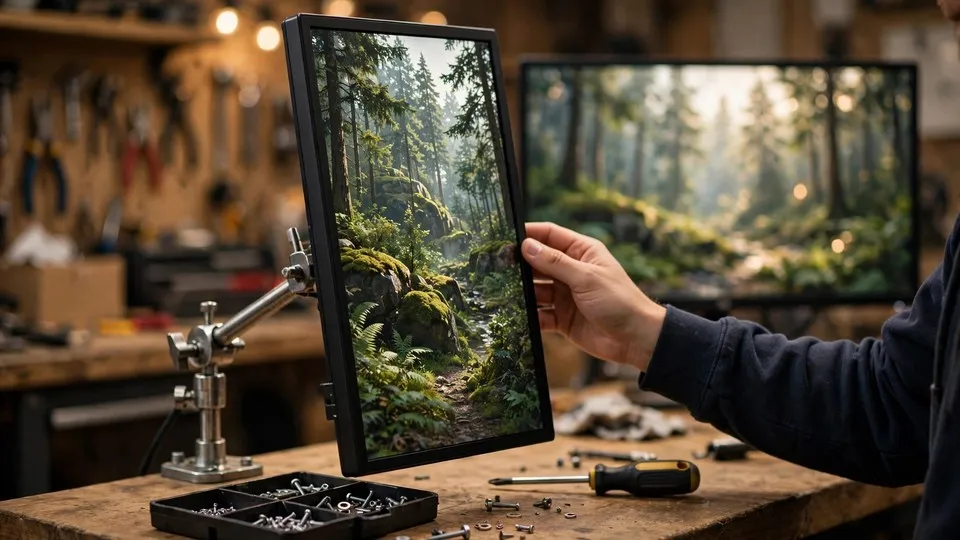
Your second monitor is turned upright, the desktop looks fine on it, but games and videos look stretched, blurry, or wrongly framed. Turn the monitor back to landscape and reopen the same game or video: if the picture is correct at once, the fault follows the direction; if it stays wrong, the fault sits in the game or the player.
The Shape of the Problem: Upright Screen, Wrong Picture Only in Games and Videos
Only one narrow pattern is diagnosed here, and the scope stops at its edges. The main screen is landscape and normal. The second screen is physically turned upright, and the Windows display orientation for it is set to portrait. The desktop on that upright screen looks normal: windows, the browser, and documents all read the right way up. But when a game or a video is opened on that upright screen, the picture is wrong. The picture can be stretched or squeezed, with circles turned into ovals and people widened. It can carry black bars in unexpected places. The text can look blurry. A game can refuse to open in full screen. A video can play sideways. The desktop is fine, and the content is not.
The shape is fixed by three requirements, and every one of them has to be present. First, the trigger is turning the second screen upright: the screen is physically portrait, and the system orientation is set to portrait. Second, the fault shows up only in games and videos on that upright screen, while the desktop on the same screen looks normal. Third, the same game or the same video looks right on the landscape main screen, so the content itself is not obviously broken. The comparison runs between the two screens, using identical material on the one computer.
Seeing the split matters, because most readers start by treating "the picture looks wrong" as a single fault. It is not one fault. Four separate variables decide what the picture looks like on an upright screen: the display orientation, the resolution, the aspect ratio, and the scaling percentage. One variable wrong produces a wholly different kind of wrong picture from another variable wrong, and the tests in this article pull them apart one at a time. The question this article answers is not "why does the picture look wrong" in general. It is "which of the four variables, or which layer above them, is making this particular picture wrong" — and the answer can sit in the system direction, in the aspect ratio or scaling, in the game or the player, in the coordination between the two screens, or in the monitor itself. Each of those answers calls for its own test, and the rotate-back-to-landscape test is the one that pulls the first of them apart from all the rest.
A game landing on the wrong screen belongs outside this shape as well. A title that opens on the second screen when the owner wanted it on the main screen, and runs perfectly well on the screen it opened on, is a screen-choice problem, not a picture problem. This article covers the reverse shape: the game is on the right screen, the screen it was meant to be on, and the picture itself is wrong. The tests here compare two states — portrait against landscape, one presentation mode against another, one screen alone against two screens together — because a fault tied to a direction is found by altering one variable at a time and watching whether the picture moves back to correct.
One more limit is worth stating before any test runs. Aspect-ratio black bars as a topic on their own are not taught here. One move is taken from that topic — reading whether the black bars sit beside a picture with a correct shape — and nothing more. Display scaling as a topic on its own is not taught here. One move is taken — the per-screen scaling test — and nothing more. How a game picks a screen is not taught here. One move is taken — the presentation-mode test — and nothing more. Only single moves are used from nearby topics; the topics themselves stay out of scope.
Why an Upright Screen Makes Games and Videos Specially Likely to Go Wrong
Four variables decide the picture on an upright screen, and they must stay apart, since they are four separate things. Orientation decides how the desktop is rotated: portrait or landscape. Resolution decides how many pixels there are, for example 1080 by 1920 against 1920 by 1080. Aspect ratio decides the shape of the picture: 16:9 against 9:16. Scaling decides how large interface elements are drawn, and it does not alter the number of pixels. One variable wrong produces one kind of wrong picture: the orientation wrong, and the whole desktop is rotated; the resolution wrong, and the picture is blurry; the aspect ratio wrong, and circles become ovals; the scaling wrong, and text sizes disagree between screens. Diagnosing the picture means testing each variable on its own, and never altering all four at once.
Most games are designed for a landscape picture. Their in-game resolution options, their presentation modes, and their interface layouts are all built around a 16:9 frame. When such a game opens full screen on a portrait second screen, several outcomes are possible, and which one appears depends on the game itself. The game can open full screen at the portrait resolution, but lay its interface out as if the screen were landscape, so the interface is misplaced or cut off. The game can insist on a landscape resolution, and the system then has to place that landscape picture inside a portrait screen, leaving large black bars. The game can force the landscape picture to fill the portrait screen by stretching it, so circles become ovals. Or the game can have no portrait resolution option at all, and simply refuse to open in full screen. No fixed statement is safe here: neither "a portrait screen always stretches" nor "a portrait screen always leaves black bars" is true for every game. The outcome must be shown by a test in that game, on that screen.
Videos carry a second layer of their own. A video file can carry rotation metadata — a clip recorded upright on a phone, for example — and the player may or may not read that metadata, and may handle it differently from another player. The same clip can therefore play correctly on the landscape main screen and sideways on the portrait second screen, and the fault can sit in the player layer rather than in the display-direction layer. The test is to play the same clip on the main screen and on the second screen, one after the other: correct on the main screen and sideways on the second screen points at the player or direction-coordination layer; sideways on both screens points at the video itself. Video-direction guides for capture and conversion cover this layer in their own right; only the one comparison is taken from them here.
Scaling adds a third complication, and it is the reason text on a portrait second screen is specially likely to look blurry. Windows allows a different scaling percentage for each screen. When the main screen and the second screen have different resolutions or different sizes, their scaling percentages disagree, and a window dragged from the main screen to the second screen changes size as it crosses. Some older programs do not handle per-screen scaling, and they look blurry on the second screen even though newer programs on the same screen look sharp. The portrait orientation itself does not make text blurry. Portrait orientation, plus different scaling, plus an older program, together, make blurriness more likely. The test pulls new programs apart from old ones: new programs sharp and old programs blurry on the second screen points at the application-scaling layer; every program blurry on the second screen points at the system scaling or non-native resolution layer. This layer uses the per-screen scaling mechanism from the guide for display scaling, and does not redo it.
Black bars need a passage of their own, because they are the symptom most often misread in this article. A 16:9 picture on a 9:16 portrait screen, kept at its original shape, must leave empty space at the sides, and the system fills that space with black bars. That filling is called pillarboxing, and it is the correct way to protect the shape of the picture. Treating the black bars as a fault pushes the reader towards stretching the picture to fill the screen, and stretching turns circles into ovals — a worse result. The bars on their own are not evidence. The evidence is the picture between the bars: if the shape in the middle is correct and the bars are present, the result is normal; if the shape is wrong and there are no bars, the picture has been stretched. The bars must be read together with the shape, never on their own.
The Five Tests That Narrow It Down
The diagnosis runs on five comparisons, each with two possible outcomes, run one after another: each outcome cuts down what the next comparison still has to tell apart, and the rotate-back-to-landscape comparison is the most telling check in the piece. It does not depend on how large or small any one setting is. It turns only on what shifts when one variable shifts, using identical material on the one computer.
The first comparison is the rotate-back-to-landscape one, and it carries the most weight in this piece. Change the second screen's Windows display orientation back to landscape, then open the same game or the same video again. A picture that is right at once puts the fault with the direction, and the diagnosis stays in the direction or scaling layer. A picture that stays wrong in landscape does not follow the direction, and attention shifts to the game settings, the video itself, or the monitor. The strength here is that only one thing changes — the direction — while everything else stays as it was. Rotating back to landscape in this way is a check, not advice to give up using the screen upright. Once the check is done, the screen goes back to portrait, and the scaling and presentation-mode layers are tuned one at a time while it stands upright.
The second comparison sets the desktop against the content. When the desktop, the browser, and documents on the second screen all look right and only games and videos look wrong, the fault is in the application layer — the in-game resolution or presentation mode, the video rotation metadata, the player scaling. When the desktop itself on the second screen looks wrong — blurry text, odd icon sizes, the whole desktop stretched — the fault is in the system direction or scaling layer. This comparison picks which path the diagnosis follows, and skipping it is not an option, because the two paths call for different checks afterwards.
The third test is the shape of the wrongness, and it has three distinct outcomes that must be noted separately. Circles turned into ovals, people widened, and text stretched sideways means the stretching layer: a 16:9 source is being forced to fill a 9:16 screen. Text blurry while the shape is correct — circles still circles — means the scaling or non-native-resolution layer. Black bars with a correct shape in the middle means the pillarboxing layer, and that is a normal result, not a fault. The three appearances must not be lumped together under "the picture looks wrong", because each one leads to its own layer.
The fourth test is the presentation-mode comparison. The same game is tried in each of its presentation modes on the second screen: exclusive full-screen on its own, then a borderless windowed run, then a plain window run. Wrong only in exclusive full-screen, and normal in windowed modes, points at the presentation-mode layer: exclusive full-screen binds to one output mode and may not handle a portrait screen. Wrong in all three modes points at the direction or scaling layer instead. This test uses the presentation-mode mechanism from the guide for a game opening on the wrong screen, and does not redo that guide.
The fifth test is the single-screen comparison. With Win plus P, only the second screen is switched on, and the same game or video is opened again. Wrong on the single screen too means the second screen's direction or settings layer. Correct on the single screen, and wrong only when both screens are on, means the multi-monitor coordination layer: the two screens' scaling disagreeing, or the desktop composition following one screen rather than the other. The single-screen test pulls those two apart, and no other test in this article can.
| Test | What is compared | Result pointing at the direction or scaling layer | Result pointing at the content, game, or monitor |
|---|---|---|---|
| Rotate back to landscape | Same content reopened with the second screen in landscape | Picture correct straight away; the fault follows the direction | Still wrong in landscape; the fault does not follow the direction |
| Desktop against content | Desktop and browser on the second screen | Desktop itself wrong; system direction or scaling layer | Desktop normal, only the game or video wrong; application layer |
| Shape of the wrongness | Circles, text, and bars noted separately | Circles turned into ovals; stretching layer | Black bars with a correct shape in the middle; normal pillarboxing, not a fault |
| Presentation mode | Exclusive full-screen on its own, then borderless windowed, then plain window | Wrong only in exclusive full-screen; presentation-mode layer | Wrong in all three modes; direction or scaling layer |
| Single screen | Win plus P, second screen only | Wrong on the single screen too; second-screen direction or settings layer | Correct on the single screen, wrong only with both screens on; multi-monitor coordination layer |
Why Orientation, Resolution, Aspect Ratio, and Scaling Must Be Tested Separately
Orientation, resolution, aspect ratio, and scaling are four independent things, and lumping them into a single setting is the error this diagnosis meets most often. Orientation sets how the desktop is rotated. Resolution sets how many pixels there are. Aspect ratio sets the shape of the picture. Scaling sets how large interface elements are drawn, without changing the number of pixels. Change all four together and then see an improvement, and the check has shown nothing, because nothing says which change mattered. The working rule here is a single variable per change, a fresh check after each one, and a written note of what each check showed.
Scaling needs a closer look of its own, since it is the setting people mix up with resolution most often. Scaling does not alter the number of pixels. It alters the size at which interface elements are drawn. A non-native resolution, by contrast, does alter the pixels, and that is what makes a picture blurry: the screen must stretch a smaller image across more pixels than the image contains. The two faults look similar — both can make text look soft — and they are pulled apart by the shape test: a scaling fault leaves circles as circles and alters sizes, while a non-native resolution blurs the whole picture. Running the per-screen scaling comparison separates them: set each screen's scaling on its own, and watch whether the text on the second screen turns sharp while the shape stays correct.
The graphics card scaling mode is a further setting that must be checked on its own. A scaling mode set to full-screen stretching forces a 16:9 source to fill a 9:16 screen, and the result is ovals and widened people. Altering that mode to preserve the aspect ratio restores the correct shape, and the black bars return — which is the correct result, not a fault left behind. The mode is a choice between two trade-offs, not a repair: stretching keeps the whole picture but distorts it, while preserving the shape keeps the picture correct but leaves bars. Neither choice is a fix for the other, and this article does not present one of them as the repair.
The same caution about mechanism applies to the multi-monitor coordination layer. With both screens switched on, the desktop composition tracks one screen's timing, and windows dragged across screens can change size as the scaling changes. Windows has published no document saying, for every case, which screen the composition tracks when a window moves across screens. So no mechanism is stated here as fact. All that is stated is what the single-screen check shows: right on the single screen and wrong only with both screens on points at the coordination layer, and the check result itself is the evidence, not any claimed mechanism.
Five Layers the Fault Can Sit In
Every instance of games and videos looking wrong on an upright second screen belongs with one of the five layers below. Those layers are ordered the way the evidence most often leans, but the ordering proves nothing: a layer earns its name only after a check has backed it or ruled it out. The sources disagree about which layer turns up most often, so none of them is ranked here. Each layer lists the signs that would point at it; the evidence is what decides.
| Layer | What it means | Evidence that points at it |
|---|---|---|
| Opening layer: system direction layer | Windows display orientation set wrong for the second screen, the orientation not applied, or the screen arrangement not matching the physical layout | Rotate-back-to-landscape test correct straight away; the desktop itself on the second screen is rotated wrong |
| Next layer: aspect-ratio and scaling layer | A 16:9 source forced to fill a 9:16 screen, the graphics scaling mode set to full-screen stretching, or a non-native resolution | Circles turned into ovals, people widened; altering the graphics scaling mode to preserve the aspect ratio restores the correct shape, with black bars left behind as the correct result |
| Middle layer: application layer | In-game resolution or presentation mode that does not handle portrait, video rotation metadata, player scaling, or an older program that does not handle per-screen scaling | Desktop normal, only one game or one player wrong; altering the presentation mode alters the result |
| Fourth layer: multi-monitor coordination layer | Main and second screen scaling disagreeing, desktop composition following one screen, or the two screens running different refresh rates | Single-screen test normal, wrong only with both screens on; a window altering size as it is dragged from the main screen to the second |
| Last layer: monitor itself layer | Second-screen on-screen-display picture mode forcing a wide picture, the monitor not supporting a portrait presentation mode, or the cable or interface lacking the bandwidth for a high portrait resolution | Still wrong after turning back to landscape; a different monitor as the second screen works straight away; the on-screen display shows a non-native mode |
The opening layer is the system direction layer, and it comes first in the list because a direction error makes every layer below it wrong. The Windows display orientation for the second screen can be set to landscape while the screen is physically upright, or to portrait while the screen is physically landscape. The orientation setting can also fail to apply, or the arrangement of the screens in the display settings can disagree with the physical layout. The evidence is the rotate-back-to-landscape test correcting the picture straight away, and the desktop itself on the second screen being rotated wrong. Direction is the first thing to confirm, because no test below it means anything while the direction is wrong.
The next layer is the aspect-ratio and scaling layer. A 16:9 source on a 9:16 portrait screen, forced to fill the screen, stretches: circles become ovals and people widen. A graphics scaling mode set to full-screen stretching does the same. A non-native resolution blurs the picture instead of stretching it. The evidence is the shape test: ovals and widened people point at stretching, while blurriness with a correct shape points at scaling or a non-native resolution. Altering the graphics scaling mode to preserve the aspect ratio, and watching the shape return to correct with the black bars left behind, confirms the layer — and the bars left behind are the correct result, not a fault. Aspect-ratio black bars and display scaling each have their own guides; only the scaling-mode comparison is taken from them here, and their diagnosis is not repeated.
The middle layer is the application layer. A game's in-game resolution or presentation mode may not handle portrait at all. A video's rotation metadata may be read by one player and ignored by another. A player may apply its own scaling. An older program may not handle per-screen scaling, and may look blurry on the second screen while newer programs on the same screen look sharp. The evidence is that the desktop is normal and only one game or one player is wrong, and that altering the presentation mode — exclusive full-screen play set against borderless windowed play set against plain window play — alters the result. This layer is where the game or the player must be tested on its own terms, one application at a time, rather than by altering system settings.
Fourth comes the multi-monitor coordination layer. The main and second screens can hold different scaling percentages, and a window pulled from one to the other changes size as it crosses. The desktop composition may track one screen instead of the other. The two screens may run at different refresh rates. The single-screen check is the evidence here: right on the single screen, and wrong only when both screens are on. Dual-screen refresh-rate differences and a game opening on the wrong screen each have their own guides; only the single-screen comparison is taken from them here, and their coordination work is not repeated.
The last layer is the monitor itself layer, and it is checked last, not first. The second screen's on-screen-display picture mode can force a wide picture. The monitor itself may not support a portrait presentation mode. The cable or interface may lack the bandwidth to drive a high portrait resolution. The evidence is that the picture stays wrong after turning back to landscape, that a different monitor as the second screen works straight away, or that the on-screen display shows a non-native mode. A monitor must never be suspected first: the direction, the scaling, the application, and the coordination layers all must be excluded before the monitor itself is blamed.
Seven Checks, in Order
Work through the seven checks in the sequence printed. Each check returns an outcome that selects the check after it. Jumping ahead to the monitor's own menu, or to a registry tweak found online, ahead of the first three checks normally squanders the attempt: with no pinned piece of content, no desktop check, and no rotate-back-to-landscape check, a later change shows nothing, even when the picture shifts.
| Check | What to do | How to read the result |
|---|---|---|
| Check 1 | Pin the content and note the baseline: which game or video, which presentation mode, which resolution; how the same content looks on the main screen; photograph the second screen showing whether circles became ovals, whether there are black bars, or whether the text is blurry | Without a pinned piece of content, no later test means anything; an impression from memory is not a record |
| Check 2 | Run the desktop test: look at the desktop and the browser on the second screen | Normal means the application layer; wrong means the system direction or scaling layer |
| Check 3 | Run the rotate-back-to-landscape test, the deciding check: turn the second screen back to landscape and reopen the same content | Correct straight away means the direction or scaling layer — stop here; still wrong means move on |
| Check 4 | Sort the shape: circles turned into ovals means the stretching layer; text blurry with a correct shape means the scaling or non-native-resolution layer; black bars with a correct shape means normal pillarboxing, not a fault; content cut off at the edges means a cropping or overscan layer | Each appearance leads to its own layer, and they must not be lumped together |
| Check 5 | Run the presentation-mode test: try the same game in exclusive full-screen on its own, then borderless windowed, then plain window, on the second screen | Wrong only in exclusive full-screen means the presentation-mode layer; note which mode is normal and which is wrong |
| Check 6 | Run the single-screen test: with Win plus P, switch on only the second screen and reopen the same content | Correct on the single screen and wrong only with both screens on means the multi-monitor coordination layer; wrong on the single screen too means the second-screen direction or settings layer |
| Check 7 | Stop line: the seven checks are done, the content on the second screen is still wrong in shape, still stretched, or still cannot open in full screen, and turning back to landscape does not improve it | Bring the records — the orientation setting, the resolution, the scaling percentage, the game presentation mode, and the photographs — for in-store inspection; do not try on-screen-display options one by one at random, and do not edit the registry from an online tip |
The opening check lays the foundation for everything after it, and it runs before any check does. Fix the material first: which game or which video, which presentation mode, which resolution. View that same material on the main screen first, and record whether it is right there or wrong there too. Take a photograph of the second screen, so the record captures whether circles became ovals, whether black bars are present, or whether the text is blurry. Never describe the picture from memory. A photograph counts as a record; an impression does not. The baseline is the yardstick for all the checks after it. Without one, a later picture cannot be called a change or no change at all, because there is nothing to measure it against.
The second check is the desktop check, and it runs ahead of the rotate-back check with good reason: it settles which path the diagnosis follows. The desktop and the browser are examined on the second screen. If they look right, the fault is in the application layer, and attention turns to the game and the player. If the desktop itself looks wrong — blurry text, odd icon sizes, the whole desktop stretched — the fault is in the system direction or scaling layer, and attention turns to the orientation and the scaling settings. The two paths call for different checks, and this fork cannot be skipped.
The third check is the rotate-back-to-landscape check, and it settles the question for this piece. Switch the second screen back to landscape in the Windows display orientation setting, then reopen the same game or the same video. A picture that is right at once points to the direction or scaling layer, and the diagnosis ends at this check. A picture that stays wrong does not follow the direction, and the diagnosis goes on to the fourth check. Once the check is done, the screen returns to portrait. Rotating back to landscape is only a check. It is not an instruction to give up using the screen upright, and it must not be read as one.
The fourth check is the shape sort. Circles turned into ovals means the stretching layer. Text blurry with a correct shape means the scaling or non-native-resolution layer. Black bars with a correct shape in the middle means normal pillarboxing, and that is not a fault. Content cut off at the edges means a cropping or overscan layer. The four appearances lead to four different layers, and they must be noted separately. Lumping them together under "the picture looks wrong" pushes the diagnosis down the wrong road, because the test for stretching is not the test for blurriness, and the test for blurriness is not the test for black bars.
The fifth check is the presentation-mode test. The same game is tried in exclusive full-screen on its own, then borderless windowed, then plain window, on the second screen, one mode at a time. Which mode is normal and which mode is wrong is noted. Wrong only in exclusive full-screen means the presentation-mode layer: exclusive full-screen binds to one output mode and may not handle a portrait screen. Wrong in all three modes means the direction or scaling layer instead. The mode that works is noted down as evidence, rather than kept as a lasting fix before the layer behind it is understood.
The sixth check is the single-screen test. With Win plus P, only the second screen is switched on, and the same game or video is opened again. Correct on the single screen, and wrong only when both screens are on, means the multi-monitor coordination layer. Wrong on the single screen too means the second-screen direction or settings layer. The two outcomes lead in opposite directions, and only this test can pull them apart.
Check seven is where testing ends. All seven checks have run, the material on the second screen is still wrong in shape, still stretched, or still will not open in full screen, and rotating back to landscape has not helped. That is the moment to stop and carry the records in for inspection: the orientation setting, the resolution, the scaling percentage, the game presentation mode, and the photographs from the opening check. Leave the on-screen-display options alone rather than trying them one by one, and leave the registry alone rather than editing it from an online tip. Random tries pile up changes without adding knowledge, and afterwards nobody can say which change mattered.
Six Wrong Ideas That Mislead
Wrong idea one: black bars mean the screen is broken. This is wrong. A 16:9 picture on a 9:16 portrait screen, kept at its original shape, must leave empty space at the sides, and the system fills that space with black bars. That filling is pillarboxing, and it is the correct way to protect the shape of the picture. Black bars on their own are not evidence. The evidence is the picture between the bars: if the shape in the middle is correct and the bars are present, the result is normal.
Wrong idea two: stretching the picture to fill the screen fixes it. This is wrong. Stretching turns circles into ovals and widens people. It is a trade-off, not a repair: the whole picture is kept, but its shape is distorted. A correct shape is the accurate result, and filling the screen is not. The choice between stretching and preserving the shape is a choice between two trade-offs, and neither one is a fix for the other.
Wrong idea three: a portrait second screen is unsuitable for gaming. This is wrong. The direction itself is not a fault. The problem sits in how the game or the content handles the portrait direction, not in the act of turning the screen upright. Some games handle portrait well, some handle it badly, and some do not handle it at all — and which one applies must be shown by the presentation-mode test in that game, not assumed from the direction alone.
Wrong idea four: blurry text proves the monitor has failed. This is wrong. Blurry text is most often a scaling, non-native-resolution, or older-program fault: the scaling percentages disagree between screens, the resolution is not the native one, or an older program does not handle per-screen scaling. The check separates new programs from old ones, and the desktop from individual programs. A monitor is the last layer to suspect, not the first.
Wrong idea five: turning back to landscape and seeing a correct picture means the screen can never be used upright again. This is wrong. Turning back to landscape is a test only. It proves that the fault follows the direction. After the test, the screen is turned back to portrait, and the scaling and presentation-mode layers are adjusted one at a time in the upright position. Abandoning the upright position because one test used landscape would throw away the test's own conclusion.
Wrong idea six: a game landing on the wrong screen comes from portrait mode. This is wrong. A game going to the wrong screen is a screen-choice matter: the main display setting, the in-game screen choice, the presentation mode, or the window memory. This article covers a game on the right screen whose picture itself is wrong. The two shapes have a second screen in common and little else, and their checks head in different directions.
Outcome Table: What Each Result Means
Read the table that follows as a recap of the checks. Each row starts with something observable — a shape, a mode, a screen count — and ends with the layer the outcome points to. It comes after the seven checks, to double-check the diagnosis, and it supports them rather than replacing them.
| Outcome observed | Layer indicated | Next move |
|---|---|---|
| Turning back to landscape corrects the picture straight away | Opening layer: system direction layer, or next layer: aspect-ratio and scaling layer | Turn the screen back to portrait and adjust the scaling and presentation mode one at a time |
| Picture still wrong in landscape | Content, game, or monitor layer | Check the game settings, the video itself, and the monitor |
| Desktop normal, only the game or video wrong | Middle layer: application layer | Test the presentation mode and the player, one application at a time |
| Desktop itself wrong on the second screen | Opening or next layer: system direction or scaling | Check the orientation setting, then the per-screen scaling |
| Circles turned into ovals, people widened | Next layer: aspect-ratio and scaling layer | Alter the graphics scaling mode to preserve the aspect ratio as a test |
| Black bars with a correct shape in the middle | Normal pillarboxing, not a fault | No action; the bars protect the shape of the picture |
| Text blurry with a correct shape | Scaling or non-native-resolution layer | Check the per-screen scaling and whether the resolution is the native one |
| Wrong only in exclusive full-screen | Presentation-mode layer | Note the mode result; the fault sits in how the game handles full screen on a portrait screen |
| Correct on the single screen, wrong only with both screens on | Fourth layer: multi-monitor coordination layer | Check the scaling disagreement between the two screens |
| Still wrong once all seven checks are done, landscape included | Last layer: monitor itself layer | End testing and carry the records in for inspection |
Give the final two rows a close look, because they pin down what each check can and cannot show. A picture that is correct on the single screen and wrong only with both screens on proves that the coordination between the screens is involved — but it does not prove which screen the desktop composition follows, because Windows publishes no document that states that mechanism for every case. The test result is the evidence, not a claimed mechanism. A picture that stays wrong after all seven checks, including in landscape, proves that the direction is not the cause — but it does not prove that the monitor is broken, because the game settings and the video itself have still to be excluded by the records the reader brings.
Where the Sources Disagree
The sources this piece draws on do not agree, and the points where they part company need plain statement rather than smoothing over. The opening split is about black bars. Published guides on aspect ratios and scaling describe black bars as a correct result that protects the shape of the picture. The instinct of most owners is the opposite: bars mean something is broken. This article follows the published reading. Black bars on their own are not evidence. The evidence is the picture between the bars, and a correct shape with bars is a normal result.
The second split is about stretching against cropping. Both are trade-offs, and neither is a repair. Stretching keeps the whole picture but distorts its shape. Cropping keeps the shape correct but cuts part of the picture away. No source consulted here states that one of them is the repair for the other. This article writes the choice as a choice between two trade-offs, and does not present either one as the fix.
The third split is about whether per-screen scaling is a repair or a test. One published guide on dual-monitor scaling presents setting the scaling per screen as a repair. The position taken in this article is different: setting the scaling per screen and watching the text turn sharp proves that the fault sits in the scaling layer. It does not prove that the text will never blur again, because an older program that does not handle per-screen scaling can still blur on the same screen. The change is a test, and its result is the evidence.
The fourth split is about whether a portrait screen is suitable for gaming at all. No single authoritative guide states how a portrait screen should be set up for games, because each game handles portrait differently. The approach here is put together from three general sets of practice — aspect-ratio handling, scaling handling, and presentation-mode handling — and this article states that plainly rather than presenting the approach as if it came from one authority. The approach must be tested game by game, with the presentation-mode test, because no general statement covers every game.
Patterns That Belong Elsewhere
The table that follows gathers lookalikes: shapes close to this one that sit with other guides. Each row sets out the shape, which guide covers it, and why it falls outside this piece. The table serves the diagnosis: when what you see lines up with a row here better than it lines up with the opening section's shape, the right guide is a different one — switch to it.
| Shape | The guide that covers it | Why it sits outside this article |
|---|---|---|
| Game always opens on the wrong screen, and runs well on the screen it opened on | #436, game screen choice | The premise is the wrong screen, not a wrong picture on the right screen |
| Main screen stutters while the second screen plays a video | #240, dual-screen composition | The premise is a stutter on the main screen, not a wrong picture on the portrait screen |
| Windows move position after waking from sleep or after reconnecting a screen | #267, wake and reconnection window movement | The trigger is waking or reconnecting, not turning a screen upright |
| Black bars as the topic itself, on any screen | #329, aspect-ratio black bars | This article uses only the shape test — bars with a correct shape — and does not redo black-bar diagnosis |
| Blurry text from display scaling as the topic itself | #242, display scaling | This article uses only the per-screen scaling test, and does not redo scaling diagnosis |
| Blurry picture from a non-native resolution as the topic itself | #174, non-native resolution | This article uses only the shape test that pulls blurriness apart from stretching |
| Dual screens running different refresh rates | #240 and #138, dual-screen refresh and power | The premise is a refresh-rate difference, not a portrait direction |
| Copy mode pulling the main screen down to the second screen's settings | #269, display duplication | The premise is duplication, not an extended portrait second screen |
| A phone-recorded video sideways on every screen, including the main screen | Video itself or player layer | The premise is the video's own direction, not the display direction |
| Main display switching itself between screens | #477, main-display switching | The premise is the main display changing, not a portrait picture fault |
| Portrait second screen used only for documents, code, and web pages, and working normally | Not a fault | This article covers only games and videos looking wrong on the portrait screen |
Two rows in that table are worth a closer look, because these are the rows most often mistaken for this pattern. The first is the game opening on the wrong screen. A game that opens on the second screen when the owner wanted it on the main screen, and runs perfectly well there, is a screen-choice problem with four deciding positions. The picture itself is fine. This article covers the reverse shape: the game is on the right screen, and the picture itself is wrong. The second is the black-bar topic. Black bars as a topic in their own right, on any screen, sit with the aspect-ratio guide. This article uses only one move from that topic — reading whether the bars sit beside a picture with a correct shape — and the bars themselves are not the fault being diagnosed here.
When to Stop Testing
Call a halt once the seven checks have pointed at no layer. A piece of content pinned to one clip, checked on the desktop, turned back to landscape and reopened, sorted by shape, tried in three presentation modes, and tried on one screen alone — and still giving no clear answer — has yielded everything the home checks can yield. Going further from that point is guesswork, and guesswork spent on the monitor's own menu, which was never at fault, only clouds the diagnosis. Return the screen to portrait before you stop, leaving the machine in a known state.
Stop when the picture is still wrong in shape, still stretched, or still will not open in full screen once all seven checks are done, and rotating back to landscape has not helped. That pairing answers the question on its own: the home checks have cleared the direction layer, the scaling layer, the application layer, and the coordination layer, and what is left sits outside what the home checks can separate. Stop too when one setting has been changed and nothing moved, and a second setting has been changed and nothing moved either. Two tried changes with an unmoved outcome answer the question on their own: those settings do not control the layer. A third, fourth, and fifth change in a row adds nothing. Any inspection then has to start by undoing that list, from a known state.
Halt at once, and run no further checks, when a new symptom appears mid-testing: the screen goes black, the picture corrupts, the machine restarts, or the monitor reports no signal. Those symptoms sit with a different family of guides, and pressing on with display checks while those symptoms are showing can turn a check into a repair job. Write down the new symptom, when it appeared, and which check was running, and carry that note along. That note belongs with the evidence, and it outweighs every list of changed settings.
Hold on to the baseline notes and the photographs once testing ends. The orientation setting, the resolution, the scaling percentage, the game presentation mode, and the photographs of the second screen, taken before and after each check, together outweigh any one of them taken alone. Those notes open every inspection, which is why the opening check asks for the material to be fixed and photographed before any check runs.
What to Bring for Inspection
Take the records from the seven checks with you: the pinned content and how it looked on the main screen; whether the desktop on the second screen looked normal; the result of the rotate-back-to-landscape test; the shape sort — whether circles became ovals, whether the text was blurry, whether there were black bars, or whether content was cut off; which presentation modes were normal and which were wrong; the result of the single-screen test; and the orientation setting, the resolution, and the scaling percentage for each screen.
Carry the photographs from the opening check, because the shape of the wrongness counts as evidence, and a description from memory is no record at all. Carry the game name and the player name, the presentation mode in use, and the monitor model, because the pairing counts as evidence too. Leave the settings as they stand now, with the screen turned back to portrait and every check setting restored, and leave behind any record of settings that were altered and then put back. What matters as evidence is the settings as they stand plus the seven check outcomes. The history of changes matters only where a change altered the picture; such a change names the layer.
For inspection, HK GPU Fix is at Dali Plaza 1209, Shek Mun. The phone number is 2186 8010 and WhatsApp is 6558 6806. The published inspection fee range is HK$400 to HK$2,800, and no price is estimated before inspection. There is no Mong Kok shop and no on-site service.
Frequently Asked Questions
My second monitor is turned upright and games look stretched. Is the monitor broken?
Almost certainly not. Stretching means a 16:9 source is being forced to fill a 9:16 screen, or the graphics scaling mode is set to full-screen stretching. The test is the rotate-back-to-landscape comparison: turn the second screen back to landscape and reopen the same game. If the picture is correct straight away, the fault follows the direction, and the monitor itself is fine. Check the shape next — circles turned into ovals means stretching — and alter the graphics scaling mode to preserve the aspect ratio as a test. The black bars that return are the correct result, not a fault.
There are black bars on my portrait screen. Is that a fault?
Not on its own. A 16:9 picture on a 9:16 portrait screen, kept at its original shape, must leave empty space at the sides, and the system fills that space with black bars. That filling is pillarboxing, and it is the correct way to protect the shape of the picture. Look at the picture between the bars: if the shape in the middle is correct and the bars are present, the result is normal. If the shape is wrong and there are no bars, the picture has been stretched. Black bars on their own are not evidence, and stretching the picture to remove them turns circles into ovals.
The desktop looks fine on my portrait screen, but games look wrong. What does that mean?
It points at the application layer: the desktop, the browser, and documents look normal, so the orientation and the scaling are working, and the game or the player is the part that does not handle the portrait screen — the in-game resolution or presentation mode, the video rotation metadata, or the player's own scaling. Try the same game in exclusive full-screen mode on its own, then borderless windowed mode, then plain window mode, one mode at a time, and note which mode is normal and which is wrong. When exclusive full-screen alone is wrong, the presentation-mode layer is where the fault sits.
Should I just stretch the picture to fill the portrait screen?
No. Stretching is a trade-off, not a repair. It keeps the whole picture on screen, but it distorts the shape: circles become ovals and people widen. A correct shape is the accurate result, and filling the screen is not. The choice between stretching and preserving the shape is a choice between two trade-offs — stretching keeps the whole picture but distorts it, while preserving the shape keeps the picture correct but leaves black bars. Neither one is a fix for the other, and this article does not present either as the repair.
My game will not open in full screen on the portrait monitor. Is portrait unsuitable for gaming?
Not as a general rule. The direction itself is not a fault. Some games handle portrait well, some handle it badly, and some have no portrait resolution option at all and refuse to open in full screen — and which one applies must be shown by the presentation-mode test in that game, not assumed from the direction alone. Try the same game in exclusive full-screen on its own, then borderless windowed, then plain window, on the second screen. If a windowed mode works and exclusive full-screen does not, the fault sits in how the game handles full screen on a portrait screen, and that is a presentation-mode layer result, not a verdict on portrait screens.
Text is blurry on my portrait second screen. Does that mean the screen is faulty?
Most often it means a scaling, non-native-resolution, or older-program fault, not a broken screen. Windows allows a different scaling percentage for each screen, and an older program that does not handle per-screen scaling can look blurry on the second screen while newer programs on the same screen look sharp. Check whether new programs are sharp and old programs are blurry — that points at the application-scaling layer — or whether every program is blurry, which points at the system scaling or non-native-resolution layer. Check the per-screen scaling percentages and whether the resolution is the native one. The monitor itself is the last layer to suspect, not the first.
The picture is correct when only the second screen is on, but wrong when both screens are on. What does that prove?
It proves that the multi-monitor coordination layer is involved. With Win plus P, switch on only the second screen and reopen the same game or video: correct on the single screen, and wrong only with both screens on, means the fault sits in the coordination between the two screens — their scaling percentages disagreeing, or the desktop composition following one screen rather than the other. It does not prove which screen the composition follows, because Windows publishes no document that states that mechanism for every case. The test result is the evidence, and the next move is to check the scaling percentage on each screen separately.
A video plays sideways on my portrait screen but fine on the main screen. Is the display direction wrong?
Not necessarily. A video file can carry rotation metadata, and the player may or may not read it, so the same clip can play correctly on the landscape main screen and sideways on the portrait second screen. Play the same clip on the main screen and on the second screen, one after the other: correct on the main screen and sideways on the second screen points at the player or direction-coordination layer; sideways on both screens points at the video itself. The display direction is only one of the layers, and the two-screen test is the check that pulls it apart from the player.
I turned the screen back to landscape and the picture is correct. Does that mean I can never use it upright again?
No. Turning back to landscape is a test only. It proves that the fault follows the direction. After the test, turn the screen back to portrait, and adjust the scaling and presentation-mode layers one at a time in the upright position. Abandoning the upright position because one test used landscape would throw away the test's own conclusion. The rotate-back test names the layer; it does not prescribe the permanent setup.
At what point do I stop testing and arrange an inspection?
Stop once all seven checks are done, the material on the second screen is still wrong in shape, still stretched, or still will not open in full screen, and rotating back to landscape has not helped. Take the records from the seven checks: the pinned content and how it looked on the main screen, whether the desktop looked normal, the rotate-back-to-landscape result, the shape sort, which presentation modes were normal and which were wrong, the single-screen test result, and the orientation setting, resolution, and scaling percentage for each screen — together with the photographs from the opening check, the game and player names, the presentation mode in use, and the monitor model. Those records, with the settings as they stand now, are what an inspection builds on.
Sources
The list below names the sources this article drew on. Repair guides are used here for how the mechanism works and how the test runs, not as advice, and any figures they give are quoted as their claims wherever the text says so.
- umatechnology.org, "Fix Black Bars and Cut-Off Screen Content" — http://umatechnology.org/how-to-fix-black-bars-and-cut-off-content-on-a-non-standard-aspect-ratio-screen/ — black bars are most often a scaling decision, not a broken panel; a 16:9 picture on a differently shaped screen needs bars to keep its shape; stretching distorts the picture and cropping cuts it; the layer at fault must be identified before anything is altered.
- yanxundisplay.com, "How to Change Monitor Aspect Ratio & Fix a Stretched Screen" — https://yanxundisplay.com/blog/how-to-change-monitor-aspect-ratio — stretching comes from the source resolution, the graphics scaling mode, and the display ratio disagreeing across three layers; a wrong direction usually rotates the whole desktop rather than stretching it; the graphics scaling mode should be set to preserve the aspect ratio.
- sekin.in, "How to Adjust Desktop Size and Position in Windows 11/10" — https://sekin.in/how-to-adjust-desktop-size-and-position-in-windows-11-10/ — scaling does not alter the number of pixels, it only alters the size at which elements are drawn; a non-native resolution is what makes a picture blurry; multiple screens must be arranged one by one.
- evezone.evetech.co.za, "How to Fix DPI Scaling Issues in Windows" — https://evezone.evetech.co.za/deep-dives/fix-dpi-scaling-dual-monitors-windows — two screens with different scaling make text blurry and icon sizes inconsistent; scaling must be set per screen; older programs need a separate high-DPI override.
- dosbox-staging.org, "Aspect ratios & scaling" — https://www.dosbox-staging.org/0.83/manual/graphics/rendering/aspect-ratios-and-scaling/ — pillarboxing is the correct result when the aspect ratios do not match; stretching breaks the shape; integer scaling also leaves black bars.
- ca.ktcplay.com, "16:9 on Ultrawide Monitors" — https://ca.ktcplay.com/blogs/support-tips/how-to-watch-16-9-content-on-ultrawide-monitor-without-stretching — the correct way to show 16:9 content on a wider screen is pillarboxing; forcing it to fill the screen widens faces and turns circles into ovals.
- itarian.com, "How to Change Window Screen Easily" — https://www.itarian.com/blog/how-to-change-window-screen/ — Windows display orientation covers landscape, portrait, and flipped variants; scaling and orientation are two independent settings.
A portrait second screen with a wrong picture in games and videos is not a verdict on the screen. Pin one piece of content, test the desktop against the content, turn the screen back to landscape once and reopen the same content, sort the shape, try the three presentation modes, and try the screen on its own. Those checks show whether the direction, the scaling, the game, the coordination between the screens, or the monitor is making the picture wrong — and they show it while the hardware is still untouched.