New Monitor Arrival Checklist: Dead Pixels, Backlight Bleed, Uniformity & Refresh Rate — Before the Return Window Closes
Key Takeaway
Run all seven checks in the first 48 hours after a monitor arrives, while the return window is open: a retail return and a manufacturer warranty claim are judged by different rules. This guide orders the seven checks by how likely each fault is to change your decision, and ends with three decisions: keep it, exchange it, or return it.
What This Guide Is — and What It Is Not
A new monitor has arrived. The box is open, the stand is assembled, the cable is in, and the screen lights up. Everything looks fine at first glance. The question is whether to spend twenty minutes checking it now, or to trust that first glance and discover a fault weeks later, when the only route left is a warranty claim.
This guide is about that decision, and about the window in which it has to be made. It is a checklist, not a diagnosis guide. Each of the seven checks below already has its own detailed guide on this site — dead pixels and backlight bleed, refresh rate, HDR, colour — and this guide does not repeat them. What it does, and what no other guide on this site does, is order the checks by how likely each fault is to change your decision, tie every check to one of three decisions, and put the whole exercise inside the return window, before that window closes.
Four conditions define the scope. First, the monitor is new — a new unit, bought from a shop or an online platform, not second-hand. A second-hand monitor is a different exercise, covered by the guide on buying used, where the questions are about the previous owner's use and the remaining warranty, not about a retail return window. Second, the monitor has just arrived and is still inside the return window. Third, you have the receipt or the shop's stated return terms, so you know when the window ends. Fourth, the reader is checking the monitor in order to decide — keep, exchange, or return — not in order to carry out a full repair diagnosis. Nothing in this guide opens the monitor, adjusts its internals, or attempts a fix. The only outcomes are keep, exchange, or return. This guide covers an LCD panel; the OLED note in the boundaries section applies: an OLED panel has no backlight, so the backlight-bleed check becomes a uniformity and colour check instead.
The Two Thresholds: Retail Return Is Not Manufacturer Warranty
Before any check is run, one distinction must be understood, because it is the reason the whole exercise is time-sensitive. A retail return and a manufacturer warranty claim are judged by different rules, and they are different thresholds.
Within the return window, a retailer generally accepts a return or an exchange for any reason, and the buyer does not have to prove the fault meets the manufacturer's defect threshold. The monitor can be returned because it has a dead pixel in the centre of the screen, because the backlight bleed is visible in dark scenes, or because the model simply does not do what the listing said it would do. The standard is the buyer's judgement, within the window the shop stated.
Once the window closes, only the manufacturer warranty remains, and the manufacturer applies its own policy thresholds. A warranty claim for dead pixels is judged against the manufacturer's dead-pixel policy for that model, and a single dead pixel may not meet it. A warranty claim for backlight bleed is judged against the manufacturer's own standard for that panel, and a level of bleed a buyer would happily return may not qualify for a warranty exchange. The fault has not changed. The standard it is judged against has, and the new standard is stricter.
That is why the checks must be done inside the window, and why a fault found after the window closes is a different problem from the same fault found inside it. "It has a fault" does not automatically mean "return it", and "it has a fault" does not automatically mean "the manufacturer will exchange it". The decision has to be made while both routes are still open, and the evidence for it has to be gathered while the monitor is still new.
Two numbers must never be written down as universal standards, because they are not. The first is the length of the return window: every shop and every platform states its own period, and the only correct figure is the one written on the receipt or in the terms of the shop the monitor was bought from. The second is the manufacturer's dead-pixel threshold: there is no universal count, and the only correct figure is the policy for that exact model, checked against the manufacturer's own documentation. Any guide that states a number of days, or a number of dead pixels, as a general rule is stating something that is not true in general. This guide states neither. It states where to find both figures, and it states the working rule that follows from them: run all seven Day 1 checks in the first 48 hours, so that the maximum time remains to act on what they find.
Before You Start: Five Preparations That Make the Checks Mean Something
The seven checks are only as good as the conditions under which they are run. Five preparations, done once before the first check, keep the results honest.
First, find the deadline. Read the receipt and the shop's stated return terms, and write down the last day of the window. That date is the spine of the whole exercise: every check is done before it, and the decision is made before it. If the terms are unclear, ask the shop before the window runs down, not after.
Second, use the cable that came with the monitor, connected directly to the computer, with no dock and no adapter in between. A cable or an adapter problem can imitate a panel problem — a refresh rate that will not rise, an HDR mode that misbehaves — and testing through an adapter means the result may be about the adapter, not the monitor. The included cable, direct, is the baseline. If a different cable is needed later, that is a separate test, after the baseline has been established.
Third, let the panel warm up. A backlight and a panel behave differently cold from warm, and a check run in the first minute can show things that disappear once the monitor has been on for a while, or miss things that only appear once it is warm. Let the monitor run for about fifteen to twenty minutes before the backlight and uniformity checks, and run the checks in that warmed state.
Fourth, test at the brightness and the seating position the monitor will actually be used at. Maximum brightness in a pitch-black room will make almost any panel look bad, and a judgement made under those conditions is a judgement about the test, not about the monitor. Normal working brightness, normal seating position, is the standard, because it is the condition the monitor will be watched under every day.
Fifth, photograph everything suspicious, at the time it is found. A full-screen solid-colour photograph for a dead pixel, a black-screen photograph at normal brightness for backlight bleed, a mid-grey full-screen photograph for uniformity, a screenshot of the settings page for refresh rate, a pair of photographs for HDR on and off, a gradient photograph for banding, and unboxing photographs before the monitor is first powered on. A photograph taken at the time is evidence. A description written days later, from memory, is not. Keep the receipt with the photographs, in the same place, until the decision is made.
The Seven Checks, in Order of Return Urgency
The seven checks below are ordered by how likely each fault is to change the decision, with the most decision-changing faults first. The order matters: a monitor with a dead pixel in the centre of the screen is a decision made, and the remaining checks are secondary. A monitor that passes the first three checks and fails only a minor one is a different decision. Work through them in order, and record the result of each one before moving on.
Check 1: Dead Pixels and Stuck Pixels — Full-Screen Solid Colours
Display a full-screen solid colour, one colour at a time: black, white, red, green, and blue. Look at the whole screen, slowly, in each colour. A dead pixel shows as a spot that stays dark on every background. A stuck pixel shows as a spot that stays one colour, or is missing one colour, on some backgrounds. The centre of the screen matters most: a fault in the central viewing area is seen constantly, in everything watched, while a fault at the far edge may rarely be noticed.
What result means return or exchange: a dead or stuck pixel in the central viewing area, or several scattered across the screen. What does not, on its own: a single faint spot at the far edge that is invisible in normal use — note it, photograph it, and weigh it with the other checks, but do not treat it as an automatic return. Before concluding a spot is a dead pixel, check that it is not dust or a speck on the surface: a speck that moves when the screen is wiped is not a panel fault, and a static charge on the manufacturer's protective film can hold dust that looks like a defect. Photograph the result: the full-screen solid colour, with the position of the spot visible.
Check 2: Backlight Bleed — Black Screen in a Dim Room
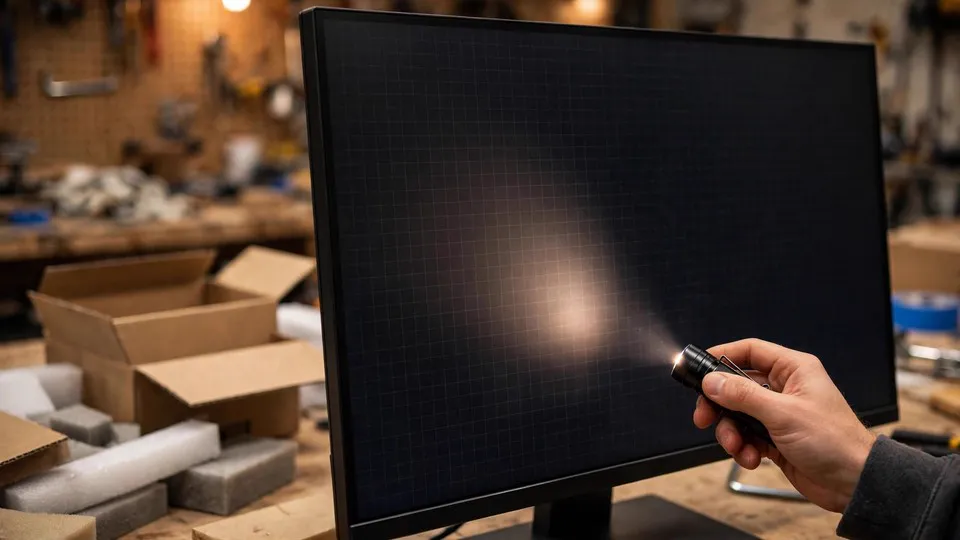
Display a full black screen, at the normal working brightness, in a dim room, after the panel has warmed up. Look at the edges and the corners for bright patches that stay in the same place. Move your head: a bright patch that stays fixed while the viewing angle changes is backlight bleed. A glow that shifts or fades as the head moves is the viewing-angle glow of an IPS panel, and it is a different thing — see the first misconception below. The two are easily confused, and confusing them leads to returning a monitor for a characteristic of its panel type.
What result means return or exchange: bright patches that are visible in dark content, in normal use, and that distract from films or games. What does not: a faint edge glow that is only visible at maximum brightness in a dark room and invisible at normal brightness. Photograph the result: the black screen in the dim room, at normal brightness, not at maximum brightness. A photograph taken at maximum brightness will exaggerate the bleed and will not represent what is actually seen.
Check 3: Uniformity and Colour Tint — Mid-Grey Full Screen
Display a full screen of mid-grey, about fifty per cent grey. Look for patches that are lighter or darker than the rest, and for patches that lean warm or cool. A uniform panel shows an even grey across the whole screen. A panel with a uniformity fault shows a visible patch, a cloudy area, or a tinted region that stands out from the rest.
What result means return or exchange: a patch or tint that is visible in everyday use — in documents, in photographs, across large areas of solid colour — and that draws the eye every time it appears. What does not: a faint variation that is only visible when deliberately hunting for it on a test screen and invisible in normal content. Photograph the result: the mid-grey full screen, with the patch visible.
Check 4: Refresh Rate and Resolution — Against the Stated Specification
Open the advanced display settings in Windows and compare the resolution and refresh rate offered against the specification the monitor was bought to — the resolution and refresh rate stated on the listing or the box. If the expected refresh rate is not offered, or the rate is locked at 60 Hz, do not return the monitor immediately. A missing refresh rate is usually a cable, interface, or display-mode problem, and the diagnosis belongs to the guide on refresh rate, which covers bandwidth, the display's reported modes, and display stream compression. Check the direct connection and the included cable first, and work through that guide's direction before concluding anything about the panel.
What result means return or exchange: after the direct connection, a cable change, and the checks in that guide, the monitor still cannot reach the resolution and refresh rate it was sold as providing. What does not: a rate that is missing on the first attempt but appears after the cable or the connection is corrected — that was a connection problem, not a monitor problem. Photograph the result: a screenshot of the settings page, showing the resolution and refresh rate offered.
Check 5: HDR — On Against Off
Turn HDR on and compare the picture against HDR off, on the same content. Look for a picture that goes washed out, or white areas that lose all detail, or colours that look wrong in a way that normal content does not explain. HDR involves three layers of switching — in Windows, in the game or the application, and in the monitor itself — and a fault at any one of those layers can imitate a panel fault. The diagnosis of an HDR problem belongs to the guide on HDR, which covers those three layers, and this check does not repeat it.
What result means return or exchange: the HDR mode itself is broken — for example, the screen goes black or flickers the moment HDR is switched on, in a way that survives the three-layer check. What does not: a washed-out picture that is corrected by switching the layers on in the right combination — that was a settings problem, not a monitor problem. Photograph the result: a pair of photographs, HDR on and HDR off, of the same content.
Check 6: Colour and Gradients — Banding
Display a smooth gradient, from dark to light or from one colour to another, and look for visible steps — distinct bands of colour where the change should be smooth. Look also at solid colours for an overall tint. Banding that persists across content, and that is visible in normal viewing, points at the panel's bit depth: the panel cannot show enough steps between colours to render the gradient smoothly.
What result means return or exchange: banding that is visible in normal content, persistently, and that cannot be explained by a signal or settings problem. What does not: banding that appears only in one application or one low-quality source, or that disappears when the signal settings are corrected — that was a signal problem, not a panel problem. Photograph the result: the gradient, with the banding visible.
Check 7: Physical Condition — Before First Power-On
This check happens first in time, although it is listed last: before the monitor is plugged in or powered on, inspect it. Look at the panel for scratches, at the bezel for gaps, at the ports for bent pins, and at the box for the accessories that should be there — the cable, the power supply, the stand. A scratch on the panel, a damaged port, or a missing accessory is a fault that has nothing to do with the panel's electronics, and it is the easiest fault of all to prove, because it is visible before the monitor has ever been switched on.
What result means return or exchange: any physical damage, or any missing accessory. There is no "acceptable" level of physical damage on a new monitor. Photograph the result: the unboxing photographs, taken before power-on, showing the panel, the bezel, the ports, and the accessories laid out.
| Check | How to test | What result changes the decision | Evidence to keep |
|---|---|---|---|
| 1. Dead / stuck pixels | Full-screen solid colours: black, white, red, green, blue | Dead or stuck pixel in the central area, or several scattered | Full-screen solid-colour photograph, position visible |
| 2. Backlight bleed | Black screen, normal brightness, dim room, warmed up | Bright patches visible in dark content in normal use | Black-screen photograph at normal brightness |
| 3. Uniformity / colour tint | Mid-grey full screen, about fifty per cent | Patch or tint visible in documents and photographs | Mid-grey full-screen photograph |
| 4. Refresh rate / resolution | Windows advanced display settings against the stated specification | Still cannot reach the stated specification after direct connection and cable change | Screenshot of the settings page |
| 5. HDR | HDR on against HDR off, same content | HDR mode itself broken — black screen or flicker on switching on | Pair of photographs, on and off |
| 6. Colour / gradients | Smooth gradient; solid colours | Persistent banding in normal content, not a signal problem | Gradient photograph |
| 7. Physical condition | Inspect before first power-on: panel, bezel, ports, accessories | Any physical damage or missing accessory | Unboxing photographs before power-on |
The Three Decisions
When the seven checks are done, there are only three decisions, and the monitor's future is one of them. There is no fourth option of "wait and see", because waiting is itself a decision — it is a decision to let the window close.
Decision 1: Keep
Keep the monitor if all seven checks pass, or if the only faults found are slight and acceptable in normal use — a faint edge glow that is invisible at normal brightness, for example, or a barely visible variation that never appears in everyday content. Keep the photographs and the receipt together, as a record of what was checked and when. Keeping does not mean the checks are over: there is no need to run all seven checks again, but check backlight bleed and uniformity once more inside the window, before the deadline, after the panel has warmed up. Keeping is a decision, not a default: it means the checks were run, the results were weighed, and the monitor was judged acceptable.
Decision 2: Exchange
Exchange the monitor — the same model, a different unit — if the fault is a defect in this individual unit and the model itself is the right one. A dead pixel in the centre, or severe backlight bleed, is a fault of this unit, not of the model. The exchange must be arranged inside the window, and the replacement unit must be checked from the beginning, all seven checks, in the same order. Never assume the next unit is fault-free. A replacement is a new monitor, with its own window and its own checks, and it earns its keep decision the same way the first one did. Watch the number of exchanges as well: if two exchanges in a row still show the same kind of fault, stop and consider returning instead — it may be a batch problem with this model, or the panel's normal performance at this price.
Decision 3: Return
Return the monitor — and do not take the same model again — if the fault is in the model itself rather than in the unit. If the monitor cannot reach the refresh rate or the HDR behaviour it was sold as providing, after the connection and settings have been checked, that is a property of the model, not of one unit. If several faults appear together, that is also a return: a monitor with a dead pixel, visible bleed, and persistent banding is not a monitor with one unlucky defect, it is a monitor that is wrong in several ways at once. Return it, choose a different model, and run the seven checks on the new one from the beginning.
| Decision | When it applies | What to do next |
|---|---|---|
| Keep | All seven checks pass, or only slight faults that are invisible in normal use | File the photographs and receipt; no need to run all seven checks again, but check backlight bleed and uniformity once more inside the window, before the deadline |
| Exchange | The fault is a defect in this unit — dead pixel, severe bleed — and the model is right | Exchange inside the window; run all seven checks on the replacement from the beginning; if two exchanges in a row still show the same kind of fault, consider returning instead |
| Return | The fault is in the model — the stated specification cannot be reached — or several faults appear together | Return inside the window; choose a different model; run all seven checks on the new one |
The Timeline: Day 1, Then One More Check Before the Deadline
The checks are spread across the window, not all done in one sitting, because some faults take time to appear. The Day 1 checks — all seven checks, including the physical inspection before power-on — are run in the first 48 hours after arrival, so that the maximum time remains to act on what they find. The HDR and gradient checks are part of that same Day 1 pass, not a later session; their faults rarely change the decision on their own, but they are still checked in the first 48 hours.
Then, before the deadline, check once more. Some faults only appear after the monitor has been used for a while — backlight bleed can change as the panel warms and cools over days, and a fault that was invisible on Day 1 can become visible by the end of the first week. A single check, done once and filed away, is not enough. A second, shorter pass — backlight bleed and uniformity only, after the panel has warmed up — inside the window and before the deadline, catches what the first pass missed. There is no need to run all seven checks a second time. The receipt stays with the photographs until the decision is made and the deadline has passed. After that, the retail route is closed, and only the warranty remains.
Six Common Misconceptions
Misconception 1: Backlight bleed and IPS glow are the same thing
No. Backlight bleed is a bright patch at a fixed position on the screen, caused by the backlight leaking through at the edges or corners. It stays in the same place when the head moves. IPS glow is a glow that appears when the screen is viewed from an angle, and it shifts or fades as the head moves. The test is movement: move the head, and watch whether the bright area moves with it. Confusing the two leads to returning a monitor for a characteristic of its panel type — a glow that the replacement unit, being the same panel type, will show as well.
Misconception 2: Maximum brightness in a pitch-black room is the accurate test
No. Maximum brightness in a pitch-black room will make almost any panel look bad, and a judgement made under those conditions is a judgement about the test, not about the monitor. The correct test is normal working brightness, at the normal seating position, in a dim room — the conditions under which the monitor will actually be watched. A bleed that is only visible at maximum brightness in darkness, and invisible in normal use, is not a fault that changes the decision.
Misconception 3: One dead pixel means the manufacturer must exchange it
No. The manufacturer's warranty applies its own dead-pixel policy for that model, and a single dead pixel may not meet it. That is a warranty threshold, and it is a different threshold from the retail return. Within the return window, a retail return does not have to meet the manufacturer's threshold at all. The two thresholds must never be confused: the question inside the window is what the shop's terms allow, and the question after the window is what the manufacturer's policy allows. Check the policy for the exact model; do not guess a number.
Misconception 4: Checking once is enough
No. Some faults take time to appear. Backlight bleed can change as the panel warms and cools over days of use. A fault that is invisible on the day of arrival can become visible later, and a monitor checked once and put away may be discovered faulty only after the window has closed. Check all seven checks on Day 1, and check once more inside the window, before the deadline — a shorter pass over backlight bleed and uniformity only, after the panel has warmed up. There is no need to run all seven checks again, but the second pass is part of the checklist, not an optional extra.
Misconception 5: Any cable will do for the test
No. A cable or interface problem can imitate a panel problem — a refresh rate that will not rise, an HDR mode that misbehaves — and testing through a dock or an adapter means the result may be about the dock or the adapter, not about the monitor. Test refresh rate and HDR with the cable that came with the monitor, connected directly, with no dock and no adapter in between. Only after the baseline has been established should a different cable be tested, as a separate comparison.
Misconception 6: Checking after the return window closes is just as good
No. Once the window closes, only the manufacturer warranty remains, and its thresholds are stricter than a retail return. A fault found after the window closes is judged against the manufacturer's policy, and may not qualify for an exchange at all. A fault found inside the window can be returned or exchanged under the shop's terms. The checks exist to be done inside the window, and the decision exists to be made inside it. Waiting until after the deadline is not caution. It is giving up the better of the two routes.
Boundaries: What This Guide Does Not Cover
This guide covers a new LCD monitor, bought with a retail return window. Three boundaries deserve a sentence each.
First, a second-hand monitor is not in scope. The questions for a used monitor are about the previous owner's use, the remaining warranty, and what to ask before buying — and they are covered by the guide on buying used. A second-hand purchase has no retail return window of the kind this guide is built around, and its checks are different.
Second, an OLED panel is different from an LCD panel. An OLED panel has no backlight, so it has no backlight bleed. The bleed check does not apply to it; instead, the uniformity and colour checks carry the weight, and the long-term risk to watch for is image retention, covered by the guide on OLED burn-in. Do not apply LCD bleed standards to an OLED panel.
Third, each check in this guide has its own detailed guide on this site, and this guide deliberately does not repeat them. A refresh rate that will not rise is covered by the guide on refresh rate. An HDR picture that goes washed out is covered by the guide on HDR. Colours that differ between two monitors are covered by the guide on colour matching. A colour tint is covered by the guide on colour cast. Flicker at low brightness, image retention, a dim picture at maximum brightness, a backlight that is on with no picture, no signal, and a monitor that switches itself off each have their own guide. This guide says only what to check and what result changes the decision. The diagnosis of any one fault belongs to its own guide.
When to Bring the Monitor In
Most faults found by these checks are resolved by exchange or return, inside the window, and that is the correct route for them — a shop exchange is faster and simpler than any inspection, and it is the route this guide is built around. Bring the monitor in only when the window has already closed and the fault needs a professional assessment for a warranty claim, or when the checks point at a fault that is not a panel defect at all — for example, a fault that follows the computer rather than the monitor, and that needs the machine and the monitor tested together.
Bring the notes from every check: the photographs, the settings screenshot, the date each check was run, and the shop's stated return terms. Inspection takes place at Room 1209, Dali Plaza, Shek Mun. You can call 2186 8010, or reach the shop on WhatsApp at 6558 6806. Inspection is charged at the site's published three-tier fees of HK$400–2,800, quoted after inspection. There is no home-visit service and no Mong Kok shop; inspection is carried out in the shop.
A checklist that ends at the decision is not an unfinished checklist. A note that says "Day 1 checks run, central dead pixel found on red full-screen, photographed, exchange requested inside the window" is a complete record of a decision made at the right time, and it is exactly what the shop needs to see to act on it without starting from the beginning.
FAQ
Q1: What is the difference between a retail return and a manufacturer warranty claim?
They are judged by different rules. A retail return, inside the window the shop stated, generally does not require the fault to meet the manufacturer's defect threshold. A warranty claim, after the window closes, is judged against the manufacturer's own policy for that model — its dead-pixel policy, its standard for backlight bleed — and may not be approved for a fault that would have been returned without question inside the window. The fault has not changed; the standard it is judged against has. That is why the decision has to be made inside the window, and why all seven checks should be run in the first 48 hours, so the maximum time remains to act on what they find.
Q2: How many days is the return window — 14 days, or 30 days?
It cannot be stated as a fixed number. Every shop and every platform states its own return period, and the only correct figure is the one written on the receipt or in the terms of the shop the monitor was bought from. A number of days commonly seen at retailers overseas is not a Hong Kong standard. Read the deadline on the receipt, and run all seven checks in the first 48 hours, so enough time remains to exchange or return.
Q3: Will the manufacturer exchange a monitor for a single dead pixel? What about inside the return window?
Not necessarily. The manufacturer applies its own dead-pixel policy for that exact model, and a single dead pixel may not meet it — check the policy for the model; do not guess a number. Some manufacturers' high-end ranges offer a zero-bright-dot guarantee, but that is not a general policy for all models. Inside the return window, a retail return does not have to meet the manufacturer's threshold: a single dead pixel in the central viewing area can be a reason to exchange. Display a full-screen solid colour, one colour at a time — black, white, red, green, and blue — and look at the whole screen slowly in each colour. A dead pixel stays dark on every background; a stuck pixel stays one colour, or is missing one colour. A dead or stuck pixel in the central viewing area, or several scattered across the screen, is a reason to exchange. Before concluding, check that the spot is not dust on the surface. Photograph the full-screen solid colour with the spot's position visible.
Q4: How do I tell backlight bleed apart from IPS glow?
Backlight bleed is a bright patch at a fixed position — usually an edge or a corner — that stays in the same place when the head moves. IPS glow appears when the screen is viewed from an angle, and it shifts or fades as the head moves. Test at normal working brightness, in a dim room, after the panel has warmed up. A patch that is visible in dark content in normal use is a reason to exchange; a glow that is only visible at maximum brightness in a dark room, and invisible in normal use, is not.
Q5: Should I test backlight bleed at maximum brightness in a pitch-black room?
No. Maximum brightness in a pitch-black room will make almost any panel look bad, and the result is a judgement about the test, not about the monitor. Test at normal working brightness, at the normal seating position, in a dim room — the conditions the monitor will actually be watched under. A bleed that is only visible at maximum brightness in darkness, and invisible in normal use, is not a fault that changes the decision.
Q6: Is checking once enough? Why check again inside the window?
No. Some faults take time to appear: backlight bleed can change as the panel warms and cools over days of use, and a fault invisible on Day 1 can become visible later. After the Day 1 checks, check once more inside the window, before the deadline — a shorter pass over backlight bleed and uniformity only, after the panel has warmed up. There is no need to run all seven checks again, but that spot-check is part of the checklist, not an optional extra. A monitor checked once and put away may only be found faulty after the window has closed.
Q7: Can I test the refresh rate without the cable that came with the monitor?
No. A cable or interface problem can imitate a panel problem — a refresh rate that will not rise may be a cable bandwidth problem, not a panel fault. Test refresh rate and HDR with the cable that came with the monitor, connected directly, with no dock and no adapter in between. If the monitor still cannot reach the stated resolution and refresh rate after the direct connection, a cable change, and the checks in the refresh-rate guide, that is a reason to return. Take a screenshot of the settings page as evidence.
Q8: How do I decide between keeping, exchanging, and returning?
Keep the monitor if all seven checks pass, or if the only faults are slight and invisible in normal use. Exchange it — the same model, a different unit — if the fault is a defect in this unit, such as a central dead pixel or severe bleed, and the model itself is right. Return it, and choose a different model, if the fault is in the model itself — the stated specification cannot be reached — or if several faults appear together. The decision must be made inside the return window, before it closes.
Q9: How is checking an OLED monitor different? What about the backlight-bleed check?
An OLED panel has no backlight, so the backlight-bleed check does not apply to it — check uniformity and colour tint instead, and do not apply LCD bleed standards to an OLED panel. The long-term risk to watch for is image retention, so do not leave the same still image on screen for a long time during the checks. The other six checks — dead pixels, uniformity, refresh rate, HDR, colour and gradients, and physical condition — are tested the same way as on an LCD panel.
Q10: When should I stop and bring the monitor in for inspection?
Most faults found by these checks are resolved by exchange or return inside the window, and that is the correct route. Bring the monitor in only when the window has already closed and the fault needs a professional assessment for a warranty claim, or when the checks point at a fault that follows the computer rather than the monitor. Bring your photographs, the settings screenshot, the dates each check was run, and the shop's stated return terms. In-store inspection is at Room 1209, Dali Plaza, Shek Mun, charged at the site's published three-tier fees of HK$400–2,800, quoted after inspection. You can call 2186 8010 or WhatsApp 6558 6806.