New GPU in an Old PC Won't Boot or Isn't Detected? BIOS Generation, UEFI/CSM, PCIe, Power & ReBAR Compatibility Checklist
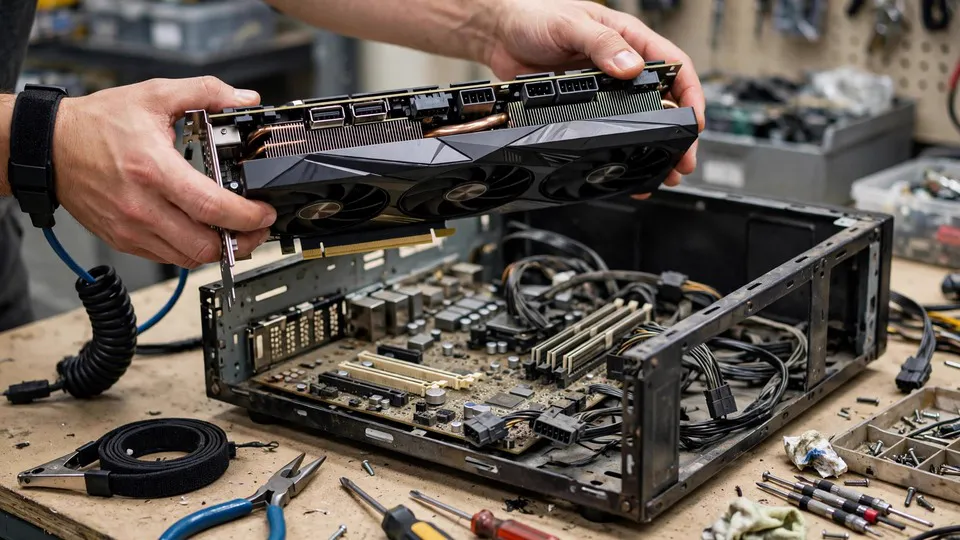
Key Takeaways
A new graphics card that will not boot in an older PC can be a compatibility or power problem, not proof that the card is faulty. This guide separates the firmware stage from the driver stage, then checks BIOS generation, UEFI and CSM settings, PCIe lanes, BAR allocation, ReBAR, and power connectors, changing one variable at a time.
Two Stages, and Why Mixing Them Up Wastes Every Test
A new card in an old machine can fail in either of two stages, and the tests for one stage say nothing about the other. Before the motherboard logo or BIOS screen has appeared, the problem is at the POST stage, not the driver. In that stage, the board firmware must initialise the card, allocate resources to it, and produce the first picture. The operating system driver has not loaded yet, so reinstalling drivers, cleaning old drivers, or reinstalling the system cannot fix a failure at this point.
The second stage begins only after the firmware stage has passed. The system loads, and then the card may be missing from the device list, may carry a warning mark, may refuse a driver installation, or may show a black screen only after entering the system. Only at that point do driver, operating system, and leftover-driver questions become relevant. Much wasted effort in new-card upgrades comes from applying second-stage remedies to a first-stage failure, or from tearing a firmware configuration apart for a fault that only appears after the system has loaded.
The first diagnostic act, therefore, is to name the stage. Ask what the screen showed, and when. No picture at any point, including no board logo, means the firmware stage. A board logo and a BIOS screen, followed by trouble inside the system, means the driver stage. Everything that follows in this guide is organised around keeping that line intact.
Old Board Firmware: Not Old Means Impossible, But Old Firmware May Not Know the New Card
An older board may run a traditional Legacy BIOS or an early UEFI firmware. A new card's video BIOS commonly carries both a Legacy image and a UEFI graphics output image, so the claim that every new card is UEFI-only is wrong and should not be repeated. Whether a particular card still carries a Legacy image is model-specific, and the manufacturer's specification for that exact model is the authority, not a general rule.
The real firmware risk is narrower. Old firmware initialising a new card can meet a video BIOS structure it has never seen, a larger address-space request than it was built to handle, or a PCIe negotiation behaviour it does not expect. The result can be a hang during initialisation, a skipped device, or a mistaken report that no card is present. Sometimes a board firmware update from the manufacturer resolves such a case, because the update notes mention display-card compatibility or PCIe-related fixes. Sometimes no update exists, or the update notes say nothing about display cards, and the combination simply has a hard limit. Both outcomes must be stated plainly. A firmware update is a reasonable attempt only when the manufacturer's notes support it, and it is never a guaranteed cure.
Updating firmware carries its own risk and its own precondition. The update must be performed from a working display path, meaning the old card or the processor's integrated graphics, never blindly while the new card shows no picture. Power loss during a firmware update can leave a board unusable, so the manufacturer's update instructions must be followed exactly, including any warning about not interrupting the process.
UEFI, CSM, and Secure Boot: The Logic Runs the Other Way Here
Readers who have met the reverse problem, an old card in a new board with no picture, will remember that enabling CSM, the Compatibility Support Module that provides a Legacy boot path, can restore the picture for a card without a UEFI graphics image. The new-card-in-old-board case reverses that logic, and copying the old answer across causes real harm.
Here the question is whether the CSM and UEFI settings match the way the existing system was installed. A system installed in UEFI mode on a GPT-partitioned drive expects a UEFI boot path; enabling CSM on such a system can disturb booting. A system installed in Legacy mode on an MBR-partitioned drive expects a Legacy boot path; disabling CSM can leave such a system unable to boot. Before touching CSM, record the current setting, confirm whether the system drive is MBR or GPT, and confirm a recovery route, meaning integrated graphics or the old card, that can reach the firmware settings again. Change one setting at a time, test immediately, and restore the original setting at once if the change does not help. Changing CSM, Secure Boot, and boot mode together destroys the evidence about which change caused any new symptom.
Secure Boot deserves a smaller role than it often receives in forum advice. On older boards it may not exist at all. Where it does exist, it governs trust in the UEFI boot chain; it is not a general explanation for every new-card failure on an old board, and it should not be blamed before firmware generation, power, and physical installation have been checked.
A related practical point: some newer chipsets offer no CSM option at all, or grey it out under certain conditions. On an old board the opposite can apply, with only a Legacy mode available. Finding no CSM option is itself information about the board's firmware generation, not evidence that the reader pressed the wrong key.
PCIe Generations: Compatible, With Speed Set by the Slower Side
PCIe generations share the same physical connector and are forward and backward compatible. Negotiation settles on the lowest generation supported by both the card and the slot, so a Gen 4 card in a Gen 3 slot runs at Gen 3 speed, and a Gen 3 card in a Gen 4 slot runs at Gen 3 speed. Generation mismatch is therefore a speed ceiling, not a boot barrier. Treating a Gen 4 card in a Gen 3 board as inherently unable to boot sends the reader chasing the wrong cause while power or firmware faults go unchecked.
Theoretical bandwidth figures make the ceiling concrete. A Gen 4 x16 link offers a theoretical bandwidth of about 32 GB/s, and a Gen 3 x16 link about 16 GB/s. Those are theoretical link figures, not measured game or application performance. An entry-level new card that is electrically x8 rather than x16 has a lower bandwidth ceiling again when placed in an older-generation slot, but that statement concerns the performance ceiling only. Slower is not the same as unrecognised, and a card that runs below its full speed has not thereby failed a compatibility test.
Slot origin matters as well. The first x16-shaped slot on a board is commonly wired directly to the processor, while a second x16-shaped slot may run through the chipset at only x4 electrically. A card that fits a slot is not thereby running at x16. The board manual's slot lane table is the authority for what each slot actually provides, and the first slot is the correct starting point for any new-card test.
Some boards expose a PCIe generation option in firmware, with choices such as Auto and a fixed generation. On an individual board, following the manual to try a fixed generation may bypass a negotiation quirk. That is a board-specific option described in that board's manual, not a universal remedy, and it must not be written as a standard step for every board.
BAR Allocation and Above 4G Decoding: The Large-Memory Variable
Traditional firmware reserved a modest address window for a card's memory aperture. Modern large-memory cards need a larger continuous address space, and Above 4G Decoding is the firmware capability that allows device address space to be allocated above the 4 GB boundary. On an old board without that option, or on a processor and chipset combination that does not support it, a large-memory card can end up with an incomplete allocation. The visible result can be a card that is not recognised, memory that appears only in part, or system instability.
BAR allocation should not become a catch-all explanation. It earns suspicion when three facts line up together: the card carries a large amount of memory, the board lacks an Above 4G Decoding option or runs firmware that predates it, and the failure pattern fits an allocation problem rather than a power or physical fault. A small-memory entry card is less likely to meet a BAR problem, but it can still meet firmware initialisation and power-connector problems, so small memory must never be written as a guarantee of compatibility.
ReBAR: A Performance Chain, Not a Boot Requirement
Resizable BAR, known as Smart Access Memory on AMD platforms and Clever Access Memory on some ASRock boards, is one concept under three names, not three different technologies. Its enablement chain has four links: a pure UEFI boot with CSM disabled, Above 4G Decoding enabled, the ReBAR option itself enabled, and support across the processor, chipset, board firmware, card video BIOS, and driver together. If any link is missing, for example an older processor generation, a chipset without a firmware update, or a system installed in Legacy mode, ReBAR simply stays off.
The sentence that prevents the most confusion is this: ReBAR being off does not mean the card is unrecognised. A card with ReBAR disabled still displays and still runs. Readers who chase ReBAR as though it were a boot requirement risk breaking a working system installation by changing CSM settings, which is a far worse outcome than leaving a performance option off. ReBAR belongs at the end of the checklist, considered only after the card is recognised and the system runs normally.
Power: Wattage, Connector Count, and 12V Capability Are Three Separate Checks
Power failures in new-card upgrades are frequently misdiagnosed as a single wattage question. Wattage, connector count, 12V capability, and native cabling are independent checks, and passing one does not excuse the others.
The connector ratings are fixed reference values. A PCIe slot supplies about 75W, a 6-pin external connector supplies about 75W, and an 8-pin connector, including a 6+2-pin connector, supplies about 150W. Every power socket on the card must be filled. Leaving one socket empty is not a trial configuration; it is an incomplete power arrangement, and any test result obtained that way has no diagnostic value.
The two extra pins on an 8-pin connector are sense pins. They carry no main current; their job is to tell the card that the attached connector is rated at the 150W class. Inserting only a 6-pin plug into an 8-pin socket therefore tells the card it has a 75W-class connection, and fitting the plug physically does not make the power adequate.
Older power supplies show three recurring gaps. Total wattage on the label can look sufficient while 12V output capability falls short, because a modern card draws predominantly from the 12V rail. A unit can carry the wattage but lack native 8-pin connectors or enough of them. And a unit can be made to appear connected through adapter cables that add no 12V capability of their own. An adapter cannot create capacity the supply does not have.
Modular cabling adds a strict rule. Modular leads must be the original leads for that exact power supply unit. Leads are not interchangeable across brands, and mixing them risks damage because pin assignments at the supply end differ between makers. A processor 8-pin lead and a graphics-card 8-pin lead also differ in pin definition and keying, and they must never be swapped, even though the connectors look similar. Any lead whose labelling is unclear is a reason to stop, not to guess.
Newer 16-pin cards, under the 12VHPWR and 12V-2x6 designs, need care on an old supply without a native 16-pin lead. The only safe route is a conversion solution recognised by the card or supply manufacturer, or a supply replacement. Unbranded conversion leads and improvised multi-plug combinations are not acceptable alternatives, and the two 16-pin designs must not be written as if they were exactly the same thing. The card and supply specifications for the exact models decide what is compatible.
Power-supply ageing belongs in the checklist without invented thresholds. Capacitor ageing and long high-temperature operation can leave real output below the labelled rating, so a unit that has run heavily loaded for a long time deserves suspicion earlier than a lightly used one. No age threshold and no transient-power multiple is stated here, because no single figure applies across models and workloads.
Physical Size and Installation: Checked Before Purchase, Not After Failure
Card length, card thickness in slot widths, case depth, obstructions from front panels or drive cages, a slot latch that has not fully engaged, and a heavy card sagging so its fingers no longer meet the slot squarely all belong to installation checking. A card that is not fully seated, or whose bracket screw is loose, can produce exactly the no-picture symptom that gets blamed on firmware. This section stays short on purpose: it is a pre-purchase and pre-test check, not a case-modification guide.
Symptom Map
| What happens | Stage and leading direction | First check |
|---|---|---|
| No picture at all, no board logo, old card works again at once | Firmware, power, or physical installation stage | Old-card comparison, then physical seating and full power connections |
| No picture, fans spin | Power present, but enumeration not proven | Fan spin proves a power path only; check seating, connectors, and firmware stage |
| Board logo appears, BIOS reachable, trouble only inside the system | Driver or system stage | Driver handling only after this point, not before |
| Card visible in the system but with a warning mark, driver will not install | Driver or system stage | Driver and system handling, not firmware changes |
| ReBAR shows off, but the card displays and runs normally | Performance option only, not a fault | Leave boot settings alone; ReBAR is not a boot requirement |
| Failure only under heavy load after a successful boot | Power delivery under load, among other load-stage causes | Full connector count, 12V capability, and native cabling |
| Every boot stops at the same point, old card clears it, firmware update notes mention card compatibility | Firmware compatibility | Manufacturer update route using the old card or integrated graphics |
The Compatibility Checklist, In Order, One Variable at a Time
- Before purchase or installation, write down four sets of models. Board model and current firmware version, processor model, new card model with its power socket count and its length and thickness, and supply model with its labelled wattage, its 12V capability, and its native connector count. Check the board maker's support list and the card maker's supply requirements in the makers' own documents, not in rumour figures online.
- Physical installation, powered off. Seat the card in the first x16 slot, engage the latch fully, secure the bracket screw, fill every power socket firmly, connect the display cable to the card's output rather than the board's integrated output, and seat both ends of the power lead.
- Power check. Confirm enough native connectors, adequate 12V capability, original same-brand modular leads, and no processor lead mistakenly fitted to a card socket. Stop at once on any burning smell, discoloured plastic, or loose connector.
- Old-card comparison. Refit the old card and test. If it boots normally, the problem narrows to the new card or the new-card-and-old-board combination. If it does not, examine the installation itself first, loose leads and firmware settings changed during the swap, before declaring the new card faulty.
- Record original firmware settings using integrated graphics or the old card. Note CSM on or off, Secure Boot on or off, boot mode, Above 4G Decoding presence, ReBAR presence, primary display output, and PCIe generation setting. Every later change needs a known-good original to return to.
- Firmware version against maker notes. Check the board maker's site for versions newer than the installed one and read whether any mentions display-card compatibility, PCIe, or BAR-related fixes. If one does, update using the old card or integrated graphics, following the maker's instructions, and never interrupting power. If none mentions such fixes, do not promise that an update will help.
- CSM and UEFI, one change at a time. Decide direction from the recorded original and the existing system installation type, MBR or GPT. Change a single setting, test immediately, and restore the original at once if it does not help. Never change CSM, Secure Boot, and boot mode together.
- Above 4G Decoding and ReBAR handled separately. First establish whether an Above 4G option exists. Consider ReBAR only after the card is recognised and the system runs normally. A ReBAR option that stays off is not a boot failure and must not trigger boot-setting changes.
- Minimal-state test. Keep only the processor, one memory module, the new card, and the system drive connected, with other expansion cards and USB devices removed. Add items back one at a time to find which variable brings the fault back.
- Drivers only after the firmware stage passes. Once a BIOS screen has been seen and the system loads, driver installation and removal of old driver remnants become relevant. Before that point, driver work cannot fix the fault.
- Still failing means stopping and deciding on evidence. If another known-good machine is available, the new card can be tested there. Otherwise the conclusion is limited to two honest statements: the old-board and new-card combination has a hard limit, or one item needs hands-on fault testing. Neither item can be declared faulty without that test.
Nine Misconceptions
- A Gen 4 card in a Gen 3 board cannot boot is wrong. Generations are compatible and negotiate to the slower side, affecting only the speed ceiling.
- A supply wattage figure being sufficient is wrong as a complete power test. Wattage, connector count, 12V capability, and native cabling are separate checks.
- Trying one 8-pin lead first and adding the second later is wrong. Sockets the maker designed to be filled must all be filled before any test result means anything.
- ReBAR being off causing the card to go unrecognised is wrong. ReBAR is a performance option, and chasing it through CSM changes can break an existing system installation.
- Toggling CSM or Secure Boot casually and restoring later is a dangerous habit. A wrong CSM change can leave the original system unable to boot and the firmware settings unreachable without integrated graphics or the old card.
- A firmware update certainly fixing a new-card problem is wrong. An update is a reasonable attempt only when the maker's notes support it, and the update process itself carries a bricking risk if power is lost.
- Installing the newest driver fixing a no-picture boot is wrong. Before any board logo appears, no driver has loaded, so driver work cannot reach the fault.
- A new card running slowly meaning it is incompatible is wrong. An older processor, an older PCIe generation, and ReBAR being off can each limit speed while the card remains fully recognised and working.
- A processor 8-pin lead fitting a card 8-pin socket meaning it can be used is wrong. Pin definitions and keying differ, and a mistaken fit risks damage.
Boundary Cases
A board with a maker update and a board without one lead to different endings. The first allows an update attempt through the old card or integrated graphics, followed by a retest. The second, where the maker has stopped updating or the notes never mention display cards, means accepting a hard combination limit and weighing a board change or an older-generation card, rather than endlessly cycling settings.
A board with no CSM option and a board with Legacy-only firmware are both informative in themselves. The absence of an option describes the firmware generation and narrows the available paths; it is not a user error.
MBR and GPT installations diverge on CSM changes. An MBR system can fail to boot with CSM disabled, and a GPT system can lose Secure Boot or ReBAR behaviour with CSM enabled. Checking the installation type before changing anything turns a gamble into a reasoned step.
Large-memory and entry-level cards diverge on BAR risk but converge on firmware and power risk. Large-memory cards meet Above 4G allocation questions more readily; entry cards meet them less readily but remain exposed to firmware initialisation and connector problems. Small memory is therefore no guarantee of compatibility.
A 16-pin new card on an old supply without a native 16-pin lead leaves only two safe routes, a maker-recognised conversion solution or a supply change. Improvised leads and doubled-up plugs are explicitly out.
An old machine can also present several aged shortfalls at once: an old supply, an old board, and weak case cooling, with a new card's heavy load exposing more than one. The checklist order exists for exactly this case, isolating one variable at a time instead of replacing everything and declaring the combination fixed.
Second-hand cards sit outside this guide's scope. This guide addresses a new, normal card in an old board. A second-hand card brings its own variables, including wear and any modified video BIOS, which need a separate line of suspicion and must not be answered with this guide's conclusions.
When to Seek Inspection
Arrange inspection when the card remains unrecognised after the checklist has been followed in order, when a firmware setting change has left the machine without any display path, when any connector shows burning smell or discolouration, or when the choice has narrowed to a hard board-and-card limit that needs hands-on testing to confirm. A test of the new card in another known-good machine, where one is available, is useful evidence to bring along.
HK GPU Fix publishes a three-tier inspection and repair range of HK$400–2,800, with the actual fee subject to a written quotation after inspection. Inspections are handled at the shop: Room 1209, Dali Plaza, Shek Mun. For enquiries, call 2186 8010 or WhatsApp 6558 6806. There is no on-site service, so the machine should be brought to the shop for inspection.
FAQ
Why does the card's fan spin if the card is not recognised?
Because fan spin proves only that a power path is live. It does not prove PCIe enumeration succeeded, video BIOS initialisation succeeded, or display output succeeded. A card can receive power and spin its fans while the firmware stage has failed completely.
The old card works and the new card does not. Is the new card faulty?
Not necessarily. That comparison proves the fault lies with the new card or with the new-card-and-old-board combination, which includes firmware generation, BAR allocation, and power delivery. Only a test of the new card in another known-good machine, or hands-on fault testing, can separate a faulty card from a combination limit.
Should I update the board firmware first?
Only after checking the maker's update notes. If a newer version mentions display-card compatibility or PCIe-related fixes, an update through the old card or integrated graphics is a reasonable attempt. If no note mentions such fixes, an update is not a promised cure, and its own interruption risk still applies.
Can I just enable CSM and see what happens?
No, not without preparation. Record the original setting, confirm whether the system installation is MBR or GPT, and confirm a recovery route through integrated graphics or the old card. A CSM change can leave the original system unable to boot, so a casual toggle can create a second fault on top of the first.
ReBAR will not turn on. Has the upgrade failed?
No. ReBAR is a performance option built on pure UEFI boot, Above 4G Decoding, and support across processor, chipset, firmware, video BIOS, and driver. If any link is missing, ReBAR stays off while the card still displays and runs normally. Do not disturb a working boot configuration to chase it.
The new card runs, but slower than expected. Is it incompatible?
Slower and unrecognised are different problems. An older processor, an older PCIe generation, and ReBAR being off can each lower the performance ceiling while the card remains fully recognised. Slowness alone is not a compatibility failure, and it should not trigger firmware changes aimed at a boot fault that does not exist.