Monitor Wakes Up and Your Windows Are All Rearranged? Display Re-enumeration, Sleep EDID Loss & Window-Position Memory Diagnosis Guide
Key Takeaways
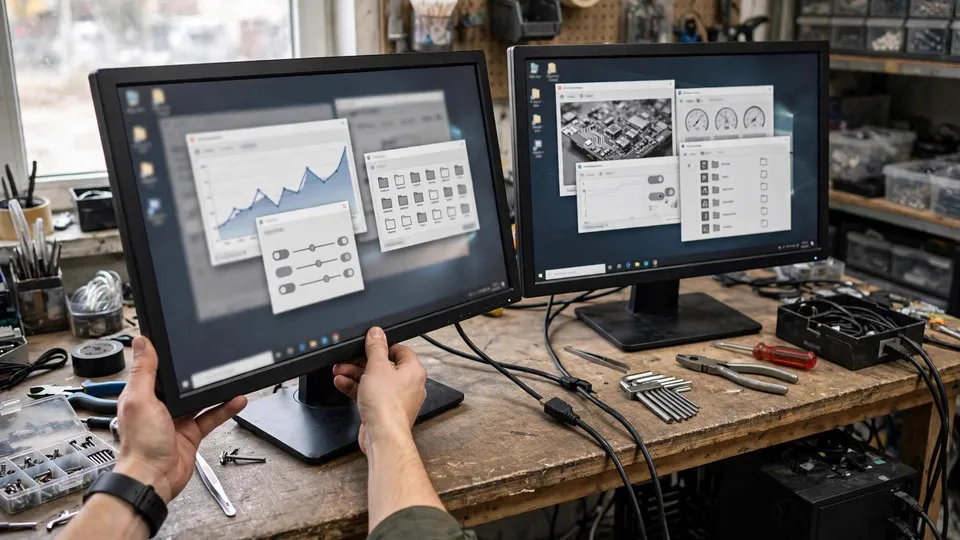
When a monitor wakes from sleep or is reconnected and the windows on it have moved, shrunk, or collected on the main display, the picture signal itself has usually returned normally. What changed underneath is the display topology: while the monitor was absent, the operating system rebuilt the desktop without it, moved the windows to the display that remained, and did not move them back when the monitor reappeared. This guide explains display re-enumeration, sleep-related EDID loss, virtual displays, and window-position memory, and sets out a one-variable-at-a-time diagnosis sequence that separates a monitor wake behaviour from a cable, dock, driver, or settings fault.
The Symptom, Stated Precisely
The symptom covered here has a very specific shape, and stating it precisely matters because several neighbouring faults look similar but are diagnosed differently. The computer wakes from sleep, or a monitor is switched back on or replugged, and the picture comes back. Nothing is black, nothing is flickering, and no "no signal" message remains on screen. What is wrong is the layout: windows that were on the second or third monitor are now stacked on the main display, windows have been resized smaller, a window that was maximised on one monitor now opens on another, or a window seems to have vanished because it is still positioned on a display that the system no longer believes exists.
This is not a no-signal fault. If the picture never returns, or returns only after repeated replugging, that belongs to signal, cable, and handshake diagnosis, not to this guide. It is also not a wrong-resolution fault in the usual sense: the monitor may be running at exactly its correct resolution after wake, and the windows are still in the wrong place. The distinction is the starting point for everything that follows. In this fault, the display pipeline recovered, but the window layout did not, because the layout was already rewritten during the interval when the monitor was missing.
How the Operating System Builds a Desktop
To understand why windows move, it helps to understand what the operating system thinks a monitor is. It does not treat a monitor as a permanently fixed object. Every time the graphics system starts, and every time something changes, it asks a question: which displays are connected right now, what can each one do, and how are they arranged? The answer becomes the desktop topology: the set of displays, their resolutions, their refresh rates, their relative positions, and which one is primary.
Three pieces of information feed that answer. The first is hot-plug detection. DisplayPort and HDMI connections carry a signal that tells the graphics card whether a display is attached and awake. When a monitor goes into deep sleep, switches input, or is unplugged, that signal can drop, and the graphics card reports the display as gone. The second is EDID, the data block a monitor sends that describes its identity, its supported resolutions, and its timing details. The operating system reads EDID when a display appears, and uses it to build the list of modes that display offers. The third is the stored arrangement: the positions the user set in display settings, which the system tries to reapply when the same set of displays is present again.
The key point is that the topology is rebuilt from the displays that are present at that moment. It is not a permanent map that waits patiently for a missing monitor to return. If a monitor is absent when the rebuild happens, the desktop is rebuilt without it.
The Wake Sequence That Moves Windows
A typical wake sequence runs like this. The computer enters sleep, or the monitor enters its own power-saving state. The monitor's hot-plug signal drops, either because the monitor has powered down its interface or because it is slow to respond while waking. The graphics driver re-enumerates the displays, finds one fewer display than before, and the operating system collapses the desktop onto the displays that remain. Windows that were on the missing display have to go somewhere, so they are moved to the remaining display, usually the primary one, and resized to fit it. Then the monitor finishes waking, its hot-plug signal returns, its EDID is read again, and the display is added back to the topology. The desktop is now the right size again, but the windows stay where they were moved. The system does not keep a snapshot of the pre-sleep layout and restore it automatically, except in the limited circumstances described later in this guide.
Timing is therefore the central variable. A monitor that wakes quickly, before the system rebuilds the desktop, may never trigger the move. A monitor that wakes slowly, or that drops its connection entirely during its own sleep and only reappears seconds later, is far more likely to trigger it. Two monitors of different brands on the same desk can behave differently for exactly this reason: one wakes fast enough to stay in the topology, the other does not. That difference is a property of wake timing and power-saving design, not evidence that one monitor is "better" in any general sense.
Sleep states add another layer. When the whole computer sleeps, the graphics card and the monitors both power down, and the order in which they come back matters. When only the monitor sleeps while the computer stays awake, the computer is fully alert and may rebuild the desktop the moment the monitor's signal drops, long before the user touches the mouse. This is why the fault can appear even when the computer itself never slept: the monitor's own power-saving timer is enough to start the sequence.
DisplayPort, HDMI, and Why the Cable Type Changes the Behaviour
DisplayPort and HDMI do not behave identically when a display sleeps, and this difference explains why swapping a cable can change the symptom without fixing or breaking anything else. DisplayPort uses a hot-plug detect line and a link-training process: when the link drops, the graphics card renegotiates the connection from scratch, including re-reading EDID. A DisplayPort monitor that powers down its receiver fully during sleep therefore tends to disappear from the topology completely, and reappear as a newly connected display on wake. HDMI carries a similar hot-plug signal, but many HDMI monitors keep that signal asserted while in standby, so the graphics card continues to see the display as present even though the panel is dark. In that case the desktop is never collapsed, and the windows never move.
Neither behaviour is a fault in itself. It is a consequence of how each interface and each monitor implements standby. But it has a practical diagnostic consequence: if the fault happens on a DisplayPort monitor and never on an HDMI monitor on the same computer, the first suspect is the wake and re-enumeration sequence on the DisplayPort connection, not the graphics card and not the application windows. Conversely, if the fault happens on every connection type and every monitor, the suspect list widens to the dock, the driver, or a setting that forces re-enumeration.
Adapters and converters sit in the middle of this. A passive adapter generally passes the hot-plug signal through, while an active converter may hold the signal, drop it, or regenerate it on its own timing. A docking station adds its own controller, which may present the monitors to the computer through its own link, and may drop all of them at once when the dock sleeps or when its upstream link renegotiates. A KVM switch adds a similar layer: switching away from a computer can look exactly like unplugging its monitors, and switching back can look like reconnecting them. In all of these cases the windows move for the same reason as before — the topology collapsed while the displays were absent — but the device that caused the absence is the dock, converter, or switch, not the monitor.
Virtual Displays and Displays That Are Not Monitors
Not every display in the topology is a physical monitor. Remote desktop sessions, wireless display receivers, capture devices, and some software tools can create virtual displays that appear in display settings alongside real monitors. A virtual display that appears or disappears — for example, when a remote session connects or disconnects, or when a wireless receiver goes to sleep — triggers the same topology rebuild as a physical monitor being unplugged. Windows can be moved onto a virtual display that is not visible on the desk, which looks like windows vanishing, or moved off a virtual display onto a real one when the virtual display disappears.
This is worth checking early, because it is easy to miss. If display settings shows more displays than there are physical monitors on the desk, one of the entries is virtual, disconnected, or a leftover from a device that is no longer attached. A window that "disappears" after wake may simply be sitting on that extra display. The diagnostic value of this check is high and the cost is low: count the displays in settings, count the monitors on the desk, and account for every entry before changing anything else.
Window-Position Memory: What Is Remembered, and By Whom
Once windows have been moved, why do they not move back? The answer involves two separate kinds of memory, and confusing them leads to wasted effort. The first is the operating system's display arrangement: which display is primary, and where each display sits relative to the others. The system stores this arrangement and reapplies it when it recognises the same set of displays. This is why the monitors themselves usually return to the correct left-right order after wake, even when the windows do not. The arrangement was remembered; the window layout was not.
The second is window placement, and here responsibility is split. Some applications remember their own last position and size, and restore themselves to that position on their next launch. Others leave placement entirely to the operating system, which puts them where space is available. A window that is moved during a topology collapse is, from the application's point of view, simply in a new position. If that application then saves its position on exit, the moved position becomes the new remembered position, and the original layout is lost even after the monitors return. This is why the fault can appear permanent: the user closes the application while it is on the wrong monitor, and the next launch puts it back on the wrong monitor, not because anything is still broken, but because the moved position was saved as normal.
Scaling adds a further wrinkle. When windows are moved from a high-resolution or high-scaling display to a smaller or differently scaled display, they are resized to fit. When the original display returns, the resized window does not automatically grow back. A window that was maximised on a large monitor may return as a smaller floating window on that same monitor, or stay on the main display at the smaller size. This resizing is a consequence of the move, not a separate fault, and it should not be diagnosed as a resolution problem: the resolution settings themselves are usually correct throughout.
Modern versions of Windows include a setting that addresses part of this problem, described in display settings as remembering window locations based on monitor connection. When enabled, the system tries to restore windows to their previous displays when a monitor is reconnected. Its coverage is partial: it applies to the windows it tracks, it depends on the reconnection being recognised as the same monitor, and it cannot restore a layout if the application itself saved the moved position in the meantime. The setting is worth enabling and testing, but it should be treated as one variable in the diagnosis sequence, not as a guaranteed cure, and its effect should be judged over several wake cycles, not a single test.
Diagnosis Sequence: One Variable at a Time
The sequence below is ordered so that cheap, reversible observations come first, and hardware swaps come last. Change one variable, run through several wake cycles, and record what happened before changing the next. Changing several things at once — a new cable, a new driver, and a settings change on the same day — makes the result uninterpretable, because any improvement could have come from any one of the changes.
- Describe the exact event. Note which monitor's windows move, whether the monitor itself is slow to show a picture on wake, whether the computer slept or only the monitor, and whether the arrangement in display settings is correct after wake. If the arrangement is wrong, the problem is at the topology layer; if the arrangement is right but the windows are wrong, the problem is at the window-placement layer.
- Count the displays. Open display settings after a fault and count the displays shown against the physical monitors on the desk. Account for every entry, including virtual displays, disconnected displays, and dock or capture devices. A surplus display is a lead, not a curiosity.
- Test a single monitor wake. Disconnect the extra monitors and test wake with one monitor only, several times. If the single-monitor layout is stable, the fault depends on the multi-display topology, not on the graphics card in general. If a single monitor still loses window positions, the suspect narrows to that monitor's wake behaviour or its connection.
- Test the monitor's own power saving. Lengthen or disable the monitor's power-saving timer, or keep the monitor awake while the computer sleeps, and test again. If the fault disappears when the monitor never sleeps, the trigger is the monitor's sleep and wake timing, and the remaining question is which link in the chain — monitor, cable, dock, or driver — drops first.
- Swap one link at a time. Swap the cable, then the port on the graphics card, then the connection type if the monitor offers both DisplayPort and HDMI. Test several wake cycles after each swap. A fault that follows the cable points to the cable; a fault that follows the port points to the port or its link training; a fault that disappears on a different connection type points to the interface-specific wake behaviour described earlier.
- Remove the middle layers. Connect the monitor directly to the graphics card, bypassing any dock, KVM switch, adapter, or converter, and test wake. If the fault disappears, reintroduce the middle layers one at a time. The layer whose return brings the fault back is the layer to investigate, and the investigation should focus on its sleep and wake behaviour, not on replacing the monitor.
- Test the window-location setting. Enable the system's remember-window-locations option if it is not already on, and judge it over several wake cycles. If it helps some windows but not others, note which applications are helped: the split usually follows the line between applications that manage their own placement and those that leave it to the system.
- Test a second user profile or a clean session. If the fault follows one user account but not another on the same machine, the cause is in that account's stored window positions or settings, not in hardware. This test is cheap and sharply separates stored-state faults from hardware faults.
- Consider the driver last. Only after the monitor, cable, dock, port, and settings layers have been tested one at a time should the graphics driver be reinstalled or changed. A driver change made early obscures every later result, and a driver is an unlikely cause when the picture itself returns correctly and only the layout is wrong.
| Observation after wake | What it points to | Next test |
|---|---|---|
| Display arrangement is wrong (monitors swapped or misordered) | Topology was rebuilt from a different set of displays, or a display was recognised as a different device | Count displays; test direct connection; check for virtual displays |
| Arrangement is right but windows are on the main display | Topology collapsed while a monitor was absent, then recovered; windows were moved during the gap | Monitor power-saving test; cable and port swaps; wake-timing observation |
| Windows are smaller than before, on the correct monitor | Windows were resized when moved to a smaller or differently scaled display | Check scaling on each display; note whether the application saves its own position |
| A window has vanished entirely | Window is on a display the system still lists but is not visible, often a virtual or disconnected display | Count displays; move windows with keyboard window-management shortcuts to the visible display |
| Fault happens only on one connection type | Interface-specific wake behaviour (DisplayPort link drop versus HDMI standby signal) | Swap connection type; test the monitor's power-saving behaviour on each interface |
| Fault happens only through a dock or KVM switch | The middle device drops or renegotiates its display links on wake | Bypass the device; reintroduce it alone; check its sleep behaviour |
| Fault follows one user account only | Stored window positions or per-account settings, not hardware | Test a second account; compare the window-location setting between accounts |
Common Misconceptions
Several explanations for this fault circulate widely, and each one misdirects the diagnosis in a specific way. The first is that the graphics card is failing. A failing graphics card more typically produces picture corruption, crashes, or no picture at all, not a clean picture with windows in the wrong place. The second is that the monitor's resolution is wrong. Resolution settings can be checked directly in display settings after wake, and they are usually correct; the windows moved because the desktop shrank temporarily, not because the resolution changed permanently. The third is that reinstalling the driver is the first step. Driver reinstallation is a legitimate late step, but as a first step it destroys the baseline: if the fault then disappears, there is no way to know whether the driver or the accompanying reboot and re-enumeration was responsible.
A fourth misconception is that buying a higher-specification cable fixes wake behaviour. Cable quality matters for signal integrity at high resolutions and refresh rates, but wake timing is governed by the monitor's standby design, the interface's hot-plug behaviour, and the middle devices in the chain. A cable swap is a valid diagnostic test, and it belongs in the sequence above, but it should be judged by repeated wake cycles, not by a single successful wake. A fifth misconception is that the fault means the computer is broken in a way that needs immediate repair. In many setups the underlying cause is a timing interaction between components that are each working as designed, and the practical answer is a configuration change — monitor power-saving settings, a direct connection, or the window-location setting — rather than a replacement part.
Prevention and a Stable Multi-Display Setup
Prevention follows directly from the mechanism. Keep the monitor's wake timing as short as the setup allows: a monitor that never fully drops its connection during sleep cannot trigger a topology collapse. Where a monitor offers a power-saving mode that keeps its interface alive, testing that mode is a reasonable configuration step, weighed against its power consumption. Keep the connection chain as short as possible for the primary work displays: a direct connection to the graphics card removes the dock, switch, and converter layers whose sleep behaviour is hardest to observe. Keep the display arrangement stable: avoid swapping cables between ports, because the system recognises displays partly by connection, and a changed port can be recognised as a changed topology.
For windows themselves, the most reliable habit is the simplest: after a fault, move the windows back before closing the applications, so that applications which save their own position save the correct position. Where an application repeatedly restores to the wrong display, check whether that application has its own display or position setting, because the system-level window-location option cannot override an application that insists on its own saved position. Finally, judge any change over several days of normal use. Wake behaviour is timing-dependent, and a single good morning proves little; a week of stable wakes after one change is meaningful evidence, and a fault that returns after a week points to an intermittent link in the chain rather than a solved problem.
When Inspection Is the Right Step
Most window-rearrangement faults are configuration and timing problems that the sequence above can isolate. Inspection becomes the right step when the fault persists after every layer has been tested one at a time, when a display intermittently disappears from display settings even while awake, when a port or connector shows physical damage, or when the same fault appears on a direct connection with a known-good cable and a second monitor. In those cases the remaining suspects are the graphics card's output, the monitor's interface board, or a dock or converter fault that only appears under specific wake conditions, and those are hardware questions that need bench testing rather than further settings changes.
HK GPU Fix, Room 1209, Dali Plaza, Shek Mun, can inspect a system where the fault has survived the full sequence above. Bring the results of the sequence — which monitor moves, which connection type, whether the fault survives a direct connection, and whether it follows a user account — because those observations narrow the bench tests considerably. Published inspection and repair pricing is in the three-tier range of HK$400–2,800, subject to a written quote after inspection. Contact is by phone on 2186 8010 or WhatsApp on 6558 6806.
FAQ
Why do my windows move but my monitor order stays correct?
Because two different things are stored. The display arrangement — which monitor is on the left, which is primary — is remembered and reapplied when the same displays are recognised again. Window positions are not restored the same way: windows were moved while a display was missing, and the system does not automatically move them back when the display returns, except for the windows covered by the window-location setting.
Does this mean my graphics card is failing?
Not on this symptom alone. A clean picture at the correct resolution, with only the layout changed, points to a topology and timing interaction, not to a failing graphics processor. Picture corruption, crashes, or a picture that never returns would point elsewhere and should be diagnosed as their own faults.
Why does it happen on DisplayPort but not on HDMI?
DisplayPort renegotiates its link and re-reads EDID when the connection drops, so a monitor that powers down its receiver during sleep tends to disappear from the topology and reappear as a new display. Many HDMI monitors keep their hot-plug signal asserted in standby, so the system keeps seeing the display and never collapses the desktop. The difference is in standby and interface behaviour, not in cable quality alone.
Will the window-location setting fix it completely?
It helps in many setups, but its coverage is partial. It depends on the reconnection being recognised as the same monitor, and it cannot override an application that saves its own moved position. Enable it, test it over several wake cycles, and note which applications it helps and which it does not.
My window seems to have disappeared entirely. Where is it?
It is most likely on a display that the system still lists but that is not visible on the desk — a virtual display, a disconnected display entry, or a monitor that is switched off. Count the displays in display settings, and use the operating system's window-management shortcuts to move the window to the visible display before changing anything else.
Should I reinstall the graphics driver first?
No. Reinstall the driver last, after the monitor, cable, port, dock, and settings layers have been tested one at a time. A driver change made first destroys the baseline, and a driver is an unlikely cause when the picture returns correctly and only the layout is wrong.