Monitor Power Brick Feels Hot to the Touch? Normal Warmth, Load & Ageing Diagnosis Guide
Key Takeaways
A power brick converts mains electricity into the direct current a monitor needs, and the energy lost in that conversion becomes heat, so a working brick always feels warm. Judge it by where the heat sits, when it started, and whether the picture, smell, or shape of the brick has changed — not by warmth alone.
What Counts as a Hot Power Brick
Start by pinning down exactly what is being felt, because "hot" covers several different situations, and each one points in a different direction.
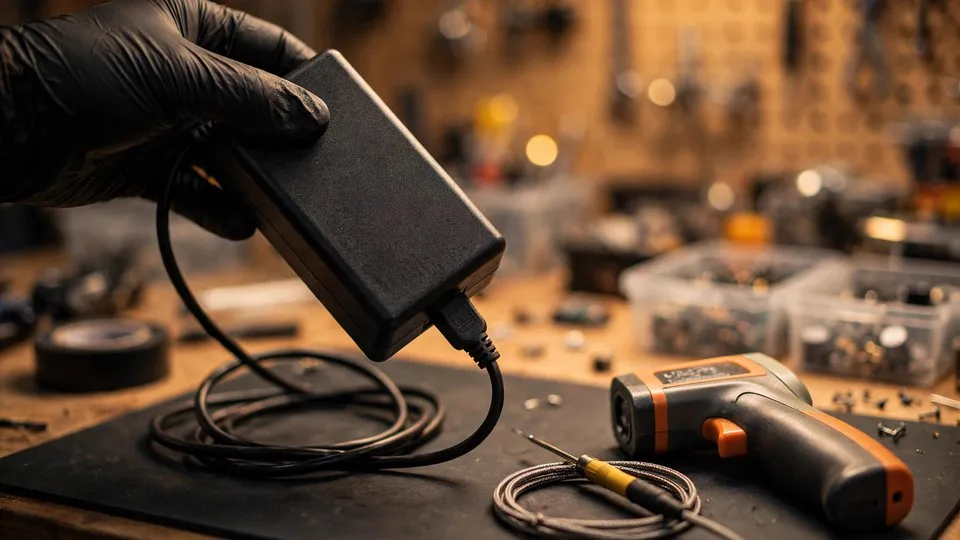
The symptom covered here is the temperature of an external power brick — the separate rectangular block that sits on the desk or floor between the wall socket and the monitor, connected by a mains cable on one side and a thinner cable ending in a round plug on the other. The brick feels warm or hot to the touch while the monitor is in use. The monitor itself may be working normally, or it may be showing problems at the same time. Both situations belong here, because the temperature has to be read together with everything else that is happening.
Three boundaries need to be clear before going any further:
- Monitors with a built-in power board have no external brick. If the power supply is built into the monitor body, there is no separate block to touch, and heat from the back of the monitor belongs to a different fault family — the monitor switching itself off or restarting, or failing to switch on at all. The steps below do not apply to a built-in supply.
- A laptop power brick is a different design. Laptop bricks carry different loads and are built to different shapes, so the feel of a laptop brick cannot be compared directly with a monitor brick. The comparisons below are for monitor bricks only.
- A brick that feels completely cold can still be faulty. A brick that is producing no output at all may feel stone cold, because nothing is flowing through it. Heat is only one signal from the power layer, and its absence proves nothing either way.
If the monitor has an external brick and the question is whether its warmth is normal, the steps below apply.
Why a Working Power Brick Feels Warm
An external power brick is a switched-mode power supply. It takes mains alternating current from the wall and turns it into the direct current the monitor's circuits need. That conversion is never perfect. Some of the energy passing through is lost along the way, and the lost energy becomes heat inside the brick. Warmth during use is therefore part of the design, not a synonym for a fault.
That single fact changes the whole question. The right question is never "is it warm?" — a working brick always is. The right question is "warm in what way, since when, and with what else?" Three things have to be read together: where the heat sits, when it started, and what other symptoms appeared at the same time. No single temperature reading answers the question on its own, and no universal temperature figure can be quoted for all bricks, because models, loads, and room conditions vary too much.
Where the Heat Sits: Four Locations, Four Layers
Touch the brick gently with the back of the hand, then do the same at the round direct-current plug where the thin cable meets the monitor, at the mains plug where the thick cable meets the wall, and along the cables themselves. Note which place feels hottest. The location is the first fork in the whole diagnosis, because heat in different places comes from different layers.
- The whole brick feels evenly warm. Heat spread evenly across the body of the brick points at the load and ventilation layers. The brick is converting power and shedding the resulting heat through its casing, and the overall temperature reflects how much power is passing through and how easily the heat can escape. An evenly warm brick with a normal picture is a pattern that on its own is not evidence of a fault.
- One spot on the brick feels much hotter than the rest. Heat concentrated in a single point on the brick body points at an internal layer. Something inside that spot is generating more heat than the surrounding parts, which can happen when an internal component has aged and the conversion has become less efficient, so the same output costs more lost energy. A single hot spot deserves more attention than even warmth.
- The round plug at the monitor end feels hot. Heat concentrated at the plug points at the contact layer, not at the brick body. When the round plug has loosened with use, the contact surface inside the socket makes a poorer connection, and the resistance at that contact rises. Current passing through that resistance generates heat right at the plug. The brick itself may be fine; the heat is being made at the joint. The same loose plug can also make the monitor switch on only sometimes, because the contact comes and goes as the plug moves.
- The mains plug or the mains cable feels hot. Heat at the wall end points at the mains path layer — the socket, the plug, or the cable itself. That layer is separate from the brick and from the monitor, and it has to be judged on its own.
Two tables later in this guide collect these patterns so they can be compared at a glance. For now, the habit to build is simple: always name the hottest place before deciding anything else.
The Load Layer: Brightness Is the Main Load
The backlight is the largest load a monitor places on its power brick. The brighter the screen, the more power the brick has to deliver, and the warmer it runs. The same monitor can feel noticeably different at different brightness settings, and that difference is normal.
This matters most when comparing two situations. A brick that feels hotter after the brightness was turned up has simply been given more work. A brick compared with another monitor's brick at a different brightness setting is not a fair comparison at all. When judging whether a brick has changed, keep the brightness setting the same as it was before, and keep the picture content similar — a bright white screen draws more than a dark one. Comparing temperatures across different brightness settings produces a difference that looks like a fault but is only a difference in load.
Other loads inside the monitor are smaller, but the principle is the same: anything that makes the monitor draw more power makes the brick work harder. The load layer is the first explanation to check, because it is also the easiest to change and re-test.
The Ventilation Layer: Where the Brick Sits Matters
A power brick sheds heat through its casing into the air around it. If the air around it cannot move, or if the brick is covered, or if it is tucked into an enclosed space, or if it is pressed against another warm object, the surface temperature rises even though nothing inside the brick has changed. The brick is still producing the same amount of heat; it simply cannot get rid of it as easily.
Common situations include a brick buried under papers or fabric, a brick pushed into a closed cable tray or behind a desk against a wall, a brick sitting on a thick carpet that insulates its underside, and a brick resting directly against another power brick or a warm device. In each case the brick's own condition is unchanged, and the surface temperature is a property of its surroundings.
Moving the brick to a ventilated spot, clearing anything covering it, and keeping it clear of other warm objects is a comparison, not a repair. If the temperature falls after the move, the ventilation layer was the explanation. If it stays the same, the explanation lies elsewhere. Either way the result is useful information.
The Ageing Layer: Slow Change Over Time
Inside a brick, components age. As they do, the conversion becomes less efficient: delivering the same output costs more lost energy, so the surface temperature creeps upward slowly over time. The output voltage can also become less steady, and the monitor's supply becomes less steady with it.
Ageing shows itself in the time dimension rather than in a single touch. A brick that has felt the same since the day it was bought is behaving differently from a brick that has gradually grown hotter over months. A brick that is suddenly much hotter than it was last week is behaving differently again. The time question — since when? — is therefore as important as the location question.
Ageing also interacts with the other layers. An ageing brick in a poorly ventilated spot will feel hotter than the same brick in open air, and an ageing brick driving a bright screen will feel hotter than the same brick at low brightness. That is why the diagnosis changes one thing at a time: if several layers change together, the result cannot be read.
The Contact Layer: A Loose Plug Makes Its Own Heat
The round plug at the monitor end deserves its own section, because its heat has a different cause and a different remedy from heat in the brick body.
Inside the monitor's socket, spring contacts grip the plug. With repeated plugging and unplugging, and with years of the cable tugging at the plug, those contacts can loosen. A loose contact has higher resistance, and current passing through that resistance turns into heat exactly at the plug. The brick body may feel normal while the plug itself feels hot. The monitor may also switch on only sometimes, or cut out when the cable is nudged, because the contact is intermittent.
A plug that is hot to the touch while the brick body feels ordinary is pointing at the contact layer. The test is to unplug the plug, check that neither the plug nor the socket shows visible damage, and push it firmly back in so it seats fully, then feel it again after the monitor has been running for a while. If the heat at the plug has eased, the seating was the problem. If the plug still runs hot, or if it feels loose in the socket and will not seat firmly, the contact itself is the direction to pursue, and the brick is not the suspect.
The Time Dimension: When the Heat Started
Four time patterns cover the situations in this guide, and each one suggests a different direction:
- It has felt this warm since the day it was bought. That pattern points at the design and load layers: this model of brick, at this brightness, in this spot, simply runs warm. It is a pattern that on its own is not evidence of a fault, provided nothing else has changed and no other symptom has appeared.
- It started getting hotter recently. That pattern points at something that changed: a move to a different spot, a different socket, a different brightness setting, a hotter room in summer, or a new arrangement of cables and equipment. The recent change is the first thing to look for, because the heat followed it.
- It has been getting hotter gradually. That pattern points at the ageing layer: efficiency falling slowly, temperature creeping up with it. Gradual change is worth noting and passing on, even if the picture is still normal.
- It suddenly became much hotter. That pattern deserves the most care, especially when it arrives together with other symptoms — a flickering picture, lines across the screen, the monitor switching itself off or restarting, a smell, or swelling of the brick or the monitor body. A sudden change with companions is a reason to stop testing and send the monitor for a check.
Room temperature belongs in the same time picture. In summer, a hotter room raises the brick's surface temperature without any change inside the brick. Comparisons have to be made under the same room conditions, or the season will look like a fault.
A Step-by-Step Diagnosis
Work through the steps in order, and change one thing at a time. Changing two things at once destroys the evidence: if the temperature falls, there is no way to know which change mattered.
Step 0: Observe first, change nothing
Before touching a cable or a setting, note five things: which place feels hottest — the brick body, the round plug, the mains plug, or the cable; whether the heat is even across the brick or concentrated in one spot; whether the picture is normal or shows flickering, lines, switching off, or restarting; whether there is any smell, and whether the brick or the monitor body has swollen or warped; and whether this warmth is new or has been there since the monitor was bought. Write the answers down. A diagnosis that starts from a written record is far more reliable than one that starts from a vague impression of "hotter than usual".
Step 1: Locate the heat
Touch the brick body, the round plug, the mains plug, and the cables with the back of the hand, and name the hottest place. The table in the next section turns that location into a direction. Do not skip this step: the location decides which layer is under suspicion, and a hot plug is a different problem from a hot brick.
Step 2: Compare with the time pattern
Ask whether the warmth has been there since the monitor was bought, or whether it started recently, or has been creeping up gradually, or appeared suddenly. Then ask what changed at the same time — a move, a new socket, a brightness change, a hotter room, a rearrangement of the desk. A sudden change points at the most recent change; a gradual change points at ageing; a constant pattern points at design and load.
Step 3: Check the accompanying symptoms
Look at the picture and the brick together. Is the picture flickering, showing lines across the screen, switching itself off, or restarting? Is there a smell — burning, or a sharp chemical smell? Has the brick or the monitor body swollen, warped, or changed shape? If the picture is abnormal, the direction moves first to the ripple and power layers that cause picture faults, not to the temperature alone. Temperature and picture faults are two separate lines: a brick can feel very hot while the picture stays perfect, and a monitor can have no power at all while its brick feels cold.
Step 4: Change the ventilation
Move the brick to a ventilated spot, clear anything covering it, take it out of any enclosed space, and keep it away from other warm objects. Leave the monitor running as before, with the same brightness, and feel the brick again after a while. If the temperature has fallen, the ventilation layer was the explanation. If it has not changed, move on — the result has still ruled something out.
Step 5: Simplify the power path
Move the monitor from a power strip to a wall socket on its own, and push both ends of the power cable firmly back in so they seat fully. Feel the plugs again after the monitor has been running for a while. If the heat at a plug has eased, the seating or the strip was the explanation. Change only one thing at a time: do not move the brick and change the socket in the same step, or the result cannot be read.
Step 6: Compare with a known-good brick
Where the design allows it, try a known-good brick of the same specification as a comparison. The specification has to match: a brick with the wrong voltage is not suitable for comparison, and using one can be dangerous. If the monitor behaves the same with the known-good brick, the original brick is not the suspect. If the behaviour changes, the original brick is the direction to pursue. This step is a test, not an upgrade — a higher-power brick does not solve a heat problem, and the wrong specification can cause damage.
Step 7: When to stop testing
Stop testing immediately, do not keep switching the monitor on, and leave it unplugged if any of the following appears:
- A burning smell or a chemical smell
- The brick or the monitor body swelling, warping, or changing shape
- One spot so hot it cannot be touched at all
- The picture flickering, showing lines, or the monitor switching itself off or restarting repeatedly
- Any visible damage to the brick, the plugs, or the cables
These signs point toward a fault inside the brick or the power path, and continued testing with power applied can make the damage worse. The right move is to leave the monitor unplugged and send it for a check.
Reading the Heat: Two Tables
The first table turns the hottest location into a direction. The second turns the time pattern into a direction. Use them together: a location plus a time pattern narrows the field far more than either one alone.
| Hottest place | What it points to | Next step |
|---|---|---|
| Whole brick, evenly warm | Load and ventilation layers — the brick is working and shedding heat normally | Check the brightness setting and the ventilation, then compare over time |
| One spot on the brick much hotter than the rest | Internal layer — something inside that spot is generating extra heat | Note the spot, watch for accompanying symptoms, and stop testing if any stop signal appears |
| Round plug at the monitor end | Contact layer — a loose plug or a tired socket contact | Push the plug firmly back in, feel it again after a while, and check whether it seats firmly |
| Mains plug or mains cable | Mains path layer — the socket, the plug, or the cable | Move the monitor to a wall socket on its own and reseat both ends of the cable |
| Brick completely cold while the monitor has no power | No output at all — a cold brick can still be faulty | Do not read cold as healthy; move to the power-chain diagnosis |
| Time pattern | What it points to | Next step |
|---|---|---|
| Warm since the day it was bought | Design and load layers — this model runs warm at this brightness | Note the baseline and watch for change, rather than treating the warmth itself as a fault |
| Started getting hotter recently | A recent change — a move, a new socket, a brightness change, a hotter room | Look for what changed at the same time and reverse it as a comparison |
| Getting hotter gradually | Ageing layer — efficiency falling slowly over time | Record the trend and pass it on; gradual change is worth reporting even with a normal picture |
| Suddenly much hotter, especially with other symptoms | Internal layer with companions — stop and check | Stop testing and send the monitor for a check |
Cases That Look Similar but Are Not This Problem
Several nearby symptoms are easy to confuse with a hot power brick. Sorting them out early saves a lot of wasted effort:
- The back of the monitor feels hot, and there is no external brick. That is a built-in power board, and its heat belongs to the monitor switching itself off or restarting, or failing to switch on. The brick comparisons in this guide do not apply.
- The monitor will not switch on at all. The start-up step itself is failing, and the temperature of the brick is a secondary clue, not the main question. A brick that feels cold while the monitor has no power is one pattern; a brick that feels warm while the monitor still will not switch on is another.
- The monitor switches itself off or restarts while in use. That fault is about staying on, not about temperature. Heat may accompany it, but the restarting pattern is the main symptom, and it has its own diagnosis.
- Lines or ripples run across the picture. A picture fault caused by ripple in the brick's output is a picture-layer problem. A hot brick is one possible source among several, not the only answer, and the lines have to be diagnosed on their own terms.
- The picture flickers when the cable is moved. That pattern points at the cable and connector layer, where movement changes the contact. The heat of the brick is a separate question, and the two should not be merged into one diagnosis.
- The screen is bright but shows no picture at all. The backlight and the picture are two separate systems, and a glowing screen with no picture is an image-path fault. The brick's temperature does not decide that question.
- A laptop brick feels hot. Laptop bricks carry different loads and are built to different shapes, so the feel of a laptop brick cannot be compared with a monitor brick. The two should be judged separately.
- The monitor is warm after being left on all day in a hot room. Room temperature raises the brick's surface temperature directly. That is an environmental effect, not a fault in the brick, and it has to be judged against the same room conditions.
Common Misconceptions
- "If the brick feels warm, it must be broken." Wrong. Conversion losses always become heat, and warmth is one of the signs that the brick is working. Warmth on its own is not evidence of a fault.
- "A bigger brick runs cooler." Wrong. Size relates to the design, the load, and the efficiency, and a bigger brick is not automatically cooler. Size alone cannot be used to judge a brick.
- "A higher-power brick will fix the heat." Wrong. A brick with the wrong specification can be dangerous, and a higher-power brick is not a remedy for heat. A brick of the same specification used as a comparison is a test; a different specification is not an upgrade.
- "If the brick is hot, the picture must be faulty too." Wrong. Heat and picture faults are two separate lines. A brick can feel very hot while the picture stays perfect, and a monitor can lose its picture while its brick feels ordinary.
- "Blowing a fan at the brick solves it." Wrong. A fan only changes the ventilation around the brick; it is not a diagnosis. A brick tucked into an enclosed space and then cooled by a fan is being treated in the wrong direction — the enclosed space is the problem, not the lack of a fan.
- "If the brick feels hot to the touch, it needs replacing." Wrong. First separate even warmth from a single hot spot, a pattern that has been there since purchase from one that started recently, and a brick with no other symptoms from one with companions. Replacement is a conclusion, not a first step.
- "If the brick feels cold, the power supply must be fine." Wrong. A brick producing no output can feel completely cold. Temperature is not proof that the supply is healthy.
- "Opening the brick to look inside is a reasonable job." It is not. A power brick contains mains voltage and components that store charge, and opening one carries a risk of electric shock. The inside of a brick belongs in a workshop, and opening it can also affect any later check.
What to Note Down Before a Check
Bringing a clear record makes a check faster and more accurate. Note the brand and model of the monitor, and the specification printed on the brick if it is legible. Record which place felt hottest and whether the heat was even or concentrated in one spot. Record whether the warmth has been there since purchase, started recently, crept up gradually, or appeared suddenly, and what changed at the same time — a move, a new socket, a brightness change, a hotter room. Record the results of the ventilation comparison and the power-path comparison, and whether a known-good brick of the same specification changed anything. Add any accompanying symptoms: flickering, lines across the picture, switching off, restarting, smell, swelling, or visible damage to the brick, the plugs, or the cables.
Inspection is charged under the site's published three-tier fee of HK$400–2,800, with the actual figure confirmed after inspection. The shop is at Room 1209, Dali Plaza, Shek Mun. The phone number is 2186 8010 and WhatsApp is 6558 6806. There is no shop in Mong Kok and no on-site service.
Frequently Asked Questions (FAQ)
My power brick feels warm. Is that normal?
Usually, yes. A power brick converts mains electricity into direct current, and the energy lost in that conversion becomes heat, so a working brick always feels warm. What matters is the pattern: where the heat sits, whether it appeared recently, and whether anything else has changed. Even warmth across the whole brick, present since the monitor was bought, with a normal picture, is a pattern that on its own is not evidence of a fault.
How do I tell even warmth from a single hot spot?
Touch different places on the brick body gently with the back of the hand. If the whole brick feels much the same temperature, that is even warmth, pointing at the load and ventilation layers; if one spot feels much hotter than the rest, that is a hot spot, pointing at an internal layer, and it deserves more attention.
The round plug at the monitor end feels hot, but the brick feels normal. Why?
That pattern points at the contact layer. When the round plug has loosened, the contact inside the socket makes a poorer connection, and the higher resistance at that joint turns current into heat right at the plug. The brick itself may be fine. Push the plug firmly back in so it seats fully, and feel it again after the monitor has been running for a while. If it still runs hot or will not seat firmly, the contact is the direction to pursue.
Does turning the brightness up make the brick hotter?
Yes. The backlight is the largest load on the brick, so a brighter screen makes the brick deliver more power and run warmer. That is why temperature comparisons have to be made at the same brightness setting. A brick that feels hotter after the brightness was turned up has simply been given more work, and that difference on its own is not a fault.
My brick feels very hot inside a cabinet, but cooler once I move it out. Is it fine now?
Moving it out and feeling it cooler only proves that the ventilation had an effect; it is not a repair. Keeping the brick in a ventilated spot, out of any enclosed space, is the right placement, and the time pattern and any accompanying symptoms still have to be watched afterwards.
What is the difference between a brick that has been warm since I bought it and one that only started getting hotter recently?
A brick that has felt this warm since the day it was bought points at the design and load layers; one that started getting hotter recently points at something that changed — the environment, the load, or ageing; one getting hotter gradually points at the ageing layer; and one that suddenly became much hotter, especially with other symptoms, points at the internal layer.
My brick feels hotter in summer. Has it gone faulty?
Not necessarily. A hotter room raises the brick's surface temperature directly, without any change inside the brick. Compare the brick under the same room conditions before concluding anything. If the brick only feels hotter when the room is hotter, and the picture is normal, the season is the likely explanation.
Should I put a fan next to the brick to cool it down?
A fan only changes the air around the brick; it is not a diagnosis and it does not fix an internal fault. The useful step is to move the brick to a ventilated spot, clear anything covering it, and take it out of any enclosed space. If the temperature falls after that move, the ventilation was the explanation. If it stays the same, the explanation lies elsewhere.
Can I use a higher-power brick to solve the heat?
No. A brick with the wrong specification can be dangerous, and a higher-power brick does not solve a heat problem. A brick of the same specification, known to be good, can be used as a comparison to test whether the original brick is the suspect. That is a test, not an upgrade, and the specification has to match.
My brick feels cold and the monitor has no power. Does that mean the brick is fine?
No. A brick producing no output can feel completely cold, because nothing is flowing through it. Cold is not proof that the supply is healthy, just as warmth is not proof that it is faulty. Temperature is only one signal from the power layer, and a monitor with no power needs the power chain diagnosed on its own terms.
When should I stop testing and send the monitor in?
Stop at once if you smell burning or a chemical smell, if the brick or the monitor body has swollen or warped, if one spot is too hot to touch at all, if the picture is flickering or showing lines, if the monitor keeps switching itself off or restarting, or if there is any visible damage to the brick, the plugs, or the cables. Leave the monitor unplugged and send it for a check.