Laptop Built-in Screen Flickers When the Picture Is Still? Panel Self-Refresh (PSR) Power-Saving Mechanism Diagnosis Guide
Key Takeaways
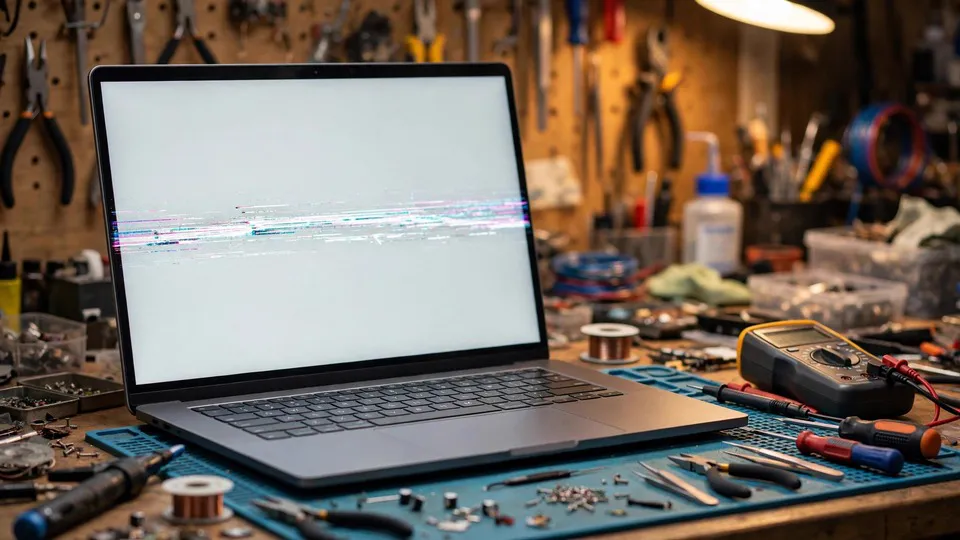
When a laptop's built-in screen flickers only while the picture is still, while reading a document or a web page, and stops the moment you move the mouse, Panel Self-Refresh may be involved. PSR lets the panel repeat a still frame from its own memory while the display engine rests. This guide shows how to isolate that path.
The Symptom That Matters Most: Flicker Only When the Picture Is Still
The single most important piece of evidence in this guide is a timing pattern. The screen flickers or jumps while the picture is still — while you are reading a document, looking at a web page, or staring at a desktop with nothing moving. Move the mouse, scroll the page, or play a video, and the flicker stops. The machine itself keeps working normally throughout: no crash, no black screen, no error message.
That pattern is worth more than any single test that follows, because it points at a mechanism that only operates while the picture is still. If the flicker happens just as much while you are scrolling or watching video, this guide is probably not the right one — the fault lies somewhere else, and the boundary section below will help you redirect. If the flicker is tied to stillness, keep reading, and record the pattern before you change anything: does it happen on battery, on mains power, or both? Did it start after waking from sleep, or does it happen from a fresh start? A short written note of when the flicker appears and when it disappears is the raw material for every step that follows.
How a Still Picture Normally Reaches Your Screen
To understand what can go wrong, it helps to know what normally happens. A laptop's built-in screen is connected to the graphics system through an embedded DisplayPort link, known as eDP. Under normal operation, the graphics card sends the picture to the panel again and again at the refresh rate — sixty times a second at 60 Hz — even when the picture has not changed at all. A still document is re-sent sixty times a second, identical each time.
That constant re-sending is simple and reliable, but it keeps the display engine and the link busy even when nothing on screen is changing. Panel Self-Refresh exists to break that repetition. It is a feature of the eDP standard, introduced in eDP 1.3, and it works by giving the panel a memory of its own.
What Panel Self-Refresh Actually Does
Inside a compatible built-in panel there is a remote frame buffer — a small memory store inside the panel's timing controller, known as the T-Con. When the picture becomes still, the panel stores the current frame in that buffer and repeats it on its own. The graphics card and display engine can then enter a low-power state, and the transmission link can go quiet, because there is nothing new to send. Nothing has been switched off: the display engine is resting, not dead, and the panel is showing the stored frame.
The moment the picture changes — the mouse moves, the cursor blinks, a notification appears, a page scrolls, a video plays — the system sends an update and normal display resumes. The hand-over between "the panel is repeating the stored frame" and "the graphics card is sending a fresh frame" happens constantly during ordinary use, and when it works, the user never notices it.
Later versions of the standard refined the idea. PSR2, introduced with eDP 1.4, added selective or partial frame updates: only the part of the picture that changed needs to be sent, rather than the whole frame. Panel Replay, introduced with eDP 1.5, is described by VESA as a further refinement of self-refresh that is also compatible with Adaptive-Sync. Panel Replay is not simply another name for PSR; it is a different generation of the technology, and the two should not be written about as if they were the same thing.
Two conditions must both be met before PSR can operate at all. The source side — the graphics card and its driver — must support it, and the sink side — the panel itself — must support it. If either side does not, PSR simply does not happen. The laptop manufacturer's own configuration also matters: not every laptop has PSR, and not every laptop that has it exposes a setting for it. No claim in this guide should be read as saying that a particular model does or does not support PSR. Support depends on the graphics hardware, the driver, the panel, and the manufacturer's configuration together, and all four have to line up.
PSR Is Not DRR: Two Different Power-Saving Layers
The most common confusion around this topic is between PSR and Windows Dynamic Refresh Rate, known as DRR. Both save power, and both involve the refresh rate, but they are different mechanisms at different layers of the system, and they must be kept apart from the start.
| Feature | Panel Self-Refresh (PSR) | Dynamic Refresh Rate (DRR) |
|---|---|---|
| Where it lives | eDP panel layer: the panel and its timing controller | Windows layer: an operating system policy |
| What it does | Stops sending the picture while it is still; the panel repeats the stored frame from its own memory | Switches between a lower and a higher refresh rate depending on what you are doing |
| When it acts | While the picture is still | When the type of activity changes |
| Typical symptom when it goes wrong | Flicker or jumping while the picture is still, in reading or browsing | Refresh rate changing on its own, a smoothness versus power trade-off |
| How it is controlled | Graphics control panel or manufacturer control panel, if exposed at all | Windows display settings |
DRR changes how often the picture is refreshed. PSR stops sending the picture at all while it is still. A flicker that appears only on a still picture and disappears the moment anything moves fits PSR; a refresh rate that moves up and down on its own belongs to DRR. This guide covers PSR. If your symptom is a refresh rate that keeps changing, the site's DRR guide is the right place to look.
Where PSR Can Go Wrong
When PSR works, it is invisible. When it fails, the failure happens at specific hand-over points in the mechanism, and knowing those points explains why the symptom looks the way it does:
- Entering or leaving self-refresh. The transition between the graphics card sending frames and the panel repeating its stored frame is the most delicate moment. A fault here shows up as a flicker or a jump at the moment the picture goes still, or at the moment something starts moving again.
- Small changes that fail to trigger an update. A blinking cursor, a clock changing digits, or a notification popping up are small changes. If the system fails to notice one of them, the panel keeps showing the old frame, or updates only part of it. What you see is a brief freeze, a ghost of the old content, or a picture that updates half a beat late.
- Waking from sleep. After sleep, the display link has to be retrained — the link has to re-establish its connection before pictures can flow again. If that retraining does not go smoothly, the flicker can start right after waking and clear after a restart. A flicker that only appears after waking is a different timing pattern from one that appears on a still picture during normal use, and the two should be judged separately.
- Wrongly judging whether the picture is still. The system has to decide, moment by moment, whether the picture is still or moving. If it decides wrongly in either direction — treating a moving picture as still, or a still picture as moving — the hand-over happens at the wrong time, and the result is flicker, jumping, or a picture that lags behind what it should show.
None of these failure points means the graphics card is broken or the panel is broken. They mean the hand-over between the graphics system, the driver, the firmware, and the panel is not lining up. That distinction is the whole point of the diagnostic flow below.
The Diagnostic Flow, in Order
Work through these steps in order, and change only one thing at a time. Each step narrows the range of possible causes. Do not skip ahead to the PSR toggle: the earlier steps are what make the toggle result meaningful.
| Step | What to do | What it proves | What it does not prove |
|---|---|---|---|
| 1 | Establish the timing: does the flicker happen only while the picture is still? | Whether the symptom matches the PSR pattern at all | Nothing about which part is at fault |
| 2 | Connect an external monitor and show the same still picture on it | Whether the fault is limited to the built-in panel | Nothing about the cause inside the built-in panel chain |
| 3 | Take a screenshot while the flicker is happening | Whether the frame buffer itself is clean | Nothing about the display chain after the frame buffer |
| 4 | Temporarily turn PSR off in the graphics control panel and repeat the same still picture | Whether the flicker follows the PSR path | That anything is repaired — this is isolation, not a fix |
| 5 | Repeat the test on mains power and on battery, separately | Whether the flicker follows one power state | That PSR is only active on battery — manufacturer settings differ |
| 6 | Note whether the flicker starts after waking from sleep and clears after a restart | Whether this is a wake-up hand-over problem rather than a still-picture problem | Nothing about the still-picture mechanism on its own |
| 7 | Stop if the flicker persists with PSR off, or if it comes with a crash, black screen, or garbled display | That the problem lies beyond the PSR path and needs inspection | — |
Step 1: Establish the Timing
Before touching any setting, watch the flicker and describe it precisely. Does it appear only while the picture is still — reading a document, looking at a web page that is not moving? Does it stop when you move the mouse, scroll, or play a video? Does the machine itself keep working normally, with no crash or freeze? If the answer to the first two questions is yes, the timing pattern fits PSR, and the rest of the flow is worth doing. If the flicker happens just as much while things are moving, stop here and look at the boundary section instead: the cause is more likely to be in the backlight, the variable refresh rate, or driver power management.
Step 2: The External Monitor Comparison
Connect an external monitor to the same laptop and show the same still picture on it. PSR applies only to the built-in eDP panel; an external monitor does not use PSR. If the external monitor is completely steady while the built-in screen flickers, the fault is confined to the built-in panel chain, and the graphics card's picture generation is not the suspect. If the external monitor flickers in the same way, the problem is upstream of the panel — in the graphics system or the picture itself — and PSR is not the explanation.
Step 3: The Screenshot Comparison
While the flicker is happening, take a screenshot. A screenshot reads the frame buffer — the picture the graphics system has calculated — not the picture the panel is showing. If the screenshot is clean, the frame buffer is clean, and the problem lies after the frame buffer, in the display chain. That is exactly where PSR operates. A clean screenshot proves only that everything up to the frame buffer is working; it does not prove that the whole display chain is fine. That limit is precisely what makes the test useful: it draws a line between the picture calculation and the picture delivery.
Step 4: The Decisive Test — Temporarily Turning PSR Off
Open the graphics control panel — Intel Graphics Command Center, AMD Software, or the laptop manufacturer's own control panel — and look for the Panel Self-Refresh setting. Menu names differ between machines and driver versions, so check the actual menu names on your machine; this guide does not give a fixed menu path, because a fixed path would be wrong on many machines. Turn the setting off temporarily, then look at the same still picture again under the same conditions.
If the flicker disappears with PSR off, the suspicion is locked onto the PSR path — the hand-over between the panel, the driver, and the firmware. It is not evidence that the graphics card is broken. If the flicker continues with PSR off, PSR is not the cause, and the diagnosis should move to other directions: the backlight, variable refresh rate behaviour, or driver power management. Either result is useful, but only because the earlier steps established the timing pattern first. Turning PSR off without that context proves very little.
Step 5: The Power-State Comparison
Repeat the still-picture test once on mains power and once on battery, and write down whether the flicker appears in one state, both, or neither. Many laptops tie their PSR defaults to the power plan, but do not assume that PSR is only active on battery: manufacturer settings differ, and the only reliable answer is the one your own machine gives you when you test both states. A flicker that follows one power state is a useful clue to bring to an inspection; it does not by itself name the faulty part.
Step 6: The Sleep-Wake Comparison
Note whether the flicker begins only after the laptop wakes from sleep and disappears after a restart. A wake-up problem is about the display link being retrained after sleep, which is a different hand-over from the still-picture hand-over. If the flicker only appears after waking, say so clearly when you describe the problem — it changes which hand-over is under suspicion. If the flicker appears on a still picture during normal use, with no connection to sleep, that is the still-picture pattern this guide is about.
Step 7: The Stopping Line
Turning PSR off is diagnostic isolation, not a repair. The underlying mismatch between the panel, the driver, and the firmware is still there, and turning the feature off also gives up the power-saving effect it provides — that is a trade-off, not a fix. If the flicker persists with PSR off, or if the flicker comes with a crash, a black screen, or a garbled display, do not keep trying settings on your own. That combination points beyond the PSR path, and the next step is a professional inspection.
Boundaries: What This Is Not
Several neighbouring problems look similar at first glance. Each one below is a different mechanism, and each one belongs to a different guide.
- Dynamic refresh rate (DRR). DRR is a Windows policy that switches between lower and higher refresh rates depending on what you are doing. PSR is a panel-layer feature that stops sending a still picture. Both save power, but they are different layers and different mechanisms. Do not treat them as the same thing.
- Variable refresh rate (VRR) flicker in dark scenes. VRR flicker appears while gaming, in dark scenes, where brightness follows the refresh rate. PSR flicker appears on a still picture, in reading or browsing. The triggering scenes are completely different.
- Backlight strobing (ULMB or DyAc). Backlight strobing is a feature the user turns on deliberately to trade brightness for motion clarity, and the picture gets darker as part of that trade. PSR flicker is an unexpected fault, not a feature trade-off.
- Brightness changing on its own. A whole picture getting brighter or darker by itself is a brightness-layer problem, not a flicker problem. Brightness and flicker should be diagnosed separately.
- Idle crashes and power-state crashes. A machine that crashes, goes black, or closes programs while idle is a different class of problem from a screen that merely flickers while the machine keeps working. In a PSR problem, the machine itself runs normally.
- Sleep and wake problems. A fault that appears only at the moment of waking is about the wake-up hand-over, not about a still picture during normal use. The two timing patterns must be judged separately.
- Battery Boost frame-rate limits. A frame-rate cap while gaming on battery is a gaming performance matter. PSR is a display-layer matter, and it can flicker when no game is running at all.
- Lid-close output problems. A problem that appears when the lid is closed is about which output path the machine uses. PSR is a feature of the built-in panel itself.
- OLED built-in screens. The PSR mechanism itself is not specific to LCD or OLED panels, but the internal structure described in this guide — a remote frame buffer inside an LCD timing controller — should not be written as if OLED panels had the same structure. For an OLED screen, the isolation tests in this guide still apply; the internal cause should not be guessed from the LCD description.
Common Misconceptions
| Misconception | Correction |
|---|---|
| "Flicker means the graphics card is broken." | Wrong. A clean screenshot, a steady external monitor, and flicker that stops when PSR is turned off together point at the PSR path, not at broken graphics hardware. |
| "Flicker means the screen is broken." | Wrong. The panel itself can be completely healthy, with the fault sitting in the hand-over between the driver, the firmware, and the panel. Do not condemn the panel before the isolation steps are done. |
| "Turning PSR off will damage the panel." | Wrong. Guidance from Intel states that turning PSR off only removes the associated power-saving behaviour; it does not mean the panel will be damaged. That is as far as this guide states it. |
| "Turning PSR off means it is fixed." | Wrong. Turning it off is diagnostic isolation only. The underlying mismatch is still there, and the power-saving effect is lost. It is a trade-off, not a repair. |
| "A screenshot will capture the flicker." | Wrong. A screenshot reads the frame buffer, and a PSR problem sits after the frame buffer, so the screenshot is usually clean — and that is exactly what makes the test diagnostically useful. |
| "Only Intel has PSR." | Wrong. Do not write any claim that one manufacturer alone has PSR. Intel, AMD, and manufacturer implementations differ in where the setting lives, so check the actual machine. |
| "A jumping refresh rate means PSR is faulty." | Wrong. A refresh rate that jumps on its own is DRR territory. Do not mix the two power-saving features together. |
What Disabling PSR Does and Does Not Do
It is worth stating this plainly, because it is the point most often misunderstood. Disabling PSR stops the panel from repeating a stored frame and forces the graphics system to keep sending the picture continuously. If the flicker was caused by the self-refresh hand-over, the flicker goes away — because the hand-over no longer happens. That tells you where the fault lives. It does not repair anything: the panel, driver, and firmware combination that failed the hand-over is unchanged, and the machine now uses more power while showing a still picture, because the power-saving effect is gone.
So a machine with PSR turned off and no flicker is a machine with a diagnosed problem and a workaround, not a repaired machine. The proper next step is to note the result — flicker present with PSR on, absent with PSR off, on which power state, and whether sleep is involved — and to bring that record to an inspection, where the panel, driver, and firmware combination can be checked properly.
When the Tests Point Beyond Settings
If the flicker disappears when PSR is turned off, you have a clear, useful result: the PSR path is implicated, and the record of your tests is exactly what an inspection needs. If the flicker persists with PSR off, or if it comes with crashes, black screens, or garbled output, the problem lies outside the PSR path, and further setting changes are unlikely to help.
HK GPU Fix offers a diagnostic inspection at its Shek Mun shop: Room 1209, Dali Plaza, Shek Mun. The published inspection fee range is HK$400–2,800 in total, and the actual price is subject to a post-inspection quotation. Phone 2186 8010, WhatsApp 6558 6806. There is no on-site service; inspection is carried out at the shop. Bring the notes from your tests — when the flicker appears, whether the external monitor is steady, whether the screenshot is clean, and what changed when PSR was turned off — because those notes let an inspection start from the right hand-over instead of from the beginning.
Frequently Asked Questions
My laptop screen flickers, but only when I am watching a video or scrolling. Is this PSR?
No. PSR only operates while the picture is still. Flicker that appears while the picture is moving — scrolling, video, animation — points away from PSR and toward the backlight, the variable refresh rate, or driver power management. Record exactly when the flicker appears and when it stops, and use that timing pattern to choose the right guide.
I turned PSR off and the flicker stopped. Is the laptop fixed?
No. Turning PSR off is diagnostic isolation, not a repair. The underlying mismatch between the panel, the driver, and the firmware is still there, and you have given up the power-saving effect. The result is valuable evidence — it locks the suspicion onto the PSR path — but the machine still needs a proper check of that combination.
Will turning PSR off damage my screen?
No. Guidance from Intel states that turning PSR off only removes the associated power-saving behaviour; it does not mean the panel will be damaged. The setting is a power-saving option, not a safety control, and turning it off for a diagnostic test is a normal step.
My screenshot is clean, but I can see the flicker with my own eyes. Does that mean the screenshot failed?
No. A screenshot reads the frame buffer, and a PSR problem sits after the frame buffer, in the display chain. A clean screenshot is the expected result for a PSR problem, and it is useful precisely because it draws the line: everything up to the frame buffer is working, and the fault is in the delivery of the picture to the panel.
The external monitor is steady but the built-in screen flickers. Does that mean the graphics card is fine?
It means the graphics card's picture generation is not the suspect, because the same picture is steady on the external monitor. PSR applies only to the built-in eDP panel, so a steady external monitor narrows the range to the built-in panel chain. It does not by itself say whether the panel, the driver, or the firmware hand-over is at fault — that is what the PSR toggle test is for.
The flicker only happens on battery, never on mains power. Is that normal for PSR?
Do not assume so. Many laptops tie PSR defaults to the power plan, but manufacturer settings differ, and PSR is not necessarily battery-only. Test both power states and record the result; a flicker that follows one power state is a useful clue, but it must come from your own machine's behaviour, not from an assumption.
The flicker only starts after the laptop wakes from sleep. Is that the same problem?
Not necessarily. A flicker that starts after waking is about the display link being retrained after sleep, which is a different hand-over from the still-picture hand-over. Note whether a restart clears it, and describe the sleep connection clearly when you report the problem, so the two patterns are not mixed together.
I cannot find a PSR setting on my laptop. Does that mean my laptop does not have PSR?
Not necessarily. Not every laptop exposes a PSR setting, and menu names differ between machines and driver versions. PSR requires the graphics hardware, the driver, the panel, and the manufacturer's configuration all to support it. If no setting is visible, check the actual menu names on your machine in the graphics control panel and the manufacturer's control panel, and do not assume from one missing menu that the feature is absent.