HDMI / DisplayPort Audio Drops Out Mid-Playback, Picture Fine? Link Re-Handshake, Format Negotiation & Display Mode Diagnosis
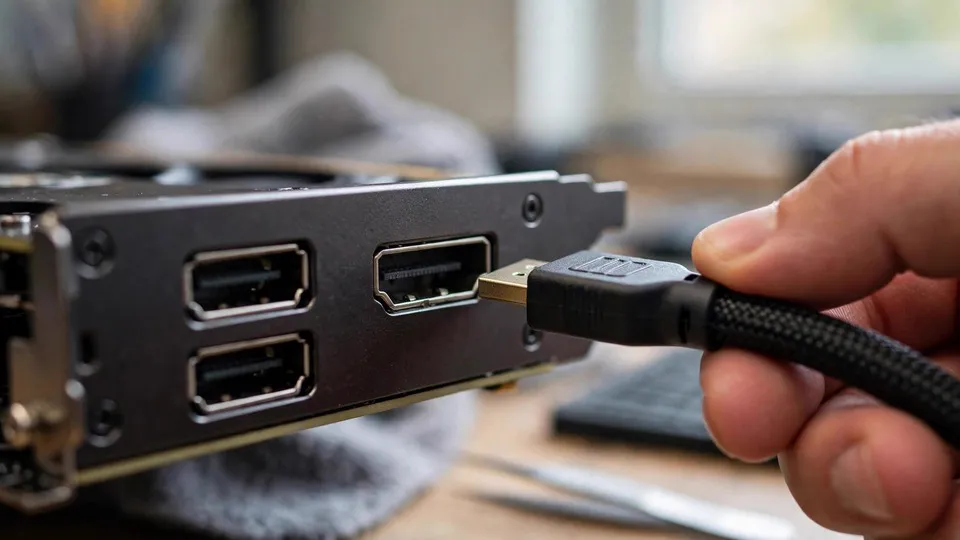
Key Summary
A computer on HDMI or DisplayPort can keep a steady picture while its sound drops out for a few seconds and returns on its own. This guide separates a display-mode fault from a handshake fault, a format fault, a return-path fault, and a cable fault, using the picture at the dropout, the endpoint that still sounds, and the display mode.
The Shape of the Problem: Sound Gone for Seconds, Picture Untouched
This guide is about one narrow shape, and the shape is the whole diagnosis. A computer is connected by HDMI or DisplayPort to a television, a monitor, or an amplifier. The picture runs normally from the first minute to the last. The sound, however, drops out in the middle of playback: it goes silent for a few seconds and then comes back on its own, with no restart, no input switch, and no action from the person watching. During the dropout, the picture does not flash, does not go black, and does not jump. The sound simply disappears and then returns, as if nothing had happened.
Three facts pin the shape down, and all three have to hold. First, the sound disappears completely for a short time — a fraction of a second or a few seconds — and then returns by itself. Second, the picture stays normal throughout the dropout. Third, the dropout happens during playback, after the system is already running and the picture is already up. A sound that is missing from the start belongs with a different guide. A sound that crackles, breaks up, or distorts belongs with a different guide. A sound that is out of step with the picture by a fixed amount belongs with a different guide. And a sound that changes after the machine wakes from sleep belongs with a different guide. This guide covers only the intermittent, silent dropout with a steady picture.
That shape is worth naming precisely, because the most common mistake with it is to treat it as the same problem as a computer that has no sound at all. The two problems look related — both involve HDMI audio — but their tests are completely different. A computer with no sound from the start is a settings and device problem: the wrong default device, a missing driver audio component, or the wrong input on the receiver. A computer whose sound drops out for a few seconds during playback is a negotiation and link problem: a handshake being redone, a format being renegotiated, or a high-bandwidth link running at its margin. Applying the long-term no-sound checklist to an intermittent dropout sends the reader around in circles through settings that were never wrong, while the real layer goes untested.
The shape also has to be separated from sound that is degraded rather than absent. Crackling, popping, and breaking up are signs of a different mechanism: an audio buffer running dry, or a delay in real-time scheduling. In this guide the sound is not degraded. It is gone, completely, for a few seconds, and then it is back. That on-off character is itself evidence. It points at an event — a handshake, a renegotiation, a switch — rather than at a gradual failure.
How HDMI Audio Travels: Inside the Picture Signal
HDMI and DisplayPort do not carry audio on a separate wire. The audio data is packed into the blanking intervals of the video signal — the gaps between the lines and frames of picture — and it travels down the same link as the picture. That single fact explains the shape of this guide. When the picture is normal and the sound is gone, the link itself has not broken. If the link had broken, the picture would have broken too. What has failed is the audio part of the journey: the format negotiation, the decoding at the receiving end, or the handshake between the devices.
That is why the first test in this guide is to watch the picture at the exact moment the sound drops. A dropout that arrives with a flash, a black frame, or a jump in the picture points at the link layer: the HDMI link is retraining or re-handshaking, and the audio and the picture are affected together. A dropout that arrives with the picture completely steady points at the audio layer: the format negotiation, the receiver decoding, or the device being re-listed. The picture is not background detail in this diagnosis. It is the first fork.
Three pairs of concepts have to be kept apart before the layers make sense. The first pair is an intermittent dropout against long-term silence. Long-term silence is a settings and device problem, and it belongs with the guide for a computer with picture but no sound. An intermittent dropout is a negotiation and link problem, and it belongs here. The second pair is crackling and breaking up against a silent dropout. Crackling is sound that is still there but degraded, and it belongs with the guide for audio that breaks up under load. A silent dropout is sound that is gone entirely for a few seconds, and it belongs here. The third pair is a fixed offset against an intermittent disappearance. A fixed offset — the lips and the sound out of step by the same amount from start to finish — is a television processing delay, and it belongs with the guide for lip-sync offset. An intermittent disappearance is sound that is sometimes there and sometimes not, with no fixed error, and it belongs here. Mixing any of these pairs up sends the reader to the wrong set of tests.
Why 4K, 120Hz, HDR, and VRR make dropouts more likely. The highest-bandwidth display modes are the ones where this shape shows up most clearly. A 4K picture at 120Hz, with HDR and VRR switched on, runs over HDMI 2.1 in a mode called FRL, or Fixed Rate Link. In that mode the link is running with the least spare bandwidth, and any small instability — a cable at its margin, a receiver decoding at its limit, a driver scheduling at its limit — can make the audio part fail first. The reason the audio fails first is the same reason the picture survives: the audio is packed into the blanking intervals, and when bandwidth is tight, the audio packets are the first to be affected.
User reports give this mechanism a concrete shape. On a Sony Bravia television connected to an NVIDIA graphics card, running 4K at 120Hz with VRR switched on, the audio dropped out completely after 30 minutes to 3 hours of gaming, while the audio on other inputs kept working. The only way to bring the sound back was to re-initialise the HDMI link by switching VRR off and then on again at the television. Two different certified 4K and 120Hz cables produced the same result. Setting the television to 4K at 60Hz removed the problem entirely. A second report, from a Sony A80J television connected to an RTX 3060 Ti, described the sound being lost at random times — usually while gaming, but also on the Windows desktop — and being recovered only by restarting or by switching the refresh rate to 60Hz and switching HDR off. A new certified HDMI 2.1 cable made no difference. A third report, from an A90K television connected to an RTX 3070 Ti laptop, described the sound dropping out after a while at any 120Hz resolution with VRR switched on.
Driver release notes add a further piece of evidence. NVIDIA driver 527.37 release notes state that the driver fixed a problem where HDMI audio output did not work in some situations, especially at high display refresh rates such as 120Hz and 100Hz using FRL transmission mode. That is a driver-level acknowledgement that the display mode and the audio problem are connected. But the same forums that carry that fix also carry reports that contradict it: one user reported that updating the driver left the sound flawless, while another reported that driver 536.67 still had not fixed the problem on Windows, with the audio stream disconnecting, the television reporting an unsupported audio format, and the system reporting no audio device connected. A driver update is therefore a variable, not a repair. It can change the result, and it has to be tested like any other variable, with the settings and the dropout pattern written down before the update is made.
Why ARC and eARC are a separate road. When the sound goes from the television to an amplifier or a Soundbar through ARC or eARC, it travels an extra leg. The television receives the HDMI audio, and then sends it back out through the ARC port to the amplifier, with the CEC handshake protocol coordinating the two devices. Any failure on that extra leg — a CEC conflict, a format transcoding buffer running over, a cable at its margin — drops the sound while the picture is completely unaffected, because the picture never travels down the ARC leg. That is why the comparison between the television speakers and the amplifier is a deciding test: if the television speakers sound normally and only the amplifier drops out, the problem is narrowed to the return path, not the source.
The return path has its own failure modes. One source describes a Sonos Arc connected by eARC to receive uncompressed Dolby Atmos, where another HDMI device polluting the shared CEC bus caused audio frames to be silently dropped. The same source describes the television processor, set to Auto, decoding the incoming HDMI bitstream and re-encoding it as Dolby Digital Plus in real time, and overloading during action scenes until the audio buffer ran dry and left a silent gap of 2 to 5 seconds. The fixes it lists are to set the television digital audio output to Pass-Through rather than Auto, so the bitstream passes straight through without the television processor re-encoding it; to isolate the interfering HDMI-CEC device, by removing other HDMI devices or using a CEC-less adapter; and to use an Ultra High Speed 48Gbps HDMI cable. Those fixes belong to the return path. They cannot be applied to a television-speaker setup, and the conclusions of the return path cannot be transferred to a direct connection. The two roads have to be kept apart.
| Display mode | Link load | What the dropout pattern looks like |
|---|---|---|
| 4K at 60Hz, HDR off, VRR off | Lowest FRL load, widest margin | Sound stable in the reported cases; used as the comparison mode |
| 4K at 120Hz, HDR on, VRR on | Highest FRL load, tightest margin | Sound drops out after a period of playback and returns only after the link is re-initialised |
| 1080p or 2K at 120Hz with VRR on | High refresh load at lower resolution | Sound drops out after a while, showing the refresh rate and VRR matter as much as the resolution |
| Any mode with a bitstream format the receiver cannot decode | Format negotiation load | Sound drops out only when that format is playing, and stays stable in PCM or stereo |
The Deciding Forks: Three Comparisons That Narrow the Field
The diagnosis in this guide runs on three forks, and each fork is a comparison with two possible answers. The forks have to be taken in order, because each one narrows the field for the next.
The first fork is the picture at the moment of the dropout. If the picture flashes, goes black, or jumps at the same moment the sound drops, the link layer is the working answer: the HDMI link is retraining or re-handshaking, and the audio and the picture are affected together. If the picture is completely steady and only the sound drops, the audio layer is the working answer: the format negotiation, the receiver decoding, or the device being re-listed. This fork cannot be skipped. It is the first decision in the guide, and every later step depends on it.
The second fork is whether the dropout follows the display mode. If the sound drops only at 4K and 120Hz, with HDR or VRR switched on, and stays stable at 4K and 60Hz or with HDR and VRR switched off, the display mode layer is the working answer: a high-bandwidth FRL link running at its margin, with format negotiation under strain. If the sound drops at any resolution and any refresh rate, the cable, port, and receiver layer is the working answer, and the diagnosis moves to the third fork. The display mode comparison is a test, not a recommendation: dropping the mode is a way to find the layer, not a suggestion to use the lower mode permanently.
The third fork is which endpoint drops. If the television built-in speakers drop out too, the source, cable, and display card layer is the working answer. If the television speakers sound normally and only the amplifier or Soundbar connected through ARC or eARC drops out, the return path layer is the working answer: the ARC or eARC handshake, a CEC conflict, or a format transcode. This fork is decisive because it separates the two roads — the direct road and the return road — and the fixes for one do not apply to the other.
The Five Suspicion Layers
Every intermittent dropout with a steady picture sits in one of five layers. The layers are ordered by the shape of the evidence, but order is not proof: each layer has to be confirmed or excluded by a test before it can be named.
| Layer | What it means | Evidence that points at it |
|---|---|---|
| First layer: display mode layer, bandwidth, FRL, and format negotiation | Sound drops only at 4K and 120Hz, with HDR, VRR, or 10-bit and 12-bit output, and stays stable at 4K and 60Hz or with HDR and VRR off | Dropout follows the display mode; switching HDR or VRR off removes it; driver release notes mention FRL mode audio problems; user reports describe 4K and 120Hz dropping while 4K and 60Hz stays stable |
| Second layer: link re-handshake layer, HDMI handshake and HDCP re-authentication | Link intermittently re-handshakes, dropping the audio part for a few seconds before it returns; the picture may flash at the same moment, or may be completely unaffected | Whether the picture flashes at the dropout; whether switching inputs or re-initialising the link brings the sound back at once; whether the dropout follows content switching between resolutions, HDR modes, or audio formats |
| Third layer: format layer, bitstream format and transcoding | Receiver cannot decode a particular audio format, such as Dolby Atmos or DTS, or the television Auto transcode buffer runs over, dropping the sound for a few seconds | Dropout appears only with one audio format; switching to PCM removes it; the format shown on the receiver lines up with the time of the dropout |
| Fourth layer: return path layer, ARC, eARC, and CEC | Television speakers sound normally, and only the amplifier or Soundbar connected through ARC or eARC drops out; a CEC conflict, a wrong ARC port, or CEC switched off | Television speaker comparison; whether the cable is on the port marked ARC or eARC; whether removing other HDMI devices improves the dropout |
| Fifth layer: cable, port, and device layer, physical link margin | Cable at its margin, loose port, switcher or KVM in the path, or a graphics card driver audio component problem; the dropout follows the cable or the port | Certified Ultra High Speed cable comparison; changing the HDMI port; bypassing the switcher or KVM with a direct connection; whether the HDMI audio device disappears or is re-listed in Device Manager |
The first layer is the display mode layer, and it is the one with the strongest published evidence. The dropout follows the mode: it appears at 4K and 120Hz with HDR and VRR, and it disappears at 4K and 60Hz or with HDR and VRR off. The mechanism is the FRL link running with the least spare bandwidth, so that the audio packets packed into the blanking intervals are the first to be affected. The evidence comes from driver release notes and from user reports that line up with each other: a Sony Bravia with an NVIDIA card dropping sound after 30 minutes to 3 hours of gaming at 4K and 120Hz with VRR, recovering only when VRR is switched off and on again, and staying stable at 4K and 60Hz. The same pattern appears in a second Sony report and in a third report from a different Sony model with a different NVIDIA card. The layer is not a claim about every television and every card. The reports cluster around one television brand and one graphics card brand, and they are reports, not a rule for all platforms.
The second layer is the link re-handshake layer. HDMI links re-handshake when the signal changes: a resolution change, an HDR mode change, an audio format change, or a content switch. Each re-handshake is a chance for the audio part to drop for a few seconds and then return. One source describes the pattern directly: a regular dropout of about two seconds is the signature of a re-negotiated handshake, and it is most often caused by a marginal cable, an audio format set to Auto or Bitstream, or a CEC conflict. The test for this layer is whether switching inputs, switching VRR off and on, or re-plugging the cable brings the sound back at once. If it does, the link was re-initialised, and the dropout was a handshake event. If the picture flashes at the same moment as the dropout, the handshake affected the whole link. If the picture stays steady, the handshake affected the audio part only.
The third layer is the format layer. A receiver that cannot decode a particular bitstream format — Dolby Atmos or DTS, for example — drops the sound when that format is playing and stays silent until the format changes or the link is re-initialised. A television set to Auto can also cause the problem by decoding the incoming bitstream and re-encoding it in real time: during demanding scenes the processor overloads, the audio buffer runs dry, and a silent gap of a few seconds appears. The test for this layer is to switch the audio output format to PCM or stereo. If the dropout disappears, the format negotiation layer is confirmed. That switch is a comparison test, not a permanent setting. It proves where the problem sits. It does not repair the underlying negotiation.
The fourth layer is the return path layer, and it applies only when the sound travels from the television to an amplifier or a Soundbar through ARC or eARC. The television speakers sounding normally while the amplifier drops out is the evidence that narrows the problem to this layer, because the picture and the television speakers never travel down the return leg. The causes on this leg are a CEC conflict — another HDMI device interfering on the shared CEC bus — a cable plugged into a port that is not marked ARC or eARC, CEC switched off, or a format transcode overloading the television processor. The tests are to check the port, to remove other HDMI devices one at a time and see whether the dropout improves, and to set the television digital audio output to Pass-Through rather than Auto so the bitstream passes straight through without being re-encoded.
The fifth layer is the cable, port, and device layer. A cable at its margin can drop the audio while the picture stays normal, because the audio and the video use different parts of the signal path, and a format or handshake failure can remove the sound while leaving the picture unaffected. The test for this layer is a comparison, not a purchase: change to a certified Ultra High Speed cable, change the HDMI port, and bypass any switcher or KVM with a direct connection, changing one thing at a time. Changing several things at once makes it impossible to tell which change mattered. The device side of this layer is the graphics card driver audio component and the way Windows lists the HDMI audio device: if the device disappears from Device Manager or is re-listed at the moment of the dropout, the device layer is part of the picture.
The Seven Diagnostic Steps
The seven steps below are written to be followed in order. Each step produces a result that decides which step comes next. Changing several things at once, or jumping to a driver update before the pattern is written down, destroys the evidence the later steps need.
| Step | Action | What the result means |
|---|---|---|
| Step 1 | Describe the dropout and write down its pattern: how long it lasts, how often it happens, whether the picture flashes, and whether it follows content switching | The pattern itself is evidence, and every later layer comparison has to be checked against it |
| Step 2 | Watch the picture at the exact moment the sound drops | Picture flashes, goes black, or jumps points at the link re-handshake layer; picture steady moves the diagnosis to step 3 |
| Step 3 | Switch the television audio output to the built-in speakers and see whether the dropout continues | Television speakers also drop points at the source, cable, and display mode layers; television speakers fine and only the amplifier drops points at the return path layer |
| Step 4 | Drop the resolution and refresh rate to 4K at 60Hz, switch HDR off, switch VRR off, and see whether the dropout disappears | Disappears points at the display mode layer; continues moves the diagnosis to step 5 |
| Step 5 | Switch the television and Windows audio output format to PCM or stereo and see whether the dropout disappears | Disappears points at the format layer; continues moves the diagnosis to step 6 |
| Step 6 | Change one thing at a time: a certified Ultra High Speed HDMI cable, another HDMI port, a direct connection bypassing any switcher or KVM; for an ARC or eARC setup, also check the ARC port and remove other HDMI devices one at a time | A change that removes the dropout identifies the faulty link in the chain; no change moves the diagnosis to step 7 |
| Step 7 | Stop when the layer cannot be identified, when the dropout comes with picture flashing, a black screen, or no signal, or when a graphics card or television hardware fault is suspected | Bring the notes from the seven steps for inspection, and do not scramble all the settings before the layer is identified |
Step one is to describe the dropout and write down its pattern before changing anything. How long does the sound stay gone — a fraction of a second, or a few seconds? How often does it happen? Does the picture flash, go black, or jump at the same moment? Does the dropout follow a content switch — a scene change, a different app, a resolution change? That pattern is itself evidence, and every layer comparison in this guide has to be checked against it. A dropout that follows content switching points at the handshake layer. A dropout that appears only after 30 minutes to 3 hours of gaming points at the display mode layer. A dropout that appears only with one audio format points at the format layer. Without the pattern written down, those distinctions are lost.
Step two is the picture comparison, and it is the first fork. Watch the picture at the exact moment the sound drops. If the picture flashes, goes black, or jumps, the link re-handshake layer is the working answer, and the diagnosis moves to the handshake tests. If the picture is completely steady, the audio layer is the working answer, and the diagnosis moves to step three. This step cannot be skipped, because the two answers lead to different roads.
Step three is the endpoint comparison. Switch the television audio output to its built-in speakers and see whether the dropout continues. If the television speakers drop out too, the problem sits at the source, the cable, or the display mode, and the diagnosis moves to step four. If the television speakers sound normally and only the amplifier or Soundbar drops out, the problem sits on the return path, and the diagnosis moves to the return path tests in step six — the ARC port, the CEC devices, and the format setting. This step separates the direct road from the return road, and the fixes for one do not apply to the other.
Step four is the display mode comparison. Drop the resolution and refresh rate to 4K at 60Hz, switch HDR off, and switch VRR off, and see whether the dropout disappears. If it disappears, the display mode layer is confirmed. If it continues, the diagnosis moves to step five. This step is a comparison test, not a suggested setting. Dropping the mode is a way to find the layer. It is not a suggestion to use the lower mode permanently, and the reader should write down the result and restore the preferred mode before moving on.
Step five is the format comparison. Switch the television and Windows audio output format to PCM or stereo, and see whether the dropout disappears. If it disappears, the format layer is confirmed. If it continues, the diagnosis moves to step six. This step is also a comparison test, not a permanent setting. Switching to PCM proves that the problem sits in format negotiation. It does not repair the negotiation itself, and the reader should write down the result before deciding the next step.
Step six is the cable and port comparison, and it has to be done one change at a time. Change to a certified Ultra High Speed HDMI cable and test. Change to another HDMI port and test. Bypass any switcher or KVM with a direct connection and test. If the sound travels through ARC or eARC to an amplifier, also check that the cable is on the port marked ARC or eARC, and remove other HDMI devices one at a time to see whether a CEC conflict improves the dropout. Each change is a separate test, and the result of each one has to be written down before the next change is made. Changing several things at once makes it impossible to tell which change mattered, and the diagnosis ends with a list of changes and no layer identified. If a change removes the dropout, that change identifies the faulty link in the chain. If no change removes it, the diagnosis moves to step seven.
Step seven is the stop line. Stop when the seven steps have not identified a layer. Stop when the dropout comes with picture flashing, a black screen, or no signal, because the picture is then the main problem and the audio dropout is only a side effect, and the diagnosis belongs with the guide for link and no-signal problems. Stop when a graphics card or television hardware fault is suspected. At that point, bring the notes from the seven steps — the dropout pattern, the picture result, the endpoint result, the display mode result, the format result, and the cable and port results — for inspection. Do not scramble all the settings before the layer is identified. The settings as they were, and the result of each comparison, are the evidence.
Six Misconceptions That Mislead This Diagnosis
Misconception one: a steady picture means the HDMI cable is fine. This is wrong. A steady picture only proves that the video part of the signal is getting through. The audio is packed into the blanking intervals of the same signal, and when bandwidth is tight the audio packets are the first to be affected. A cable at its margin can drop the audio while the picture stays completely normal. One source states it directly: audio and video use different parts of the signal path, and a format or handshake failure can remove the sound while leaving the picture unaffected. The picture is evidence about the picture. It is not evidence about the cable.
Misconception two: updating the driver will fix it. This is wrong. A driver update can fix some mode-related problems — NVIDIA driver 527.37 release notes describe a fix for HDMI audio output not working at high refresh rates using FRL transmission mode — but user reports show the problem persisting after updates as well. One user reported flawless audio after updating. Another reported that driver 536.67 still had not fixed the problem on Windows, with the audio stream disconnecting and the television reporting an unsupported audio format. Different television models, driver versions, and display mode combinations give different results. An update is a variable to be tested, with the settings and the dropout pattern written down first. It is not a repair.
Misconception three: a more expensive cable will solve it. This is wrong. Changing the cable is step six of this guide, and it is a cross-test: the result is the conclusion, and the price is not evidence. A certified Ultra High Speed cable is a tool for excluding the cable margin. It is not a universal repair. If the dropout continues after the cable is changed, the problem sits in another layer, and the cable was never the fault. Buying a dearer cable and treating the purchase as a fix skips the test that would have shown whether the cable mattered at all.
Misconception four: switching to PCM means worse sound quality, so it should not be done. This is wrong. Switching to PCM is a comparison test that proves whether the problem sits in the format negotiation layer. It is not a permanent setting. The test is done, the result is written down, and then the reader decides the next step with the layer identified. Treating a comparison test as a permanent setting confuses testing with repair. The sources that list switching to PCM as a fix step and this guide, which lists it as a comparison test, are not contradicting each other: switching to PCM and staying stable proves the layer, but it does not repair the negotiation underneath.
Misconception five: the television speakers sound fine, so the amplifier is broken. This is wrong. Television speakers sounding normally while the amplifier drops out points at the return path — the ARC or eARC handshake, a CEC conflict, or a format transcode — not at the amplifier itself. The amplifier cannot be blamed before the ARC port, the CEC devices, and the format setting have been compared. The return path is a separate leg with its own failure modes, and the test for it is the endpoint comparison in step three, followed by the port, CEC, and format checks in step six.
Misconception six: an intermittent dropout and long-term silence are the same problem. This is wrong, and the guide for long-term silence says so itself: it states that it deals mainly with long-term silence, and that an intermittent dropout during playback should first have its cable, port, and switcher problems excluded rather than being treated directly as a settings problem. Long-term silence is a settings and device problem. An intermittent dropout is a negotiation and link problem. Applying the eight steps of the long-term silence guide directly to an intermittent dropout sends the reader around in circles through settings that were never wrong, while the real layer goes untested.
Comparison Table: What Each Result Points At
The table below brings the tests together. Each row starts from a result that the reader can actually see — a picture behaviour, an endpoint result, a mode result, a format result — and ends at the layer that result points at. It is meant to be read after the seven steps, as a check on the diagnosis, not as a shortcut that replaces them.
| Result seen during diagnosis | Layer it points at | What to do next |
|---|---|---|
| Sound drops only at 4K and 120Hz with HDR and VRR, stable at 4K and 60Hz | First layer: display mode layer | Test driver version and cable margin at that mode; do not treat the lower mode as the repair |
| Picture flashes, goes black, or jumps at the same moment the sound drops | Second layer: link re-handshake layer | Test input switching and link re-initialisation; check what content switch precedes the dropout |
| Sound drops only with one audio format, stable in PCM or stereo | Third layer: format layer | Note the format and the receiver behaviour; the negotiation underneath still needs a decision |
| Television speakers fine, only the amplifier or Soundbar drops out | Fourth layer: return path layer | Check the ARC or eARC port, remove other HDMI devices one at a time, set audio output to Pass-Through |
| Dropout follows the cable or the port, and changes when either is changed | Fifth layer: cable, port, and device layer | Replace the faulty link identified by the one-change-at-a-time tests |
| Dropout continues at every resolution, every refresh rate, and every format | No single layer confirmed | Stop and bring the notes for inspection; the fault is not isolated by the home tests |
| Sound drops with picture flashing, black screen, or no signal | Link or no-signal problem, not this guide | Switch to the guide for link and no-signal problems; the audio dropout is a side effect |
| Driver update removes the dropout | Display mode and driver interaction | Write down the driver version and the mode that now works, and keep the notes |
The last two rows matter because they describe what the tests actually prove. A driver update that removes the dropout proves that the display mode and the driver were interacting. It does not prove that the driver was the only cause, and it does not prove that the same update will work on a different television and driver combination. A dropout that continues through every test proves that the home tests have not isolated the layer, and the honest next step is inspection with the notes, not another round of the same tests.
What the Sources Disagree About
The sources consulted for this guide do not all say the same thing, and the differences have to be written out rather than smoothed over. The first disagreement is whether updating the driver is a fix or a variable. NVIDIA release notes state that a driver version fixed an FRL mode audio problem, and one user reported flawless audio after updating. Another user reported that driver 536.67 still had not fixed the problem on Windows, with the audio stream disconnecting, the television reporting an unsupported audio format, and the system reporting no audio device connected. Both reports are real, and the difference comes from different television models, driver versions, and display mode combinations. The update is a variable: it can change the result, and it has to be tested with the settings and the dropout pattern written down first. It is not a guaranteed repair.
The second disagreement is about which cause is the most common. One source states that poor or ordinary cables cause more ARC dropouts than any setting. Another source states that the problem has to be narrowed to four ranges — NVIDIA driver scheduling, the HDMI or DisplayPort link, Windows audio settings, and the television, monitor, Soundbar, or amplifier — and that no single cause can be presumed. A third source states that the fastest method is to find where the sound disappears, by comparing the television speakers with the external speakers. No source states which cause is the most common across all setups, and this guide does not invent one. It writes the diagnosis as five directions that all have to be compared, and it does not write that any one of them is the most common.
The third disagreement is about who is responsible for the Sony television and NVIDIA card combination. A Sony forum reply describes the problem as a known issue for nearly a year with no solution from Sony. NVIDIA forums describe a driver update fixing part of the problem. A forum reply also states that AMD graphics cards show the same problem on Sony televisions at 4K and 120Hz. Responsibility has no settled answer: the television firmware, the graphics card driver, and the HDMI 2.1 specification are all candidates. This guide writes the problem as a three-way interaction, and it does not write that it is the fault of NVIDIA or the fault of Sony. The AMD claim is a forum reply, not a confirmed cross-brand conclusion, and it is written that way.
The fourth disagreement is about switching to PCM. Some sources list switching to PCM as a fix step. This guide lists it as a comparison test that proves the problem sits in the format negotiation layer. The two positions are not contradicting each other: switching to PCM and staying stable proves the layer, but it does not repair the negotiation underneath. This guide writes the distinction out, because a reader who treats the comparison test as a permanent setting stops the diagnosis at the point where it has only just identified the layer.
Boundary: Shapes This Guide Does Not Cover
The boundary table below lists the shapes that look close to this one but belong elsewhere. Each row gives the shape, the guide it belongs with, and the reason it is not this guide. The table is part of the diagnosis: if the shape in front of the reader matches a row here better than it matches the shape in the opening section, the reader is on the wrong guide and should switch.
| Shape | Which guide it belongs with | Why it is not this guide |
|---|---|---|
| HDMI or DisplayPort picture but long-term complete silence | #170, HDMI and DisplayPort playback chain | The premise is long-term silence, not an intermittent dropout |
| Gaming only audio crackling and breaking up, normal music playback | #311, interrupt latency and audio buffer | Sound is degraded, not completely silent for a few seconds |
| Lips and sound out of step by a fixed amount, tone normal | #317, television picture processing delay | A fixed offset, not an intermittent disappearance |
| After waking, audio has moved to the monitor speakers | #269, wake-up audio endpoint switching | Wake-up trigger, not a dropout during playback |
| Boot screen flickers, stable only after entering Windows | #502, boot stage positioning | Boot stage, not playback |
| Recording file silent, silent halfway, or changed in pitch | #503, #505, and #504, recording audio | A file problem, not a playback chain problem |
| Finished export sounds changed in pitch | #504, sample rate | Sound exists with the wrong pitch, not a dropout |
| Picture flickers, goes black, or shows no signal at the same time | #324, #289, and #471, link and no-signal | The picture problem is the main fault, and the audio dropout is only a side effect |
| Monitor has no speakers and no audio output at all | #170, first step endpoint comparison | The endpoint cannot sound at all, so there is no dropout to diagnose |
Two rows in that table deserve a second look, because they are the ones most often confused with this shape. The first is the computer with picture but long-term complete silence. That computer has no sound from the start, and its diagnosis runs through settings and devices: the default device, the driver audio component, and the receiver input. The computer in this guide has sound that comes and goes during playback, and its diagnosis runs through negotiation and links: the display mode, the handshake, the format, the return path, and the cable. The two shapes share a cable and a port, and almost nothing else. The second is the gaming-only crackling and breaking up. That sound is degraded — still present, but broken — and its mechanism is a buffer running dry or a delay in real-time scheduling. The sound in this guide is absent, completely, for a few seconds, and its mechanism is an event: a handshake, a renegotiation, or a switch. Treating a silent dropout as a buffer problem sends the reader to latency tools that measure the wrong thing.
When to Stop Testing
Stop when the seven steps have not identified a layer. A dropout that has been described, compared against the picture, compared against the television speakers, compared against the display mode, compared against the format, and compared against the cable and the port — and still gives no clear answer — has told the reader everything the home tests can tell. Further attempts at that point are guessing, and guessing through settings that were never wrong makes the diagnosis harder, not easier.
Stop when the dropout comes with picture flashing, a black screen, or no signal. The picture is then the main problem, the audio dropout is only a side effect, and the diagnosis belongs with the guide for link and no-signal problems. Stop when a graphics card or television hardware fault is suspected. In all of those cases the notes from the seven steps are the evidence to bring along, and the settings should not be scrambled before the layer is identified.
Stop also when a driver update has been tried and the dropout continues, and a second variable has been changed and the dropout continues. Two changed variables with no change in the result is an answer: the layer is not the one those variables control. Changing a third, fourth, and fifth setting in turn does not add information. It adds a list of changes that have to be undone before any inspection can start from a known state.
The settings as they were, and the result of each comparison, are the evidence. Write them down: the dropout pattern, the picture result, the endpoint result, the display mode result, the format result, and the cable and port results. Those six results together say more than any one of them alone, and they are what an inspection starts from.
What to Bring for Inspection
Bring the notes from the seven steps: the dropout pattern, including how long the sound stays gone and how often it happens; whether the picture flashes at the dropout; whether the television speakers drop out too or only the amplifier or Soundbar; whether dropping to 4K at 60Hz with HDR and VRR off removes the dropout; whether switching to PCM or stereo removes it; and what changed, if anything, when the cable, the port, and the direct connection were each tested in turn. Bring the television model and the graphics card model and driver version, because the reported cases cluster around particular combinations, and the combination is part of the evidence. Bring the cable details: whether it is a certified Ultra High Speed cable, and whether a switcher or KVM sits in the path.
Bring the settings as they are now, and do not bring a list of every setting that was changed and changed back. The current settings and the six comparison results are the evidence. The history of changes is only useful where a change removed the dropout, because that change identifies the layer.
For inspection, HK GPU Fix is at Dali Plaza 1209, Shek Mun. The phone number is 2186 8010 and WhatsApp is 6558 6806. The published inspection fee range is HK$400 to HK$2,800, and no price is estimated before inspection. There is no Mong Kok shop and no on-site service.
Frequently Asked Questions
My picture is fine, so why would the HDMI cable be the problem?
Because the audio and the picture use different parts of the same signal. The audio data is packed into the blanking intervals of the video signal, and when bandwidth is tight the audio packets are the first to be affected. A cable at its margin can therefore drop the sound while the picture stays completely normal. One source states it directly: audio and video use different parts of the signal path, and a format or handshake failure can remove the sound while leaving the picture unaffected. A steady picture proves the video part is getting through. It proves nothing about the cable margin, and it proves nothing about the audio part.
Why does the sound drop out only when I play at 4K and 120Hz?
Because 4K at 120Hz with HDR and VRR is the highest-bandwidth mode HDMI 2.1 offers, and it runs over a link called FRL, or Fixed Rate Link, with the least spare bandwidth. In that mode any small instability — a cable at its margin, a receiver decoding at its limit, a driver scheduling at its limit — can make the audio part fail first. User reports describe the same pattern: a Sony Bravia television with an NVIDIA card dropping sound after 30 minutes to 3 hours of gaming at 4K and 120Hz with VRR, recovering only when VRR is switched off and on again, and staying stable at 4K and 60Hz. The mode comparison in step four tests exactly this: if dropping to 4K at 60Hz removes the dropout, the display mode layer is confirmed.
The sound comes back by itself after a few seconds. What is happening in those seconds?
The link is re-handshaking or renegotiating its format. HDMI links re-handshake when the signal changes: a resolution change, an HDR mode change, an audio format change, or a content switch. During that renegotiation the audio part can drop for a few seconds and then return once the handshake completes. One source describes the pattern directly: a regular dropout of about two seconds is the signature of a re-negotiated handshake, most often caused by a marginal cable, an audio format set to Auto or Bitstream, or a CEC conflict. The sound returning by itself is not a sign that the problem fixed itself. It is a sign that the handshake finished and the audio came back with it.
My television speakers sound fine, but my Soundbar keeps dropping out. Is the Soundbar broken?
Not necessarily, and the Soundbar should not be blamed before the return path is tested. When the television speakers sound normally and only the amplifier or Soundbar drops out, the problem is narrowed to the return path: the ARC or eARC handshake, a CEC conflict, or a format transcode. The sound travels an extra leg from the television back to the Soundbar through the ARC port, coordinated by CEC, and any failure on that leg drops the sound while the picture and the television speakers are unaffected. The tests are to check that the cable is on the port marked ARC or eARC, to remove other HDMI devices one at a time, and to set the television digital audio output to Pass-Through rather than Auto.
Will updating my graphics card driver fix the dropout?
It can change the result, but it is not a guaranteed repair. NVIDIA driver 527.37 release notes state that the driver fixed a problem where HDMI audio output did not work at high refresh rates using FRL transmission mode, and one user reported flawless audio after updating. But another user reported that driver 536.67 still had not fixed the problem on Windows, with the audio stream disconnecting and the television reporting an unsupported audio format. Different television models, driver versions, and display mode combinations give different results. Before any update, write down the current settings and the dropout pattern, so the result of the update can be compared against them. An update is a variable to be tested, not a repair to be assumed.
Should I switch my audio output to PCM permanently?
Switching to PCM is a comparison test, not a permanent setting. It proves whether the problem sits in the format negotiation layer: if the dropout disappears in PCM, the format layer is confirmed. The test is done, the result is written down, and then the reader decides the next step with the layer identified. Some sources list switching to PCM as a fix step, and this guide lists it as a comparison test. The two positions are not contradicting each other: switching to PCM and staying stable proves the layer, but it does not repair the negotiation underneath. Treating the test as a permanent setting stops the diagnosis at the point where it has only just identified the layer.
I changed the cable and the dropout is still there. Does that mean the cable was never the problem?
It means the cable was not the problem in that test, and the diagnosis should move to the next layer. Changing the cable is one comparison in step six, and its result is the conclusion: if the dropout continues after the change, the cable margin is excluded and the problem sits elsewhere. That is a useful result, not a wasted test. The mistake would be to change the cable, the port, and the switcher all at once and then not know which change mattered. One change at a time, with each result written down, is what makes the cable test worth doing. If no change in step six removes the dropout, the diagnosis moves to the stop line in step seven.
How is this different from a computer that has no HDMI sound at all?
A computer with no HDMI sound from the start has a settings and device problem: the wrong default device, a missing driver audio component, or the wrong input on the receiver. Its diagnosis runs through settings and devices, and it belongs with the guide for long-term silence. A computer whose sound drops out for a few seconds during playback has a negotiation and link problem: a handshake being redone, a format being renegotiated, or a high-bandwidth link running at its margin. Its diagnosis runs through comparisons: the picture, the endpoint, the display mode, the format, and the cable. The guide for long-term silence says so itself, stating that an intermittent dropout during playback should first have its cable, port, and switcher problems excluded rather than being treated directly as a settings problem.
The dropout only happens after I have been gaming for a while. Why not from the start?
A dropout that appears only after a period of playback points at the display mode layer. The reported cases describe sound dropping out after 30 minutes to 3 hours of gaming at 4K and 120Hz with VRR, and staying stable at 4K and 60Hz. The pattern matters because it separates a mode problem from a settings problem: a setting that is wrong from the start would show the fault from the start, while a high-bandwidth link running at its margin shows the fault only after the link has been running under load for a while. Write down the time it takes for the dropout to appear, because that time is part of the pattern, and the pattern is the evidence the display mode comparison is checked against.
What should I write down before bringing the computer in for inspection?
Write down six results: the dropout pattern, including how long the sound stays gone and how often it happens; whether the picture flashes at the dropout; whether the television speakers drop out too or only the amplifier or Soundbar; whether dropping to 4K at 60Hz with HDR and VRR off removes the dropout; whether switching to PCM or stereo removes it; and what changed, if anything, when the cable, the port, and the direct connection were each tested in turn. Add the television model, the graphics card model and driver version, and whether the cable is a certified Ultra High Speed cable. Those notes, together with the current settings, are what an inspection starts from, and they say more than a list of every setting that was changed and changed back.
Sources
The sources below were consulted for this guide. Forum reports are user reports, not official technical documents, and the television and graphics card combinations they describe apply to those combinations only, not to all platforms.
- blog.rottenwifi.com, "TV Audio Keeps Cutting Out? Find the Cause and Fix It" — https://blog.rottenwifi.com/why-your-tv-audio-keeps-cutting-out-a-step-by-step-fix/ — intermittent television audio is usually a signal path, audio format, connection, software, or external device problem, not a broken speaker; the fastest method is to find where the sound disappears; the key test is switching to the television built-in speakers, since sound can disappear while the picture is completely unaffected; ARC and eARC failures can remove the sound while the picture stays normal.
- electrotalks.com, "HDMI ARC Audio Dropouts: How To Fix" — https://electrotalks.com/hdmi-arc-audio-dropout/ — an HDMI ARC handshake error drops the audio for about two seconds before it returns; a regular two-second dropout is the signature of a re-negotiated handshake, most often caused by a marginal cable, an audio format set to Auto or Bitstream, or a CEC conflict; ARC works only through the port marked ARC or eARC; the Auto or Bitstream setting renegotiates the format between content, and each renegotiation is a chance for a dropout; a CEC conflict is handled by switching CEC off at the cable box while leaving it on at the television and the Soundbar, since ARC needs it.
- umatechnology.org, "Silence Isn't Golden: Why Does the Sound on My LG TV Keep Cutting Out" — https://umatechnology.org/silence-isnt-golden-why-does-the-sound-on-my-lg-tv-keep-cutting-out/ — written about LG televisions, not all televisions; a dropout can take several forms, including a brief silence every few seconds; the pattern points at different causes, including audio processing, connection handshake, bandwidth and codec negotiation, and app instability; an HDMI handshake problem drops the audio when the source changes resolution, HDR mode, or audio codec; a dropout that appears only when the device outputs Dolby or Atmos points at the device audio format or the ARC and eARC settings; the fastest stabilising test is switching the digital sound output to PCM.
- umatechnology.org, "Fix NVIDIA HDMI Audio Dropouts and Pops on Windows 11 Z790 PCs" — https://umatechnology.org/nvidia-hdmi-audio-dropouts-clicks-pops-and-latency-on-windows-11-z790-pcs-how-to-diagnose-and-fix-them/ — states plainly that there is no confirmed generic Intel Z790 defect; NVIDIA HDMI audio dropouts usually narrow to four ranges, being NVIDIA driver scheduling, the HDMI or DisplayPort link, Windows audio settings, and the television, monitor, Soundbar, or amplifier; the fastest method is comparison testing, including simplifying the HDMI path, trying a lower-bandwidth display mode, and comparing NVIDIA HDMI audio with motherboard, USB, and analogue output; a dropout that appears only at 4K and 120, HDR, VRR, or 10-bit and 12-bit output points at HDMI 2.1 bandwidth, FRL link stability, the cable, the receiver, or a driver interaction.
- ap.community.sony.com, "[Bug Report] Audio drops with Sony Bravia x90ck and Nvidia 3090FE on 4K 120hz VRR HDMI" — https://ap.community.sony.com/s/question/0D5Dp00000uHwGnKAK/bug-report-audio-drops-with-sony-bravia-x90ck-and-nvidia-3090fe-on-4k-120hz-vrr-hdmi?language=en_US — a user report, not an official technical document; a Sony Bravia X90CK connected to an NVIDIA RTX 3090 FE at 4K and 120Hz lost audio completely after 30 minutes to 3 hours of gaming, while audio on other inputs kept working; the only recovery was re-initialising the HDMI link by switching VRR off and on again at the television; two different certified 4K and 120Hz cables gave the same result; 4K at 60Hz had no problem; a forum reply described it as a known issue for nearly a year with no solution from Sony, and stated that AMD graphics cards showed the same problem on Sony televisions at 4K and 120Hz; after firmware v6.7480 the television firmware attempts to recover dropped audio rather than leaving it lost until a re-handshake.
- us.community.sony.com, "How can I fix the HDMI audio connection with my A80J and Nvidia GPU?" — https://us.community.sony.com/s/question/0D5Dp00000wY57WKAS/how-can-i-fix-the-hdmi-audio-connection-with-my-a80j-and-nvidia-gpu?language=en_US — a Sony community forum discussion, not an official document; a user with an RTX 3060 Ti connected to a Sony A80J lost television audio at random times and recovered it only by restarting or by switching the refresh rate to 60Hz and switching HDR off; gaming was the usual trigger but the Windows desktop was affected too; a new certified HDMI 2.1 cable made no difference; a reply suggested switching G-Sync off; another user reported an A90K with an RTX 3070 Ti laptop dropping audio after a while at any 120Hz resolution with VRR on.
- forums.developer.nvidia.com, "[470.57.02] Nvidia 30-series HDMI audio stops working when switching from 60Hz to 120Hz" — https://forums.developer.nvidia.com/t/470-57-02-nvidia-30-series-hdmi-audio-stops-working-when-switching-from-60hz-to-120hz/184631?page=5 — NVIDIA driver release notes state that a fix was made for HDMI audio output not working in some situations, especially at high display refresh rates such as 120Hz and 100Hz using FRL transmission mode; one user reported flawless HDMI audio after updating; another user reported a GTX 1060 connected to an LG C9 dropping HDMI sound more than 25 times in a day, sometimes 20 minutes into a video and sometimes after 5 seconds, and recovering the sound by pressing the test tone in Windows sound settings and cancelling it; another user reported that driver 536.67 still had not fixed the problem on Windows, with the audio stream disconnecting, the television reporting an unsupported audio format, and the system reporting no audio device connected. The reports in this forum contradict each other, and both sides are written out.
- needsomefun.net, "Fix Sonos Arc eARC TV Audio Cutting Out Randomly" — https://www.needsomefun.net/sonos-arc-earc-tv-audio-cutting-out/ — a personal experience report about a Sonos Arc and LG OLED combination, not a general conclusion; an uncompressed Dolby Atmos stream over eARC lost audio frames silently when another HDMI device polluted the shared CEC bus; the fixes listed are to set the television digital audio output to Pass-Through rather than Auto, to isolate the interfering HDMI-CEC device by removing other HDMI devices or using a CEC-less adapter, and to use an Ultra High Speed 48Gbps HDMI cable; the television processor set to Auto decodes the incoming bitstream and re-encodes it as Dolby Digital Plus in real time, and during action scenes the processor overloads, the audio buffer runs dry, and a silent gap of 2 to 5 seconds appears.
A sound that drops out for a few seconds while the picture stays steady is not a mystery. Watch the picture at the dropout, compare the endpoints, compare the display mode, compare the format, and compare the cable one change at a time. Those five comparisons say which layer the fault sits in — and they say it before any setting is changed for good.