GPU Core Temperature Normal but VRAM Temperature Soaring? Memory Cooling Path, Thermal Pad Contact & Core Temperature Diagnosis Guide
Key Takeaways
A normal core temperature does not mean the whole card cools well, because the core and the memory follow separate cooling paths with different contact structures. When thermal pad contact weakens, memory temperature can climb on its own while the core stays normal, so each path must be diagnosed separately.
Starting Point: Two Readings, Two Cooling Paths
Many graphics card owners watch a single temperature number. When the core temperature looks normal, they assume the whole card is cooling properly. That assumption is flawed, because a graphics card has at least two major heat sources — the graphics processing core and the memory chips — and their cooling paths are not the same.
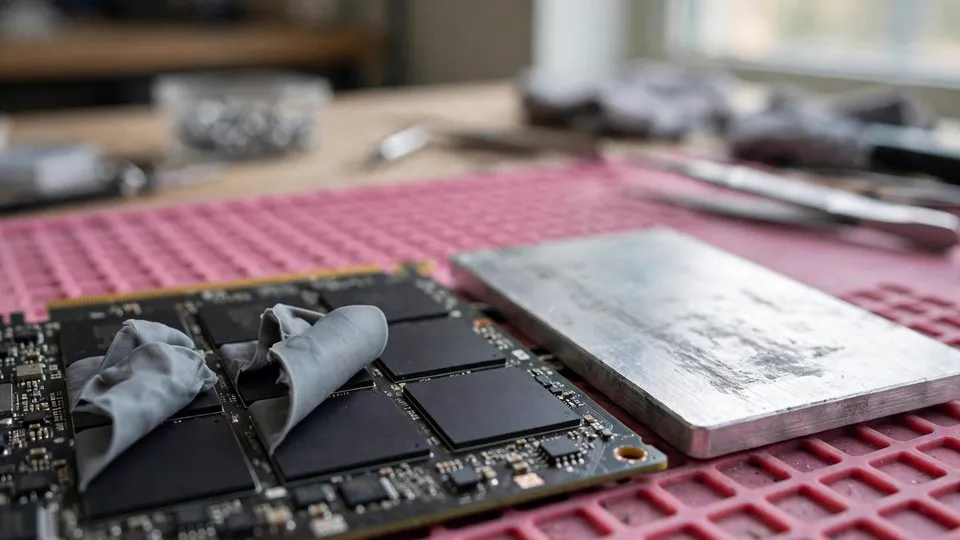
The core usually sits directly against the heatsink base, separated only by a layer of thermal paste. The conduction path is short, the contact area is concentrated, and heat transfer is relatively direct. The memory chips are different. They generally do not touch the heatsink base directly. Instead, they transfer heat through thermal pads to the heatsink fins or to the backplate. A thermal pad has thickness and a compression requirement of its own, its thermal resistance is higher than direct contact, and the path involves more links in the chain.
Good core cooling therefore says nothing, logically, about memory cooling. Two readings sit on top of two independent paths, and they must be judged separately. One cannot stand in for the other.
Mechanism One: How Thermal Pad Contact Decides Memory Temperature
A thermal pad only transfers heat effectively when three conditions hold at the same time. First, the thickness must be right: too thick and it cannot be compressed firmly, too thin and it never reaches the opposite surface, and either way gaps appear at the contact face. Second, the compression must be sufficient: mounting pressure has to reach every memory chip evenly, not firmly on one side and loosely on the other. Third, the contact face must be complete: no displacement, no missing corners, no hardened sections.
Thermal pads age. Over time they harden, turn brittle, and lose their elasticity, so that once compressed they no longer spring back. Ageing opens gaps at the contact face bit by bit, thermal resistance climbs gradually, and memory temperature rises without any other change. This process is separate from thermal paste ageing on the core, and the two do not necessarily follow the same timeline.
Removal and reassembly is another high-risk moment. If a thermal pad shifts during disassembly, or if mounting pressure ends up uneven after reassembly, memory temperature can change immediately while core temperature stays completely unaffected — because the core uses a different path. A change that appears right after reassembly is itself an important clue pointing at the memory cooling path.
Mechanism Two: The Airflow Path Is Separate Too
The core area usually sits directly under the centre of the fans, where airflow is strongest, so the core benefits the moment the fans spin up. Memory chips may sit near the edge of the fans, at the end of the heatsink, or on the backplate side, where airflow is weaker and cooling depends more on the overall airflow through the case.
When case airflow is poor — intake is insufficient or hot air lingers inside the case — the effect on the memory area can be larger than on the core. The reason is simple: the core has fans blowing directly on it as a backstop, while the memory relies on ambient airflow to carry heat away. When the environment deteriorates, the memory is affected first.
The backplate should not be dismissed either. If the backplate connects to the back of the memory chips through thermal pads, the backplate itself forms part of the memory cooling path, and airflow across its surface counts toward cooling. Treating the backplate as pure decoration misunderstands the cooling structure.
Mechanism Three: Verify the Reading Before Diagnosing Anything
Before changing anything, the first step is not to replace parts but to confirm what you are actually looking at. The memory temperature shown by a monitoring tool comes from a particular sensor measuring a particular location, and that definition can differ between cards and between tools. Confirm the definition of the reading first, and do not assume that the same label means the same thing on every card.
Some cards have no memory temperature sensor at all, so monitoring tools show no such reading. No reading means unknown, not healthy. Treating an absent reading as a clean bill of health is a reasoning error.
Hotspot readings and memory readings must also be kept apart. A hotspot reading reflects the hottest point within the core area, while a memory reading reflects the memory area. They come from different sensors in different locations. A high hotspot does not imply high memory temperature, and high memory temperature does not imply a high hotspot. When the two disagree, that disagreement is information — it points to which path has the problem, rather than showing that one of the readings is wrong.
One Variable at a Time: The Diagnostic Sequence
The biggest mistake in diagnosing memory temperature problems is changing several things at once and then not knowing which change mattered. The sequence below changes one variable at a time and narrows the range step by step.
Step one, confirm the readings. Under the same workload, record the core reading, the memory reading, and the hotspot reading if one is available. Never compare across workloads — for example, comparing an idle core reading with a loaded memory reading is meaningless.
Step two, separate workload types. Test memory-heavy workloads and core-heavy workloads separately: large textures, high resolution, and high memory usage belong in one group, while pure computation, small textures, and low memory usage belong in the other. If the memory reading only climbs under memory-heavy workloads, the memory cooling path is implicated. If it climbs under both kinds of workload, the range widens and no conclusion should be rushed.
Step three, separate the core cooling branch. A normal core reading largely clears the core branch — core thermal paste, core mounting, and fan speed. Do not keep circling the core branch, for example by repeatedly replacing core thermal paste in the hope of fixing memory temperature as a side effect. The paths are independent, and a change on the core branch does not propagate to the memory branch.
Step four, separate the memory cooling branch. Check thermal pad contact: whether the thickness is right, whether compression is sufficient, whether there is ageing and hardening, and whether any pad has shifted or lost a corner. Check whether mounting pressure is evenly distributed. Check airflow over the memory area and the backplate cooling path.
Step five, separate the time pattern. A sudden rise and a gradual rise point in different directions, as the next section explains.
Step six, separate environmental factors. Case airflow, room temperature changes, and fan curve settings should be ruled out before reaching a hardware conclusion. Environmental factors can shift a whole set of readings at once, and replacing hardware before ruling them out often means replacing the wrong thing.
Boundary Cases: Four Situations That Are Easy to Misjudge
A workload that barely touches memory
If the test workload hardly uses memory, a low memory reading is normal and says nothing about whether memory cooling is healthy. Memory cooling problems only show up under memory-heavy workloads. Testing with the wrong workload is the same as not testing at all.
A monitoring tool with no memory sensor
When a tool shows no memory reading, that does not mean memory temperature is fine. In this situation, judgement has to rest on other clues — operating stability, throttling behaviour, and visual anomalies — taken together. Neither a clean bill of health nor a fault should be declared on the basis of an absent reading.
Hotspot readings versus memory readings
When the two readings diverge, that is not a contradiction but positioning information. A high hotspot with normal memory points toward the core area; high memory with a normal hotspot points toward the memory path. Lumping the two readings together throws away positioning information that would otherwise narrow the search.
Sudden rise versus gradual rise
A sudden rise is usually linked to a change in contact or assembly: it appears after disassembly, after moving the machine, or after an impact, and the first checks should be pad displacement and mounting pressure. A gradual rise is usually linked to ageing, dust build-up, or deteriorating airflow, and the first checks should be pad ageing, heatsink dust, and case airflow. The two time patterns lead to different check orders, and establishing when the change began already narrows the range by half.
Comparison Table: Core Path Versus Memory Path
| Item | Core cooling path | Memory cooling path |
|---|---|---|
| Main heat source | Graphics processing core | Memory chips |
| Transfer medium | Thermal paste, direct contact with heatsink base | Thermal pads, via heatsink fins or backplate |
| Path length | Short, concentrated contact area | Longer, more links in the chain |
| Key variables | Paste condition, mounting pressure, direct fan airflow | Pad thickness, compression, ageing, displacement, regional airflow |
| Does a normal core reading clear it | It is the core path itself | No, the paths are independent |
| Common deterioration modes | Paste drying out, fan ageing | Pad hardening with age, displacement, insufficient airflow |
| First checks | Core contact, fan speed | Pad contact, mounting pressure distribution, backplate path, regional airflow |
Misconceptions, Taken Apart One by One
Misconception one: one temperature number describes the whole card
A card does not have one temperature. Core, memory, and hotspot are readings from different locations. Judging the whole card from a single number substitutes a part for the whole. The correct approach is to look at the full set of readings under the same workload and judge each path separately.
Misconception two: fixing core paste fixes memory temperature
Core thermal paste serves only the core path. The memory path uses thermal pads, which are completely unaffected by a paste change. If memory temperature does not move after a paste change, that is itself evidence that the problem sits on the memory branch, and effort should move to pad contact and regional airflow rather than staying on the core branch.
Misconception three: a high memory reading automatically means the card is failing
A high reading on its own does not mean the card is about to fail. Judgement needs operating stability, throttling behaviour, and visual anomalies considered together. Condemning a card on a single number is inaccurate and can lead to the wrong decision — for example, giving up on a card whose only problem is a cooling path that needs attention.
Misconception four: all cards expose the same sensors
Different cards expose different sensor combinations. Some provide a memory reading, some do not. An absent reading does not mean there is no problem, and a present reading does not mean its definition matches another card. Before comparing readings across cards, confirm what each reading actually measures.
Misconception five: faster fans mean better memory cooling
Fans blow mainly on the core area, and the memory area is not necessarily in the strongest airflow. Raising fan speed helps the core most and helps the memory area only to a limited extent, especially in structures where memory cools through the backplate path. Fan speed is not the deciding factor for memory cooling.
Misconception six: the backplate is only decoration
Where a backplate connects to the back of the memory chips through thermal pads, it forms part of the cooling path. Ignoring the backplate path means missing a link in memory cooling. When checking memory cooling, backplate contact and airflow across the backplate surface should both be included.
Prevention: Keeping the Memory Cooling Path Stable
The core principle of prevention is to reduce changes in contact and to maintain airflow. After any disassembly of the card, watch whether the memory reading under memory-heavy workloads changes immediately. A change indicates that reassembly may have affected pad contact, and it is worth checking early rather than waiting for the problem to worsen.
In daily use, keep case airflow unobstructed and clean dust from heatsinks and fans regularly, so hot air does not linger inside the case. Dust build-up often affects the memory area more visibly than the core, because regional airflow over the memory was already weaker.
For fan curve settings, do not set them on the core reading alone. Refer to the memory reading at the same time, so that regional airflow is sufficient under memory-heavy workloads. Specific values should follow the manufacturer's specification and the monitoring tool's documentation, not generic thresholds passed around online.
Finally, build a habit of recording. Under the same workload, record core, memory, and hotspot readings regularly, establishing the normal range for your own card. When readings change later, you will have something to compare against, and you will be able to tell a sudden change from a gradual one. Diagnosis with a baseline is far more reliable than diagnosis from a single snapshot.
When to Seek Professional Inspection
If the sequence above has been followed step by step, environmental factors and workload types have been ruled out, and the memory reading under memory-heavy workloads is still elevated, the remaining possibilities mostly concern thermal pad contact or mounting pressure. These checks involve opening the heatsink and judging pad thickness and compression, and someone unfamiliar with the structure can easily make contact worse by handling it.
In that situation, having the card inspected by someone familiar with graphics card cooling structures is the steadier option. When seeking inspection, describe three things clearly: which workload produces the elevated reading, whether the change was sudden or gradual, and any history of disassembly or moving the machine. Those three facts narrow the inspection straight to the memory cooling path and save a great deal of circling.
Frequently Asked Questions
Does a normal core temperature mean the core cooling is fine?
Yes, a normal core reading indicates the core cooling path is broadly healthy. At the same time, it says nothing about the memory path. The two paths are independent, so a normal core and elevated memory can hold true simultaneously without contradiction.
Why did memory temperature not change after replacing core thermal paste?
Because core thermal paste serves only the core path, while the memory path uses thermal pads. The two are unrelated. An unchanged memory reading after a paste change is evidence that the problem sits on the memory branch, and attention should move to pad contact and regional airflow.
If a monitoring tool shows no memory temperature, does that mean memory is fine?
No. An absent reading only means that the card or the tool does not provide that sensor reading. The state is unknown, not healthy. Judgement should rest on other clues, such as operating stability and throttling behaviour.
Are hotspot temperature and memory temperature the same thing?
No. Hotspot reflects the hottest point within the core area, while memory temperature reflects the memory area. They come from different sensors in different locations. Their divergence is positioning information and should not be treated as one reading contradicting the other.
Does an elevated memory reading mean the card is about to fail?
Not necessarily. A reading should be judged together with stability, throttling behaviour, and visual anomalies. A single number cannot determine the lifespan of a card. The right approach is to follow the diagnostic sequence, narrow down the cause, and then decide how to handle it.
How can I tell whether the problem is pad contact or airflow?
Use the time pattern and the workload pattern. A change appearing suddenly after disassembly or moving the machine points first to contact changes; a gradual change appearing alongside dust build-up or worsening case airflow points first to airflow and ageing. Both factors can also exist together, so variables should be eliminated one at a time.
Why does memory temperature look fine at idle but climb under memory-heavy workloads?
Because an idle workload hardly uses memory, so memory heat output is low and a weak cooling path does not show. Memory-heavy workloads raise memory heat output to the point where a weak path becomes visible. Memory cooling must therefore be judged under memory-heavy workloads.
Does the backplate really affect memory cooling?
Yes, provided the backplate connects to the back of the memory chips through thermal pads. In that structure the backplate forms part of the cooling path, and both its contact condition and the airflow across its surface affect memory temperature. The backplate path should be included whenever memory cooling is checked.
What are the risks of opening the card to check the pads myself?
Opening the heatsink can itself change pad contact, and reassembly with different pressure distribution can leave memory temperature worse. Users unfamiliar with the structure should first use the diagnostic sequence to narrow the range, and once the memory branch is implicated, hand the inspection to someone familiar with graphics card cooling structures.
Where can I ask about this?
You can visit the shop at Shatin Dali Plaza Room 1209, call 2186 8010, or reach us on WhatsApp at 6558 6806. When enquiring, describe which workload produces the elevated reading, whether the change was sudden or gradual, and any history of disassembly or moving the machine, so the inspection can be narrowed down more quickly.