One GPU Output Port Has No Signal but the Others Work? Port Lanes, Pins, Link Training & Monitor Input Diagnosis Guide
Key Takeaways
One output port on a graphics card shows no signal while the other ports work normally. The fault follows the port, not the cable and not the monitor — and that observation narrows the problem from the whole card down to one port. The diagnosis is a matrix: change one thing and watch which component the fault follows.
What Counts as "One Port Has No Signal, the Others Work"
Before any diagnosis begins, the symptom has to be pinned down precisely. All five of the following must be true before this guide applies:
- The graphics card has several output ports — for example, three DisplayPort outputs and one HDMI output — and one of them shows no signal at all. The monitor displays "No Signal" and then enters power-saving mode.
- The same cable and the same monitor, moved to a different port, produce a picture that is stable and normal. The fault follows the port. It does not follow the cable, and it does not follow the monitor.
- The fault is present at every stage: the boot screen, the BIOS, and the Windows desktop are all missing. This is not a case of a black screen during boot that appears once Windows loads — that belongs to the firmware-versus-driver diagnosis.
- The symptom repeats reliably. It is not a one-off. A one-off failure can be a contact problem and is not enough to draw a conclusion from.
- There is an advanced form of the same fault, covered in this same guide, not a separate one: the port is not completely dead, but shows a picture at a low resolution or low refresh rate and no signal at a high resolution or high refresh rate. That pattern is characteristic of a lane fault, and it is explained in the mechanism section below.
The dividing line is the contrast itself: the fault follows the port. The same cable and the same monitor, tried port by port, with only one port failing — that comparison is itself the diagnostic signal, and it narrows the problem from "the whole card" down to "one port".
The Signal Chain, and Where One Port Sits in It
A picture travels from the graphics card to the viewer's eyes through five links: the GPU itself, the graphics card's output connector, the cable, the monitor's input connector, and the monitor panel. A break in any link produces the same outward symptom — no signal. The work of this guide is to take the "connector" link and split it further, because different ports on the same connector can fail independently.
A single faulty port does not mean the whole card is faulty. If the other ports work normally, the GPU core and the basic display function are still running. A single-port fault is locating information, not a verdict that the card is finished.
DisplayPort Has Three Separate Parts, Not One
DisplayPort fault-finding has to look at three independent parts, not lump everything together under "the DisplayPort is broken". Public technical documentation from Texas Instruments, written by a Texas Instruments engineer, sets out the three parts:
- The main link. It carries the picture and the audio. It has one, two or four lanes. Each lane has to pass electrical compliance testing, and the signal source's swing and pre-emphasis have to be tuned together with the receiving end's equalisation.
- The AUX channel. A low-speed, two-way channel. When a device is plugged in and Hot Plug Detect goes high, AUX communication begins. The signal source reads the monitor's EDID — which display modes the monitor supports — and its DPCD — which data rates and lane configurations it supports — through AUX, and only then begins link training.
- Hot Plug Detect (HPD). A 3.3V signal supplied by the receiving end, the monitor. HPD high (3.3V) means a monitor is present. HPD low (0V) for more than 2ms means the monitor has been removed. HPD dropping briefly for 0.5 to 1ms means an interrupt event, asking the signal source to read the DPCD registers.
The three parts fail independently, and the consequences differ. A damaged HPD pin means the graphics card never knows a monitor is connected at all, so nothing happens. A damaged AUX channel means the EDID and DPCD cannot be read, so the graphics card does not know which mode to output. A damaged main-link lane means link training fails or falls back to a lower configuration — the subject of the next section.
Link Training in Two Stages, and the Low-Demand Probe
Link training is not a single on-off switch. It is an iterative negotiation in two stages:
- Clock recovery. The receiving end reports the quality of the signal it receives and asks the signal source to adjust amplitude and pre-emphasis. Only once the clock recovery flag is set does training move to the next stage.
- Channel equalisation. Three flags have to be satisfied at the same time — channel equalisation, symbol lock, and inter-lane alignment — before training counts as complete.
The Texas Instruments documentation states the practical consequence plainly: if clock recovery and channel equalisation fail at a higher data rate or a four-lane configuration, try a lower data rate or a one- or two-lane configuration. That sentence is the technical basis for this guide's low-demand probe — lowering the resolution or refresh rate to see whether the picture appears.
A public DisplayPort guide reaches the same conclusion from the other side: a DisplayPort that does not work at maximum refresh rate but works fine at 120 Hz is a bandwidth story, not a broken port. It means "do not declare the port dead straight away", not "the port is definitely fine". A picture at low demands and no signal at high demands can be the cable, a damaged lane, or a signal-integrity edge case. The diagnosis depends on the port-by-port comparison, not on one sentence.
The Pin Layer: How Physical Damage Kills One Port
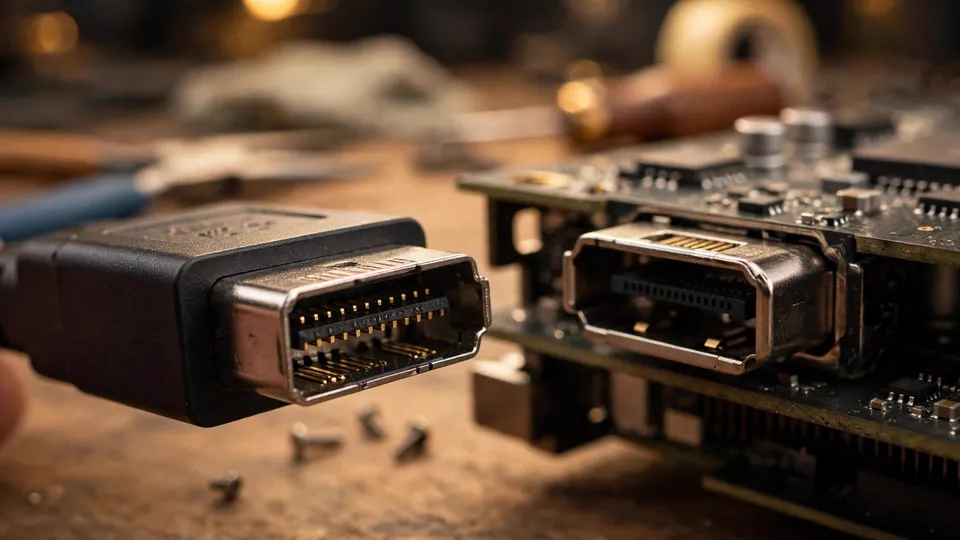
A standard DisplayPort connector has 20 pins. Each pin has its own function: main-link lanes, AUX, HPD, power, and ground. A single pin that is bent, broken, oxidised, full of dust, or loosened by a hard pull can make its function fail while the other pins work normally — so the port is "partly dead" or "completely dead" depending on which pin is affected.
A damaged HPD pin is the cleanest form of "completely dead": the graphics card never receives the 3.3V presence signal, the whole negotiation never starts, the monitor shows no signal, and no setting changes the result. A damaged main-link lane pin can make link training fall back to fewer lanes or a lower speed — a picture at low resolution, no signal at high resolution — or fail completely, giving no signal at all.
A DisplayPort connector has a locking catch: press the catch before pulling the plug out, and never yank it. A hard pull can loosen pins or solder joints. Never poke inside a connector with a hard object. The pins are very fine, and bending one makes things worse. A visual check is limited to looking for obvious bending, breakage or dust build-up, and gently clearing surface dust is enough. Deeper connector problems belong to professional inspection.
The Monitor's Input Port Can Be the Culprit Too
When the fault follows the port, there are two possibilities: the graphics card's output port is faulty, or the monitor's input port is faulty. The two look identical from the outside, and the way to separate them is a cross-comparison: same cable and same monitor, change the graphics card port; same cable and same card, change the monitor's input port. Whichever side the fault disappears from when changed is the suspect.
A monitor input port also has an independent variable of its own: input source selection. A monitor has several inputs — DP1, DP2, HDMI1, HDMI2 — and if the cable is in DP2 while the monitor is sitting on DP1, it will show no signal. That is not a broken port; it is the wrong input selected. The input source has to be confirmed correct before any port comparison counts.
Some monitors also have a DisplayPort version setting in their on-screen menu — a choice between DP 1.2 and DP 1.4 — that affects negotiation. A mismatched version can leave a particular port permanently black, as public guides note with a Dell monitor example. That belongs to the monitor settings branch, not to hardware failure, and the monitor's DP version setting should be recorded during testing.
Two More Mechanisms, in Brief
Firmware output order. The firmware does not necessarily choose the output port the user normally uses for its early output. In a multi-monitor setup, the firmware may send the early picture to a different monitor or a different port, and a user looking at only one monitor will think a particular port has no output. The way to separate this is a single-monitor direct test: keep only one monitor and one direct cable, and first confirm whether the early picture is genuinely absent at all.
Driver output settings and EDID. The monitor tells the graphics card which modes it supports through EDID. If EDID delivery fails — because of a pin, a cable, or an adapter chain — the graphics card may output a mode the monitor does not support, and the result is no signal. In this guide the EDID branch is limited to one case: a particular port cannot read the EDID while the other ports can. The evidence is that in Windows display settings, the monitor model changes to a generic name and the resolution list shrinks noticeably — and only on the faulty port.
Diagnosis, Step by Step
The order below is fixed. Do not rearrange it. Three rules govern every step: change only one variable at a time; record the whole combination for every test — which graphics card port, which cable, which monitor input, which resolution and refresh rate; and draw conclusions from "which component the fault follows", not from a single success.
Step 0: Define the Symptom
Using the same cable and the same monitor, try each graphics card port in turn, testing each port at least twice, and record which ports show a picture and which show no signal. Also record whether the faulty port is dead at every stage (boot, BIOS, Windows) or only at one stage; whether the monitor shows "No Signal" or is simply black; and whether the machine was recently moved, a cable changed, a DisplayPort cable yanked, or an adapter added.
Step 1: Rule Out the Input Source
Before anything else, check that the monitor is sitting on the correct input source (DP1 versus DP2, HDMI1 versus HDMI2). If the monitor has jumped to a different input, the missing picture may have nothing to do with a broken port. Only once the input source is confirmed correct can the port comparison results be attributed to this guide.
Step 2: The Port × Cable × Monitor Matrix
This is the core test of the guide. Hold two variables fixed and change only one, cell by cell:
| Test | Change only this | If the fault disappears, it means | If the fault continues, it means |
|---|---|---|---|
| Change the graphics card port | Same cable, same monitor, same input | The fault follows the original graphics card port | The fault is not in the graphics card port |
| Change the cable | Same graphics card port, same monitor | The fault follows the old cable | The fault is not in the cable |
| Change the monitor input port | Same cable, same graphics card port | The fault follows the original monitor input | The fault is not in the monitor input |
| Change the monitor | Same cable, same graphics card port | The fault follows the original monitor | The fault is not in the monitor |
| Connect a different computer to the same monitor input | Monitor, cable and input unchanged | The fault follows the original computer | The fault is not in the computer |
Only when changing the graphics card port makes the fault disappear while every other cell leaves it unchanged can anyone say the fault follows the graphics card port. A single success after changing ports is not enough to prove a port is faulty — because plugging in again itself triggers a fresh round of negotiation. Test each port at least twice to rule out an occasional contact problem.
Step 3: The Low-Demand Probe
On the faulty port, lower the resolution and refresh rate step by step in Windows display settings — for example, from 4K 144Hz down to 1080p 60Hz — and watch whether a picture appears.
A picture at low demands and no signal at high demands points towards the bandwidth and lane layer: a damaged main-link lane on that port, a cable whose high-frequency performance is marginal, or a signal-integrity edge case. That result cannot directly declare the port dead. It has to be combined with the Step 2 matrix: the low-demand probe only points at that port's lane layer when it reacts on the faulty port alone while the other ports work normally at full demands.
If no setting, however low, brings a picture back, bandwidth is not the main cause, and the investigation moves to the pin, HPD and AUX branches. And a lower setting that makes the fault disappear is locating information, not a final solution: the reader has given up something — resolution or refresh rate — in exchange for stability.
Step 4: Visual Pin Inspection — Looking Only, Hands Off
Look with the naked eye at the faulty port for obvious bending, breakage or dust build-up, and compare the pin arrangement with a working port. Gently clearing surface dust is enough. Never poke the pins with a hard object, never force plugs in and out, and never shake a connector hard while the machine is powered.
Also check the pins on the cable connector on the same side: a bent pin on a cable connector can imitate a faulty port, and the cable swap in Step 2 already separates that variable.
Step 5: The HDMI Comparison Path
If HDMI is available, switch to an HDMI connection and observe. HDMI negotiates differently from DisplayPort. A picture over HDMI while a particular DisplayPort port shows nothing narrows the evidence to DisplayPort negotiation or that DisplayPort port — not to the graphics card having no output ability at all. That result cannot directly declare the DisplayPort port permanently damaged, because the Step 2 and Step 3 results have to be combined first. If HDMI shows nothing either, the problem has already gone beyond a single DisplayPort port, and it belongs to the general no-signal diagnosis (#105).
Step 6: Driver and EDID Observation — Recording Only
In Windows display settings, check whether the monitor model changes to a generic name and whether the resolution list shrinks noticeably when connected through the faulty port, and compare that with a working port, where the monitor should be recognised correctly.
Then test with a native cable directly connected, removing all adapters, adapter cables and docking stations. If the faulty port shows a picture on a direct connection, the fault follows the adapter chain, and it belongs to the adapter-chain diagnosis (#342). If a direct connection still shows nothing, the fault is not in the adapter chain.
Reinstalling or rolling back the driver is only a test, not a conclusion. If the pattern is still there after trying an older driver version, the driver hypothesis weakens, and reinstalling repeatedly must not become a loop.
| Matrix result | More likely explanation | Next step |
|---|---|---|
| Picture after changing the graphics card port, nothing else changes | Fault follows the original graphics card port | Low-demand probe and pin inspection |
| Picture after changing the cable | Fault follows the old cable | Check the old cable's connector pins; do not blame the port |
| Picture after changing the monitor input | Fault follows the original monitor input | Check the monitor input source setting and that input port |
| Picture at low demands, no signal at high demands, only on the faulty port | That port's lane or bandwidth layer | Bring the full matrix record to a check-in; do not open the card |
| No signal at any setting, with a pin visibly bent or broken | Physical pin damage suspected | Stop and send it in; do not poke the pins |
| HDMI works, the DisplayPort port does not, and the low-demand probe shows nothing | DisplayPort negotiation, or that port's HPD or AUX layer | Bring the full record to a check-in |
| Direct connection works, adding an adapter breaks it | The adapter chain | Belongs to the adapter-chain diagnosis (#342) |
| No signal on every port | No longer a single-port problem | Belongs to the general no-signal diagnosis (#105) |
Boundary Cases
Not every missing picture belongs to this guide. These look-alikes belong elsewhere:
| Situation | How to tell it apart | Where it belongs |
|---|---|---|
| No signal on every port | The premise of this guide is that the other ports work | The general no-signal diagnosis (#105), which excludes the fault link by link |
| Black screen during boot, picture appears once Windows loads | Firmware path versus driver path, an early negotiation problem | The firmware-versus-driver display diagnosis (#297) |
| Fault only appears through an adapter or adapter cable; a direct connection is normal | The fault follows the adapter chain | The adapter-chain diagnosis (#342) |
| The boot picture goes to a second monitor and only returns to the main screen in Windows | A picture exists, but it went to the wrong screen — not "no signal" | The wrong-screen diagnosis (#318) |
| DisplayPort takes a while to show a picture, HDMI shows one immediately | A delay problem; the picture eventually arrives on its own | The DisplayPort delay diagnosis (#324) |
| No signal only when the PC is switched on before the monitor | A power-on order handshake window | The monitor power-on order diagnosis (#325) |
| DP Pin 20 power backfeed | The symptom follows the power state — lights and fans staying on after shutdown, boot blocked — not the port | The site's DP Pin 20 article |
| One DisplayPort output feeding two or three monitors | Bandwidth allocation across a daisy chain | The multi-stream transport diagnosis (#199) |
| HDMI or DisplayPort picture but no sound | An audio chain problem, with the picture normal | The no-audio diagnosis (#268) |
| The picture blacks out for a second or two during use, then comes back | A signal interruption during use, not a port that permanently shows no signal | The intermittent black screen diagnosis (#158) |
| The wrong monitor input source is selected | Not a broken port — the monitor is sitting on a different input | The general no-signal diagnosis (#105), first check |
| The monitor's on-screen DP version setting (DP 1.2 versus 1.4) does not match | A monitor settings branch: the DP version choice affects negotiation and a mismatch can black out a port | The monitor settings branch; record the DP version setting during testing |
Common Misconceptions
- "One port shows no picture, so the whole card is broken." Wrong. One faulty connector does not mean the whole card is faulty. If the other ports work normally, the GPU core and the basic display function are still running. A single-port fault is locating information, not a verdict that the card is finished.
- "Swapping the cable fixed it, so the cable was broken." Wrong. Changing the cable does two things at once: it changes the cable's condition, and it triggers a fresh round of negotiation. A fix after a cable swap alone cannot separate which of the two mattered; the port matrix is needed to tell them apart.
- "DisplayPort does not work but HDMI does, so the DisplayPort port is permanently damaged." Wrong. The HDMI comparison only proves that the HDMI negotiation path succeeded and the DisplayPort early negotiation failed. The final conclusion has to wait until the DisplayPort variables have been isolated one by one.
- "It fails at the highest refresh rate but works at a lower one, so the port is broken." Wrong. That is a bandwidth story, not proof that the port is broken. It can be the cable, a damaged lane, or a signal-integrity edge case, and only the port-by-port comparison can separate them.
- "Plugging it back in fixed it, so the connection was loose." Wrong. Plugging in again triggers a fresh round of confirmation, and a fix after replugging alone cannot prove a loose contact.
- "A more expensive cable or adapter will definitely work." Wrong. Compatibility is a matter of the combination, not the price; whether the specification matches is what matters.
- "The pins look fine, so the port must be fine." Wrong. Pin damage can sit where the eye cannot see — a solder joint, an internal contact — and an HPD or AUX fault shows nothing at all on the outside. A visual check only rules out obvious damage; it does not prove the port is normal.
- "The monitor showing 'No Signal' and a black screen are the same thing." Wrong. "No Signal" means the monitor is receiving no signal; a black screen can mean a signal is arriving but the picture is black, or a backlight problem. The two point in different directions.
- "Poking the pins with a hard object can fix a bad contact." Wrong. The pins are very fine, and bending one makes things worse. Deep connector problems belong to professional inspection.
When to Stop and Send It In
Stop and bring the machine in for a check-in if any of the following apply: the matrix has been run and the fault still follows a particular port; a pin is visibly bent or broken; the low-demand probe points at the lane layer; or any further test would need the card opened, the cooler removed, or solder joints handled.
For a graphics card still under warranty, opening it up, removing the cooler, or replacing thermal pads or thermal paste carries risk and may affect warranty eligibility — get a professional inspection first.
Bring a complete record to the check-in: the port matrix results (which ports show a picture and which show no signal, recorded cell by cell), the low-demand probe results (which resolution and refresh rate first produced a picture), the visual pin inspection result, the HDMI comparison result, the direct-versus-adapter comparison, whether the monitor model is recognised correctly and how the resolution list changes, and whether the machine was recently moved, a cable yanked, or an adapter added.
Inspection is charged under the site's published three-tier fee of HK$400–2,800, with the actual figure confirmed after inspection. The shop is at Room 1209, Dali Plaza, Shek Mun. The phone number is 2186 8010 and WhatsApp is 6558 6806. There is no shop in Mong Kok and no on-site service.
Frequently Asked Questions
One port shows no picture — does that mean the whole graphics card is broken?
No. One faulty connector does not mean the whole card is faulty. If the other ports work normally, the GPU core and the basic display function are still running. A single-port fault is locating information, not a verdict that the card is finished. The diagnosis is to find which port the fault follows, not to declare the card dead.
I swapped the cable and it worked. Does that mean the cable was broken?
Not necessarily. Changing the cable does two things at once: it changes the cable's condition, and it triggers a fresh round of negotiation. A fix after a cable swap alone cannot separate which of the two mattered. Run the port-by-port matrix — same cable and monitor, change only the port — before blaming the cable.
DisplayPort does not work but HDMI does. Is the DisplayPort port permanently damaged?
No. The HDMI comparison only proves that the HDMI negotiation path succeeded and the DisplayPort early negotiation failed. The final conclusion has to wait until the DisplayPort variables have been isolated one by one — the port matrix, the low-demand probe, and the pin inspection. A port that fails one negotiation is not automatically a permanently damaged port.
It fails at the highest refresh rate but works at a lower one. Is the port broken?
No. That is a bandwidth story, not proof that the port is broken. It can be the cable, a damaged lane, or a signal-integrity edge case. Only the port-by-port comparison can separate them — the low-demand probe has to react on the faulty port alone while the other ports work normally at full demands before it points at that port's lane layer.
I plugged it back in and it worked. Does that mean the connection was loose?
No. Plugging in again triggers a fresh round of confirmation, and a fix after replugging alone cannot prove a loose contact. Test each port at least twice, and use the matrix, before concluding anything about the connection.
Will a more expensive cable or adapter definitely work?
No. Compatibility is a matter of the combination, not the price. Whether the specification matches is what matters — a cable or adapter that does not match the required specification will not be fixed by costing more. A direct native-cable test can separate the adapter-chain variable: if the faulty port works on a direct connection, the fault follows the adapter chain.
The pins look fine, so does that mean the port is fine?
No. Pin damage can sit where the eye cannot see — a solder joint, an internal contact — and an HPD or AUX fault shows nothing at all on the outside. A visual check only rules out obvious damage; it does not prove the port is normal. The matrix and the low-demand probe carry more weight than a visual check.
Is the monitor showing "No Signal" the same thing as a black screen?
No. "No Signal" means the monitor is receiving no signal. A black screen can mean a signal is arriving but the picture is black, or a backlight problem. The two point in different directions, so note which one the monitor actually shows before starting the diagnosis.
Can I poke the pins with a hard object to fix a bad contact?
No. The pins are very fine, and bending one makes things worse. A visual check is limited to looking for obvious bending, breakage or dust build-up, and gently clearing surface dust is enough. Deep connector problems belong to professional inspection — do not poke, force, or shake the connector.