One GPU Fan Spinning and the Other Stopped? Individual Fan, Power Channel & Control Signal Diagnosis Guide
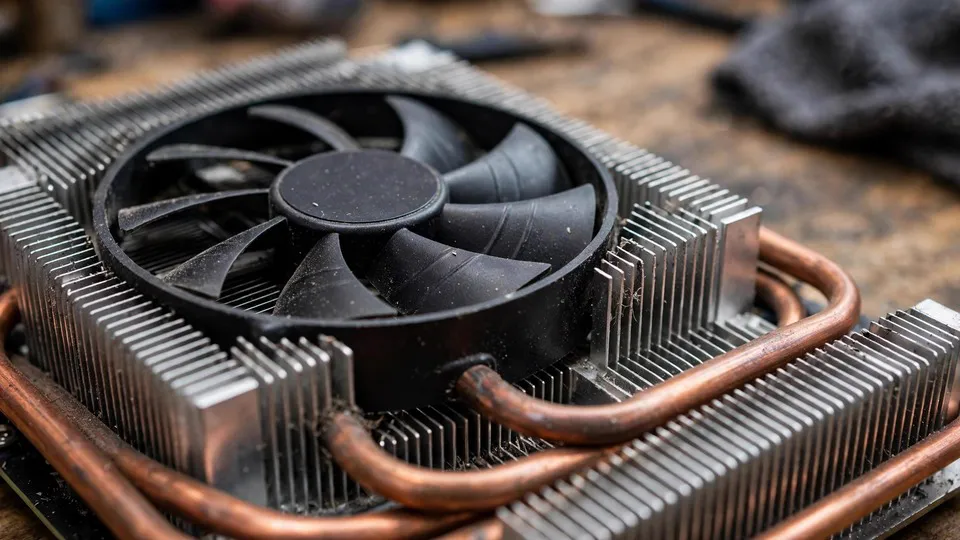
Key Takeaways
On a two- or three-fan graphics card, one fan standing still while the others spin is a different fault from every fan stopping together. This guide explains per-fan motors, connectors, and control channels, and sets out ordered idle and load observations that separate a loose connector from a failed fan or controller channel.
Why Asymmetry Changes the Diagnosis
A graphics card with two or three fans is not cooled by one shared blower. Each fan sits over a different section of the heatsink, and each one has its own motor, its own set of wires, and its own connection to the card. When one fan stops while the others keep spinning, the fault is therefore local to that fan or to that fan's path, not to the card as a whole. That single observation already rules out several explanations that apply when all fans stop together.
The most important of those ruled-out explanations is a global idle-stop feature. Many modern cards use a Zero RPM mode, in which the fans stay off at low temperature and start together when the card warms up. That behaviour is deliberately global: the controller holds all fans still, then starts them as a group. If one fan is spinning and another is not, the controller has evidently decided that cooling is needed, and at least one fan has obeyed. A global idle-stop setting cannot explain why one fan alone stays still while its neighbours run. The same logic applies to a global fan-curve setting. A curve that keeps fans slow at low temperature affects the whole cooling assembly; it does not single out one fan.
Asymmetry also narrows the temperature question. The stopped fan leaves one zone of the heatsink without direct airflow. The card may still report an overall temperature that looks acceptable, because the sensor does not sit in every zone, and because the spinning fans continue to move air across the rest of the heatsink. A normal-looking headline temperature therefore does not clear a stopped fan. The zone under the still fan can still run hotter than the zones under the spinning fans, and that local heating is what matters for long-term reliability.
This guide is written for exactly this shape of symptom: a two- or three-fan card, one fan stopped, the others spinning, in a machine that otherwise works. If all fans stop together, or if a fan spins but its speed reading stays at zero, those are different symptoms with different diagnostic paths, and they are noted only as diversions near the end of this guide.
How Each Fan Is Driven and Controlled
To understand why one fan can stop alone, it helps to follow the four jobs that each fan connection performs. A typical small fan connector carries power, ground, a speed-reporting signal, and a control signal. Power and ground run the motor. The speed-reporting signal, often called the tachometer signal, tells the card how fast the fan is actually turning. The control signal, usually a pulse-width modulation (PWM) signal, tells the fan how fast it should turn. The fan's own internal circuit reads the PWM signal and adjusts the power reaching its motor accordingly, so a longer pulse means a faster target speed and a shorter pulse means a slower one.
On a multi-fan card, these connections are not all shared in the same way. The fans may plug into separate headers on the card's board, each header feeding one fan, or they may share a small wiring harness that branches to each fan. In a separate-header design, each fan has its own power channel and its own control channel from the card's fan controller. In a harness design, the fans may share a power feed while keeping separate speed-reporting or control paths, or they may be driven through a small controller board that distributes the signal. The exact layout varies by card model, and the card's manual or board layout is the reliable reference for a particular card. What matters for diagnosis is the general principle: because the paths are at least partly separate, one path can fail while the others continue.
The fan controller on the card reads temperature sensors, applies the configured fan curve, and sends out control signals. A fan curve maps temperature zones to target speeds: below a threshold the fans may be held off or kept slow, through the middle range they rise steadily, and at high temperature they run fast. The curve itself is a card-level instruction, but the delivery of that instruction travels per fan. A fault in one delivery path — a damaged wire, a loose connector, a corroded contact, or a failed channel on the controller — can therefore silence one fan even while the curve, the sensors, and the other channels all work normally.
The motor itself is the other local element. Each fan has its own bearings, its own windings, and its own internal drive circuit. A motor that has worn out, a bearing that has stiffened, or a drive circuit that has failed will stop that fan alone. The other fans, with their own motors, are unaffected. This is why a stopped fan is never, by itself, evidence that the card's main processor or memory is failing. The fan assembly is a replaceable cooling part with its own failure modes, and the diagnosis should treat it that way until the evidence points elsewhere.
Step One: Observe Each Fan Separately
The first step is observation, not intervention. Before touching anything inside the case, watch the card and name each fan by position: left, centre, and right, as seen from the side of the case where the fans face outward. Write down which fan is stopped and which fans are spinning. This simple record matters, because later checks — especially any reseating or swapping — are meaningless if the stopped fan cannot be identified afterwards with certainty.
Observe the fans in two states: at idle and under load. At idle means the machine sitting at the desktop with no game or rendering task running, after it has been on for a few minutes. Under load means a task that genuinely warms the card, such as a game or a graphics benchmark, run for a few minutes while the fans are watched. Note four things in each state: which fans spin, whether the stopped fan ever twitches, stutters, or starts briefly, how the spinning fans behave as temperature rises, and whether any unusual sound appears. A fan that twitches but never completes a rotation is behaving differently from a fan that sits completely dead, and that difference is diagnostically useful.
Never touch a spinning fan blade to test it, and never push a stopped blade with a finger while the machine is powered on. A fingertip near a spinning blade risks injury, and forcing a blade can damage the motor or the bearing. Observation means looking, not handling. If a clear view is not possible because the card faces downward in the case or because cables block the view, a phone camera held at a safe distance, or a brief look through the case side panel, is safer than reaching into a running machine.
Software speed readings can support observation, but they must not replace it. Monitoring software typically reports one fan speed for the card, or one speed per fan where the card exposes separate readings. A single reported speed usually reflects only one fan, often the first header, so a normal-looking number does not prove that every fan is spinning. Where per-fan readings exist, compare them with what is seen: a reading for a fan that is visibly still points at the reporting or control path, while no reading at all for that fan points at a connection or controller question. Visual observation comes first in every case, because the eyes report the actual state of each fan and the software reports only what the controller believes.
Step Two: Read the Idle Versus Load Behaviour
The comparison between idle and load separates three broad patterns, and each pattern points in a different direction.
In the first pattern, the fan stays stopped at idle and stays stopped under load, while the others speed up normally as temperature rises. This is the strongest sign of a local fault in that fan or its path. The controller is evidently sending a rising speed instruction, because the other fans respond to it, yet this fan does not respond at any temperature. A global setting cannot explain a fan that ignores a rising instruction at every temperature zone. The next checks should therefore focus on the stopped fan's connector, cable, motor, and controller channel.
In the second pattern, the fan stays stopped at idle but starts under load, or starts only after temperature passes a higher threshold than the other fans. This is less clear-cut. Some card designs do stagger fan start-up, or allow one fan to rest at low load while others run, though a large and consistent stagger is still worth noting. The key question is whether the fan, once started, runs smoothly and keeps pace with the others, or whether it starts late, runs unevenly, or stops again when load drops. A fan that starts late but then runs smoothly may reflect a design or curve behaviour; a fan that starts late and runs roughly, or that stops again quickly, still points at a local weakness in the motor or its connection.
In the third pattern, the fan spins intermittently: it starts, stops, twitches, or changes speed erratically while the others run steadily. Intermittent behaviour is characteristic of a poor contact or a damaged wire that makes and breaks connection as the card warms up, vibrates, or shifts slightly. It can also reflect a motor that is on the edge of failure, able to start sometimes but not reliably. Intermittent faults deserve particular care in later checks, because a connector that looks seated during a cold inspection may still lose contact when warm. Note the pattern carefully, including whether the fault appears more when the machine is cold or warm, and whether tapping the case — which should not be done forcefully — seems to change anything. Gentle, deliberate observation over several sessions is more informative than a single hurried look.
Step Three: Reseat the Stopped Fan's Connector
If the fan stays stopped under load while the others respond normally, the next safe check is to reseat the connector of the stopped fan. This step must be done with the machine fully powered off and unplugged from the wall, not merely in sleep or standby. Internal power can remain present in sleep states, and working on a live card risks damage to the card and to the person doing the work. Wait a short while after unplugging so that stored charge dissipates, and take basic static precautions, such as touching a grounded metal part of the case before handling the card.
Reseating means unplugging the fan connector and plugging it back in firmly, once, with the connector aligned correctly. Look before pulling: note the connector's shape, its latch or tab if it has one, and the direction it faces, so it can be returned to the same position. Check the visible parts for obvious problems while it is unplugged: a wire that has pulled out of the connector housing, a pin that is bent, a housing that is cracked, or dust and corrosion on the contacts. Do not straighten a bent pin with force, and do not attempt to repair a damaged wire inside the connector with improvised tools. If visible damage is found, stop and record it, because that damage is itself the finding.
After reseating, power the machine on and repeat the idle and load observations, noting whether the same fan, identified by position, now spins. If it does, the fault was most likely a poor contact, and the fan should be watched over several days of normal use before the matter is considered closed. A contact that has loosened once can loosen again, particularly if the cable is under tension or routed so that it pulls on the connector. Check that the cable has a little slack and is not stretched tight across the card or pressed against a sharp edge.
If reseating changes nothing, that negative result is still useful. It rules out the simplest contact explanation and moves the focus to the fan motor itself or to the controller channel that feeds it. Do not repeat the reseat many times in the hope that repetition will help. One careful reseat, with a before-and-after observation, is a test. Repeated plugging and unplugging adds wear and risks damage without adding information.
Step Four: The Header Swap Test, Only Where the Design Allows
A further test is available on some cards, but only where the design genuinely allows it, and only with the machine powered off and unplugged. If the card has separate, identical fan headers, and the two fans use identical connectors that fit each other's headers without force, swapping the connectors exchanges which controller channel drives which fan. After the swap, the idle and load observations are repeated, and the question is simple: does the fault follow the fan, or does it stay with the header?
If the same physical fan still refuses to spin when driven from a different header, while the other fan now spins from the first fan's header, the fault follows the fan. The motor or the fan's own wiring is the likely cause. If, instead, the previously stopped fan now spins from the new header, while the previously good fan now stops on the old header, the fault stays with the channel. The controller channel, the header, or the board path feeding that header is then the likely cause.
This test has strict limits, and exceeding them causes damage. Do not swap connectors that are different sizes, different shapes, or that require force to fit. Do not swap fans between headers on a card where the fans share a single branched harness with no separate headers, because there is nothing to swap. Do not swap a fan connector with any other kind of connector on the card. Do not perform the swap while the machine is powered on. If the card's layout is unclear, or if the connectors do not match exactly, skip this test entirely. Skipping a test that does not fit the hardware is a correct diagnostic decision, not a failure, and the remaining evidence — the idle and load behaviour plus the reseat result — is still enough to describe the fault accurately for inspection.
After any swap test, return the connectors to their original positions before finishing, unless a qualified inspection advises otherwise. Leaving swapped connectors in place changes the card from its factory layout, and a later inspection then has to untangle whether the fault or the swap explains the current behaviour. Record the swap and its result in writing, and restore the original layout once the result is known.
Step Five: Judge the Uncooled Zone Before Running Heavy Loads
A stopped fan removes direct airflow from one section of the heatsink, and heavy, sustained load with that zone uncooled is not a safe way to test the card. Before running any long or demanding task, check the card's reported temperatures during a short, moderate load, and watch for signs of thermal stress: a temperature that climbs faster than expected, a temperature that keeps climbing rather than levelling off, a fan speed on the remaining fans that rises to its maximum and stays there, or visible stuttering and performance drops that appear as the card warms up. Any of these signs is a reason to stop the load, let the card cool, and seek inspection rather than pushing further.
The headline temperature reported by monitoring software is only part of this judgement. Some cards also report a hotspot temperature, which reflects the hottest measured point, and that figure can rise more sharply than the headline figure when one zone loses airflow. Where a hotspot reading is available, compare it with the headline temperature and note the gap. A widening gap under load, combined with a stopped fan over one zone, is consistent with local overheating in the uncooled section, even if the headline temperature has not yet reached an alarming level. The absence of a hotspot reading does not clear the card; it only means that this particular clue is unavailable.
The practical rule is conservative. Short observations at idle and during a brief moderate load are diagnostic. Long gaming sessions, extended rendering, or repeated benchmarks with a known stopped fan are not diagnostic; they are sustained operation with reduced cooling, and they risk turning a fan fault into a heat-related failure elsewhere on the card. If the machine is needed for ordinary light work, that is a different matter from heavy load, but even light work should be accompanied by watching temperatures and by keeping the case ventilation clear. A blocked case intake or a case with no exhaust airflow makes a one-fan fault worse, because the remaining fans then have less cool air to work with.
Reading the Results Together
No single check in this guide proves the cause on its own. The diagnosis comes from the pattern across checks. The table below summarises how the common patterns map to the most likely area, and what to examine next in each case.
| Observation pattern | Most likely area | What to examine next |
|---|---|---|
| One fan stopped at idle and under load, others speed up normally, reseat changes nothing | Failed fan motor or its own wiring | Fan motor and fan cable, then inspection for fan replacement |
| One fan stopped, reseat restores normal spinning, fault does not return over several days | Loose or poor connector contact | Cable routing and slack, so the connector is not pulled loose again |
| Fault follows the fan after a header swap | The fan itself | Fan motor and wiring; the controller channel is cleared |
| Fault stays with the header after a header swap | Controller channel or header path | Board-level channel fault; inspection rather than further DIY |
| Fan starts late under load, then runs smoothly and keeps pace | Possible staggered start or curve behaviour | Watch over several sessions; note whether the lag is stable or growing |
| Fan twitches, starts and stops erratically, others steady | Intermittent contact or failing motor | Connector and wire condition, warm versus cold behaviour |
| Stopped fan plus rapidly climbing or non-levelling temperature under load | Uncooled zone overheating | Stop heavy load, cool the card, seek inspection |
| All fans stopped together | Global idle-stop or card-level fault, not this guide | See the diversion note near the end of this guide |
A pattern that does not fit the table neatly is still useful. It may mean that two faults overlap, for example a loose connector on a fan whose motor is also weakening, or that a variable changed between checks, such as a different cable route after reseating. In that case, repeat the checks with stricter controls: same fan identified by position, same idle and load tasks, one change at a time, and written notes for each result.
Common Misconceptions
Several assumptions lead this diagnosis astray. The first is that a single stopped fan means the card is dying. It does not. The fan assembly has its own failure modes, and a failed fan is a cooling fault, not a verdict on the card's processor or memory. The second is that a normal headline temperature clears a stopped fan. It does not, because the sensor may not sit in the uncooled zone, and a local hot spot can exist beneath an acceptable average.
The third is that a software fan-speed number proves all fans are spinning. It does not, because monitoring software often reports a single speed, or one fan's speed, rather than every fan. The fourth is that setting a faster fan curve will fix a stopped fan. It will not, because the curve is a card-level instruction and the fault lies in the delivery of that instruction to one fan, or in the fan itself. A faster curve can make the working fans louder without moving the stopped fan at all.
The fifth is that a stopped fan can be safely ignored as long as the machine still works. Short-term operation may appear normal, but sustained heavy load with one zone uncooled carries a real risk of heat-related damage over time, and the fault should be resolved rather than normalised. The sixth is that any fan can be swapped onto any header. It cannot. Connectors, channels, and harnesses differ by design, and forcing a mismatch can damage the board. The header swap test is valid only where the design allows identical, force-free interchange.
When to Stop DIY and Seek Inspection
Stop do-it-yourself checks and seek inspection when any of the following applies: the fan remains stopped after a careful reseat; visible damage is found on a connector, wire, or header; the header swap, where validly performed, shows the fault staying with the channel; temperatures climb rapidly or fail to level off under moderate load; the card shows stuttering, artefacts, or shutdowns as it warms up; or the card's layout is unclear and further checks would require forcing connectors or dismantling the cooler. Dismantling the cooler assembly itself is outside the scope of this guide: it involves thermal pads and paste, delicate board components, and reassembly that affects cooling across the whole card.
When seeking inspection, bring the written record: which fan by position, idle versus load behaviour, the reseat result, the swap result if performed, and the temperature observations. That record lets an inspection start from the narrowed fault rather than repeating the whole process, and it protects against a misdiagnosis based on a single hurried observation. For readers in Hong Kong, inspection can be arranged at Shek Mun Dali Plaza Room 1209, or by phone on 2186 8010, with the written record ready to hand over.
Prevention and Ongoing Care
Fan faults cannot be prevented entirely, because motors wear and contacts age, but several habits reduce the risk and catch a fault early. Keep the case interior reasonably free of dust, because dust on fan blades and in heatsink fins forces fans to work harder and can unbalance a fan over time. Keep the case ventilation paths clear, with intake and exhaust unobstructed, so the remaining fans are not forced to compensate for poor airflow. Route fan cables with a little slack and away from sharp edges, so normal vibration and maintenance do not pull a connector loose.
Make a habit of glancing at the fans when the case is open for any other reason, and of noticing changes in sound. A fan that begins to sound rough, or that takes longer to start than it used to, is giving an early warning that a later check can confirm. Finally, keep a simple note of the card's normal idle and load temperatures when the card is healthy. That baseline is what makes a later change recognisable: without it, a slow drift in temperature is easy to miss until it becomes a fault.
Related Guides in One Line Each
If all fans stop together rather than one alone, see the guide on both fans stopped and normal Zero RPM behaviour. If a fan spins but its speed reading stays at zero, see the guide on a spinning fan with a zero RPM reading. If the issue is the sound a fan makes rather than whether it spins, see the guide on fan noise classification. If the goal is to set up a fan curve, see the guide on fan curve setup. If the fans run at full speed from power-on, see the guide on full-speed fans at boot.
Frequently Asked Questions
Does one stopped fan mean the graphics card is failing?
Not by itself. The fan has its own motor, wiring, and control path, and a fault in any of those stops one fan while the rest of the card continues to work. The stopped fan is a cooling fault that should be resolved, but it is not a verdict on the card's processor or memory.
Can Zero RPM mode explain one fan stopping while the others spin?
No. Zero RPM is a global idle-stop behaviour: the fans stay off together at low temperature and start together as the card warms up. If one fan is spinning, the controller has called for cooling, and a global idle-stop setting cannot explain why one fan alone stays still.
Why does the reported temperature look normal when a fan has stopped?
Because the headline temperature sensor does not sit in every zone of the heatsink, and the spinning fans continue to cool the rest of the card. The zone under the stopped fan can still run hotter than the rest. Where a hotspot reading is available, it may show that local heating more clearly.
Should I push the stopped fan blade to see if it starts?
No. Never touch a fan blade while the machine is powered on, and never force a blade to test it. Pushing a blade risks injury and can damage the motor or bearing. Diagnosis is by observation at idle and under load, plus powered-off checks such as reseating.
Is it safe to keep gaming with one fan stopped?
No, not for sustained heavy load. Short diagnostic observations at moderate load are reasonable, but long gaming or rendering sessions with one zone uncooled risk heat-related damage. Stop heavy load if temperatures climb rapidly or fail to level off, and seek inspection.
What does it mean if reseating the connector fixes the fan?
It most likely means the fault was a poor contact. Watch the fan over several days of normal use, and check that the cable has slack and is not pulling on the connector, because a contact that loosened once can loosen again.
What does the header swap test actually prove?
It separates the fan from its channel. If the fault follows the fan to a new header, the fan is at fault. If the fault stays with the header while a good fan stops on it, the channel is at fault. The test is only valid where the headers and connectors are identical and interchange without force, and only with the machine powered off and unplugged.
Can I replace just the fan instead of the whole card?
In many designs the fan assembly is a separate cooling part, and inspection can determine whether a fan replacement is appropriate for the particular card model. That judgement depends on the card's design and on parts availability, so it should follow the diagnostic record rather than being assumed in advance.