GPU Not Detected or Slower After a RAM Upgrade? Memory Training, XMP, Slots & BIOS Diagnosis Guide
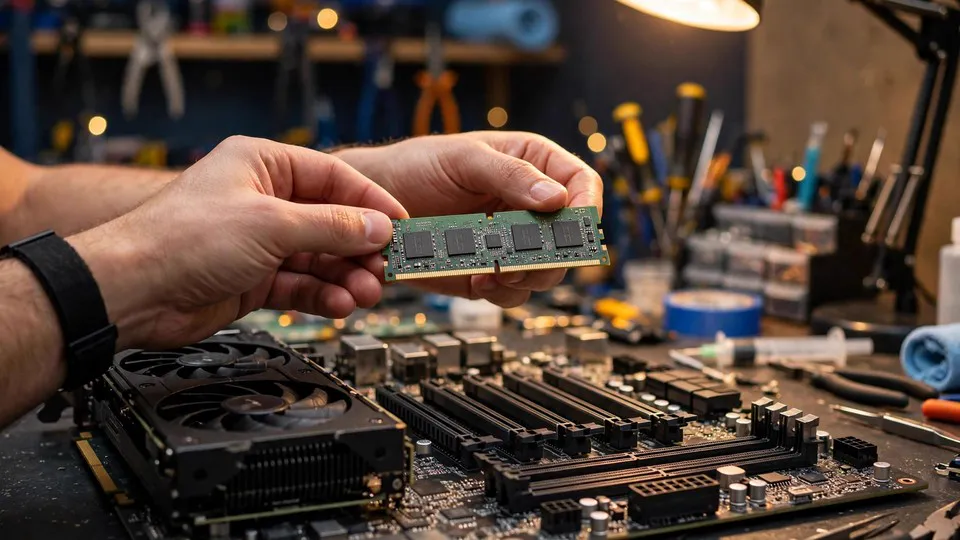
Key Takeaways
Upgrading RAM rarely damages a graphics card. The usual cause is memory training failing, an XMP profile the board or CPU cannot run, RAM in the wrong slots, or BIOS settings reset during the swap. This guide explains why the boot stops before the GPU is initialised, and the steps that separate a memory problem from a graphics card fault.
Why a RAM Change Can Make the GPU Disappear
The first instinct after a RAM upgrade is usually that the new memory has damaged the graphics card, or that the new RAM and the card are somehow incompatible. In most cases neither is true. Changing the RAM is a trigger event: it forces the motherboard to re-run memory training, and it can reset or invalidate BIOS settings. The card itself is usually completely unharmed.
The key fact is the order of the power-on self-test (POST). The sequence runs CPU, then DRAM, then VGA, then BOOT. If the system cannot get past the DRAM stage, it never reaches the step that initialises the graphics card. The result looks like a graphics card problem — no display, or the card missing from Device Manager — but the fault is one stage earlier in the sequence, in the memory.
This article is the companion piece to the guide on a GPU that is not detected after a CPU change. The writing pattern is the same — a part was changed, and the system changed with it — but the trigger is different. That guide is about a CPU swap resetting BIOS defaults. This guide is about a RAM swap: memory training, XMP or EXPO profiles, slot pairing, and BIOS settings that change during the swap. The two guides share the "fault after a part was changed" logic; they do not share the same diagnosis.
Memory Training: What Happens Before the Screen Lights Up
When the system powers on, the motherboard firmware calibrates the signal timing and voltage between the CPU's built-in memory controller and the newly installed RAM, searching for a set of parameters that is stable before it hands control to the operating system. That process is memory training, and it runs again whenever the RAM is changed, the CMOS is cleared, the BIOS is updated, or the XMP or EXPO setting is changed.
Training happens before any picture is output, so the first boot after a RAM change can sit on a black screen for a while with the DRAM debug LED lit. That black screen is not, by itself, evidence that the card has failed or that the RAM is dead. A board that fails training may fall back to a safer default setting, retry several times, or stop on a memory-related POST code or debug LED. On some boards, four DIMMs, dual-rank modules or high-density configurations make training harder, and the board will retry twice before giving up.
DDR5 makes the training period especially visible. DDR5 starts at 4800 MT/s, with faster speeds, tighter timings and a more complex platform than DDR4, so training takes longer. Each DDR5 module carries its own power management chip (PMIC), and each DIMM has two 32-bit sub-channels, so the CPU memory controller needs more time to communicate with the board and find stable parameters. A guide for a Kingston FURY Beast 32GB DDR5-6000 kit notes that the first boot after installation can leave the screen black for 60 to 120 seconds while training runs, and warns against cutting power during that window — interrupting training is itself a cause of a broken boot.
The practical rule follows directly from that: after a RAM change, wait a full two minutes on a black screen before deciding the system has failed. Watch the DRAM debug LED. If it is still cycling, training may still be running. Only when the LED settles, or the system has sat unchanged for two minutes, should the next diagnostic step begin.
XMP and EXPO Are Overclock Profiles, Not the Default Speed
XMP on Intel platforms and EXPO on AMD platforms are overclock profiles pre-loaded on the RAM module: a higher frequency, tighter timings and a higher voltage than the module's standard setting. They are not the RAM's default speed, and they are not a guarantee.
The standard setting is JEDEC — the baseline specification the module is designed to run at. For DDR4 the standard voltage is generally 1.2V, while many DOCP or XMP profiles specify 1.35V. An XMP profile is the manufacturer's statement that a particular kit runs at that speed on certain boards. It is not a promise that it will run at that speed on your board, with your CPU. The memory controller lives inside the CPU, and different CPUs behave differently.
That distinction matters for diagnosis. If the system boots at JEDEC defaults but fails with XMP enabled, the RAM is not necessarily faulty and the card is not faulty either — the profile and this particular board and CPU combination do not agree. The test that separates an XMP problem from a memory fault is the on-off comparison: the same kit, the same slots, first with XMP off, then with XMP on. That comparison method is also used in the guide on game crashes with XMP on and off; this guide borrows only the method, and does not repeat that guide's material.
One more caution from the same area: older forum discussions report modules that needed a higher voltage than the JEDEC standard to reach their labelled speed, and that running them at the standard voltage produced instability that could reach the graphics. The point is not the specific voltage figures — those belong to the module's label and the board's manual — but the principle that a voltage mismatch is a real variable, and that the correct reference is always the module label, the board manual and the CPU specification, never a generic number.
Slots and Pairing: Filling the Slots Is Not the Same as Filling Them Correctly
Dual-channel memory only works when the modules sit in the slots the board manual specifies. For two modules that is usually A2 and B2 — the second and fourth slots counting from the CPU. Putting the modules in the wrong pair can leave the system running in single-channel mode, running slower, or failing to POST at all. One forum case describes exactly this: after adding RAM the graphics card could not be detected, and changing the slot combination from slots 2 and 4 to slots 1 and 3 brought the system back. The board had requirements about which slot combination it would accept.
Mixing kits is a separate variable. Two kits bought at different times can carry the same labelled frequency and timings and still differ in memory chips, voltage requirements and rank count. In one forum case, a system with 2×1GB and 2×2GB mixed together lost the graphics card from Device Manager and reported a "CMOS checksum bad" error; removing the older pair and leaving only the new pair brought the card back immediately. The lesson is that mixed memory is an independent variable, and during diagnosis the system should first be reduced to a single kit.
Filling all four slots is also a variable to consider, not a rule to state as a law. Four DIMMs make training harder than two, and combined with a high-frequency XMP profile it is the hardest combination to train. The correct statement is that a fully populated board is one of the things to consider when training is unstable — not that four modules always fail. If training is unstable with four modules and XMP on, the test is two modules at default speed first, and only then to add things back one at a time.
What Else a RAM Swap Can Disturb
Changing RAM means opening the case, and hands and arms inside the case can disturb other parts. The graphics card itself can be nudged at its tail end while the RAM is being handled, shifting it slightly in its slot so the gold fingers make poorer contact. The reseating comparison used after moving a PC applies here too, and the three-step no-display exclusion in the boot-failure guide — debug LED, integrated graphics cross-test, slot or machine swap — is the same framework this guide's decision tree follows. Both are borrowed as a single reference each, not repeated.
A second disturbance is the BIOS. If the power was off for a long time during the swap, if the CMOS battery is ageing, or if the CMOS was cleared, the BIOS can return to its defaults. That can change the primary display setting back to integrated graphics, and can change Above 4G Decoding, Resizable BAR and the PCIe generation setting. This is the same settings-reset mechanism described in the guides on a CPU change and on a board BIOS update, and it is borrowed here as a single check, not rewritten.
A third possibility exists only on older platforms. Some old BIOS versions have a memory remapping or "memory hole" setting, and turning it off can let system memory and graphics card memory addresses overlap, making the card disappear. That setting belongs to DDR2 and DDR3 era boards and is not a concern on modern platforms. It is listed here as an old-platform boundary case, and it should not be presented as general advice.
The GPU Running Slower: PCIe Lane Sharing Is a Separate Question
Changing RAM does not by itself change the number of PCIe lanes the graphics card gets. But a RAM upgrade is often done at the same time as other changes — adding an M.2 SSD, or moving another card — and that is where lane sharing can appear. Some boards share CPU PCIe lanes between the main graphics slot and a particular M.2 slot, so populating that M.2 slot cuts the graphics slot from x16 to x8. One board manual, for the MSI MPG X870E Carbon WiFi, states that PCI_E1, PCI_E2 and M2_2 share bandwidth, and that fitting M.2_2 makes an RTX 4090 run at PCIe 4.0 x8 — and the sharing happens even if the card fitted is a slow one.
Two hard rules apply here, and they are the same rules as in the PCIe slowdown guide, which this article borrows in one sentence and points to rather than repeating. First, lane counts must be checked against the CPU and the board manual; no generic lane count may be written as a standard. Second, PCIe 4.0 x8 carries the same bandwidth as PCIe 3.0 x16, so a lower lane count does not automatically mean the card is slower. Reading the lane count in GPU-Z is the way to tell whether the card is actually running at a reduced width, and the PCIe slowdown guide is the place to work through what that reading means.
Diagnosis: Follow the Decision Tree in Order
Work through these steps in order. Each step narrows the fault by one variable, and skipping ahead — especially skipping the restore comparison in step 2 — is the most common way to reach a wrong conclusion.
1. Look at whether the system shows a picture, and which debug LED is lit. A DRAM LED staying lit points to memory training or memory settings, not to the graphics card. A VGA LED staying lit is the point at which the graphics card or the PCIe slot becomes a suspect. A black screen with the DRAM LED still flashing or cycling may mean training is still running — wait a full two minutes before cutting power.
2. Restore the state from before the RAM change. Remove the new RAM and put the old RAM back, or leave only one old module in place. If the old RAM boots and the graphics card is detected again, the fault is locked to the new RAM, the combination, or the settings — not to the card. This is the single most important comparison in the whole guide, and it cannot be skipped.
3. Test the new RAM one module at a time, in the specified slot. Install the new modules one by one in the slot the manual specifies for a single module, usually A2. If every module boots on its own, no single module is dead and the problem is in the pairing, the four-module configuration, or the settings. If one module fails to boot, that module is a suspect — try it in another slot first to rule out a slot problem before concluding the module itself is at fault.
4. Turn XMP or EXPO off and return to JEDEC defaults. Enter the BIOS, disable XMP or EXPO, and boot at the default frequency. If the system boots at defaults but not with XMP on, the profile does not agree with this board and CPU — the RAM is not broken, and neither is the card. From there, a lower frequency step can be tried with XMP on to find which speed is stable, but the specific frequency numbers are a matter for the kit label and the board manual, not a standard written in this guide.
5. Clear the CMOS and let the board train from scratch. Follow the board manual's method for clearing the CMOS. After clearing, the first boot will take longer while the board trains again — expect a longer black screen, and do not cut power during it.
6. Check the BIOS settings. After clearing the CMOS or changing the RAM, check the primary display setting, Above 4G Decoding, Resizable BAR, and the CSM or UEFI mode, in case any of them reverted to defaults. The settings-reset mechanism is covered in the guides on a CPU change and on a board BIOS update; this step borrows that check.
7. Check whether the graphics card has come loose. Reseat the card and its power cables firmly, since the card may have been nudged during the RAM swap. The reseating comparison from the guide on faults after moving a PC applies here.
8. Run a memory test to confirm stability. Once the system boots, run a memory test tool such as MemTest86 or TestMem5 to confirm the new RAM is stable at default speed before enabling XMP again. If errors appear even at default speed, the problem is in the RAM itself or the slot, and the module should be sent for inspection or exchanged — it has nothing to do with the graphics card.
| Symptom after a RAM change | Where the fault most likely sits | First test |
|---|---|---|
| Black screen, DRAM LED lit or cycling | Memory training or memory settings | Wait two minutes, then restore the old RAM |
| Black screen, VGA LED lit | Graphics card or PCIe slot | Reseat the card, then restore the old RAM |
| System boots at JEDEC defaults but not with XMP on | XMP profile and this board or CPU do not agree | Boot with XMP off, then try a lower frequency step |
| Card missing from Device Manager after mixing kits | Mixed memory as an independent variable | Reduce to one kit only and retest |
| System boots but games run slower, GPU-Z shows x8 | Possible PCIe lane sharing from another change made at the same time | Check the board manual's lane-sharing rules |
| Intermittent detection, cold boot fails but warm restart works | Link retraining or device reset timing | Compare against the guide on cold-boot versus warm-restart behaviour |
Edge Cases
The system boots, but more slowly than before. A slower first boot after a RAM change is normal on DDR5, particularly on AM5 platforms, because training takes longer. Some boards offer a Memory Context Restore (MCR) setting that reuses the previous training parameters to shorten later boots. MCR is a boot-time optimisation, not a stability fix — and when the system is unstable, MCR should be turned off first. No specific boot time in seconds is promised here, because training time varies by board, kit and configuration.
The card is only sometimes detected — cold boots fail, warm restarts work. This symptom points in the opposite direction to the cold-boot-normal, warm-restart-fails pattern covered in the guide on restart behaviour, but the mechanism family is the same: link retraining and device reset timing. This guide does not open a separate branch for it; the restart-behaviour guide is the reference.
Games run slower after the RAM change, but GPU-Z shows x16. First rule out system-wide instability from XMP, using the crash-pattern comparison from the XMP guide. Then look at the card itself: a CPU bottleneck and a PCIe slowdown are the two other directions to check, each covered in its own guide and borrowed here as a single reference each.
Old platforms (DDR3 or DDR2). The memory remapping and memory hole settings appear only in old-platform BIOS versions. Modern platforms do not need them, and the setting should not be written as general advice.
Four modules filled, with a high-frequency XMP profile. This is the hardest combination to train. If it is unstable, try two modules at default speed first, and only add the rest back once that configuration is stable. The statement to avoid is "four modules always fail" — the correct statement is that it is a variable to test.
Common Misconceptions
"Changing the RAM damaged my graphics card." Wrong. Changing RAM does not directly damage a graphics card. The usual cause is a training failure or a settings change that stops the system at the DRAM stage of POST, so the card is never initialised. Run the restore comparison in step 2 before declaring the card dead.
"New RAM should run at its labelled speed as soon as it is installed." Wrong. The labelled speed is an XMP or EXPO overclock profile, not a guaranteed speed. When training fails, the board falls back to the JEDEC default speed. That fallback is a protection mechanism, not a fault.
"A black screen for a few seconds means the system has crashed, so I should cut the power and restart." Wrong. The first DDR5 training pass can leave the screen black for a while. Cutting power mid-training is what breaks the boot. Wait a full two minutes, and watch whether the DRAM LED is still cycling.
"Two RAM kits with the same frequency and timings can be mixed." Wrong. The memory chips, voltage requirements and rank counts can differ even when the label matches. Mixed memory is an independent variable; during diagnosis, reduce the system to a single kit first.
"The card is not detected, so it must be a driver problem — reinstalling the driver will fix it." Wrong. If Device Manager shows no card at all, there is no hardware for a driver to attach to. Check the hardware layer first — the debug LED and the restore comparison — instead of going in circles at the driver layer. The driver-layer diagnosis is covered in the guides on a card that is not detected and on the Microsoft Basic Display Adapter.
"GPU-Z shows x8, so the RAM change made my card slower." Wrong. Lane counts follow the board manual's sharing rules, and are not changed directly by swapping RAM. And PCIe 4.0 x8 carries the same bandwidth as PCIe 3.0 x16, so a lower lane count does not equal slower performance in every case. The PCIe slowdown guide is the reference for what the reading means.
When to Seek Inspection
Seek professional inspection if the system still fails to boot with the old RAM restored, if a memory test reports errors at JEDEC default speed, if the card is still not detected after the card has been reseated and the BIOS settings have been checked, or if there is any sign of physical damage from handling inside the case. Bring the card and the RAM as they are, and note down what was changed, which steps were tried, and what each comparison showed. That record shortens the inspection considerably.
Inspection fees follow the published three-tier structure of HK$400–2,800, with the actual quote given after inspection. The workshop is at Room 1209, Dali Plaza, Shek Mun, Sha Tin. Telephone 2186 8010, WhatsApp 6558 6806. There is no on-site service.
FAQ
Why does my graphics card disappear after I upgrade the RAM?
Because the POST sequence runs CPU, then DRAM, then VGA, then BOOT. If the system cannot get past the DRAM stage — because memory training failed or the settings changed — it never reaches the step that initialises the graphics card. The card itself is usually unharmed; the fault is one stage earlier.
How long should I wait on a black screen after installing new RAM?
Wait a full two minutes. DDR5 training can leave the screen black for 60 to 120 seconds on the first boot, and the DRAM debug LED may still be cycling during that time. Do not cut power during this window — interrupting training is itself a cause of a broken boot.
My system boots with XMP off but not with XMP on. Is the RAM faulty?
Not necessarily. XMP and EXPO are overclock profiles, not guaranteed speeds. If the system boots at JEDEC defaults but fails with XMP on, the profile does not agree with this particular board and CPU. The RAM is not broken, and neither is the card. A lower frequency step with XMP on can be tried to find a stable speed.
Can I mix two RAM kits if they have the same frequency and timings?
It is not recommended. Kits bought at different times can differ in memory chips, voltage requirements and rank counts even when the label matches. Mixed memory is an independent variable, and during diagnosis the system should first be reduced to a single kit.
Why does GPU-Z show my card running at x8 after a RAM upgrade?
Changing RAM does not by itself change PCIe lane counts. A lower lane count usually comes from another change made at the same time, such as adding an M.2 SSD to a slot that shares lanes with the graphics slot. Check the CPU and board manual for the lane-sharing rules, and note that PCIe 4.0 x8 carries the same bandwidth as PCIe 3.0 x16.
The system boots, but it is slower than before. Is something wrong?
Not necessarily. A slower first boot after a RAM change is normal on DDR5, particularly on AM5 platforms, because memory training takes longer. Memory Context Restore can shorten later boots, but it is a boot-time optimisation, not a stability fix, and it should be turned off when the system is unstable.
What should I do first if the screen stays black after a RAM change?
Look at the debug LEDs. A DRAM LED staying lit points to memory training or settings. Then restore the old RAM and see whether the card is detected again — that single comparison separates a memory problem from a graphics card fault more reliably than any other step.
Do I have to remove two sticks if the system is unstable with all four RAM slots filled?
Not necessarily. Four filled slots are harder to train, but that is not a rule that four sticks never work. If the system is unstable, first try two sticks at JEDEC defaults; once that is stable, add back step by step — four sticks first, then XMP — and whichever step fails identifies the variable.
What should I watch for after clearing CMOS?
Clearing CMOS returns the BIOS to its defaults: integrated graphics priority, Above 4G Decoding, ReBAR and CSM/UEFI mode may all revert. The first boot after clearing will black-screen for longer while the board retrains memory from scratch; afterwards, check each setting against how it was before the RAM change.