GPU Not Detected or Slower After a Motherboard Upgrade? BIOS, Chipset Driver & Slot-Layout Diagnosis Guide
Key Takeaways
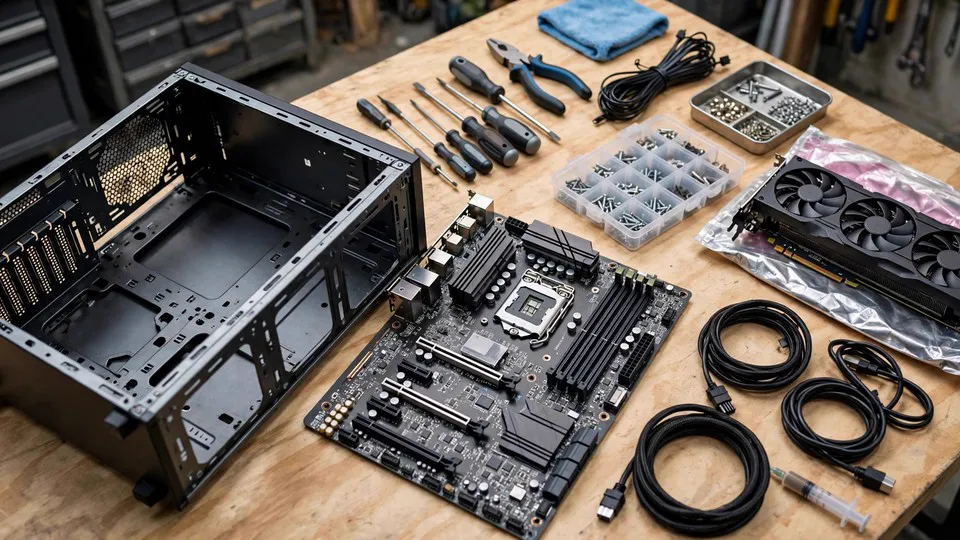
After a motherboard swap, the same graphics card can go undetected or run slower because five things changed at once: the chipset, BIOS defaults, slot layout, Windows device enumeration and the physical rebuild. This guide separates those changes with a staged diagnosis, starting with whether the BIOS sees the card, so each cause is checked one at a time.
Why One Swap Changes Five Things at Once
A motherboard swap is a common trigger with an uncommon property: it changes several things in a single operation. The board may have been replaced because the platform was upgraded, because the old board failed, or because a second-hand board was fitted. In each case the same graphics card is moved across, and the symptoms that follow can take several forms — no picture at all, a machine that does not start, a card that Windows cannot see, a resolution locked at a low setting, or a card that is recognised but clearly slower than it was on the old board.
The natural first suspicion is usually the card itself, or the graphics driver. Both are worth checking eventually, but neither is the right place to start, because the swap changed five things at once: the chipset, the BIOS version and its default settings, the slot layout and lane allocation, the state of Windows device enumeration, and the physical assembly of the whole machine. Any one of those five can produce the symptoms above. The work of this guide is to separate them, so that each one can be checked on its own evidence instead of being guessed at as a group.
The comparison that matters throughout is the same machine, before and after the swap. A card that is slower than it was on the old board is a statement about this machine and this card. Comparing it with a different machine, or with a figure quoted for different hardware, proves nothing, because different combinations of board, processor, memory, storage and graphics card initialise and run at different speeds.
Mechanism 1: The Chipset Changed, So Windows Must Re-Enumerate
The chipset is the hub that connects the processor, the graphics card, storage and peripherals. Changing the motherboard means changing the chipset, and that changes the device tree Windows sees. Nodes belonging to the old chipset can remain behind as hidden devices, while the new chipset needs its own chipset driver installed before it can enumerate PCIe devices correctly.
The chipset driver and the graphics driver are two different things, and one cannot substitute for the other. This is a common misunderstanding after a board swap: reinstalling the graphics driver, however carefully, does nothing for a chipset enumeration problem. With the wrong chipset driver, or with none installed, the graphics card may appear in Device Manager carrying a warning, or it may not appear at all — even though the card itself is seated correctly and working.
The practical consequence is that a card which is invisible to Windows is not necessarily a card that is broken, badly seated, or wrongly driven. It may simply be a card that Windows has not yet been given the means to enumerate, because the chipset layer underneath it has changed and has not been set up for the new board.
Mechanism 2: BIOS Defaults Changed — and Defaults Are Not Errors
Every motherboard ships with its own BIOS version and its own default settings, and a new board's defaults are rarely the same as the old board's. A new board may default to any of the following:
- CSM off, pure UEFI mode. Compatibility Support Module selects the legacy initialisation path instead of pure UEFI. A board that defaults to pure UEFI behaves differently at boot from one that defaults to CSM on.
- Above 4G Decoding off. This setting allows address allocation above the four-gigabyte boundary, which matters for mapping a large block of video memory in one piece.
- ReBAR on or off. Resizable BAR allows the processor to map the card's video memory in one range. A new board may default to the opposite of the old board, and performance will change with it.
- A different PCIe generation default. The BIOS may default to automatic negotiation, or to a fixed generation, and the value it picks affects the link speed the card settles at.
- A different primary display order. The new board may default to the processor's integrated graphics as the first display output, so the discrete card produces a picture but is not the main output.
- Secure Boot on. Secure Boot requires pure UEFI mode, so it interacts directly with the CSM setting above.
The key point is that BIOS defaults are not errors. They are designed to let the widest range of hardware combinations start up, not tuned for one particular card. A default that does not suit the card in this machine is a mismatch to be found by comparison, not a fault in the board. That is why the settings must be compared one at a time, with the original value of each one written down before it is changed — never by changing several settings at once and hoping the result improves.
One branch deserves a single sentence and no more: if the card is from before 2016 and its firmware carries no UEFI graphics driver, the resulting no-picture problem belongs to the separate guide on older cards in newer motherboards, and this guide does not cover it.
Mechanism 3: Slot Layout and Lane Sharing Changed
No two motherboards lay out their PCIe slots in the same way, and a card moved to a new board is standing in a different electrical environment:
- The first x16 slot on the new board may be connected directly to the processor, where the same slot on the old board was routed through the chipset — or the other way around.
- Fitting an M.2 SSD can change the lanes available to a slot. On some boards a slot drops from x16 to x8 when a particular M.2 socket is occupied, and on others a slot is disabled outright. That is board design, not a fault.
- A second slot is often only x8 or x4 in electrical terms, even if it is physically a full-length slot. A card fitted there will naturally behave differently from the same card in the first slot of the old board.
The diagnostic reading for this layer is the link status — how many lanes the card is using, and at which PCIe generation — as reported by the graphics driver or a hardware information utility. That reading is the only part of the link-speed subject this guide needs; the wider explanation of generations and bandwidth belongs elsewhere.
One warning matters more than any other in this section: a link running at x8 is not evidence of a fault. It can be the slot's own electrical specification, the normal result of lane sharing with an M.2 device, or a stable negotiated result. Whether x8 is expected can only be judged with the slot position and the motherboard manual together.
Mechanism 4: The Whole Machine Was Taken Apart and Rebuilt
Swapping a motherboard means taking the whole machine apart and putting it back together. The graphics card is removed and refitted, the power leads are disconnected and reconnected, and the processor cooler is removed and refitted. Every one of those steps introduces a variable that did not exist before the swap:
- The card may not be fully seated in its slot.
- A power connector may not be pushed fully home.
- The case bracket or rear panel may be pressing against the card.
- The processor cooler may overhang the first slot.
- Cable routing in the case may have changed with the new board's connector positions.
The physical layer therefore comes first in the diagnosis — before the question of whether the BIOS sees the card. But it comes first as a check, not as a dismantling project. The only principle this guide states is to shut the machine down and disconnect it from power before touching anything inside the case. It does not give disassembly instructions, and it does not cover removing a cooler, modifying a card, or any similar work. Where the reader is not comfortable checking the physical layer, the remaining steps can still be worked through, and the physical check can be left to an inspection.
Mechanism 5: Power Routing Changed
The new board puts its power connectors in different places, so the routing of the CPU power lead and the PCIe power leads changes with it. This layer is deliberately kept narrow: check that the power connectors are fully seated, and that each one is in the correct socket. Power supply selection, cable design and transient behaviour are separate subjects with their own guides, and they are not part of this one.
The Staged Diagnosis: Does the BIOS See the Card?
The diagnosis follows a staged model, and the first question divides the whole problem in two: does the BIOS see the card?
- The BIOS does not see the card. If the card is not visible in the BIOS or UEFI setup screen, or the motherboard's debug LEDs stop at the graphics stage, the problem sits in the physical layer, the slot, or the BIOS settings. Reinstalling a driver cannot help at this stage, and no time should be spent inside Windows until the card is visible here.
- The BIOS sees the card, but Windows does not. The problem sits in the enumeration or driver layer: the chipset driver, leftover devices from the old board, or the Windows device tree.
- Windows sees the card, but it performs poorly. The problem sits in the link status, settings or driver layer: check the lane count and generation, the Above 4G and ReBAR settings, and the performance mode.
That single observation decides which of the five mechanisms is worth pursuing and which can be set aside. Skipping it is how a settings problem ends up treated with a driver reinstall, or a seating problem ends up treated with a Windows reinstall.
Step 1: Classify the Symptom Before Touching Anything
Before any setting is changed, the symptom should be matched to a row in the table below. Each row names the first suspicion and, just as importantly, the step that should not be taken first.
| Symptom | Suspect first | Do not do first |
|---|---|---|
| No picture at all, not even the motherboard logo | Physical layer — card not fully seated, power connector not fully home — or the firmware compatibility branch for an older card | Reinstall Windows, reinstall the driver |
| Logo and BIOS screen appear, then Windows shows a black screen or does not recognise the card | Chipset driver, Windows device enumeration, leftover driver state from the old board | Replace the power supply, conclude the card has failed |
| Card recognised, but resolution locked or refresh rate cannot be raised | Driver not loaded correctly — the card running on the basic display driver — or Above 4G and ReBAR settings | Overclocking, replacing the cable |
| Card recognised, but clearly slower than on the old board | Slot position and lane count, PCIe generation setting, M.2 lane sharing, ReBAR default changed | Conclude the card has aged or failed |
Writing down which row matches is a small step, but it prevents a common error in this diagnosis: treating every symptom with the same first action.
Step 2: Record the Before-and-After, Then Change One Variable at a Time
Without a before-and-after record, there is no conclusion to draw. The record should cover the old board's BIOS settings, if they were noted or photographed before the swap, alongside the new board's defaults: the slot the card is fitted in, which M.2 sockets are occupied, and which driver versions are installed.
Each change is then made on its own. Change one setting, record the result, and only then change the next one. Changing several settings at once makes it impossible to know which change mattered — and if the result gets worse, it makes it impossible to know which change to undo. This applies to CSM, Above 4G Decoding, ReBAR and the PCIe generation setting alike: one at a time, original value written down first.
The same discipline applies to the CSM trade-off. Enabling CSM means Secure Boot cannot be active, and Windows 11 has requirements in this area, so CSM must not be presented as a cost-free fix. Compare the two modes deliberately, and restore the original setting if the comparison does not help.
Step 3: The Decisive Tests
Four tests separate the remaining possibilities. Each one isolates a single variable:
- Move the card to another slot, where the board has one. A change in behaviour points at the slot or at the lane allocation between slots; no change points away from the slot.
- Boot with integrated graphics, or with a different card, and enter the BIOS. If the board behaves normally without the card in question, the problem points at the card, its slot, or the settings connected with it. If the board behaves the same way, the problem points at the board or its settings. This test is only possible where the processor actually has integrated graphics, or where a spare card is available.
- Remove the M.2 SSD and re-check the link status. A change in lane count or generation points at lane sharing between the M.2 socket and the slot.
- Check Device Manager for hidden devices from the old board. Old chipset and display entries can remain as hidden devices after a swap, and they can interfere with enumeration of the new board's devices.
For any test that involves removing hardware, the machine must be shut down and disconnected from power first. This guide does not give disassembly instructions, and where a test cannot be run, or the reader is not comfortable running it, the remaining steps can still be worked through.
The Settings Involved
| Setting | What it does | How it can cause trouble after a board swap |
|---|---|---|
| CSM | Selects the legacy initialisation path instead of pure UEFI | The extra compatibility layer changes boot behaviour; enabling it means Secure Boot cannot be active |
| Above 4G Decoding | Allows address allocation above the four-gigabyte boundary | A mismatch with a large-memory card can leave initialisation incomplete |
| ReBAR | Maps the card's video memory in one range | A default that differs from the old board changes performance |
| PCIe generation and lane settings | Set the link speed and width, where the BIOS exposes them | A forced setting that does not suit the card and slot can force retraining |
| Primary display output | Chooses which output is used first | A default favouring integrated graphics leaves the discrete card unused as the main output |
| Secure Boot | Requires pure UEFI mode | Interacts with CSM; changing one affects the other |
| Fast boot options | Shorten the self-test by skipping some checks | A changed hardware combination can force a full self-test instead |
Common Misconceptions
"The card stopped working after the board swap, so the card must be broken."
Wrong. The swap changed five things, and a failed card is only one possibility among them — and only one possibility among several. No symptom in this guide is evidence of a failed card until the staged tests have ruled out the physical layer, the slot, the BIOS settings and the enumeration layer.
"Reinstalling Windows fixes everything."
Wrong. Reinstalling Windows cannot fix a card the BIOS cannot see, because that problem sits in the physical or settings layer, below Windows entirely. It also cannot fix a card fitted in the wrong slot, or a slot sharing lanes with an M.2 device. Reinstallation is one tool, and it belongs only after the driver layer has been confirmed as the problem.
"The new board's defaults must be right."
Wrong. Defaults are designed for the widest range of hardware combinations, not for the card in this machine. Above 4G Decoding, ReBAR, CSM and the PCIe generation default all need to be compared against the old board, one at a time.
"A PCIe link at x8 means something is wrong."
Wrong. A link at x8 can be the slot's own electrical specification, the normal result of lane sharing with an M.2 device, or a stable negotiated result. It is not fault evidence, and it must be judged with the slot position and the motherboard manual together.
"Reinstalling the driver once is enough."
Wrong. The graphics driver and the chipset driver are two different things, and reinstalling only the graphics driver leaves a chipset enumeration problem untouched. Hidden devices left over from the old board also need to be dealt with.
"The same chipset means the same behaviour."
Wrong. Two boards with the same chipset, from different makers or in different models, can differ in BIOS version, default settings, slot layout and M.2 sharing rules. The chipset name alone does not determine how a board behaves.
"A BIOS update will fix every board-swap problem."
Wrong. A BIOS update is one tool among several, and it carries its own risk. It must only be done by following the manufacturer's instructions, and never attempted blindly in a machine that currently shows no picture.
Frequently Asked Questions
Why is my graphics card not detected after a motherboard swap?
One possible reason is that one of the five things the swap changed is now mismatched: the chipset driver has not been set up for the new board, a BIOS default does not suit the card, the card is in a slot with different lane allocation, or the card is not fully seated after the rebuild. The diagnosis starts with whether the BIOS sees the card, because that answer separates the physical and settings layers from the driver layer.
The BIOS sees the card but Windows does not. What does that mean?
It means the problem sits in the enumeration or driver layer. The chipset driver for the new board may be missing or incorrect, hidden devices from the old board may be interfering, or the Windows device tree may still be holding the old board's entries. Reinstalling the graphics driver alone will not address a chipset enumeration problem.
My card is detected but slower than on the old board. Is it damaged?
Not on the evidence of slowness alone. The first things to check are the slot position and the link status — how many lanes the card is using and at which generation — whether an M.2 device is sharing lanes with the slot, and whether the ReBAR default changed between the two boards. Slowness after a swap points at the changed environment, not at the card, until the staged tests say otherwise.
Why is the resolution locked, or the refresh rate limited, after the swap?
That usually means the graphics driver has not loaded correctly and the card is running on the basic display driver, or that the Above 4G and ReBAR settings do not line up with the card. Check Device Manager for a warning on the card, confirm the chipset driver is installed, and compare the BIOS settings with the old board's values one at a time.
Should I reinstall Windows after swapping the motherboard?
Not as a first step. Reinstalling Windows cannot fix a card the BIOS cannot see, and it cannot fix a slot or lane-sharing problem. It is worth considering only after the driver layer has been confirmed as the problem, and after the staged tests have ruled out the physical layer, the slot and the BIOS settings.
Should I reinstall the graphics driver first?
The graphics driver is only one of two drivers involved. The chipset driver for the new board must also be installed, from the motherboard manufacturer's support pages, and the two must not be confused with each other. Reinstalling the graphics driver while the chipset driver is missing leaves the enumeration problem exactly where it was.
My new board shows the card running at x8. Is something wrong?
Not necessarily. A link at x8 can be the slot's own electrical specification, or the normal result of lane sharing with an M.2 device. Check which slot the card is in, which M.2 sockets are occupied, and what the motherboard manual says about that combination before treating x8 as a fault.
The machine shows no picture at all after the swap. Where do I start?
Start with the physical layer: shut the machine down, disconnect it from power, and check that the card is fully seated and that the power connectors are fully home and in the correct sockets. Then check the BIOS primary display setting and whether the board's debug LEDs stop at the graphics stage. Driver work comes only after the BIOS can see the card.
Should I update the BIOS to fix it?
Only as a considered step, not a first step. Check the motherboard manufacturer's documentation to confirm whether the installed BIOS version supports the card and the current configuration. Any update must follow the manufacturer's instructions exactly, and it must never be attempted blindly in a machine that currently shows no picture.
I changed the board and the processor, or the memory, at the same time. How do I tell which change caused the problem?
That cannot be determined from a single observation, because two triggers changed at once. A processor change alters the PCIe lanes and integrated graphics available, and a memory change introduces its own retraining behaviour. The two must be separated by changing one variable at a time, or the cause will remain a guess.
When to Bring It In
If you have worked through the staged diagnosis — confirmed whether the BIOS sees the card, classified the symptom, recorded the before-and-after settings, changed one variable at a time, and the card is still not detected or still slower — or if you are not comfortable changing BIOS settings and do not want to risk changing one you do not understand — bring the machine in with the notes you made: the old and new BIOS settings, the slot used, which M.2 sockets are occupied, which tests were run, and which debug LED stage the machine stopped at. That record is what makes an in-shop inspection efficient.
Inspection fees follow the published three-tier range of HK$400–2,800, with the actual quote confirmed after inspection. The workshop is at Room 1209, Dali Plaza, Shek Mun. Call 2186 8010, or message on WhatsApp at 6558 6806. There is no Mong Kok shop, and there is no on-site service.