GPU Blank Screen Until Windows Loads: DisplayPort 1.3/1.4 Firmware Compatibility Guide
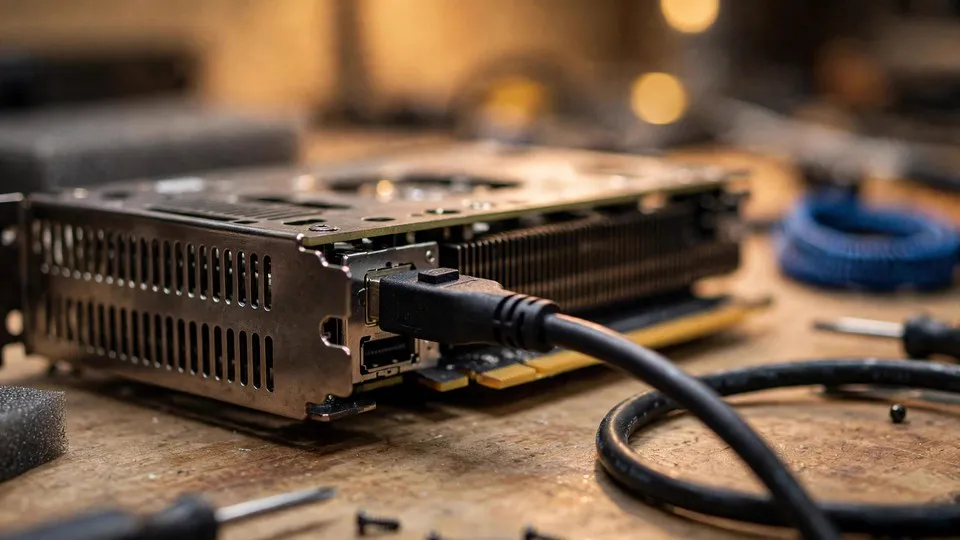
Key Takeaways
A blank screen during boot that clears once Windows loads usually means the firmware display path failed DisplayPort link training, not that the graphics card is dead, because the operating system driver retries the link with a fuller capability set and different timing.
A blank screen during boot that clears in Windows: what is actually happening
Many users have met the same puzzling sequence. The power button is pressed, the screen stays black, no motherboard logo appears, and the BIOS setup screen cannot be reached, as if the computer were producing no video output at all. Then, after a wait, the Windows login screen appears, and from that point everything works normally: documents, video playback, and games all behave as expected. The contrast between the two phases is easy to misread. A dead graphics card is often assumed, or a failed cable or monitor is blamed. Yet the pattern itself carries important evidence. If the picture is normal once the operating system has loaded, the graphics card can render an image, the output port can send a signal, the cable can carry that signal, and the monitor can display it. The display chain as a whole is not broken. What differs is the early-boot display path compared with the path used after the operating system takes over.
A computer boot involves two distinct display mechanisms. The first is the firmware display path. On a modern UEFI system, this is normally the Graphics Output Protocol driver contained in the graphics card firmware, working together with the motherboard firmware. Its job is to provide a picture before any operating system or full driver exists, so that the user can see the motherboard logo and enter setup. It is deliberately small, simple, and quick to start, because it must operate without operating system services. The second mechanism is the full operating system graphics driver. Once Windows loads, that driver takes control of the graphics card with a much larger codebase, more available time, more thorough retry logic, and more complete handling of monitor capability data. The same graphics card, cable, and monitor can therefore fail under the first mechanism and succeed under the second. That outcome is not a contradiction. It is the direct result of two mechanisms with different capabilities.
The scope of this article is deliberately narrow. It covers only the case in which the picture is absent during early boot and appears once the operating system loads. If the early boot screen is present but corrupted, with visual noise, blocks of wrong colour, or distorted shapes, that is a different fault class with a different diagnostic direction. If there is no picture at any stage, including after the operating system loads, that is a general no-signal problem with a different diagnostic direction. If the graphics card firmware itself is damaged or a flash has failed, the system typically cannot boot normally at all, which also falls outside this pattern. Stating the scope first prevents wasted effort on checks that belong to a different fault.
Why the early display path is more likely to fail
The limits of the firmware display path follow from its role. It must initialise in a very short time and cannot rely on operating system services. Its choice of display modes is usually conservative, its supported combinations of resolution and refresh rate are more limited, and its handling of monitor capability data is simpler. When it attempts DisplayPort link training, its retry count and fallback steps are usually fewer. If the first negotiation attempt does not go smoothly, it may abandon the attempt, or it may output a signal that the monitor cannot lock onto. What the user sees is a black screen.
The operating system driver works under entirely different conditions. If an initial attempt fails, it can try again. It can fall back to a lower link rate and try again. It can adjust signal drive settings, re-read monitor capability data, and re-attempt negotiation after the monitor has fully woken. Some or all of these additional steps may be absent from the firmware path, or present only in simplified form. The driver can therefore establish a link on identical hardware where the firmware path could not. No hardware change occurs between the two phases. What changes is the patience, flexibility, and completeness of the negotiation process.
Another variable that is easy to overlook is which output the firmware chooses. Firmware does not necessarily select the output port the user normally uses. In a multi-monitor setup, firmware may send the early picture to a different monitor, or to a different output port on the same card. A user watching only one monitor may conclude that there is no early output at all, when the early picture is in fact being sent elsewhere. Single-monitor testing matters precisely because it removes this selection difference. Simplifying the system to one monitor and one direct cable, and confirming whether early output is truly absent, must come before any conclusion about other causes.
DisplayPort link training explained
DisplayPort is not a fixed-signal connection in the manner of an older analogue output. It is a negotiated digital link. Before a picture can flow, the source device and the sink device must agree on several parameters, including how many lanes to use, what link rate to use, what voltage swing to apply, and what pre-emphasis settings to use. This negotiation is called link training. The source proposes a configuration, the sink reports whether it can lock onto the signal, and the source adjusts until lock is achieved or the attempt is abandoned.
Link training is iterative rather than a single on-or-off event. Signal integrity on the cable at a high link rate, the monitor firmware response to training signals, and the way the source interprets the sink report all affect the result. A configuration that fails at a high link rate does not necessarily fail at a lower link rate on the same chain. Lowering the resolution or refresh rate as a diagnostic probe is therefore meaningful: if the early picture appears at a lower demand, the fault is linked to link rate or to a high-demand mode; if the early picture remains absent at a lower demand, the fault is more likely to sit in the early path itself or in output selection.
DisplayPort version differences operate through the same mechanism. DisplayPort 1.3 and 1.4 raised the available link rates and introduced Display Stream Compression for very high resolution and refresh-rate combinations. Higher link rates place greater demands on cable signal integrity and on both ends of the link, while compression adds a further capability negotiation on top of link training: both ends must agree that compression is supported and configured correctly before a compressed stream can be used. If the early path handles compression capability differently from the operating system driver, the early picture can be absent while the driver later negotiates the same mode successfully, or falls back to an uncompressed mode. The version number itself is not the cause of failure. The cause is whether the two ends negotiate the same capability set in the same way during the early phase.
Monitor capability data forms part of this negotiation. A monitor provides data describing its supported resolutions, refresh rates, DisplayPort capabilities, and related parameters. The firmware path and the operating system driver may read, parse, and act on that data differently. A particular timing block, a compression capability flag, or a version advertisement may be handled correctly by the driver and inconsistently by the firmware path, causing early negotiation to fail while the later attempt succeeds. Such differences typically do not appear in the operating system picture, because the driver has more complete data handling and can work around the part that the firmware path handled poorly.
Breaking down the variables one by one
The most common diagnostic error with this fault is changing several variables at once. If the problem disappears after several simultaneous changes, it is impossible to know which change mattered, and the problem may return when one element is restored. The correct approach is to list every variable and isolate each one in turn.
The first variable is DisplayPort link rate and mode demand. A high resolution paired with a high refresh rate pushes the link rate upward and may trigger a compression requirement. Temporarily lowering the resolution or refresh rate tests whether the early picture depends on mode demand. This step is a probe, not a permanent recommendation. Its purpose is to establish whether the fault changes with demand.
The second variable is compression negotiation. If the problem appears only in a high mode that requires compression, while the early picture is normal in a mode that does not require compression, the evidence points toward compression negotiation or high link rate rather than toward a general output failure. That distinction matters for the next steps, because compression-related early behaviour is often connected to firmware versions rather than to a loose cable.
The third variable is monitor firmware. Monitor firmware governs how the monitor responds during link training, how it reports capabilities, and how it handles transitions between link states. A monitor firmware updater issued by the monitor manufacturer for a specific model can change exactly this behaviour. Monitor firmware updating and graphics card firmware updating are entirely different operations, provided by different manufacturers, using different tools, for different devices. Confusing the two is a common error, addressed in detail later in this article.
The fourth variable is the cable. At high link rates, cable signal integrity becomes critical. Length, construction, and certification level all affect performance at high rates. A cable that performs normally at a lower link rate can become marginal at a higher link rate: the firmware path, with limited retries, fails, while the operating system driver, with more retries or a fallback to a lower rate, succeeds. Cable testing must use a different, known-good, short cable as a control. Merely checking that the connector is firmly seated is only the most basic check. A signal integrity problem is not visible from the outside.
The fifth variable is the output port and the monitor input. Different output ports on the same card may have different priority in the firmware stage, and different DisplayPort inputs on the same monitor may be handled with slight firmware differences. Testing another output port and another monitor input, one change at a time, is a valid isolation step. Each test should be observed across both cold boots and restarts, because power sequencing and monitor wake timing affect early negotiation.
The sixth variable is motherboard firmware and related settings. The motherboard firmware version, the choice between UEFI and compatibility support mode, fast-boot settings, and the primary display selection can all change how the early display path runs. Fast boot deserves particular attention: it shortens the early-stage time window, so a user may have no opportunity to see a picture or press the setup key, and may conclude that early output is entirely absent. Fast boot is not the most common cause, but it belongs on the checklist because it changes the time window rather than the signal itself.
The seventh variable is any intermediate device. An adapter, docking station, or protocol converter adds its own firmware and its own negotiation behaviour to the chain. Testing should first remove all intermediate devices and use a direct connection from the card to the monitor. If the direct path shows early output and the problem returns when an intermediate device is reintroduced, the fault range narrows to that device.
The eighth variable is multi-monitor behaviour and monitor wake timing. Some monitors take longer to wake from standby than the firmware path allows, so the firmware picture is missed even though the link would eventually succeed. The operating system driver, with more time available, succeeds after the monitor wakes. From the user's chair this looks identical to a link-training failure. It is separated by testing with a monitor that wakes faster, or by observing whether the monitor reports signal lock at any point during boot.
A systematic diagnostic sequence
Diagnosis should begin with the simplest, lowest-risk steps and move gradually toward firmware-level steps. Change one variable at a time, record the result of each step, and repeat observations across several cold boots. A single accidental success should not be mistaken for a repair.
The first step is to confirm the pattern precisely. Record whether the black screen occurs only before the operating system loads, whether the picture after Windows loads is normal every time, whether cold boots and restarts behave the same way, and whether the monitor reports no signal, enters standby, or stays powered on with a black screen. These observations distinguish different fault branches. A no-signal report means the monitor has not locked onto a signal. A powered-on black screen may mean a signal has been established but the content is black, or that the monitor is in a state in which it cannot display correctly. Clear records make later steps easier to interpret.
The second step is to simplify the connection. Keep only one monitor, remove adapters and docks, connect the card directly to the monitor, and substitute a known-good short DisplayPort cable as a control. If early output returns after simplification, reintroduce the original elements one at a time, testing after each addition, to identify which element causes early output to disappear. If early output remains absent after simplification, the removed elements are not the main variable, and diagnosis moves forward.
The third step is to test another output port and another monitor input. This step excludes firmware output selection and individual input behaviour as causes. Keep all other conditions unchanged and change only the output port or the monitor input.
The fourth step is to lower the mode demand as a probe. Temporarily reduce resolution or refresh rate and observe whether early output appears. This is a diagnostic probe for link-rate or high-demand-mode involvement, not a permanent setting recommendation. Record the conclusion rather than treating the lowered mode as the solution.
The fifth step is to use HDMI as a comparison path, where HDMI is available. HDMI negotiates differently from DisplayPort. If HDMI shows early output while DisplayPort does not, the evidence points at DisplayPort early negotiation rather than at a general inability of the card to produce early output. This result cannot by itself declare DisplayPort hardware permanently damaged, because DisplayPort works normally under the operating system. It narrows the range to DisplayPort early negotiation.
The sixth step is to check firmware versions and manufacturer notes. Check the motherboard firmware, graphics card firmware, and monitor firmware versions separately, and read the manufacturer release notes for mentions of DisplayPort, Graphics Output Protocol, UEFI, boot display, or monitor compatibility. Any firmware update must use the manufacturer's own tool and instructions for that device, updating one device at a time and recording versions and results before and after. Graphics card firmware, motherboard firmware, and monitor firmware are three separate items and cannot substitute for one another.
The seventh step is to check firmware settings. Examine the UEFI versus compatibility mode choice, fast-boot setting, and primary display selection, one setting at a time. After each change, perform a cold-boot test and record the result. Settings changes carry relatively low risk, but they must still be made one at a time so that any helpful change can be identified.
The eighth step is to distinguish a timing-window problem from a true absence of output. If the early picture did appear briefly but the setup key window was missed, that is a timing observation, not the same fault as a black screen throughout boot. Watch for whether the motherboard logo flashes briefly, how the monitor indicator behaves, and how the keyboard indicators behave during boot. Those details help determine whether the early path ever succeeded in producing output.
What a monitor firmware updater does, and what it does not do
A monitor firmware updater is a tool issued by the monitor manufacturer for a specific monitor model. Its function is to update the monitor's own firmware, changing how the monitor responds during link training, reports capabilities, and handles link-state transitions. In some compatibility cases, that monitor-side response behaviour is exactly the element that needs to change.
The updater has clear boundaries. It does not update the graphics card, improve graphics card performance, repair a graphics card hardware fault, or substitute for a graphics card firmware update. It is not a VBIOS flash and must not be described as one. The device, the manufacturer, the tool, and the risk profile are all different. Describing a monitor firmware update as a graphics card update is a conceptual error that sends the user to the wrong device for a solution.
A monitor firmware updater is also not a guaranteed cure. If the early failure sits in the graphics card firmware path or the motherboard firmware, a monitor update will not change the result. Its correct position is as one item in the variable list, applicable when the manufacturer has actually issued an updater for that model and the release notes mention relevant compatibility content. Without a manufacturer-issued updater for that exact model, no third-party updater or updater for a different model should be sought.
On safety, a monitor firmware update must follow the manufacturer instructions exactly, and must not be interrupted by power loss or disconnection. An updater for the wrong model, or an update that fails partway, can leave the monitor unusable. For that reason a monitor firmware update should not be the first step. It belongs after isolation testing has pointed toward monitor-side behaviour and after the manufacturer documentation has been checked. Sequence itself is part of risk control.
What must not be done: flashing a random graphics card firmware
Flashing graphics card firmware carries a risk of rendering the card unusable. Applying firmware from another card model, firmware of unknown origin, modified firmware, or a firmware version unrelated to the problem can leave the card unable to initialise, so the computer cannot boot at all. That outcome is worse than the original fault, in which the system boots normally and the operating system picture works. The original pattern itself shows that the card firmware can complete initialisation and hand over to the operating system driver normally. Treating firmware that can initialise normally as if it were damaged firmware is not diagnosis. It introduces a new risk.
The correct firmware principle is separation by device, manufacturer, and tool. Motherboard firmware uses the motherboard manufacturer's tool. Graphics card firmware is considered only when the graphics card manufacturer has explicitly provided applicable firmware and instructions. Monitor firmware uses the monitor manufacturer's tool. Every update decision should be supported by manufacturer documentation, not by guesswork. Without that support, the firmware step should stop, and manufacturer support or professional inspection should be sought instead of further attempts.
Telling this pattern apart from look-alike faults
The key to separation is comparing the observed pattern with the typical pattern of each other fault, rather than relying on a first impression.
Compared with a fully failed output: a failed output stage typically produces no picture at any stage, including under the operating system. This article's pattern shows a normal operating system picture, so it does not belong in the fully failed output branch.
Compared with a general no-signal problem: a general no-signal problem typically shows no picture at any stage, or an intermittent picture under the operating system as well. This article's pattern shows a stable, normal operating system picture, so a total cable break or a general monitor failure is unlikely. A marginal cable at a high link rate remains possible and is tested through the cable-swap and lower-mode steps, but the reason for testing is marginal high-rate performance, not a complete break.
Compared with a monitor fault: a monitor fault typically affects the monitor on every input and every source, or shows visible defects in the operating system picture as well. This article's pattern shows a normal operating system picture, so a general monitor failure is unlikely. Monitor firmware behaviour or an individual input behaviour remains within scope, but that is a firmware and negotiation matter, not a panel failure.
Compared with artefacts already visible on the early boot screen: artefacts mean the early picture has been produced but its content is corrupted. This article's pattern has no early picture at all. The fault layer is different, and so is the handling. Corrupted early content points toward image generation or transmission damage, while an entirely absent early picture points toward negotiation failure or output selection.
Compared with graphics card firmware damage: damaged firmware typically prevents the card from initialising correctly, so the system cannot boot normally. This article's pattern boots normally and the operating system driver takes over normally, so firmware damage is unlikely. This distinction matters because it determines whether a firmware flash should even be considered. Firmware that initialises normally should not be treated as damaged firmware.
Compared with a new graphics card in an old computer: the dominant variables there are power supply capacity, physical fit, motherboard generation, and legacy BIOS support. Those variables may coexist with this article's pattern, but the diagnostic emphasis here is the firmware-versus-driver link-training split, not the whole new-card-in-old-system compatibility set. When both apply, the isolation steps in this article narrow the range first, and generation-compatibility items are handled after that.
Compared with a debug indicator remaining lit: a debug indicator that stays lit means the power-on self-test has not passed a particular stage. This article's systems proceed past self-test into the operating system. If a debug indicator is genuinely lit, diagnosis should move to the branch for that indicator rather than continuing with this link-training checklist.
| Observed pattern | More likely direction | Next isolation test |
|---|---|---|
| Blank only during early boot, normal picture in Windows | Firmware display path and DisplayPort early link-training issue | Simplify to single-monitor direct connection, swap cable, test another output port |
| No picture at any stage | General no-signal or output fault branch | Check cable, monitor input, output port, power, and seating |
| Early boot picture present but corrupted | Early picture generation or transmission damage branch | Record the corruption pattern, check cable and output, do not apply this checklist |
| System cannot boot or card cannot initialise | Firmware damage or hardware initialisation branch | Stop random flashing, seek manufacturer or professional inspection |
| HDMI shows early output, DisplayPort early output remains blank | DisplayPort early negotiation direction | Check DisplayPort link rate, monitor firmware, and motherboard firmware notes |
| Lower resolution or refresh rate restores early output | High link rate or compression negotiation direction | Check cable high-rate performance and firmware version notes |
| Only one monitor is blank early in a multi-monitor setup | Firmware output selection or individual input behaviour | Single-monitor test, confirm which output firmware selects |
Common misconceptions
The first misconception is that no BIOS picture means the card is dead. That inference ignores the fact that the firmware path and the driver path are different mechanisms. Driver success does not guarantee firmware-path success, and firmware-path failure does not prove the card cannot operate. The correct inference is to treat early failure as a variable to be isolated, not as a verdict that the card should be discarded.
The second misconception is that a normal picture in Windows proves the cable is perfect. A cable that is normal at a lower link rate is not necessarily normal at a higher link rate. The firmware path has limited retries, while the driver may retry more often or fall back to a lower rate, so their pass thresholds differ. Cable testing remains necessary, with the focus on high-rate performance rather than connector seating alone.
The third misconception is that a monitor firmware update is the same as a graphics card update. The monitor and the graphics card are different devices, with firmware from different manufacturers and different tools. Confusing them leads to operating on the wrong device and can introduce unnecessary risk. Every mention of a firmware update should name which device it concerns.
The fourth misconception is that a DisplayPort version is merely a cable label. Behind the version are link rates and feature combinations, including compression support. Both ends must agree on the same capability set, and the cable must sustain the negotiated link rate. Reading the label without examining the negotiation result cannot explain why the same cable behaves differently under different modes.
The fifth misconception is that switching to HDMI and seeing a picture proves DisplayPort is permanently damaged. The HDMI comparison proves only that the HDMI negotiation path succeeds where the DisplayPort early path failed. It is a useful isolation result, not a final verdict, because DisplayPort still works normally under the operating system. A final conclusion requires the DisplayPort variables to be isolated one by one.
The sixth misconception is that fast-boot settings cannot affect whether a picture appears. Fast boot shortens the early time window and changes the conditions under which the early path runs, so it belongs on the checklist. It may not be the most common cause, but excluding it costs little and prevents a timing-window problem from being mistaken for a signal problem.
The seventh misconception is that seeing the motherboard logo proves early output works on every port. The logo may appear only on the output or monitor that firmware selected. Other ports showing nothing at the same moment does not mean they are faulty under the operating system, and it does not mean firmware produced no output at all.
When to seek professional inspection
If the isolation steps have all been completed — single-monitor direct connection, cable control, another output port, lower-mode probe, HDMI comparison, firmware version checks, and settings checks — and the early black screen persists, or the results contradict one another, the problem has moved beyond what can safely be handled through unguided attempts. At that point the complete test record should be preserved, including what was changed at each step, what the result was, and whether cold boots and restarts behaved the same way, and manufacturer support or professional inspection should be sought. A complete record shortens later inspection substantially and avoids repeating steps already completed.
Particular care applies to any step involving firmware flashing. Without explicit manufacturer documentation supporting that step for that device, it should not proceed. The value of professional inspection lies not only in replacing parts, but in confirming the fault range through controlled methods, avoiding a single mistaken firmware operation that turns a system which works normally in Windows into a system that cannot boot at all.
FAQ
Why is the screen blank during boot but completely normal in Windows?
Because early boot uses the firmware display path while Windows uses the full graphics driver. The two mechanisms differ in link-training code, retry count, and fallback steps. A DisplayPort early negotiation failure under firmware does not imply the same failure under the driver. A normal Windows picture proves the basic display capability of the card, port, cable, and monitor, so the fault range narrows to the early path and early negotiation.
Does no BIOS picture mean the graphics card is dead?
Not necessarily. A dead card typically shows no picture at any stage, or prevents the system from booting normally. If the system boots into Windows with a normal picture, the card's rendering and output capability under the operating system has been demonstrated. Early black screen more likely points to the firmware path, link training, monitor firmware, high-rate cable performance, output selection, or motherboard firmware settings, each of which needs isolation rather than an immediate verdict of failure.
Is swapping the DisplayPort cable useful?
It can be, provided the logic of the test is understood. The point of a cable swap is not connector seating alone, but the signal integrity of a different cable at a high link rate. Use a known-good short cable as a control and repeat the test across cold boots. If early output returns with the control cable, the evidence points to the original cable's marginal high-rate performance. If early output remains absent, the cable is not the main variable and diagnosis moves on.
Why does HDMI show a boot picture when DisplayPort does not?
Because HDMI and DisplayPort negotiate differently. HDMI early output proves the card can produce early output, narrowing the range to DisplayPort early negotiation. That result does not prove DisplayPort hardware is permanently damaged, since DisplayPort works normally under the operating system. The next steps are to check DisplayPort link rate, compression negotiation, monitor firmware, and motherboard firmware notes, rather than replacing the card.
Is a monitor firmware updater the same as a graphics card BIOS update?
No. A monitor firmware updater updates the monitor's own firmware and is issued by the monitor manufacturer for a specific model. A graphics card firmware update is an entirely separate operation from the graphics card manufacturer. The devices, tools, and risks differ. A monitor firmware update can change how the monitor responds during link training, but it does not improve graphics card performance and cannot repair a graphics card hardware fault.
Should graphics card firmware be flashed to fix a boot black screen?
No random flash should be attempted. Flashing carries a risk of rendering the card unusable, and this article's pattern shows firmware that can initialise normally and hand over to the operating system driver. Without applicable firmware and instructions explicitly provided by the graphics card manufacturer, flashing should not proceed. Firmware from another model or of unknown origin must never be applied.
If lowering the resolution restores the boot picture, is the problem solved?
No. Lowering resolution or refresh rate is a diagnostic probe that tests whether the fault is linked to link rate or a high-demand mode. The probe result helps narrow the range, but it is not a permanent solution. The variable that actually needs attention may be cable high-rate performance, monitor firmware behaviour, or a compatibility item in motherboard or graphics card firmware notes. After probing, the next step follows from the result rather than remaining at the lowered mode indefinitely.
In a multi-monitor setup, could the wrong monitor simply be watched?
Yes. Firmware may send the early picture to a different monitor or a different output port. Single-monitor direct testing exists to exclude that possibility. Keep only one monitor connected and observe all connected monitors during boot. If early output appears in the single-monitor test, the original issue relates to output selection or multi-monitor setup rather than to a total absence of early output.
Can fast boot make the boot picture disappear?
It can affect the outcome. Fast boot shortens the early-stage time window and changes the conditions under which the early path runs. A user may miss the motherboard logo or the setup key window and conclude that early output is entirely absent. Checking the fast-boot setting is a low-cost exclusion step that should be tested one setting at a time and recorded.
When should unguided attempts stop and professional inspection be sought?
When every isolation step has been completed one by one and the early black screen persists, or the results contradict one another, attempts should stop. This applies with particular force to any firmware flashing step without explicit manufacturer documentation. Preserve the full test record, including each change, each cold-boot and restart result, the HDMI comparison result, and firmware version information, and present it to manufacturer support or professional inspection. That record prevents repeated testing and prevents a mistaken operation from causing a more severe fault.
Summary checklist
Describe the pattern precisely, then simplify to a single-monitor direct connection, test with a control cable, try another output port and another monitor input, probe with a lowered mode, compare with HDMI, check motherboard, graphics card, and monitor firmware versions and manufacturer notes separately, and check UEFI, compatibility mode, fast-boot, and primary display settings one at a time. Change one variable at each step and observe across several cold boots. A black screen during early boot with a normal picture in Windows is a problem that can be narrowed down step by step. It is not, by itself, a verdict that the graphics card should be discarded. The value of diagnosis lies in identifying which variable causes early negotiation to fail, and then following the guidance of the manufacturer responsible for that variable, rather than replacing parts or flashing firmware on guesswork.
For further inspection, HK GPU Fix is located at Room 1209, Dali Plaza, Shek Mun, telephone 2186 8010, WhatsApp 6558 6806. Bringing the test record to an inspection helps in comparing the isolation steps already completed.