Game Textures Missing or Turned Into Black/Purple Squares? Texture Streaming, Game Files, Shader Cache, Driver & VRAM Diagnosis Guide
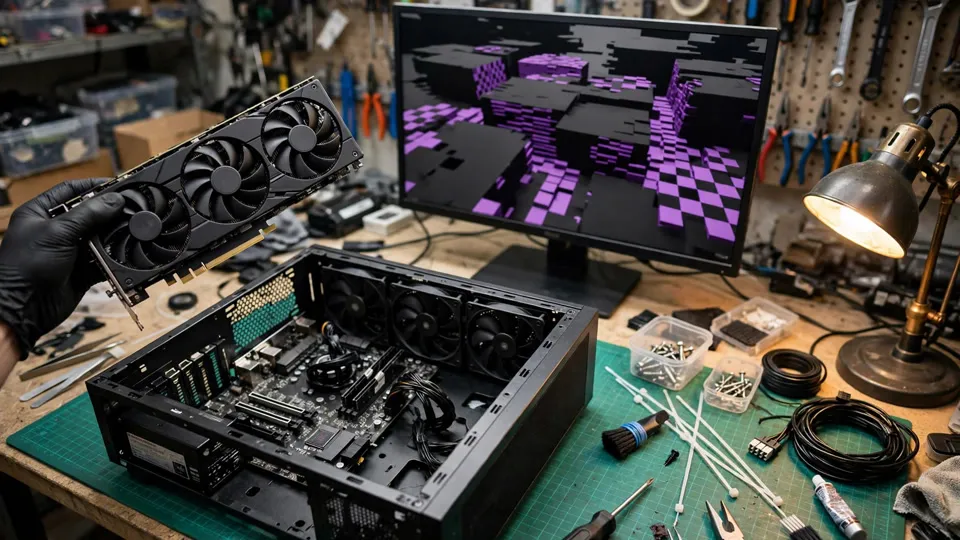
Game Textures Missing or Turned Into Black/Purple Squares? Texture Streaming, Game Files, Shader Cache, Driver & VRAM Diagnosis Guide
Key Takeaways
Missing textures are an engine fallback, not a dead graphics card: when a game cannot fetch texture data, it draws a magenta, black, or checkerboard placeholder so the fault is visible. The cause can sit in game files, shader cache, streaming, drivers, or — less often — VRAM hardware. Test one variable at a time, starting with the game.
What a Missing Texture Actually Is
A texture is image data wrapped onto the surface of a 3D model, sampled through UV coordinates and drawn by a shader. A material is a shader plus a set of texture slots — the diffuse or base colour, the normal map, the roughness map, and others. When a texture goes missing, the problem is not simply that "the picture has a hole in it". The sampling step cannot fetch the right data, so the engine has to substitute something else — and that substitute is the black square, purple square, or checkerboard the player sees.
That distinction matters, because it changes the question. The player is not looking at random damage. They are looking at a deliberate placeholder, drawn by design, and the job of diagnosis is to find out which step in the chain failed: the file, the cache, the streaming system, the driver, or the memory hardware.
A second point shapes the whole guide. A missing texture is a picture symptom, not a crash symptom. The game keeps running; the world keeps moving; one object, one wall, or one patch of ground is simply wearing the wrong skin. That is a different problem from a crash to desktop (#157) or a full-screen solid colour freeze (#358), and it needs its own diagnostic path. The articles already on this site draw those borders carefully, and this guide stays inside them.
Why Magenta, Black, and Checkerboards: A Fallback by Design
When an engine cannot find a texture reference, it does not crash. It returns a high-contrast fallback colour so that a developer can spot the fault immediately. The industry-standard choice is a flat, unlit magenta — `#FF00FF`, or RGB 1.0, 0.0, 1.0 — precisely because that colour almost never appears in a normal scene. A magenta object is a signpost: "the texture this material asked for is not here."
The black-and-magenta checkerboard is the most famous version of that signpost. It is the classic missing-content visual of Valve's Source engine — Half-Life 2, Counter-Strike: Source, Garry's Mod — and Minecraft uses the same design: Java Edition uses black `#000000` with magenta `#f800f8`, Bedrock Edition uses black with `#fc00ff`. In both cases the stated purpose is the same: to be as visible as possible. A checkerboard that looks like damage is, in these engines, a deliberate placeholder drawn by software.
That brings the guide to its central warning. A checkerboard does not, by itself, mean the hardware is broken. The same shape can be an engine placeholder drawn on purpose (the software layer) or an artifact pattern produced by damaged VRAM (the hardware layer, covered in #107). The two look alike and have entirely different causes. Telling them apart is the core work of this article.
What purple versus black means — and why there is no universal rule
The colour of the placeholder does not carry a fixed meaning across games. Different engines use the fallback differently, and the guides for individual games disagree with each other. Two examples make the point:
| Source | What the colour means there | Scope of the rule |
|---|---|---|
| Skyrim modding community guide (Step Modifications) | Purple means only the normal map is applied and the diffuse texture is missing; black means no texture is applied at all, most commonly because memory ran out and the game fell back to the original files, leaving mod-only textures with nothing to fall back to | Skyrim modding only |
| NormalMap.ai missing-texture guide | A whole model turning magenta means the file path is broken; a model turning black means the normal map is missing or a face normal is flipped | That guide's diagnostic table only |
The two sources do not agree, because they are describing different engines. The conclusion to carry forward is simple: seeing a particular colour cannot, on its own, identify which link in the chain broke. It can only say "this is a fallback, not the original texture." The rest of the diagnosis has to come from the tests in the decision tree. Any guide that tells you purple always means one thing and black always means another is turning one game's rule into a universal law, and it should not be trusted.
Three Different Streaming Outcomes — Do Not Mix Them Up
One texture is stored as a chain of mip levels, from large to small — a mipmap chain. The game picks the level that fits how close the object is and how much of the screen it occupies: near objects get the high-resolution level, far objects get the low-resolution one. That is texture streaming, and when the stream cannot keep up with demand, there are three different outcomes. They must be kept separate, because each points somewhere different.
| Outcome | What the player sees | What it means |
|---|---|---|
| Late arrival — pop-in | The object starts blurry, then suddenly sharpens | The texture did arrive, just late. This is the streaming-lag outcome, covered in full in #156. |
| Stuck at a low mip | The object stays blurry for a long time | The high-resolution mip never arrived, but the low-resolution mip is still there. |
| Missing, or fallback | The object turns into a black square, a purple square, or a checkerboard | Even the lowest mip, or the whole texture file, could not be fetched. This is this article's subject. |
The difference between the first and the third row is the difference between "late" and "never". Pop-in is a texture that arrives late; a missing texture is a texture that never arrives, or arrives wrong. The streaming pressure behind the first two rows is already covered in depth in #156 (capacity and streaming) and #281 (capacity versus bandwidth), so this guide does not repeat that analysis. It lists the upstream causes briefly — dedicated VRAM running out, the streaming pool exceeding its budget, storage reads that are too slow, background programs occupying VRAM, or the game's own streaming design — and moves on. There are also reports that, in Unreal Engine, an exhausted streaming pool or a VRAM limit can make objects render pink or checkerboard; that is a report about one engine, not a general rule.
Where the Chain Can Break
Game files: damaged or missing
Texture files can be damaged or lost through an interrupted update, an incomplete installation, an antivirus quarantine, a disk error, or a mod that overwrote the wrong path. The engine follows the material's reference to find the file; if the file is not there, the fallback appears. Steam's own guidance says that verifying the integrity of game files is the correct response when textures or other game content are missing: the platform compares the local files against the official list on the server, and damaged, missing, or wrongly modified files are re-downloaded automatically. The path is right-click the game, then Properties, then Installed Files, then "Verify integrity of game files".
Two details matter and are easy to miss. First, after a verification finishes, a message saying that one or more files failed to validate is normal — those are usually local configuration files that should not be replaced, and they do not mean the verification failed. Second, verification only covers officially released files. Mods and third-party content are not protected by it; a mod problem needs a mod test, not repeated verification.
Mods and custom texture packs are a separate cause in their own right. A path wrong by one folder, a filename wrong by one letter, a mod version that does not match the game version, or two mods claiming the same texture can all leave individual objects without their textures. Source engine community guides are explicit about this: the material file (VMT) and the texture file (VTF) must sit exactly where the error message says, with the right name, and the game must be restarted afterwards because models are cached.
Shader cache: the files are fine, but the compiled result is wrong
The shader cache holds pre-compiled shaders on disk (and at the driver layer) so they do not need to be compiled again next time. After a driver update, a game update, or a switch between games or graphics APIs, an old cache can stop matching the new driver or game version. An interrupted write or a lack of space can also damage it. The symptoms of a damaged cache include slower loading, stuttering, rendering errors, flickering, and missing textures. NVIDIA's own documentation, as cited in independent guides, notes that corrupted shader cache files can cause a program to crash on startup, lose performance, or show visual abnormalities.
Clearing the cache is a generic operation, and this guide deliberately does not pin it to one version of one control panel, because button positions change. The usual routes are Windows Disk Cleanup with "DirectX shader cache" selected, and the shader-cache reset option in the NVIDIA or AMD driver control panel. Clear it, restart, and let the game recompile on the next launch. The first launch after clearing will stutter for a while — that is recompilation, and it is normal, as #161 and #290 have already explained. Do not mistake it for the problem being unfixed.
The boundary is worth stating: a cache problem usually appears after an update or a settings change, and usually affects several scenes. If the problem has always been locked to the same object or the same map, the cache is a weaker suspect and the files are a stronger one.
The driver: the texture upload path goes wrong
The driver is responsible for uploading texture data into VRAM, managing sampling state, and running the shaders. A damaged driver, a driver version that interacts badly with a particular game version, forced anti-aliasing or anisotropic filtering that clashes with a particular game, or a damaged per-game driver profile can all make texture uploads fail or sampling go wrong. The site's #187 already documents the old-game example — forced anti-aliasing can make older games show flickering or missing textures — and #213 notes that poor DirectX 12 resource-transition handling can produce missing textures. Those two sentences are the evidence for the driver layer having a stake here; this guide does not rewrite either article.
The order of operations matters and must be stated plainly: game-side tests come first (Steps 1 to 6 of the decision tree), and the driver is a later branch. A clean driver install with DDU is a test method, not a first step. Before changing driver versions, note down the current version number so the comparison is possible — the version-comparison logic is already covered in #210 and #290, and one sentence of reference is enough.
VRAM capacity versus VRAM fault: the same word, two different things
This is the easiest place in the whole article to get wrong, so the comparison below is its backbone.
| Feature | Capacity or streaming pressure (#156, #281) | Hardware fault (#107) |
|---|---|---|
| Relationship to settings | Follows the settings: drop texture quality one level and the symptom clearly eases; raise it again and it returns | Still there at the lowest settings, with little change in form |
| Where it appears | Concentrated in heavy-load scenes, particular games, or high texture settings | Across many games, the desktop, even the boot or BIOS screen |
| Shape of the pattern | Blurry, late, or individual objects falling back | Fixed-position specks, broken images, horizontal lines, colour blocks, checkerboards that change with the picture content |
| What the monitor shows | Dedicated VRAM pinned at the top, shared memory rising with it | Abnormalities appear even when VRAM usage is nowhere near the top |
| Screenshot test | The screenshot shows the fault (a rendering-layer problem, not a cable) | The screenshot also shows the fault, because the damage is in the frame buffer — so this test cannot separate the two; use the rows above instead |
Two conclusions follow. A capacity problem is not a hardware fault — it is settings exceeding the dedicated VRAM, in the spirit of #156. Only a fault is a hardware-layer problem, and #107 is explicit that a pattern is a tendency, not a diagnosis. There is also a reverse warning, borrowed in one sentence from #359: VRAM can go wrong without any visible artifact at all (GDDR6X error correction can quietly retransmit and slow things down), so "no squares on screen" does not mean "the VRAM is fine" — just as "there are squares" does not mean "the VRAM is dead".
Streamed and online content: a square that does not move is not necessarily a local problem
In Microsoft Flight Simulator 2024, a streaming failure can leave fixed black square blocks of ground pinned to a particular place on the map. The documented response is to check the network, restart the online world data, and rebuild the rolling cache — not to delete unrelated package folders. The lesson generalises: a square fixed to a world coordinate, one that does not follow the camera, points first at streaming or a scenery package, not at the graphics card.
The opposite is also true. A square that follows the camera, or sits in a fixed position on the screen, points first at shader damage, upscaling residue, or a driver problem. The two cases look similar at a glance and lead in opposite directions, which is why the first step of the decision tree is to record exactly how the square behaves before changing anything.
The Diagnostic Decision Tree
One principle applies to the whole tree: change one variable at a time. Change it, retest the same scene, write down the result, and only then change the next thing. If the driver, the cache, and the settings are all changed at once, and the problem goes away, nobody will know which change fixed it.
Step 0: Record the Symptom First
Which game, which object or map, when it started (after an update, after installing a mod, after changing drivers), what colour the squares are (black, purple, or checkerboard), and whether they always appear in the same place. Then run the screenshot test: take a screenshot inside the game or with the system tool, and look at it on another device. If the squares are in the screenshot, the damage is in the rendering or the frame buffer — not the cable or the monitor. If the screenshot is clean but the screen still shows squares, the fault is in the output path (cable, connector, HDR or VRR settings, or the monitor), and the investigation belongs with output troubleshooting, not with this guide.
Step 1: Is the BIOS and Desktop Clean?
Restart and watch the manufacturer's logo and the BIOS or UEFI screen for squares or artifacts, then look at the Windows login screen and the desktop. If the BIOS screen already shows abnormalities, the hardware suspicion jumps sharply, because no driver has loaded at that stage — three independent sources agree on this. In that case, stop circling the game settings and go straight to the stopping point in Step 9. If the BIOS and desktop are clean and only the game shows the problem, stay on the game side and do not suspect the hardware first.
Step 2: Test Another Game
Play another game with a similar load, at similar quality settings, for a while. If only one game shows the problem, the range follows that game: its files, cache, settings, and mods are the priority. That is the core logic of #290, borrowed in one sentence. If a second game shows it too, leave the game side and move to the driver and hardware branches (Steps 7 to 9). Do not conclude "the card is fine" from one clean game — it only means the range has narrowed, not that a diagnosis has been made.
Step 3: Drop Texture Quality One Level
Change only the texture quality, by one level, and leave every other setting alone. Play the same scene again. A clear improvement points at capacity or streaming pressure (#156, #281), and the setting can then be fine-tuned around that level without sacrificing resolution. No improvement at all is itself useful evidence: the problem is not capacity, so move on. Do not drop every setting to minimum in one go — that destroys the information about which setting was the decisive one.
Step 4: Disable Mods and Third-Party Content
Turn off all mods, custom texture packs, custom liveries, and scenery packages, and retest with the built-in default content. If the problem goes away, add the mods back one group at a time; whichever group brings the problem back is the conflicting one. In MSFS the equivalent is moving the Community folder contents to a temporary location and restoring them group by group. If the default content shows the problem too, mods are not the cause, and the investigation continues.
Step 5: Verify the Game Files
On Steam, right-click the game, go to Properties, then Installed Files, then "Verify integrity of game files". Wait for it to finish, and wait for any follow-up download before launching the game. Other platforms — Epic, GOG, Battle.net, EA App, and others — each have an equivalent verification function; this guide describes them generically but names the Steam path explicitly, because most readers use it. If files are re-downloaded and the game then looks right, the cause was damaged or missing files. If verification reports no problem, files are not the cause — move on, and do not verify the same game repeatedly, because repeating the same operation rarely produces a different result.
Do not delete files from the game folder by hand, and do not touch system files. The verification function itself handles damaged files; deleting the wrong file by hand can make the problem worse.
Step 6: Clear the Shader Cache
Clear the game or driver shader cache — Windows Disk Cleanup with "DirectX shader cache" selected, or the cache reset option in the NVIDIA or AMD driver control panel — then launch the game and let it recompile once. If the problem goes away, the cause was a damaged cache or a version mismatch. If the first launch stutters, that is recompilation, and it is normal (#161, #290). If nothing changes, the cache was not the cause, and the investigation continues.
Step 7: The Driver Branch
First, restore the per-game driver profile to its defaults — #341 notes that an individual program's profile can clash with a game. Then, before trying another driver version, write down the current version number. If the problem started after a driver update, a clean install or a return to the previous stable version is a reasonable test; the MSFS guide's own flow uses the same order. Do not treat "the latest driver" as a universal fix — a particular game version and a particular driver version can conflict with each other, as #290 already warns. If the game offers a choice between DirectX 11, DirectX 12, and Vulkan, switching APIs is another controlled test: same scene, only the API changed, and see whether the problem follows the switch (#213 on resource transitions, #341 on API comparison).
Step 8: Check the VRAM Load
Look at dedicated VRAM usage and whether shared memory rises with it, then close the browser, streaming, and recording programs running in the background and test again. The monitoring method is borrowed in one sentence from #156 and #281, not rewritten here. High usage with a smooth picture means nothing on its own; dedicated VRAM pinned at the top together with shared memory rising and stuttering or texture pop-in is the combination that counts as evidence, in the spirit of the #156 FAQ.
Step 9: The Stopping Point
Stop changing settings and bring the card in for inspection if any of the following is true:
- The BIOS or boot screen already shows squares or artifacts.
- The same shape of square or broken image keeps appearing across many games, on the desktop, and at the lowest settings.
- It still appears with a clean driver, default settings, and normal temperatures.
- It comes with the whole machine restarting, a blue screen, or the driver resetting repeatedly.
Bring the full record: which game and object, screenshots, which steps were tried and what each one showed, the driver version, and when it started. Do not declare "the VRAM is dead" from a single symptom — #107 says it plainly, and it bears repeating here: a pattern is a clue, not a diagnosis, and only a bench measurement can confirm it.
Boundary Cases: When the Conclusion Changes
Only one object or one character is missing its texture, and everything else is normal. The fault points at that object's own texture file or mod, not at the whole card. The test is to swap in a different object of the same kind, or to disable the related mod.
Only one map or one mode is affected. The fault points at the resources that map or mode uses — its map files or server-synced content. Verification and settings resets should target that mode; the fact that other modes are fine does not rule it out. This is the same boundary logic #290 uses.
It started after a game update. The update is the prime suspect — the game version, the shader cache version, and the settings-file format may all have changed together. The test is to clear the cache and verify the files. Do not blame the driver first, because the driver did not change.
It started after a driver update, but only one game is affected. The correct reading is that the driver and that game are interacting badly — not that the driver has damaged the card. The response is a driver-version comparison, not a replacement card.
It started after enabling mods or a high-resolution texture pack. Two possibilities have to be tested separately: the mod version may not match the game version, or the texture pack may exceed the VRAM budget. Disable the mods first, then lower the texture setting — not both at once.
A black block fixed to one place in the world. Suspect streaming, a scenery package, or the rolling cache first, not the graphics card — the MSFS example in this guide.
A square that follows the camera, or sits in a fixed place on the screen. Suspect shader damage, upscaling residue, or a driver problem first.
The screenshot is clean but the screen shows squares. That is the output path — cable, connector, HDR or VRR, or the monitor — not a rendering problem.
Only multiplayer or online content is affected. Server-synced content or streamed data may be at fault. Do not treat it as local file damage.
Only an old game is affected. That is a DirectX translation or compatibility-layer problem, and #187 is the article for it. This guide covers modern games; the old-game branch gets one sentence and a pointer to #187.
It only happens with ray tracing, upscaling, or frame generation turned on. That points at a particular rendering path, as #341 discusses. The test is to turn that feature off and retest — not to treat it as a general hardware failure.
Common Misconceptions
"Purple squares or a checkerboard mean the VRAM is dead." Wrong. A checkerboard can be an engine placeholder drawn on purpose (Source, Minecraft), a missing file, a damaged cache, or a streaming problem. The FAQ of #107 already says it is not a diagnosis, and this guide does not say otherwise.
"A black square means the card has burned out." Wrong. A black square can mean no texture applied at all (the Skyrim guide says the most common cause is memory running out), a missing normal map, a damaged shader, or VRAM pressure. A black square on its own cannot diagnose any hardware fault.
"Reinstalling the whole game will fix it." Wrong. Reinstalling does not fix a driver problem, VRAM pressure, or an incompatible mod, and it costs the most time. Verify the files first; reinstalling is the step after verification has failed, not the first step. The MSFS guide agrees.
"Clearing the shader cache will damage the game." Wrong. The cache is temporary data that can be regenerated. Clearing it only makes the next load slower while it recompiles; it does not damage the game itself (#290).
"The newest driver is always right for every game." Wrong. A particular game version and a particular driver version can conflict (#290).
"VRAM usage at 100% means it has run out and the card must be replaced." Wrong. Many programs and drivers deliberately reserve VRAM. What counts as evidence is dedicated VRAM pinned at the top, shared memory rising with it, and stuttering or texture pop-in alongside (#156 FAQ).
"A missing texture is only a cosmetic problem, so it can be ignored." Half wrong. One object missing a texture can be a small matter, but if the cause is unknown and the range is spreading — from one game to a second, from a game to the desktop — it can be an early signal of a driver or hardware problem, and it should not be left alone.
"Deleting suspicious files from the game folder by hand is fine." Wrong. Do not delete files by hand, and do not touch system files. Use the platform's verification function; deleting the wrong file can make things worse.
"Purple and black each have a fixed meaning." Wrong. What purple versus black means depends on the engine — the Skyrim guide and the NormalMap.ai guide already disagree with each other — so no single game's rule can be written as a general law.
"A screenshot with squares proves the card is broken." Wrong. A screenshot with squares only proves the damage is in the rendering or the frame buffer, not in the cable or the monitor. Inside the rendering layer there are still game files, cache, drivers, and VRAM to separate before any hardware conclusion can be drawn.
FAQ
What does a magenta or purple square on a game object actually mean?
It means the engine could not fetch the texture that material asked for, so it drew a fallback placeholder instead. Magenta `#FF00FF` is the industry-standard fallback colour because it almost never appears in a normal scene. The colour tells you the texture is missing; it does not tell you why.
Is a checkerboard pattern proof of a VRAM fault?
No. The black-and-magenta checkerboard is the classic missing-content placeholder of the Source engine and Minecraft — drawn by software, on purpose. A checkerboard can also be a hardware artifact pattern, as #107 explains, but the shape alone cannot tell the two apart. The decision tree in this guide is what separates them.
Why does the texture look blurry for a moment and then go sharp?
That is pop-in, covered in full in #156: the texture arrived, just late, because the streaming system could not keep up. It is a different outcome from a missing texture, where the texture never arrives at all.
I verified the game files and nothing changed. What next?
Verification only rules out the files branch. Move to the next single variable: clear the shader cache, then test the driver branch. Do not verify the same game again — repeating the same operation rarely produces a different result.
Clearing the shader cache made the game stutter on the next launch. Did I break something?
No. That stutter is recompilation, and it is normal. The cache is rebuilt as the game runs, and the stutter goes away. This is already explained in #161 and #290.
Only one map shows the problem. Does that rule out the graphics card?
It points the investigation at that map's resources, but it does not prove anything about the card either way. Verify the files and clear the cache for that map's content, and keep the rest of the tree in reserve.
My BIOS screen already shows squares. Should I keep testing game settings?
No. If the BIOS or boot screen shows abnormalities, no driver has loaded yet, and the hardware suspicion is high. Stop changing settings and bring the machine in with the record of what you saw.
The squares appear in screenshots too. Does that mean the monitor is fine?
It means the cable and the monitor are not the cause — the damage is in the rendering or the frame buffer. But it does not mean the card is broken: game files, cache, drivers, and VRAM are still four separate layers inside the rendering path, and they have to be separated before any hardware conclusion.
When to Bring the Card In
If the tree ends without an answer — the files verify clean, the cache is cleared, the driver is cleanly installed, the settings are at default, and the same shape of square keeps appearing across games, on the desktop, or at the lowest settings — the next step is a bench inspection, not more setting changes. Bring the screenshots, the list of steps already tried and what each one showed, the driver version, and the date the problem started. That record is what turns a vague "there are squares on the screen" into a diagnosis that can actually be worked on.
HK GPU Fix is at Room 1209, Dali Plaza, Shek Mun, Shatin (石門達利廣場 1209 室). Phone: 2186 8010. WhatsApp: 6558 6806. Inspection is charged within the published three-tier range of HK$400–2,800, with the exact figure quoted after inspection according to the actual condition found.