Game HUD / Interface Flickering While the 3D Scene Looks Fine? UI Layer, Overlay Software & Display Mode Diagnosis Guide
Key Summary
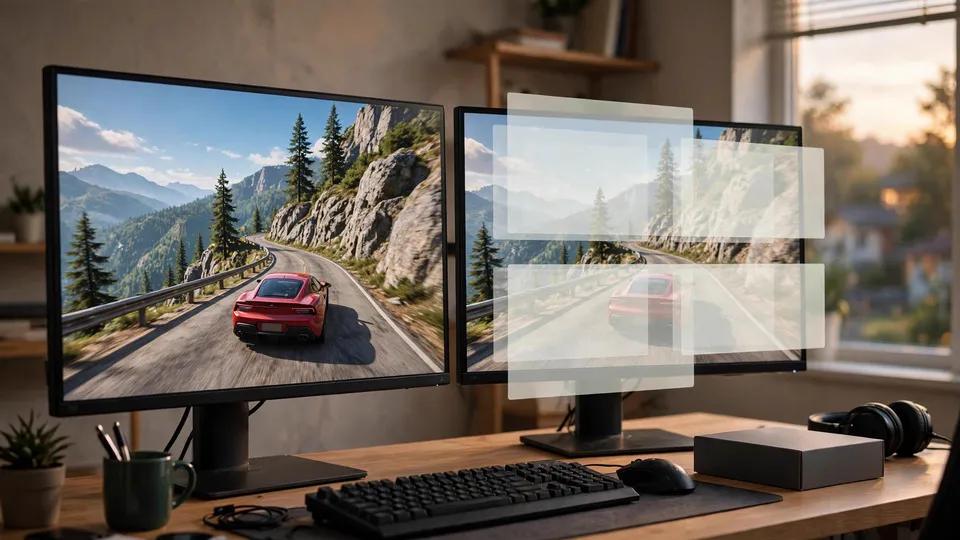
A game interface that flickers while the 3D scene stays stable is a different problem from a flickering 3D world. The fault can sit in the interface layer, in overlay software, in the display mode, or in the monitor's backlight strobing. The first test must separate an interface-only fault from a whole-screen flicker the eye merely notices in the interface.
Only the Interface Flickers: Why That Shape Matters
The crosshair flickers. The health bar flickers. The minimap flickers. The menu text flickers. Behind them, the 3D world is steady: the ground does not shimmer, the walls do not flash, the characters move smoothly, and nothing in the scene itself looks wrong. That combination — a flickering interface on top of a stable scene — is a specific shape, and it is the shape this guide is about.
The shape matters because the usual flicker guides assume something else is flickering. A guide about a whole window flickering assumes the entire window, 3D scene included, is flashing or going black. A guide about 3D surfaces flickering assumes two surfaces in the scene are taking turns at the same depth, and the flicker moves when the camera moves. A guide about the desktop flickering assumes the taskbar, the icons and the File Explorer windows are all flickering together, because Windows draws the desktop through the Desktop Window Manager, known as DWM, and the taskbar, the icons and the File Explorer windows are all elements inside that one composed image. None of those guides fits a case where the interface alone is unstable and the world behind it is calm.
The distinction is the fork that decides everything else. If the flicker is limited to the interface, the diagnosis follows the interface layer, the overlay layer, and the display mode layer. If the flicker is actually the whole screen, and the eye is only catching it in the interface, the diagnosis follows the monitor. If the flicker covers the whole window, the diagnosis follows the composition layer. Getting the fork wrong at the start means testing the wrong layer for the rest of the session.
There is a second distinction that matters just as much. A flickering interface is not the same as a blurry interface. A font that looks soft or smeared under display scaling is a scaling problem, not a flicker, and it belongs in a different guide. A flickering interface is also not the same as an interface that disappears: a cursor that vanishes, a menu that closes on its own, or a game that jumps back to the desktop are focus and cursor problems, not interface flicker. This guide deals only with interface elements that are visible and unstable — present, but flashing, pulsing, or dropping in and out.
The Counter-Intuitive Fork: The Whole Screen Can Flicker and Only the Interface Shows It
Before any test is run, there is one counter-intuitive possibility that has to be understood, because it reverses the diagnosis. When a monitor's backlight strobing mode is on — motion blur reduction, ULMB, DyAc, or a similarly named mode — the whole screen flickers. The backlight pulses on and off rapidly to sharpen motion, and that pulsing affects every pixel on the screen. But the eye does not notice it equally everywhere. The moving 3D world is full of texture, camera movement and particles, and the same flicker is hidden inside that motion. The interface is different: the crosshair, the health bar, the minimap and the white menu text are bright, high-contrast and still. A still, bright element makes the pulse easy to see.
The whole screen is flickering, but the eye catches it in the interface. That is the honest description of what happens, and it changes the first test completely. If the interface flicker disappears when backlight strobing is switched off, the fault was never in the interface at all. It was a monitor mode, and the interface was only the place where the eye happened to notice it. Writing backlight strobing down as an interface rendering fault would be wrong, and it would send the diagnosis down the wrong layer for the rest of the session.
This is why the backlight strobing test sits early in the seven steps, before the overlay tests and before the display mode tests. It is the one test that can reclassify the whole problem in a single step, and skipping it is the most common way to misdiagnose this shape.
Why the Interface and the 3D Scene Can Fail Separately
Many games render the main world and the interface through different layers or different timing paths. The 3D scene can run at a high and stable frame rate while the interface animation, the cursor effect, or the subtitle rendering follows another path. That separation is why the two can fail independently: the interface can be unstable while the scene is steady, and the scene can be unstable while the interface is steady. The two are not one picture painted in a single pass; they are layers that are combined, and a fault in one layer does not have to touch the other.
The interface layer itself has its own settings. Interface scaling and display scaling change how the interface is drawn, and an older program that does not understand the dot density of each monitor has the bitmap it has already drawn stretched larger by the system before it is shown. That stretching can make the interface look wrong, and in combination with other layers it can make the interface unstable. Transparency and interface animation add further paths: an animated element is redrawn on its own schedule, and if that schedule conflicts with the frame timing, the element can flicker while the static parts of the interface stay calm.
The overlay layer sits on top of all of this. Discord, Steam and GeForce Experience overlays, recording software, and hardware monitoring overlays all draw their own pictures on top of the game. They use graphics acceleration or their own overlay planes, and they frequently conflict with the game's own overlay layer. When two pieces of software both try to draw on top of the same frame, the result can be a flicker that appears only where the two drawings overlap — which is very often the interface.
The display mode layer is the third place where the two can separate. Exclusive fullscreen games run a flip model that bypasses the desktop window manager composition. Borderless windowed and windowed games go through the desktop window manager, which composes each window's finished content into the complete desktop picture. The single-window limitation itself is a characteristic of the composition layer: when only one window flickers, and switching to exclusive fullscreen makes it clean, the fault is in the composition path, not in the card. The interface, being drawn as part of the game's window, follows the window's path, while the 3D scene inside the same window can still look fine if the fault is in how the window is composed rather than in how the scene is rendered.
Multi-monitor setups add another version of the same separation. Two or more monitors set to different refresh rates or resolutions make it harder for Windows to render overlay layers across screens, and that difficulty can show up as flicker in the overlay and interface layers while the 3D scene stays stable.
The driver layer is the last place where the two can separate. Forcing anti-aliasing or anisotropic filtering in the driver changes the rendering path, and a forced setting can disturb the interface layer while leaving the 3D scene alone. A driver version comparison is therefore part of the diagnosis, but it comes after the overlay, mode, and strobing tests, not before them.
The Five Suspicion Layers
A flickering interface with a stable 3D scene can be produced from five layers. Working through them in order is faster than guessing, because each layer has its own test and its own evidence.
Layer 1: The Interface Rendering Layer
The first layer is the interface itself. The game draws its interface through a separate layer or timing path from the 3D scene, and that layer has its own scaling, animation and transparency settings. Interface scaling set away from its default, display scaling that the program does not understand, or an interface animation running on its own schedule can all make interface elements unstable while the scene stays calm. The key evidence is which elements flicker: all of them, a few of them, or only the menu. If only the menu flickers, the fault is likely in the menu's own drawing path. If every interface element flickers together, the fault is more likely in a layer shared by all of them — the overlay layer, the composition layer, or the backlight.
Layer 2: The Overlay Software Layer
The second layer is overlay software. Discord, Steam and GeForce Experience overlays, recording software, and hardware monitoring overlays all draw on top of the game, and they frequently conflict with the game's own interface layer. Background programs that use graphics acceleration or an overlay plane are the usual suspects. The test is to switch each one off, one at a time, and watch whether the flicker follows the switch. Switching off whichever overlay makes the flicker stop identifies the suspect. The list of overlay programs changes with versions, so no fixed list should be treated as complete, and no single overlay program should be written down as always causing flicker. The method is to test them one by one.
Layer 3: The Display Mode Layer
The third layer is the display mode. Exclusive fullscreen games run a flip model that bypasses the desktop window manager composition, while borderless windowed games go through it. If the interface is clean in exclusive fullscreen and flickers in borderless windowed mode, the fault is in the composition path. Multi-monitor mismatches belong in this layer too: monitors set to different refresh rates or resolutions can make overlay rendering across screens unreliable, and a single-monitor test — disconnecting the second screen and testing again — separates a multi-monitor problem from a single-monitor one. The multi-plane overlay allocation that the window-mode guide describes is part of this layer, but this guide does not rewrite that mechanism; the comparison test is enough.
Layer 4: The Backlight and Sync Layer
The fourth layer is the backlight and the sync settings. Backlight strobing — motion blur reduction, ULMB, DyAc — pulses the whole screen, and the eye catches it first in the bright, still interface elements. Variable refresh rate can make brightness float in dark areas as the frame rate changes, which is a brightness change rather than an interface element flickering, and HDR can change how interface elements are shown. Each of these is a monitor or sync setting, not an interface rendering fault, and each one is tested by switching it off and watching what follows the switch.
Layer 5: The Driver and Settings Layer
The fifth layer is the driver and its settings. Forcing anti-aliasing or anisotropic filtering in the driver changes the rendering path and can disturb the interface layer. A driver version that does not match the current official release can also produce interface instability. The driver layer is tested last, after the overlay, mode, strobing and sync tests, because a driver reinstall is the slowest test and the least specific one. If the flicker follows a driver setting, restoring the driver settings to their defaults is the control test. If it follows a driver version, a version comparison is the control test. Driver version numbers should always be checked against the current official release, never written down from a fixed number, because version numbers change.
Four Comparisons That Narrow the Fault
Four comparisons, done before changing anything, narrow the fault to a single layer. Each one costs nothing and each one rules something out.
| Comparison | What you see | What it points to |
|---|---|---|
| Screenshot or recording versus the naked eye | The flicker appears in the screenshot or recording | The fault is before the frame buffer, in the rendering layer |
| Screenshot or recording versus the naked eye | The screenshot is clean but the eye sees the flicker | The fault is after the frame buffer, in the display output layer |
| Backlight strobing on versus off | The flicker stops when strobing is switched off | A monitor mode layer, not an interface fault |
| Exclusive fullscreen versus borderless windowed | Exclusive fullscreen is clean, windowed mode flickers | The composition layer, not the interface rendering layer |
The screenshot comparison deserves emphasis, because it is the cleanest fork in the whole diagnosis. If the same damage appears in a screenshot, the damage is inside the frame buffer — the fault happened before the frame was finished, in the rendering layer. If the screenshot is clean and only the eye sees the flicker, the fault happened after the frame buffer, in the display output layer, and changing cables or monitors becomes a reasonable test. But the screenshot test has a condition: the flicker in this shape appears in motion, so a still screenshot is not enough. A recording of moving play, watched on a second device, is the test. Judging from a still image alone will miss the flicker entirely.
The strobing comparison is the second fork. Switching backlight strobing off and watching the interface go calm reclassifies the whole problem from an interface fault to a monitor mode, in one step. The fullscreen comparison is the third fork. Exclusive fullscreen bypasses the desktop window manager composition, so a flicker that vanishes in exclusive fullscreen points at the composition path.
Seven-Step Diagnosis
- Write down which interface elements flicker. Record whether all of the interface flickers, or only some elements — the crosshair, the health bar, the minimap, the menu text — or only the menu. Record whether the 3D scene is stable, which game it is, and which mode the game is in: exclusive fullscreen, borderless windowed, or windowed. Without that record, a later change cannot be compared with the starting point.
- Run the recording comparison. Record a stretch of moving play and watch it on a second device. If the flicker appears in the screenshot or recording, the fault is before the frame buffer, in the rendering layer. If the screenshot is clean and only the eye sees the flicker, the fault is after the frame buffer, in the display output layer. A still screenshot is not enough for this test — the flicker shows in motion, so the recording must show moving play.
- Switch backlight strobing off and look again. Switch off motion blur reduction, ULMB, or DyAc in the monitor settings and watch the interface. If the flicker stops, the fault was a monitor mode layer, not an interface fault, and the diagnosis ends here. If the flicker carries on, continue.
- Switch the overlay software off, one program at a time. Switch off the Discord overlay, the Steam overlay, the GeForce Experience overlay, the recording software, and the hardware monitoring overlay, one at a time, and watch after each one. Whichever switch makes the flicker stop identifies the suspect. Change only one thing at a time and write down the result of each change.
- Switch the game to exclusive fullscreen. In the same game, switch from borderless windowed or windowed mode to exclusive fullscreen. If exclusive fullscreen is clean and the windowed mode flickers, the fault is in the composition layer. If both modes flicker, the fault is not in this direction, and the diagnosis moves to the next layer.
- Switch off variable refresh rate and HDR, one at a time. Switch off the variable refresh rate setting, then switch off HDR, testing after each change and changing only one thing at a time. Whichever switch the flicker follows points at that layer.
- Restore the interface scaling and the driver settings to their defaults, compare the driver version, and prepare for inspection. Return the interface scaling to its default, restore the driver settings to their defaults, and compare the driver version against the current official release. For inspection, bring the game name, which interface elements flicker, the recording, the overlay comparison results, the mode comparison results, and the driver version.
Six Misconceptions
A flickering interface means the card is broken. Wrong. Interface flicker can come from overlay software, the display mode, or the backlight strobing layer. The flicker on its own is not evidence of a hardware fault. Ask which interface elements flicker and whether the 3D scene is stable first, before suspecting hardware.
A flickering interface must mean the interface layer is at fault. Wrong. When the backlight strobes, the whole screen flickers, but the eye catches it first in the bright, still interface elements. Without the strobing test, a monitor mode is easily misread as an interface fault. Switch the strobing off before concluding anything about the interface layer.
Changing the cable or the monitor will always fix it. Wrong. If the flicker appears in a screenshot, the fault is before the frame buffer, and it never passes through the cable or the monitor. Run the screenshot comparison before changing any cable.
A still screenshot that shows nothing means there is no problem. Wrong. This kind of flicker shows in motion. Judging from a still image alone will miss it. The test needs a recording of moving play, watched on a second device.
Switching the overlay software off fixes the problem. Wrong. Switching it off is a control test and a temporary way around the faulty path, not a repair. The real repair direction is the overlay program's version or settings, or a driver correction. Treating the switch-off as a fix leaves the underlying conflict in place.
One game flickering means that game damaged the card. Wrong. An interface rendering problem in one game does not damage hardware. A single game's interface flickering is a property of that game and its rendering path, and it should be compared game by game rather than treated as evidence about the card.
What Not to Do: Safety Boundaries
There are three things not to do while diagnosing interface flicker. First, never switch off the card's protection to run a test — the protection exists to prevent hardware damage, and switching it off will not stop the flicker. Second, never delete driver folders or system files by hand — deleting the wrong file can break the driver or the system, and drivers should be removed or updated through the official uninstaller or update method. Third, never edit the registry as a general fix — a wrong registry change can affect the whole system, and editing the registry will not fix an interface rendering problem. The seven steps above are enough to narrow the cause; none of these three is needed.
One further caution: the overlay list changes. Discord, Steam and GeForce Experience overlays change with versions, and a guide that writes down one overlay program as always causing flicker will be wrong within months. The method — switching each overlay off one at a time — is the durable part. The list is not.
Prevention and Everyday Habits
Prevention is not about checking after every problem appears; it is about keeping enough comparison material on hand in advance. Before buying a new monitor or changing a monitor setting, write down the mode you are using now: backlight strobing on or off, variable refresh rate on or off, HDR on or off. After the change, open a game you normally play and check whether the interface still looks normal. If a problem starts after the change, write down what changed, so that the next check has a baseline to compare against.
On overlay software, keep track of which overlays are switched on. Discord, Steam, GeForce Experience, recording software and hardware monitoring software each add another layer on top of the game, and the more layers are stacked, the more chances there are for a conflict. Switch off the overlays you do not use, and do not leave them all running. After updating overlay software or the driver, open a game and check the interface, so a new problem is caught at once.
On settings, do not change several related settings at once. Change one, watch one, so you know which change had an effect. The display mode, backlight strobing, variable refresh rate, HDR and interface scaling are all separate switches, and changing them all at once leaves no way to tell which one mattered.
Boundaries: What This Guide Does Not Cover
A flickering interface is a specific shape, and several nearby problems have different shapes. A whole window flickering or flashing black, which goes clean in exclusive fullscreen, is a composition and multi-plane overlay problem. A 3D surface flickering in turns, which only flickers when the camera moves, is a depth-buffer problem: two surfaces competing for the same depth position. A 3D picture that turns blurry or shows ghosting is an upscaling problem. A cursor that flickers, disappears, or leaves a trail is a cursor-plane problem: the cursor is a separate overlay plane, not part of the game interface. A whole screen flashing white once is a different shape again. Brightness floating in dark areas as the frame rate changes is a variable refresh rate problem, not an interface element flickering. A fullscreen game suddenly jumping back to the desktop is a focus problem. A font that looks soft or smeared is a scaling problem, not a flicker. A browser or office program that goes black, white, or flickers only when hardware acceleration is switched on is an application acceleration-path problem.
Once the shape changes, the problem belongs elsewhere. If the flicker covers the whole window, follow the composition layer. If it covers the 3D surfaces, follow the depth layer. If it covers the whole desktop, follow the desktop composition layer. The steps in this guide are written for the interface-only shape, with a stable 3D scene behind it.
When the Whole Desktop Flickers Together
One boundary deserves its own note. A desktop where the taskbar, the icons and the File Explorer windows all flicker together is a desktop composition problem. Windows draws the desktop through the Desktop Window Manager, known as DWM: the taskbar, the icons and the File Explorer windows are all elements inside that one composed image, not separate outputs. This guide is about a desktop that is fine, with only the in-game interface flickering — which is why the first step records whether the 3D scene is stable and whether the desktop is affected. The scope itself is part of the diagnosis.
A note on individual games: some games have their own degree of flicker that is described as normal behaviour for that game and cannot be fully removed. That is an individual-game statement, not a general rule. It must be handled by comparing game by game, and it must never be written as a universal claim that flicker is normal.
When to Send the Card In
If the seven steps point at the overlay layer, the display mode layer, or the backlight layer — the flicker stops when an overlay is switched off, when backlight strobing is switched off, or when the game moves to exclusive fullscreen — there is nothing to send in. The card is behaving as designed, and no inspection will change what the overlay program does or what the monitor mode does. Inspection is worth considering when the evidence contradicts itself: the flicker appears in the recording, it follows no overlay switch, it appears in both exclusive fullscreen and windowed mode, the driver settings are at their defaults, the driver is current, and the interface still flickers while the 3D scene stays stable. Bring the game name, which interface elements flicker, the recording, the overlay comparison results, the mode comparison results, and the driver version. A model name on its own is not evidence; the list is.
For inspection, the workshop is at Room 1209, Dali Plaza, Shek Mun. Phone 2186 8010, WhatsApp 6558 6806. Inspection fees follow the published three-tier pricing, HK$400–2,800. There is no on-site service and no Mong Kok shop.
FAQ
The HUD in my game is flickering — does that mean my graphics card is broken?
Not necessarily. Interface flicker can come from overlay software, the display mode, or the backlight strobing layer, and the flicker on its own is not evidence of a hardware fault. The first step is to separate which interface elements flicker and whether the 3D scene is stable, before suspecting hardware.
Why does only the UI flicker while the 3D scene looks fine?
Because the game's interface and its 3D scene can be rendered through different layers or timing paths. The 3D scene can run at a high and stable frame rate while the interface animation, the overlay layer, or the display mode is at fault, and the 3D scene can be completely unaffected. The two are combined layers, and a fault in one does not have to touch the other.
If the UI flickers, must the fault be in the UI layer?
Not necessarily. When the backlight strobes, the whole screen flickers, but the eye catches it first in the bright, still interface elements — the crosshair, the health bar, the minimap, the white menu text. Switching off motion blur reduction, ULMB, or DyAc and looking again is the test that separates a real interface fault from a whole-screen flicker that the eye merely notices in the interface first.
How do I use a screenshot or recording to diagnose this?
Record a stretch of moving play and watch it on a second device. If the flicker appears in the screenshot or recording, the fault is before the frame buffer, in the rendering layer. If the screenshot is clean and only the eye sees the flicker, the fault is after the frame buffer, in the display output layer. A still screenshot is not enough — this kind of flicker shows in motion, so the recording must show moving play.
Can overlay software cause UI flickering?
Yes. Discord, Steam and GeForce Experience overlays, recording software, and hardware monitoring overlays all draw on top of the game, and they frequently conflict with the game's own interface layer. Switch each one off, one at a time, and watch after each one. Whichever switch makes the flicker stop identifies the suspect.
What does switching to exclusive fullscreen tell me?
Exclusive fullscreen games run a flip model that bypasses the desktop window manager composition. If exclusive fullscreen is clean and the windowed mode flickers, the fault is in the composition layer. If both modes flicker, the fault is not in this direction, and the diagnosis moves to the next layer.
Does turning off VRR or HDR help?
It is one of the control tests. Switch off the variable refresh rate setting, then switch off HDR, testing after each change and changing only one thing at a time. Whichever switch the flicker follows points at that layer.
How is UI flickering different from 3D surface flickering?
3D surface flickering is two surfaces competing for the same depth position, and it flickers when the camera moves. Interface flickering is the interface elements themselves flickering while the 3D scene stays stable. The two mechanisms are different, and they must not be mixed together.
Will changing the cable or monitor fix it?
Not necessarily. If the flicker appears in a screenshot, the fault is before the frame buffer, and it never passes through the cable or the monitor. Run the screenshot comparison before changing any cable.
What information should I bring if I send it in for inspection?
Bring the game name, which interface elements flicker, the recording, the overlay comparison results, the mode comparison results, and the driver version. The workshop is at Room 1209, Dali Plaza, Shek Mun. Phone 2186 8010, WhatsApp 6558 6806. Inspection fees follow the published three-tier pricing, HK$400–2,800.