Desktop Game Slow With the Discrete GPU at 0%? How to Tell If It's Running on Integrated Graphics — Output Port, Windows Graphics Settings & Task Manager Diagnosis
Key Takeaways
A desktop PC has no automatic graphics switching, so a game can end up running on integrated graphics while the discrete card sits idle at 0%. The cause is usually the monitor cable plugged into the motherboard instead of the graphics card. This guide shows how to confirm which GPU is actually doing the work and how to fix it.
Desktops Have No Automatic Switching
The single most important fact in this guide is that a desktop PC does not switch graphics processors on its own. A laptop does: it has switching technology that moves work between integrated and discrete graphics depending on what is running. A desktop has no such mechanism. On a desktop, which graphics processor does the work is decided by physical wiring and by a manual assignment in Windows — and if neither points at the discrete card, the game runs on integrated graphics no matter how powerful the discrete card is.
This is why the symptom is so confusing. The discrete card is installed, its driver is loaded, Device Manager shows it without any warning, and the game still runs slowly. Nothing looks broken, because nothing is broken in the usual sense. The machine is doing exactly what its wiring and settings tell it to do; the wiring and the settings are simply pointing at the wrong graphics processor. The fix is not a faster card. A faster card installed the same way would be ignored in exactly the same way.
There are two separate questions to keep apart throughout this guide. The first is which graphics processor renders the game — that is, which one does the three-dimensional work. The second is which graphics processor sends the finished picture to the monitor — that is, which one owns the output path. On a laptop these two questions are usually answered together by the switching system. On a desktop they are answered separately, by different things, and confusing them is the source of most of the bad advice about this problem.
The Output Port Decides the Display Path
The monitor cable is the deciding factor for the output path, and the output path is a matter of physics, not software. If the cable is plugged into an output on the graphics card, the picture is delivered by the discrete card. If the cable is plugged into an output on the motherboard, the picture is delivered by the integrated graphics built into the processor. No setting in Windows can move a cable from one socket to another.
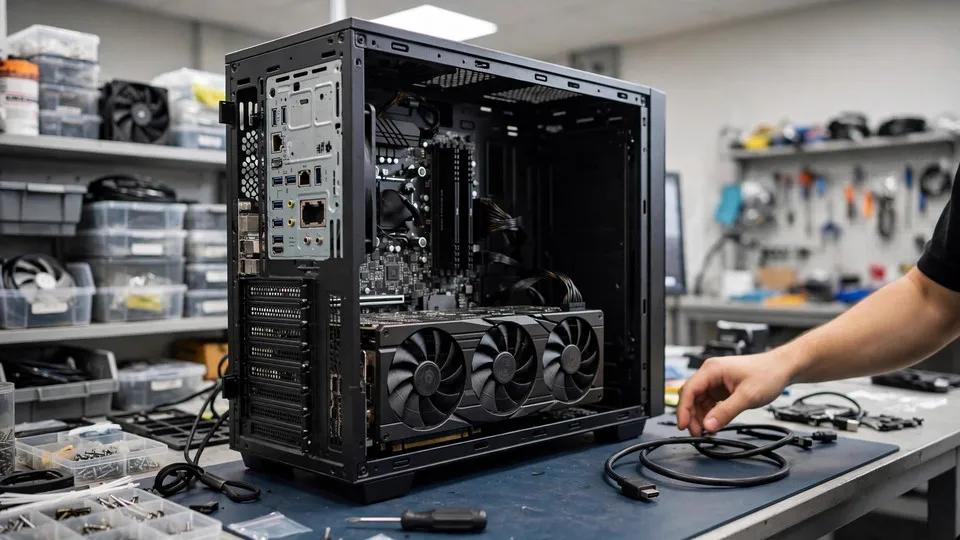
The two sets of outputs are usually easy to tell apart once you know what to look for. Motherboard outputs sit on the motherboard's rear input-output panel, upright, near the processor area at the top of the back of the case. Graphics card outputs sit on the card's own bracket, horizontal, in the lower half of the back of the case. A monitor cable connected to the upper set of outputs is connected to integrated graphics; a cable connected to the lower set is connected to the discrete card.
That distinction has one complication, and it is worth understanding properly rather than skipping over. When the cable is plugged into the motherboard, the game can still be rendered by the discrete card and then have its finished frames copied across to the integrated graphics for output. This is called a cross-adapter presentation. It happens in some setups and not in others, depending on the Windows graphics assignment and on how the game itself handles its output. So neither of the two simple claims is correct: it is wrong to say that a cable in the motherboard means the discrete card is doing nothing at all, and it is equally wrong to say that a cable in the motherboard means the discrete card is definitely doing the rendering. The honest statement is that it depends on the assignment and on the game — and that even when the discrete card does render in this arrangement, the extra copy step adds overhead. The clean arrangement is to have the cable on the graphics card, so the card that renders the game is also the card that delivers the picture.
Windows Graphics Settings: Assignment Is Not the Same as Output
Windows lets you assign a graphics processor to each application, in the graphics settings section of display settings. The assignment is made per application, and the options are broadly a power-saving choice, which points at integrated graphics, a high-performance choice, which points at the discrete card, and a system-decided choice, which leaves the decision to Windows. This assignment controls which graphics processor renders the application. It does not control which graphics processor outputs the picture. The cable decides that.
This is why a settings change alone can appear to do nothing. A user who sets a game to high performance in graphics settings but leaves the cable in the motherboard has changed the rendering assignment without changing the output path: the picture still leaves the machine through integrated graphics. Conversely, a user who moves the cable to the graphics card but leaves the game assigned to integrated graphics may still have the game rendered by the wrong processor. Both layers have to point at the discrete card. Treating either layer as the whole answer is the mistake.
A related point: the control panel supplied with the graphics driver is only one more layer of preference, not the deciding one. Setting a preference for high performance in the driver control panel influences which processor the system prefers for rendering, but on a desktop it does not change the physical output path. A setting that says "prefer the discrete card" cannot deliver a picture through a cable that is plugged into the motherboard. The cable has to be checked first, whatever the control panel says.
Windows settings wording changes between versions, so this guide describes where the settings live rather than quoting exact button labels. The per-application assignment is found in display settings, in the graphics settings area, where applications can be added and assigned a graphics preference. If the exact wording on your version of Windows differs, look for the function — per-application graphics assignment — rather than for a particular phrase.
Step 1: Confirm the Symptom — Is the Game Really Running on the Wrong GPU?
A slow game has many causes, and running on the wrong graphics processor is only one of them. Before changing any wiring or setting, confirm that this is actually the problem. The decisive observation is made in Task Manager, while the game is running — not while the machine is sitting idle on the desktop.
| What you observe | What it points to | What to do |
|---|---|---|
| Game is slow, discrete GPU near 0%, integrated GPU high | Strong suspicion the game is using integrated graphics | Go to Step 2 |
| Game is slow, discrete GPU usage high, temperature high | Not the wrong-GPU problem; the discrete card is loaded, and the issue is load, cooling, or settings | See the guides on sudden frame-rate drops and CPU-versus-GPU bottlenecks |
| Game is slow, both GPUs low | Not a graphics-processor problem; the limit is the processor, memory, or the game itself | See the guide on CPU-versus-GPU bottlenecks |
| Discrete GPU at 0% while the desktop is idle | Normal, not a symptom | Check again while the game is actually running |
The timing matters. A discrete card at 0% on an idle desktop is normal behaviour: there is nothing for it to do. The reading only means something when the game is running and demanding work. Open Task Manager's Performance tab while the game is running, look at the two graphics entries — they are listed separately, typically as GPU 0 and GPU 1 — and compare their usage. Discrete graphics sitting near 0% while integrated graphics is high, during gameplay, is direct evidence that the game is running on integrated graphics. The reverse — discrete high, integrated low — rules this problem out, and the slowness has another cause.
Make a note of the numbers you see, and of which entry is which. Task Manager labels the entries by model, so you can tell which one is the discrete card and which one is the integrated graphics. Write down the usage figures for both while the game is running, because that before-and-after record is what proves whether a later change actually worked.
Step 2: Check the Cable — the Fastest and Most Common Cause
If the Task Manager reading points at the wrong graphics processor, the cable is the first thing to check, because it is the most common cause and the fastest to confirm. Look at the back of the machine and find where the monitor cable is plugged in: the motherboard's rear panel, or the graphics card's bracket. A cable in the motherboard outputs is the prime suspect.
Do not move cables while the machine is running. Shut the machine down, disconnect it from the wall power, and wait for residual power to dissipate before touching any cable or connector. Do not try each output in turn while guessing — work out which set of outputs belongs to the graphics card first, then move the cable once, deliberately.
After moving the cable to a graphics card output, start the machine, run the same game, and look at Task Manager again. If discrete graphics usage rises and the game runs as expected, the diagnosis is confirmed: the cable was the cause, and the before-and-after comparison is the proof. This comparison is the decisive test of the whole guide. A settings change that is not followed by a re-test proves nothing, and a cable move that is not followed by a re-test is only a guess.
If the cable was already on the graphics card, or if moving it changes nothing, the problem is in one of the layers below. Do not keep moving the cable between outputs in the hope that a different socket will fix it; that is guessing, and guessing is what this guide is designed to replace.
Step 3: The Cable Is Right but the Game Still Uses Integrated Graphics — Windows Graphics Settings
When the cable is on the graphics card and the game is still running on integrated graphics, the next layer is the per-application assignment in Windows graphics settings. Open display settings, go to the graphics settings area, find the game in the list of applications — or add it if it is not listed — and check which graphics processor it is assigned to. If it is assigned to the power-saving option, or to integrated graphics by name, change the assignment to the high-performance option, which points at the discrete card.
Change one setting at a time, and re-test after each change. Record the result of each change before making the next one. If you change the Windows assignment and a setting inside the game at the same time, and the game improves, you will not know which change did it — and if the game gets worse, you will not know which change to undo.
Also check whether the game itself has a setting that chooses a graphics processor or a display adapter. Some games expose this choice in their own settings menus, and a game-level choice can override or conflict with the Windows assignment. If the game offers such a choice, set it to the discrete card, again one change at a time, with a re-test after each.
Step 4: The BIOS Layer — Integrated Graphics On or Off
The motherboard's BIOS has a setting that controls whether integrated graphics is enabled — on some boards (for example ASUS) presented as an iGPU Multi-Monitor option, or simply as an integrated-graphics enable switch. If integrated graphics is disabled in the BIOS, the motherboard outputs produce no picture at all, which usually forces the cable mistake to be noticed immediately: a cable in the motherboard simply shows nothing. If integrated graphics is enabled, the motherboard outputs work, and a cable plugged into them can go unnoticed for a long time. That is why the symptom in this guide exists at all.
If you check this setting, note what it is set to before changing anything, and do not change BIOS settings you are not sure about. If you are not confident about what a BIOS setting does, leave it alone and bring the machine in with your notes. A wrong change in the BIOS can stop the machine from starting, which is a worse problem than a slow game.
Step 5: Ruling Out Driver and Hardware Problems
Before concluding that the assignment or the cable is the whole story, confirm the basics. In Device Manager, check that the discrete card is recognised and that its driver is installed without warnings. A discrete card that is not recognised at all is a different problem — the machine cannot use a card it cannot see — and it has its own guide. The same applies if Device Manager shows the generic basic display adapter instead of the card's proper name, which points at a driver problem rather than an assignment problem.
Only after the card is confirmed present and its driver confirmed working does it make sense to treat the issue as an assignment problem. Working through the layers in order — cable, then Windows assignment, then BIOS, then driver and hardware — is what keeps the diagnosis honest. Skipping ahead to a driver reinstallation before checking the cable is the most common way this problem gets misdiagnosed, because a fresh driver changes nothing about where the cable is plugged in.
Edge Cases Worth Knowing
A two-monitor setup can be a deliberate division of labour rather than a fault. One monitor on the discrete card and one on integrated graphics, with the integrated output used for secondary tasks, is a legitimate configuration. This guide is about the monitor you actually play games on being plugged into the wrong place, not about any use of integrated graphics being wrong in itself.
Recording or streaming with integrated graphics — for example, using the integrated processor's hardware video encoding while the discrete card renders the game — is likewise a deliberate division of labour, not a fault. The discrete card can still be doing the rendering while integrated graphics handles the encoding.
Lightweight games and ordinary desktop applications running on integrated graphics are normal and expected. A discrete card at 0% under a light load is not a symptom; it is the machine not wasting power. The 0% reading only matters when a demanding game is running.
Laptops are a different machine with a different mechanism. A laptop switches graphics processors automatically, and its diagnosis involves the switching system, not the output port. Do not apply this guide's method to a laptop.
The cross-adapter case described earlier — the discrete card rendering, integrated graphics outputting — is a genuine middle state, not a simple yes-or-no. A game can be doing real work on the discrete card while its picture still leaves through integrated graphics, with the extra copy step costing performance. That is why the test is not only "is the discrete card busy?" but "is the cable on the discrete card, and is the discrete card busy?" Both questions need a yes.
There is one more boundary worth stating plainly. Some processors have no integrated graphics at all. On a machine like that, the motherboard outputs produce no picture, so a cable plugged into the motherboard fails immediately and visibly — the screen stays blank. The symptom in this guide, a machine that works but runs games slowly, cannot happen on such a machine, because the mistake announces itself at once. If your machine has no integrated graphics, and the screen works, the cable is already on the discrete card.
Common Misconceptions
"I installed a discrete card, so the machine must be using it."
Wrong. The output port and the Windows assignment decide which graphics processor does the work. Installing a card makes it available; it does not make it used.
"Task Manager shows the discrete GPU at 0%, so the card must be broken."
Wrong. 0% only says the card is not doing any work right now. At idle, 0% is normal. During a game, 0% is worth investigating — but the explanation is usually assignment or wiring, not a dead card. A usage reading is not a health report.
"I set high performance in the driver control panel, so the game must be using the discrete card."
Wrong. On a desktop, the control panel setting influences the rendering preference; it does not change the physical output path. If the cable is in the motherboard, the picture still leaves through integrated graphics, whatever the control panel says.
"A low frame rate means the discrete card is not powerful enough."
Wrong, or at least premature. First find out which card is actually doing the work, then judge whether it is powerful enough. When the game is running on the wrong card, buying a more expensive discrete card changes nothing, because the new card would be ignored in exactly the same way.
"Integrated graphics is useless and cannot run anything."
Wrong. Integrated graphics runs light applications perfectly well. The problem is not that integrated graphics is bad; it is that it is being used in the wrong place, for a demanding game that belongs on the discrete card.
"Plugging the cable into the wrong port is a small mistake; Windows will sort it out."
Wrong. Windows cannot move a cable from the motherboard to the graphics card. Physical wiring is a human job, and no software setting replaces it.
Frequently Asked Questions
How can I tell which GPU my game is actually using?
Run the game, then open Task Manager's Performance tab and look at the two graphics entries. If the discrete card stays near 0% while integrated graphics is high during gameplay, the game is running on integrated graphics. Check while the game is running — an idle reading means nothing.
My monitor is plugged into the motherboard but games still run. Is that a problem?
It can be. The game may be rendered by the discrete card and copied across to integrated graphics for output, which works but adds overhead — or it may be rendered entirely by integrated graphics. Either way, moving the cable to the graphics card output is the clean arrangement, and the before-and-after Task Manager comparison will show what changed.
Where is the per-application graphics setting in Windows?
In display settings, in the graphics settings area, where applications can be added and each one assigned a graphics preference — broadly a power-saving choice pointing at integrated graphics, a high-performance choice pointing at the discrete card, or a system-decided choice. Windows wording changes between versions, so look for the function rather than an exact label.
I moved the cable to the graphics card and the game is still slow. What next?
Re-check the Windows graphics assignment for that game, and check whether the game itself has a setting that chooses a graphics processor. Change one setting at a time and re-test after each change. If the discrete card is confirmed recognised with a working driver and the game is still slow with the discrete card loaded, the cause is load, cooling, or settings rather than the wrong GPU — see the guides on sudden frame-rate drops and CPU-versus-GPU bottlenecks.
Does this apply to laptops?
No. Laptops switch graphics processors automatically, and their diagnosis is different. This guide is for desktop PCs only.
My processor has no integrated graphics. Can this problem happen to me?
No. Without integrated graphics, the motherboard outputs produce no picture, so a cable plugged into them fails immediately and visibly. If your screen works, the cable is already on the discrete card.
Is 0% discrete GPU usage at idle a fault?
No. At idle there is nothing for the discrete card to do, so 0% is normal. The reading only matters while a demanding game is running.
Is it a fault if one monitor is plugged into the discrete card and another into integrated graphics?
No — that is a deliberate split of work, covered in the desktop dual-GPU setup guide. The fault is when the monitor you actually game on is plugged into the wrong port, so the game runs on integrated graphics. The split itself is not the problem; using it in the wrong place is.
When to Bring It In
If you have checked the cable, checked the Windows assignment, re-tested after each change, and the game is still running on integrated graphics — or if you are not confident about a BIOS setting and do not want to risk changing it — bring the machine in with the notes you made: which outputs the cable was in, what Task Manager showed before and after each change, and which settings you changed. That record is what makes a hands-on inspection efficient.
Inspection fees follow the published three-tier range of HK$400–2,800, with the actual quote confirmed after inspection. The workshop is at Room 1209, Dali Plaza, Shek Mun. Call 2186 8010, or message on WhatsApp at 6558 6806. There is no Mong Kok shop, and there is no on-site service.