Constant Snow & Speckle Noise on Screen? Link Signal Errors, VRAM Single-Bit Faults & Panel Diagnosis Guide
Key Summary
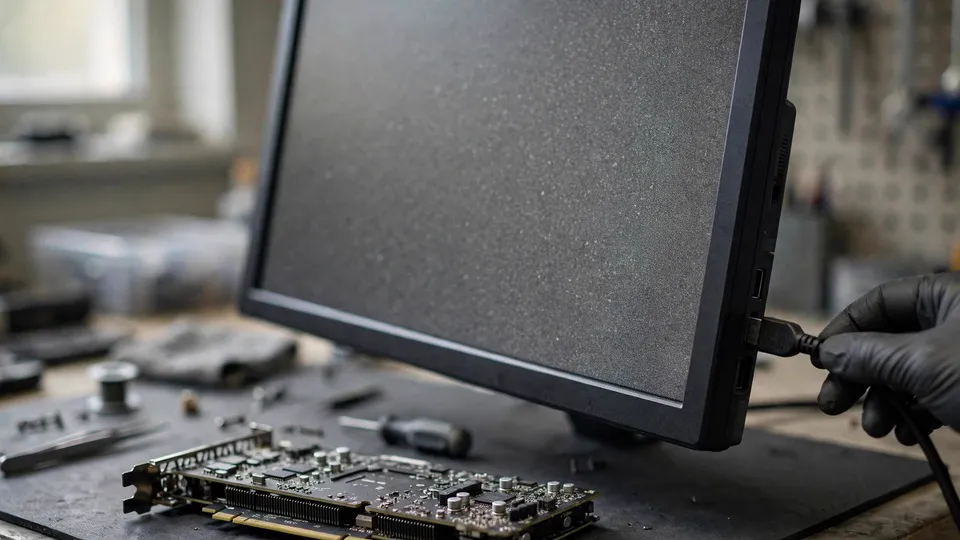
Constant snow and speckle noise on screen does not, on its own, mean the graphics card memory has failed. The same random dots can come from a link pushed to its bandwidth edge, a single-bit memory error, or the panel itself. Three tests below — a screenshot, a lower-bandwidth mode, and a cable swap — separate the three layers.
The Shape Is the First Fork: Random Speckles, Not a Pattern
The symptom in this guide is narrow, and the narrowness is the whole diagnosis. Small bright dots, coloured dots, or flickering specks appear at random positions across the screen, come and go without a fixed shape, and stay there in every resolution, every refresh rate, and every mode. The screen looks rough, noisy, and unstable, as though it were covered in fine snow. It is not a coloured block, not a line, not a checkerboard, not garbled text, and not a missing texture. Those are structured patterns, and each of them has its own guide. What this guide covers is random, unstructured, and constant.
That shape rules out a whole set of neighbours before any test is run. Structured patterns — blocks of colour, lines, checkerboard grids, garbled images, damaged textures — belong to the guide on telling a VRAM fault from a GPU core fault. A fault that only appears in a high mode and vanishes in a low mode belongs to the threshold-triggered guide, where a low mode is clean and a high mode is where the fault first shows. Missing textures that render as black or purple squares belong to the missing-texture guide. A desktop or taskbar that flickers belongs to the desktop-flicker guide. Colour banding in gradients belongs to the colour-depth guide, and a washed-out grey picture belongs to the dynamic-range guide. Each of those has a shape of its own, and none of them is random speckle in all modes.
The shape also carries a warning that runs through the whole guide. Random speckle is a warning signal, not decoration. A link running at its signal edge and a memory cell producing single-bit errors both get worse over time, and a small scattering of dots that appears occasionally today can become a screen full of snow tomorrow. The fact that the dots are small is not a reason to ignore them. It is a reason to run the three tests now, while the fault is still easy to separate.
There are two counter-intuitive facts at the heart of this guide, and both of them have to be understood before the seven steps make sense. The first is that snow does not mean the memory is dead. A link pushed to its bandwidth edge is one of the most common causes of random speckle, and it has to be tested with a lower-bandwidth mode and a cable swap before memory is ever blamed. The second is that a screenshot showing snow excludes the monitor, rather than blaming it. A screenshot only records what is inside the frame buffer. A fault in the panel itself can never get into a screenshot, so snow that appears in a screenshot must have been produced before the frame buffer — in the render path, the memory, or the driver — and the monitor is cleared by exactly the evidence that looks like it condemns it.
Why a Digital Link Fails All at Once
An old analogue television degraded gradually: the picture got noisier and noisier as the signal got weaker. A digital display link does not work that way. It can be perfect one moment and full of sparkling dots, flicker, or a black screen the next. The reason is signal margin — the amount of clean data the whole chain can carry for the mode that is selected. The computer, the cable, any adapter or dock, and the monitor all have to carry enough clean data for the chosen resolution, refresh rate, colour depth, and HDR setting. When the mode asks for more than the chain can deliver cleanly, the link does not slow down gracefully. It starts dropping bits, and each dropped bit shows up on screen as a bright dot, a coloured speck, or a flicker.
That is why the same cable can be fine at 1080p 60Hz and start sparkling at 1440p 165Hz. The cable is not half broken. It works below its fault threshold and fails above it. Raising the resolution, raising the refresh rate, switching on HDR, or switching on variable refresh rate all push the bandwidth demand higher, and each step takes the link closer to its edge. A fault that only appears when HDR is on, or only when the refresh rate is raised, is the link telling the user that it has reached its limit. The test that follows from this is to drop to a conservative mode — 1080p, 60Hz, standard dynamic range, default colour — and then add the settings back one at a time. Whichever setting, when added back, brings the snow with it is the edge.
An external guide lists four common directions for screen artefacts: an overheating or faulty GPU, memory that is faulty or unstable from overclocking, a loose, damaged, or poor-quality cable, and an ageing monitor. That list is an external guide's list, not this site's statistics, and it is not a ranking. It is written here only to show the four directions that have to be separated, and the order of the separation follows this guide's five layers, not the external guide's order. Random coloured dots are commonly associated with overheating or unstable clocks, while static noise or snow is commonly associated with a cable or an LCD panel problem, and artefacts that appear even on an idle desktop point toward a fundamental fault or a cable problem. Those are associations, not diagnoses, and each one has to be confirmed by a test.
The Five Suspicion Layers
The five layers below work through the problem in order, from the cable to the driver. Each layer has its own test and its own evidence, and no single test on its own is enough to separate them.
Layer 1: The Link and Cable Layer
The first layer is the cable and everything in the link chain. The question is whether the cable's specification matches the current mode: the resolution plus the refresh rate plus HDR plus colour depth. Cable length matters, certification matters, oxidised connectors matter, and adapters and docks matter, because every extra device in the chain is another place where the signal can degrade. The test is a swap: a different, shorter cable with a certification mark, a different output port, a different input port, and a direct connection with no adapter or dock in between. If the problem follows the cable, the port, or the monitor, that link is the faulty one. Two sentences from the guide on monitors disconnecting and reconnecting apply here. The first is that the key thing about a cable is its specification and certification, not its price; an expensive cable with insufficient specification still will not work. The second is that unplugging and plugging back in triggers a fresh round of enumeration and handshake, so a recovery after unplugging alone does not prove a bad contact.
Layer 2: The Bandwidth and Mode Layer
The second layer is the mode itself. Resolution, refresh rate, HDR, variable refresh rate, and colour depth all raise the bandwidth demand, and a link that is running at its edge fails when the demand crosses the threshold. The test is to drop to a conservative mode and add settings back one at a time: 60Hz, then 120Hz, then the native resolution, then HDR. Whichever step brings the snow back is the edge. This is also the layer where the threshold-triggered guide sits next door: a fault that appears only in a high mode and vanishes in a low mode is a threshold fault, and this guide's first step exists to make sure that shape is not mistaken for constant snow.
Layer 3: The Memory and Render Layer
The third layer is the graphics card memory and the render path. A single-bit error in video memory can make an individual pixel show the wrong colour, and across a whole screen that looks like random speckle. That is a description of a mechanism, not a statement that snow equals a memory fault. Memory can only be suspected after the link layer has been tested with a lower-bandwidth mode and a cable swap. Overclocking belongs in this layer too: unstable clocks from an overclock can produce random coloured dots, and returning to default clocks is a comparison test, not a repair. Overheating belongs here as well, and the same rule applies as in the other guides: watch the temperature trend and compare idle with load, and do not write a universal temperature number as a standard.
Layer 4: The Panel and Timing Controller Layer
The fourth layer is the panel itself. A panel can generate snow on its own, and the test for it is the monitor's own on-screen display menu or its no-signal screen. The OSD menu and the no-signal picture are drawn by the monitor itself and never pass through the graphics card. If snow appears in the OSD menu or on the no-signal screen, the fault is in the panel. If the OSD menu is clean, the panel is excluded. A screenshot that is clean while the eye or a photograph sees snow also points past the frame buffer, toward the link or the panel. Fixed dots that never move belong to a different layer again: a stuck pixel or pressure damage on the panel, not random speckle.
Layer 5: The Driver and Output Format Layer
The fifth layer is the driver and the output format, and it is deliberately last. Colour depth — 8-bit against 10-bit — and output dynamic range — Limited against Full — can both produce picture problems, but they produce banding and washed-out colour, not random speckle, and they belong to their own guides. The driver version matters here, and it should always be checked against the current official release, never written down from a fixed number. Reinstalling the driver before the cable swap has been done is a common wasted step in this diagnosis: it changes the layer that is least likely to be at fault while leaving the most likely layer untested.
Shape and Pattern: What the Dots Are
| What is seen | Shape | Where it points | Which guide |
|---|---|---|---|
| Random bright or coloured dots, all modes, no fixed shape | Random speckle, constant | This guide: link, memory, or panel | Continue below |
| Colour blocks, lines, checkerboard, garbled text, damaged textures | Structured pattern | VRAM or GPU core fault | The VRAM against core guide |
| Clean in low mode, artefacts only in high mode | Threshold-triggered | Bandwidth edge at high mode | The threshold-triggered guide |
| Black or purple squares where a texture should be | Missing-texture placeholder | Missing texture data | The missing-texture guide |
| Desktop or taskbar flicker, icons flashing | Flicker, not speckle | Driver or application layer | The desktop-flicker guide |
| Banding in gradients, steps in smooth colour | Colour banding | Colour depth or dynamic range | The colour-depth guide |
| Fixed dots that never move | Stuck pixel or pressure damage | Panel damage | Panel layer, not random speckle |
The table is the first step of the seven, and it is worth reading twice. The shape of the fault is evidence in itself, and a structured pattern read as snow leads to the wrong layer, the wrong test, and the wrong conclusion.
The Five Layers at a Glance
| Layer | What it covers | Key test | Result that points here |
|---|---|---|---|
| 1. Link and cable | Cable specification, length, certification, connectors, adapters, docks | Swap cable and port, connect directly | Problem follows the cable, port, or monitor |
| 2. Bandwidth and mode | Resolution, refresh rate, HDR, variable refresh rate, colour depth | Drop to 1080p 60Hz SDR, add settings back one at a time | One setting added back brings the snow with it |
| 3. Memory and render | Single-bit memory errors, unstable overclock, overheating | Screenshot test, return to default clocks | Screenshot shows snow; default clocks clear it |
| 4. Panel and timing controller | Panel itself generating snow | OSD menu or no-signal screen | Snow appears in the OSD or no-signal picture |
| 5. Driver and output format | Colour depth, dynamic range, driver version | Clean driver install, compare output formats | Fault follows the driver version, not the cable |
Seven-Step Diagnosis
- Confirm the shape: random speckle or structured pattern? Colour blocks, lines, checkerboard grids, garbled text, or damaged textures go to the VRAM against core guide. Black or purple missing-texture squares go to the missing-texture guide. A fault that only appears in a high mode goes to the threshold-triggered guide. Random speckle in all modes continues with this guide.
- Take a screenshot and view it on a second device. This method follows the guide on artefacts that are visible to the eye but absent from screenshots. If the screenshot shows snow, the fault sits before the frame buffer — in the render path, the memory, or the driver — and the monitor is excluded. If the screenshot is clean while the eye or a photograph sees snow, the fault sits after the frame buffer — in the link or the panel.
- Drop to a lower-bandwidth mode. Drop to 1080p, 60Hz, standard dynamic range, and default colour. Once it is stable, add settings back one at a time: 60Hz, then 120Hz, then the native resolution, then HDR. Whichever step brings the snow back is the edge. If the snow stays at the lowest mode, the bandwidth edge is excluded — continue.
- Swap the cable and the port. Change to a different, shorter cable with a certification mark; change to another output port and another input port; connect directly, with no adapter or dock in between. If the problem follows the cable, the port, or the monitor, that link is locked in as the faulty one. Remember that unplugging and plugging back in triggers a fresh round of enumeration and handshake, so a recovery after unplugging alone does not prove a bad contact.
- Check the OSD menu or the no-signal screen. Open the monitor's on-screen display menu, or unplug the cable and look at the no-signal picture. If snow appears in the OSD menu or the no-signal picture, the fault is in the panel layer. If the OSD menu is clean, the panel is excluded.
- Cross-check with another monitor. Connect a different monitor that is known to be good. If the second monitor shows snow too, the fault points at the GPU or memory layer. If the second monitor is clean, the fault points at the original monitor or the cable layer.
- Compare temperature, overclock, and driver, then send it in. Return to default clocks — returning an overclock to default is a comparison test, not a repair — watch the temperature trend without treating any single reading as a pass or fail limit, and clean-install the driver, checking the version against the current official release. If all seven steps still leave snow on screen, bring the records listed below for inspection: whether the screenshot showed snow, the lower-bandwidth result, the cable and port swap result, the OSD result, the cross-check monitor result, and the driver version.
Six Misconceptions
Snow means the memory is dead and the card is broken. Wrong. A link running at its signal edge is one of the most common causes of random speckle. Judging the memory dead before running the lower-bandwidth test and the cable swap is a misdiagnosis.
Buying a more expensive cable will fix it. Wrong. The key thing about a cable is its specification and certification, not its price; an expensive cable with insufficient specification still will not work. A cable-swap test should use a different, shorter cable with a certification mark, not simply a more expensive one.
Snow in a screenshot means the monitor is broken. Wrong, and backwards. A screenshot only records what is inside the frame buffer — snow in the screenshot means the fault sits before the frame buffer, in the render, memory, or driver layer, and the monitor is excluded. Snow that is clean in the screenshot and visible only to the eye or a photograph is what points at the link or the panel.
Small dots that only appear occasionally can be ignored. Wrong. A signal edge and a single-bit memory error both get worse over time. Random speckle is a warning signal, not decoration, and it deserves the three tests now.
Returning an overclock to default means it is fixed. Wrong. Returning the overclock to default is only one comparison test among several. Without the lower-bandwidth test, the cable swap, and the cross-check monitor, the problem cannot be called excluded.
Snow that only appears while gaming must be a game problem. Wrong. A game running at high resolution, high refresh rate, and HDR is itself pushing the link to its edge. Whether the fault follows the high-bandwidth mode is the question, and that is the threshold concept: the mode triggers it, not the game.
What Not to Do: Safety Boundaries
There are three things not to do while diagnosing snow on screen. First, never judge the memory dead on the strength of snow alone — the link layer has to be tested first, with a lower-bandwidth mode and a cable swap, and a memory conclusion without those two tests is a guess. Second, never buy a longer or more expensive cable as a first step — a longer cable is harder for the signal, not easier, and price is not a specification. The swap test needs a shorter cable with a certification mark, and a direct connection with no adapter or dock. Third, never reinstall the driver before the cable swap has been done — the driver is the last layer in this guide, and reinstalling it first changes the least likely cause while leaving the most likely one untested.
The BIOS screen deserves a hard stop of its own. If snow appears on the BIOS boot screen, stop and seek inspection immediately. The driver has not loaded at that point, so no driver change can help, and snow there is the strongest indicator of a hardware fault. Continuing to test through it only wastes time and risks the hardware.
Prevention and Everyday Habits
Prevention is mostly about keeping the link inside its comfortable range instead of at its edge. When a new mode is selected — a higher resolution, a higher refresh rate, HDR — watch the picture for a minute afterwards, and if speckle appears, step back down one setting rather than living with it. A link that is already at its edge today will be over its edge tomorrow, when the cable ages or the room gets warmer.
It helps to keep a known-good short cable on hand, with a certification mark, so that a cable swap is a five-minute test instead of a shopping trip. Note which cable, which port, and which mode the system was running on when the snow appeared, so that the next check has a record instead of a feeling. And when a monitor is moved or a cable is re-routed, check the picture afterwards: a cable bent hard around a desk edge or stretched tight across a gap is a link problem waiting for a high-bandwidth mode to expose it.
Boundaries: What This Guide Does Not Cover
Constant random speckle in all modes is a specific shape, and several nearby problems have different shapes. A fault that only appears in a high mode, with a low mode clean, belongs to the threshold-triggered guide. Structured patterns — colour blocks, lines, checkerboard grids, garbled text, damaged textures — belong to the VRAM against core guide, and missing-texture black or purple squares belong to the missing-texture guide. A desktop or taskbar that flickers belongs to the desktop-flicker guide. Colour banding in gradients belongs to the colour-depth guide, and a washed-out grey picture belongs to the dynamic-range guide. A screen that shows nothing at all belongs to the no-signal guide, and snow that only appears through a dock or an adapter, with a direct connection clean, belongs to the middle-device layer.
Once the shape changes, the problem belongs elsewhere. Snow that appears only in one game or one scene belongs to the game-side guides. Snow that sits in a fixed position and never moves is a stuck pixel or pressure damage on the panel, not random speckle. Snow on the BIOS boot screen is a hardware-layer symptom, and the driver tests in this guide do not apply to it.
When to Send the Card In
If the seven steps point at the link layer — the snow vanishes at a lower bandwidth, or follows the cable — there is nothing to send in. The cable or the mode is the problem, and the fix is a certified cable and a mode inside the link's capacity. Inspection is worth considering when the evidence points at the memory or panel layer: the screenshot shows snow, the second monitor shows snow too, the OSD menu is clean, and the fault continues at default clocks with a clean driver installation. Bring whether the screenshot showed snow, the lower-bandwidth result, the cable and port swap result, the OSD result, the cross-check monitor result, and the driver version. A model name on its own is not evidence; the list is.
Stop immediately and seek inspection if the snow appears on the BIOS boot screen, if the card disappears from Device Manager, if the machine shows no picture at startup, or if there is a burning smell. Those are not link-layer symptoms, and continuing to test through them risks the hardware.
For inspection, the workshop is at Room 1209, Dali Plaza, Shek Mun. Phone 2186 8010, WhatsApp 6558 6806. Inspection fees follow the published three-tier pricing, HK$400–2,800. There is no on-site service and no Mong Kok shop.
FAQ
My screen is always covered in snow and speckle noise — does that mean my VRAM is dead?
Not necessarily. A link running at its signal edge — a cable with insufficient bandwidth, or a link at its bandwidth edge — is one of the most common causes; judging the memory dead before running the lower-bandwidth test and the cable swap is a misdiagnosis. Snow is a warning signal, not proof that the memory has died.
The snow shows up in my screenshot — does that mean my monitor is broken?
It is the other way around. A screenshot only records what is inside the frame buffer — snow in the screenshot means the fault sits before the frame buffer, in the render, memory, or driver layer, and the monitor is excluded instead; snow that is clean in the screenshot and visible only to the eye or a photograph is what points at the link or panel layer.
How do I use a lower-bandwidth test to tell if it's the cable?
Drop to 1080p, 60Hz, standard dynamic range, and default colour; once it is stable, add settings back one at a time — 60Hz, then 120Hz, then the native resolution, then HDR — and whichever step brings the fault back is the edge. Snow at 4K 120Hz and none at 1080p 60Hz makes the cable or the link chain highly suspect.
Will buying a more expensive cable fix it?
Not necessarily. The key thing about a cable is its specification and certification, not its price; an expensive cable with insufficient specification still will not work. A cable-swap test should use a different, shorter cable with a certification mark, not simply a more expensive cable.
How is snow different from other screen artifacts?
Snow is random small bright or coloured dots that exist in all modes; structured patterns — colour blocks, lines, checkerboard grids, garbled text — go to the VRAM against core guide; a fault that only appears in a high mode goes to the threshold-triggered guide; missing-texture black or purple squares go to the missing-texture guide. The shape itself is the first fork.
The snow appears on the monitor's OSD menu too — what does that mean?
It points at the panel layer. The OSD menu and the no-signal picture are drawn by the monitor itself and never pass through the graphics card; snow there means the fault sits in the panel itself. A clean OSD excludes the panel.
What does connecting a second monitor tell me?
Snow on the second monitor too points at the GPU or memory layer; a clean second monitor points at the original monitor or cable layer. This one cross-check separates the two sides at once, with no need to guess one by one.
The snow appears on the BIOS boot screen too — what should I do?
Stop at once, and do not keep going around in circles in the driver layer. The driver has not loaded on the BIOS screen, so a fault appearing there is the strongest indicator of a hardware fault; bring the full record for inspection.
I reverted my overclock and the snow went away — is it fixed?
Returning the overclock to default is only one comparison test, not a repair. Without the lower-bandwidth test, the cable swap, and the cross-check monitor, the problem cannot be called excluded; it has to stay normal across several tries and different modes before it counts.
If all seven steps still leave snow on screen, what should I bring for inspection?
Whether the screenshot showed snow, the lower-bandwidth result, the cable and port swap result, the OSD result, the cross-check monitor result, and the driver version. Inspection fees follow the published three-tier pricing, HK$400–2,800, with the actual figure confirmed after inspection. The workshop is at Room 1209, Dali Plaza, Shek Mun. Phone 2186 8010, WhatsApp 6558 6806.