Capture Card Has Video but No Audio? Source Output, Audio Device and OBS Audio Source Diagnosis Guide
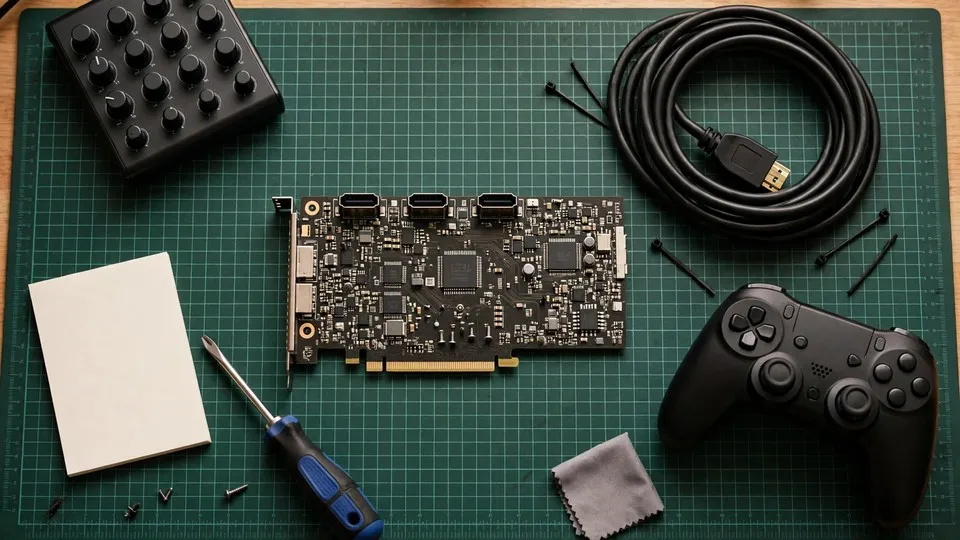
Key takeaway: If a capture card shows a picture in OBS but records no sound, the picture proves nothing about the audio chain: HDMI negotiates video before audio. Test the source on a television, check whether Windows lists the card's audio endpoint, watch the OBS meter, and set the OBS audio source. Those four checks separate the source, the card, and OBS.
A capture card can show a perfect picture in OBS and record complete silence. The game runs, the picture moves, the preview looks exactly as it should, and the recording file has no sound at all from the first second to the last. That combination — a normal picture and total silence — is the whole problem this guide addresses, and the combination itself is the first piece of evidence.
The instinct in this situation is usually to blame the capture card, or the HDMI cable, or OBS itself. The card is assumed to have failed because it is the newest part of the chain, or the cable is swapped because cables are cheap and easy to change, or OBS is reinstalled because the software is the part the reader can see. All three instincts are premature. A picture that arrives normally proves that the video path through the card works. It proves nothing about the audio path. Sound travels through the same cable and the same card, but it is negotiated separately, listed separately by Windows, and added separately in OBS. Any one of those three stages can fail while the other two work, and the picture will still look perfect. The first job is therefore not to replace anything, but to find out which stage the sound never reached.
This guide covers only a narrow shape. Four conditions must all be present. First, the picture comes into OBS or other recording software through a capture card — a USB or PCIe card such as an Elgato or AVerMedia device — and the picture is normal, while the sound is completely absent for the whole recording or stream. Second, the source itself is known to be making sound: the same HDMI cable connected directly to a television or monitor produces sound, or the source is playing content that is known to have sound. Third, the card itself is recognised by the system: it appears in Device Manager or in the OBS device list, and the picture reaches OBS. Fourth, the silence is continuous, not intermittent: the whole recording or stream is silent from start to finish. If any of these conditions is missing, the diagnosis changes. A card with no picture at all is a video-chain problem, not an audio problem. A source that is silent even when connected directly to a television has a source problem, not a capture-chain problem. A card that does not appear in the system at all is a device-recognition problem. Sound that drops out part-way through, or comes and goes, is a different shape again, at the layer of intermittent audio loss.
Video negotiates first, audio negotiates after
HDMI carries video and audio on the same cable, but the two are not negotiated in the same step. The umatechnology guide states this plainly: "Video always negotiates first. Many HDMI setups can show video even when audio negotiation or routing fails, which is why 'picture but no sound' is common." A normal picture therefore proves only that the video negotiation succeeded. The audio negotiation can fail completely while the picture stays perfect, and nothing in the picture will show that it has happened. This is the most important sentence in the whole guide. Using "there is a picture" as proof that "the whole chain is working" is the central error this guide exists to correct.
The practical consequence is that the audio chain must be tested on its own, from the source to the file, without taking the picture as evidence at any point. Every comparison in the seven steps below is an audio comparison: a direct-to-television sound test, a recording-device listing, a level meter, a format setting. None of them asks whether the picture looks right, because the picture already looks right, and it will keep looking right through every stage that fails.
The stereo PCM limit: a surround-sound source is silent to the card
Elgato's official troubleshooting guide for no game sound states the limit in its own words: "All Elgato Capture Devices capture sound in the Stereo (2.0) format. The sound format must be PCM. Other sound formats, such as bitstream, Dolby Digital 5.1, DTS, Dolby Atmos, and others are not supported." A console whose audio output is set to bitstream, Dolby Digital 5.1, DTS, or Dolby Atmos sends a format the card cannot receive, and the result is total silence with a completely normal picture. Nothing is broken. The cable is fine, the card is fine, and OBS is fine. The format is wrong.
That limit must not be written as a rule about all capture cards. The technobezz guide notes that the AVerMedia Live Gamer 4K 2.1 is listed as having 5.1-channel passthrough and capture, but only on Windows, and only through Streaming Center or the manufacturer's OBS plugin, with LPCM still limited to stereo. The correct instruction is therefore to check the card's own official specification for which audio formats it supports, and to set the source to match, rather than to assume that every card behaves like an Elgato device. A reader who owns a card with a 5.1 exception and sets the source to stereo PCM will still get sound, because stereo PCM is within the supported range; a reader who owns a stereo-only card and sets the source to surround sound will get silence. The safe direction is always towards stereo PCM, and the check is always against the card's own documentation.
The source-side settings that produce stereo PCM are specific to each console. On a PlayStation 5, the audio format priority is set to Linear PCM. On an Xbox, the output is set to Stereo uncompressed. On a Nintendo Switch, the television sound is set to Stereo. All three are the same format under different names: two-channel PCM. None of them is a surround format, and none of them needs a decoder in the card.
Two sources in OBS: the picture source is not the audio source
In OBS, the Video Capture Device source and the Audio Input Capture source are two separate sources. The picture can arrive through the first while the sound never arrives through either. Elgato's official guide states that on Windows, adding the device in OBS can bring the audio in automatically, and that when it does not, the reader should open the Video Capture Device properties, tick "Use Custom Audio Device", and choose the card again from the drop-down list. On macOS, the same guide states that an Audio Input Capture source must be added separately and set to the card, because the audio does not come in automatically. Automatic audio on Windows is the default behaviour, and manual addition is the comparison when the default fails; manual addition on macOS is the stated procedure. Neither side is always correct, and the Elgato guidance covers specified models only, including the Cam Link 4K and the Game Capture HD60 S+, so other cards must be checked against their own manufacturer's instructions.
There is a further trap in adding a second audio source. The pcbuildersguide guide warns against adding an Audio Input Capture source blindly: the same sound added twice is recorded twice, and the result is doubled audio or echo. The correct order is to check first whether the Video Capture Device source already carries sound, and only to add a separate audio source when the first source is confirmed silent. Adding a second source before that check does not make the setup safer. It makes the result harder to read, because a recording with doubled sound no longer shows clearly which source the sound came through.
The source can send its sound somewhere else: the controller headphone
A PlayStation 5 controller with headphones plugged in will take the console's audio to the controller, and the audio will no longer travel over HDMI. The technobezz guide states the remedy plainly: remove the headphones from the controller, set the audio format priority to Linear PCM, and turn off HDCP for external capture. This is a routing layer, and it is easy to miss, because the reader believes the console is producing sound — and it is, only not on the HDMI cable. The direct-to-television comparison in Step 2 is what catches it: if the television is silent with the headphones plugged in and sounding with them removed, the sound was never on the HDMI cable in the first place.
The same principle applies more widely than one console. Any source that can route its audio to a second output — a headset, a controller, a monitor's own speakers, a USB audio device — can send the sound down the wrong path while the picture keeps travelling over HDMI. The question at the source layer is never only "is the source making sound". It is "is the source sending its sound over this HDMI cable". Those are different questions, and only the second one matters to the capture chain.
Companion software can hold the audio device
The screenapp.io guide states that companion software such as the Elgato 4K Capture Utility or AVerMedia RECentral, left open while OBS runs, can hold the audio device so that OBS cannot take it. The card itself is not faulty. The audio device is simply occupied by another program. The comparison is simple: close the companion software and open OBS again. If the sound appears, the layer was occupancy, not hardware. This is a branch of the enumeration layer, and it costs nothing to test, which is why it belongs early in the diagnosis rather than after parts have been replaced.
The same logic applies to the USB connection itself. A card connected through a hub, or through a front-panel port, can be recognised for video while its audio endpoint fails to enumerate. The comparison is to connect the card directly to a USB 3.0 port on the back of the computer, without a hub and without a front-panel extension, and to test again. Each change is tested on its own, so that the result can be attributed to the change that produced it.
The meter moving does not mean the sound was recorded
An OBS level meter that moves proves only that sound reached the mixer. After the mixer, the sound still has to pass through the monitoring setting, the track assignment, and the encoder output before it reaches a file or a viewer. That principle is stated here only as the fork that divides this guide from the streaming-output guide: a meter that moves while the file is silent belongs to the monitoring and track layer, and a meter that does not move belongs to this guide, where the sound never entered OBS at all. The monitoring and streaming-track content is not repeated here. The fork is the whole point of Step 5, and it is the second most important comparison in the guide, after the direct-to-television test.
The five suspect layers
| Layer | What it means | Decisive comparison |
|---|---|---|
| Source output layer | The source is not sending sound over HDMI at all: a controller headphone has taken the audio, the audio output setting is wrong, or the source is outputting a surround format | Source direct-to-television comparison, plus Linear PCM or Stereo uncompressed comparison, plus controller-headphone removal comparison |
| Card input selection layer | The card is listening to the wrong input: HDMI versus Analogue selected wrongly, or the input choice inside the card software does not match the connection | Input selection comparison inside the card software or the OBS properties (HDMI versus Analogue) |
| Device enumeration layer | Windows cannot see the card's audio endpoint: a driver problem, companion software holding the device, or a USB port problem | Windows recording-device comparison, plus closing companion software, plus changing to a USB 3.0 port without a hub or front panel |
| OBS source layer | OBS has not added the card's audio as a source: automatic audio failed, Custom Audio Device not selected, or macOS needs a separate Audio Input Capture source | Level-meter comparison, plus Use Custom Audio Device comparison, plus Audio Input Capture comparison, plus restarting OBS |
| Format and monitoring exclusion layer | A surround format the card cannot take, a sample-rate mismatch, or a monitoring setting (the monitoring layer itself) | Linear PCM comparison, plus 48 kHz alignment, plus recording-file playback comparison (a file with sound that cannot be heard is a monitoring-layer problem) |
Each layer has its own comparison, and no single comparison covers all five. The direct-to-television comparison separates the source layer from the capture chain. The recording-device listing separates the enumeration layer from the OBS layer. The level meter separates sound that never entered OBS from sound that entered OBS but never reached the file. The order in the seven steps below is the order that wastes the least time.
Seven diagnostic steps
Step 1 — Define the shape
Confirm the four shape conditions: the picture comes through the capture card normally, the sound is completely absent, the source produces sound when connected directly, the card is recognised by the system, and the silence is continuous rather than intermittent. Write down the baseline before changing anything: what the source is (a PlayStation 5, an Xbox, a Switch, a PC, or a camera), the card model, the connection (HDMI in, with or without passthrough to a monitor), the OBS version, and whether the system is Windows or macOS. A diagnosis built on a vague description such as "the capture card has no sound" cannot be checked later, because it does not say whether the source was tested directly, whether the card appears as a recording device, or whether the OBS meter moved.
Step 2 — Compare the source directly with a television
Connect the source's HDMI output directly to a television or monitor, bypassing the capture card entirely, and play a piece of content that is known to have sound. If the television produces sound, the source is sending sound, the fault lies in the capture chain, and the diagnosis continues to Step 3. If the television is silent too, the fault lies in the source itself, and it is not this guide's subject: there is no point continuing to work through the capture layers while the source is not sending sound over HDMI at all. This step is the first and most important comparison in the whole guide, and it must not be skipped. Every later step assumes that the source has passed it.
Step 3 — Compare the source output settings
Set the source's audio output to stereo PCM: Linear PCM on a PlayStation 5, Stereo uncompressed on an Xbox, TV Sound Stereo on a Switch. On a PlayStation 5, also remove any headphones from the controller, because a plugged-in controller headphone takes the audio away from HDMI. Then test again. If sound appears, the fault pointed to the first layer, the format or routing layer. If the sound is still absent, move to Step 4. This step changes only the source settings. Do not change OBS settings at the same time, or the result cannot be attributed to either change.
Step 4 — Compare the Windows enumeration
In the Windows sound settings, open the recording devices list and look for the capture card's audio endpoint. Then open the card's own software, check that the audio input is set to HDMI rather than Analogue — for the Game Capture HD60 S and HD60 S+, the input choice is HDMI versus Analogue — and watch whether its input meter moves. If the endpoint is listed and the meter moves, the card is receiving sound, the fault lies in the OBS layer, and the diagnosis moves to Step 5. If the endpoint is not listed, the fault points to the third layer: close the companion software (the Elgato 4K Capture Utility or AVerMedia RECentral can hold the device), change to a USB 3.0 port directly on the computer without a hub and without a front-panel connection, and reinstall the card driver. Change one thing at a time and test after each change.
Step 5 — Compare the OBS level meter
In OBS, watch the level meter of the capture source closely while playing a piece of content that is known to have sound. If the meter moves, the sound has entered OBS, and the fault lies in the monitoring, track-assignment, or output layer — the streaming-output layer, not this guide. If the meter does not move, the sound has never entered OBS, and the diagnosis moves to Step 6. This step is the second key comparison in the whole guide: meter moving versus meter still divides "sound never entered OBS" from "sound entered OBS but never reached the file". The two sides have different layers and different next steps, and they must not be mixed together.
Step 6 — Compare the OBS source settings
In the Video Capture Device properties, tick "Use Custom Audio Device" and choose the card again from the drop-down list. If that still does not work, add an Audio Input Capture source and set it to the card — on macOS this separate source is the stated procedure. Check the Audio Output Mode (Capture Only or Output Desktop Audio), and check in the advanced audio properties whether the source is assigned to Track 1. Check that the sample rate is aligned at 48 kHz between OBS and the Windows device; this is a comparison to run, not a confirmed cause of total silence. After changing the audio settings, restart OBS and test again: the Elgato guide and the rottenwifi guide both note that settings may not take effect until OBS is restarted. Change one setting at a time, and do not add a second audio source before confirming that the first source is silent, or the recording will carry the same sound twice.
Step 7 — Stop if the fault is still undivided
If the fault still cannot be divided after these steps, or if the card does not appear in Device Manager at all, or if changing the cable, the port, and the computer all give the same result, or if the card itself is suspected of a hardware fault, stop and bring the written record to Room 1209, Dali Plaza, Shek Mun for inspection. Do not delete the original settings; write down which step produced sound and which step did not, because those results are the comparison material. The telephone number is 2186 8010 and WhatsApp is 6558 6806. The fee for inspection is given in the closing section below.
Boundary cases
A capture card with no picture at all, a black screen, or a failure to record is a video-chain problem, not an audio problem: the video chain itself is broken, and the audio layer is not the place to start. A stream with no sound while the recording file has sound is a streaming-output problem, at the monitoring and streaming-track layer, where the capture itself is working. A recording file that is silent all the way through without a capture card in the chain is a recording-source or device-layer problem, not a capture-card problem. A microphone whose sound does not line up with the game sound is a source-clock problem: out of sync is not the same as silent, and the capture card is only one fixed-delay source among several. A capture card whose picture stutters, or an encoder overload warning, is an encoding-load problem: a stuttering picture is not silence. A direct HDMI or DisplayPort connection to a monitor with picture but no sound, without any capture card in the chain, is an output-device and driver-audio problem, not a capture-card problem. Sound that crackles or drops out intermittently is a degradation problem, at the sample-rate or buffer layer, not total silence. An OBS game capture with a black screen is a game-capture-method problem, not a capture-card audio problem. A capture card that does not appear in Device Manager at all is a device-recognition problem: the card has not been enumerated, and the fault is not an audio setting.
Six common misconceptions
- "There is a picture, so the cable and the card must both be fine." Wrong. HDMI negotiates video first and audio after; a normal picture proves only that the video chain works, and the audio chain can be completely broken. The umatechnology guide states this in its own words.
- "OBS can see the card, so OBS must be receiving the card's sound." Wrong. The Video Capture Device source and the Audio Input Capture source are two separate sources; the picture can arrive while the audio never arrives at all. The way to tell is to watch whether the level meter moves.
- "Switching to surround sound or Atmos gives better quality, and capture will handle it." Wrong. All Elgato capture devices record only stereo 2.0 PCM; a source outputting bitstream, Dolby Digital 5.1, DTS, or Dolby Atmos will be received as total silence by the card. The source must be set to Linear PCM or Stereo uncompressed.
- "The meter is moving, so the sound must have been recorded." Wrong. A moving meter proves only that sound reached the mixer; the monitoring setting, the track assignment, or the output setting can still break the chain before the file. A meter that moves while the file is silent belongs to the streaming-output layer.
- "Adding another Audio Input Capture source is always safer." Wrong. Adding the same sound twice records it twice and produces doubled audio or echo. First confirm whether the Video Capture Device source already carries sound, and do not add a second source blindly. The pcbuildersguide guide warns against this directly.
- "HDCP is what makes the picture work but the sound fail." Wrong. HDCP blocks video — a black screen or no picture — not audio alone. A picture with no sound cannot be explained by HDCP. A PlayStation 5 must have HDCP turned off for external capture, but that is a picture-layer requirement, not an audio-layer cause.
What is confirmed, what is only a hypothesis
The confirmed parts of this guide are the ones the outside sources state in their own words: the Elgato stereo PCM limit, the HDMI versus Analogue input choice, the Use Custom Audio Device procedure, the separate Audio Input Capture source on macOS, the companion software holding the audio device, and the controller headphone taking the audio away from HDMI. Each of those has a source that states it directly, and each has a comparison test in the seven steps above.
One layer must be labelled as unverified, and it is labelled here openly. No outside source consulted for this guide states in its own words that a capture card's EDID audio-capability block is a confirmed cause of picture-without-sound. The EDID layer is therefore presented only as a hypothesis drawn from the general rule of HDMI negotiation — that a handshake depends on what each side declares it can do — and not as a confirmed cause. It is a layer to keep in mind when the confirmed layers have all been tested and the fault is still undivided, not a verdict to write into a diagnosis. Any guide that presents EDID audio capability as the established cause of this fault is going beyond what its sources say, and this guide does not do that.
The same honesty applies to the sample-rate layer. The screenapp.io guide recommends aligning the sample rate at 48 kHz between OBS and the Windows device, and that recommendation is reported here as a comparison to run, not as a confirmed cause of total silence. A sample-rate mismatch is a known source of degraded or intermittent audio; total silence from the first second, with a normal picture, is more often a format, routing, or enumeration fault, and the seven steps test those first.
Sources and what they do and do not establish
The Elgato official guide "Troubleshooting — No Game Sound From Elgato Capture Device" states that all Elgato capture devices record only stereo 2.0 PCM, that the audio format must be PCM, and that bitstream, Dolby Digital 5.1, DTS, and Dolby Atmos are not supported; that the Game Capture HD60 S and HD60 S+ require choosing between HDMI and Analogue audio input; that on Windows, adding the device in OBS can bring audio in automatically, and when it does not, the Video Capture Device properties must have "Use Custom Audio Device" ticked with the card chosen again; and that on macOS, for the Cam Link 4K and HD60 S+, an Audio Input Capture source must be added separately and set to the card. Its guidance covers specified models, and this guide does not present it as applying to every card.
The screenapp.io guide "How to Hear Audio from Capture Card in OBS (2026 Guide)" states that the source audio output should be set to PCM stereo, that some cards fail silently on Dolby Digital Plus, that companion software such as the 4K Capture Utility or RECentral can hold the audio device and must be closed first, that the sample rate should be aligned at 48 kHz between OBS and the Windows device, and that a PlayStation 5 should be set to Linear PCM and an Xbox to Stereo uncompressed. It is used here for the format, enumeration, and companion-software layers.
The technobezz guide "How to Fix Capture Card Audio Not Working in OBS" states that a moving meter does not mean the sound was recorded, that a Windows capture card usually exposes a separate audio endpoint, that all Elgato devices record only stereo PCM, that the AVerMedia Live Gamer 4K 2.1 is an exception with 5.1 passthrough limited to Windows and to Streaming Center or the manufacturer's OBS plugin with LPCM still limited to stereo, and that a PlayStation 5 needs its controller headphones removed, Linear PCM set, and HDCP turned off for external capture. It is used here for the format exception and the controller-headphone routing layer.
The rottenwifi and umatechnology guides on tracing audio through a capture card setup state that the sound must be followed from the source to the card to the software to the headphones, that a silent card input meter and a silent software meter point to different layers, that the HDMI or Analogue input must be chosen correctly, that audio settings may not take effect until OBS is restarted, and that the Elgato guidance covers specified devices rather than being a universal rule. The umatechnology guide on HDMI audio states that video always negotiates first, and that many HDMI setups can show video even when audio negotiation or routing fails.
The pcbuildersguide guide "Capture Card Has No Sound? Trace Game Audio to Your PC" states that a moving meter does not mean the sound was recorded, that a controller headphone can change the routing, that a second audio source should not be added blindly because it records the same sound twice, and that a short recording should be played back to confirm whether the file itself has sound. It is used here for the double-source warning and the file-playback comparison.
There is a conflict between the sources that this guide states rather than resolves. Elgato states that on Windows, adding the device in OBS brings the audio in automatically; the screenapp.io and technobezz guides state that in many cases an Audio Input Capture source or Custom Audio Device must be added by hand. Both are correct: automatic audio is the default behaviour, and manual addition is the comparison when the default fails. Neither side is always correct. No percentage, case count, success rate, or fee beyond the site's published three-tier fee appears in this guide, because none is supported by the sources used. The fee itself is given in the closing section below.
FAQ
What should I do first when my capture card shows a picture but records no sound at all?
Do the source direct-to-television comparison first. Connect the source directly to a television or monitor with the same HDMI cable, bypassing the capture card, and play content that is known to have sound. If the television produces sound, the source is sending sound over HDMI, and the fault lies in the capture chain — only then is it worth working through the capture layers. If the television is silent too, the fault lies in the source itself, and working through the capture layers will not help.
The picture is normal — does that mean the HDMI cable and the capture card are both fine?
No. HDMI negotiates video first and audio after, so a normal picture proves only that the video chain works, and the audio chain can be completely broken while the picture stays perfect. Using "there is a picture" as proof that the whole chain is working is the central error this guide exists to correct. The audio chain has to be tested on its own, with the direct-to-television comparison, the recording-device listing, and the OBS level meter.
Why does setting my console to surround sound make the capture completely silent?
Because most capture cards can only receive stereo PCM. Elgato states that all of its capture devices record only stereo 2.0 PCM, and that bitstream, Dolby Digital 5.1, DTS, and Dolby Atmos are not supported. A console set to a surround format sends a format the card cannot receive, so the recording is silent while the picture stays normal. Set the console to Linear PCM on a PlayStation 5, Stereo uncompressed on an Xbox, or TV Sound Stereo on a Switch, and test again. That limit is not a rule about every card: the AVerMedia Live Gamer 4K 2.1 is listed as having 5.1-channel passthrough and capture, but only on Windows, and only through Streaming Center or the manufacturer's OBS plugin, with LPCM still limited to stereo — check the card's own official specification.
OBS can see my capture card — why does the level meter not move at all?
Because in OBS the picture source and the audio source are two separate sources. The Video Capture Device source can carry the picture while the audio never arrives at all. On Windows, open the Video Capture Device properties, tick "Use Custom Audio Device", and choose the card again from the drop-down list; on macOS, add a separate Audio Input Capture source and set it to the card. Restart OBS and test again. If the meter still does not move, the sound has never entered OBS, and the OBS source layer is where the fault sits.
Could my controller headphones be the reason the capture has no sound?
Yes, and it is one of the easiest causes to miss. On a PlayStation 5, headphones plugged into the controller take the console's audio to the controller, and the audio no longer travels over HDMI. Remove the headphones from the controller, set the audio format priority to Linear PCM, and test again. The direct-to-television comparison catches this: if the television is silent with the headphones plugged in and sounding with them removed, the sound was never on the HDMI cable in the first place.
The OBS meter moves, but the recording file is silent — is the capture card broken?
No. A moving meter proves only that sound reached the mixer, but the sound still has to pass through the monitoring setting, the track assignment, and the encoder output before it reaches a file. A meter that moves while the file is silent belongs to the monitoring and streaming-track layer, not to this guide, which covers the case where the meter does not move at all — the sound never entered OBS. The two cases have different layers and different next steps, and a moving meter does not by itself mean the card is broken.
If the fault still cannot be divided
Bring the written record described in Step 7 to Room 1209, Dali Plaza, Shek Mun for inspection. The telephone number is 2186 8010 and WhatsApp is 6558 6806. There is no Mong Kok shop, and there is no on-site service. The site's published three-tier fee is HK$400–780, HK$480–1,380, and HK$680–2,800, an overall range of HK$400–2,800, with the actual fee quoted after inspection. Do not delete the original settings; they are the comparison material.