VR Headset Smooth Wired but Stuttering on Wireless Streaming? Wi-Fi Band, Dedicated Router, Bitrate & Encoder Diagnosis Guide
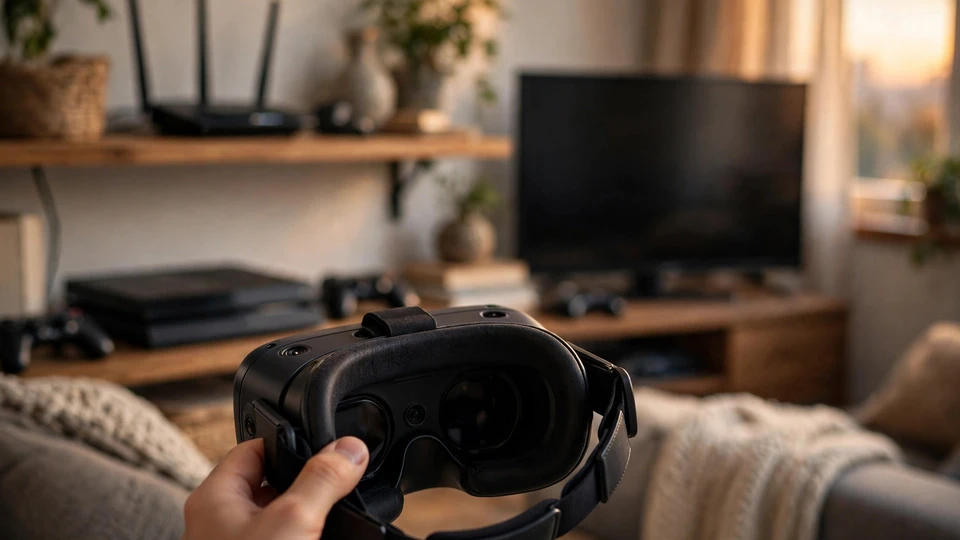
Key takeaway
When the same game runs smoothly over a wired USB Link but stutters over Air Link or Virtual Desktop, rendering is not the problem — the wireless chain is. This guide explains the four stages from rendering to decoding, and four tests that separate Wi-Fi band, router, bitrate, and encoder, one variable at a time.
What this pattern actually looks like
This guide only applies when three shapes are present together. If any one of them is missing, the fault belongs to a different diagnosis path, and following the steps below will lead in the wrong direction.
The first shape is the wired-versus-wireless contrast. The same game, at the same settings, runs smoothly when the headset is connected by a USB Link cable, and stutters when the same game is played over wireless streaming — Air Link, Virtual Desktop, or Steam Link. The stutter takes the form of dropped frames, intermittent freezing, and the picture lagging behind when the head turns. This contrast is the entry ticket to this guide: smooth wired and stuttering wireless proves that rendering itself is not the problem, because the same rendering work is already being done successfully over the cable. The problem is somewhere on the wireless chain that replaces the cable.
The second shape is that the stutter follows network conditions. It is better close to the router and worse through a wall. It is worse when other people in the house are using the Wi-Fi at the same time. One band is smoother and another band stutters. The stutter is not fixed to a particular game scene, and it does not stay the same regardless of where the headset is or what else is on the network. That movement with conditions is the fingerprint of a network problem, and it is what separates this pattern from a rendering problem, where the stutter would follow the scene instead.
The third shape is that tracking is not the problem. Controller tracking is normal and the Guardian boundary is normal; only the picture stutters. If the controllers jump around, or tracking warnings appear first, that is a tracking problem, and it belongs to a different layer of the headset guide (#172), not to this one. A picture that stutters while tracking stays steady points at the streaming chain, not at the tracking cameras or the play-space setup.
These three shapes have to be separated because the tests for each are different. If the game stutters over the wired connection as well, the fault is in the wired and rendering path: Link cable bandwidth, USB power, reprojection, and rendering load. If a live stream or a recording stutters, with an encoder overload message, the fault is in the streaming-to-a-platform path, where the encoder is overloaded and the network in question is the upload to the platform, not the local Wi-Fi to the headset. If an ordinary monitor flickers, that is a display signal problem. This guide is about one specific chain only: the local wireless link from the computer to the headset — rendering, encoding, Wi-Fi, and decoding — and which of those four stages is blocked.
The boundary that matters most for this guide is the one between "the computer cannot render the game" and "the computer renders the game, but the picture cannot reach the headset smoothly". The wired test has already answered that question before this guide begins. A game that is smooth over USB Link has proven that the graphics card can render it at those settings. The work of this guide is therefore not to lower the game's settings or to replace the card, but to find which stage of the wireless chain is blocked — the band, the router, the bitrate, or the encoder — by changing one variable at a time and watching whether the stutter stops.
Why wireless VR stutters: the picture passes through four stages, and wired play skips two of them
With a wired Link connection over USB, the picture passes through rendering, then compression, then USB transfer, then decompression on the headset. With wireless streaming, the USB transfer is replaced by Wi-Fi transfer, and the chain becomes four stages. Six published sources agree on this structure, and each stage has its own independent variables, so each stage can be tested on its own. The single most important discipline in this guide follows from that structure: change one variable, test again, and do not change everything at once, or the result will prove nothing.
The first stage is rendering. The graphics card computes the left-eye and right-eye pictures in real time, at the headset's resolution and refresh rate. If this stage is blocked, the symptom is stutter on the wired connection as well — which is exactly what the entry contrast has already ruled out. Rendering load therefore belongs to the headset guide (#172)'s rendering layer, not to this guide, and it is only revisited at the end, if all four wireless tests have been run and the stutter remains.
The second stage is encoding. The graphics card's hardware encoder compresses the picture into an H.264, HEVC, or AV1 stream. If the encoder is chosen badly, or the encoding load is too high, the picture stutters and breaks up. The three encoders trade off differently. At the same bitrate, AV1 gives the cleanest picture with the least colour banding, but its encoding load is higher, and it needs a Quest 3 together with an RTX 40 series, RX 7000 series, or Arc card before it is supported at all. HEVC is the safe default. H.264 needs a higher bitrate to match the picture quality of the other two, but it has the lowest decoding delay. One guide measured H.264 decoding as about 5 milliseconds faster than HEVC, and another notes that H.264 can look sharper on some fine detail at that higher bitrate. None of the three encoders is best in every situation, and that is why the encoder has to be tested by trying each one in turn, rather than assumed.
The third stage is Wi-Fi. The compressed stream travels over the local Wi-Fi network from the computer to the headset. This stage has three independent variables of its own: the band, meaning 2.4GHz, 5GHz, or 6GHz; the router, meaning a shared household router against a dedicated router, and whether the computer reaches the router by cable or by Wi-Fi; and the environment, meaning distance, walls, interference, and other devices. The higher the band, the more dedicated the router, and the cleaner the environment, the steadier the stream. One fact about this stage is routinely misunderstood and needs stating plainly: internet speed has nothing to do with it. The stream travels over the local network and never goes out to the internet, so a faster or slower broadband connection makes no difference to it at all. What matters is the router's band and the local Wi-Fi, not the broadband speed.
The fourth stage is decoding. The headset receives the data and decodes it immediately. The decoding load follows the encoder: AV1 decoding is heavier, and an older headset may not cope with it. This stage is tested together with the encoding stage, through the encoder comparison, because the two are two ends of the same choice — the encoder chosen on the computer decides the decoding work the headset must do.
Taken together, these four stages define the central distinction of this guide: wireless stutter is not "the Wi-Fi is slow", said as a single sentence. It is one of four stages being blocked, and the band, the router, the bitrate, and the encoder are four independent variables, each of which can be tested on its own. A test that changes the band and the bitrate and the encoder all at once, and then finds the stutter gone, has proved nothing about which of the three mattered, and the stutter will return the next time one of them changes. The tests below are built to avoid exactly that mistake — the same one-variable-at-a-time principle used in the headset guide (#172) and the DisplayPort link-training guide (#324).
The five suspect layers
A headset that is smooth wired and stuttering wireless has five possible layers. Only the first four are the main subject of this guide; the fifth must be separated out before any conclusion is drawn, because its tests belong to another guide.
Layer 1: The band and router layer — which band, and which router
The 2.4GHz band is crowded and not fast enough, and VR streaming should not use it. 5GHz is the basic requirement, and 6GHz — with a Quest 3 and a Wi-Fi 6E or Wi-Fi 7 router — is better still. On a shared household router, the headset has to compete with every other device in the house for bandwidth. A dedicated router, with the computer connected to it by cable and the headset the only device using that band, keeps the whole bandwidth for VR. The separation is made by T1. No other guide in this series mentions any of these terms: 5GHz, 6GHz, Air Link, wireless streaming, and dedicated router all appear nowhere else in the series, in either language.
Layer 2: The bitrate layer — how much bandwidth the stream consumes
Bitrate is how much data is sent per second. A higher bitrate gives a sharper picture, but it places a larger load on the network, and when the network cannot carry it, the picture breaks up and stutters first in busy scenes. Lowering the bitrate step by step in the same scene, and watching whether the stutter stops, is the fork. The separation is made by T2.
Layer 3: The distance and environment layer — what sits between the headset and the router
Where the router sits, how far the headset is from it, whether there is a wall in between, and whether the computer reaches the router by cable or by Wi-Fi all affect how stable the stream is. When the computer reaches the router by Wi-Fi, the stream has to travel over two wireless hops — computer to router, then router to headset — which adds a second set of variables. When the computer is connected by cable, only one wireless hop remains. The separation is made by T3.
Layer 4: The encoder layer — H.264 against HEVC against AV1
Try each encoder in turn in the same scene. If one encoder is smooth and another stutters, the encoding and decoding layer is the cause. If all of them stutter, return to the network layers, Layers 1 to 3. The encoder is changed in the Preferred Codec setting on the Virtual Desktop PC Options screen, or in the Oculus Debug Tool. The separation is made by T4. H.264 and HEVC appear elsewhere in this series only in codec and container contexts — video files, editing, and playback — and never as a VR wireless encoder comparison. Air Link appears nowhere else in the series at all.
Layer 5: The rendering load layer — the computer itself cannot keep up (boundary layer, not the main subject)
The GPU is fully loaded, or the game settings are too high, and the picture itself cannot be computed fast enough. The diagnosis for this layer — lowering the rendering resolution, lowering the refresh rate, and lowering effects one at a time — belongs to the headset guide (#172)'s table and seven-step flow, and this guide does not repeat it. Only when T1 to T4 have all been run and the stutter remains should the reader return to this layer.
Four decisive tests
Each of these tests answers a different question, and none of them overlaps with the tests for other shapes. Run them in the order given, change one variable at a time, and write down the result of each step before moving on. The diagnostic order follows the agreement of the published sources: the Wi-Fi chain first, then bitrate, then the encoder, with rendering last. Do not start by changing the encoder or the game settings; start with the band and the router, which cost nothing to test.
T1: The Wi-Fi band and router comparison — 2.4GHz against 5GHz against 6GHz, and a shared router against a dedicated router
Use the same game and the same scene throughout. First, write down which band and which router are currently in use. Then switch the headset to the 5GHz band — with a Quest 3 and a Wi-Fi 6E or Wi-Fi 7 router, try 6GHz — and test again. The 2.4GHz band is never to be used for VR streaming. Then, as a second step, set up a dedicated router: connect the computer to the router by cable, and let the headset be the only device using that band. A dedicated router does not need to be connected to the internet to do this job. Test again.
If the stutter stops after changing the band or the router, the band and router layer is confirmed. If it still stutters, the problem is not in the band or the router: move to T2, T3, and T4.
This test is new because no other guide in this series mentions 5GHz, 6GHz, Air Link, wireless streaming, or a dedicated router, in either language. The one apparent exception proves the rule: the only occurrence of the string "5ghz" elsewhere in the series is inside "2.5GHz+" in a guide about a processor clock speed, which is a substring coincidence, not a Wi-Fi band. The live-streaming guide (#171)'s discussion of wireless concerns the upload connection to a streaming platform, not the local Wi-Fi to a headset. The headset guide (#172) never mentions wireless in its Chinese text at all, and its English uses of "wireless" are generic phrases such as "USB or wireless", with no mention of a band, a router, a bitrate figure, or an encoder name. All six published sources consulted for this guide list the band and a dedicated router as the first diagnostic step.
T2: The bitrate step-down comparison — in the same scene, lower the bitrate step by step and watch whether the stutter stops
Use the same game and the same busy scene — the part where the stutter is most obvious — throughout. In the Air Link advanced settings, in Virtual Desktop, or in the Oculus Debug Tool, lower the bitrate one step at a time, testing again after each step, and write down the step at which the stutter stops.
If the stutter stops at some step, the bitrate layer is confirmed: the network could not carry the previous bitrate. If it still stutters at the lowest bitrate, the problem is not in the bitrate: move to T1, T3, and T4.
This is a diagnosis, not a permanent fix. A bitrate lowered too far makes the picture soft and brings out colour banding, so once the dividing line has been found, the right response is to go back to T1 and T3 and fix the network, rather than playing forever at the lowest bitrate. A slightly softer picture that stays smooth is better than a sharper picture that stutters — a point one of the published guides makes explicitly — but a bitrate that has been lowered to hide a network problem is not a repair.
On the question of numbers, the sources do not agree on a fixed standard, and this guide does not invent one. One guide published in November 2026 gave its own working ranges of 100–150 Mbps for AV1 and 150–300 Mbps for HEVC, and noted that going above those ranges gave limited quality improvement while increasing network stalls. Other guides give no fixed numbers at all, and only describe lowering the bitrate step by step. This guide therefore states only the procedure — lower it step by step in the same scene and record the step where the stutter stops — because the right number depends on the headset model, the encoder, and the game. Even under the strictest reading, in which T2 is treated as an extension of a single table row in the headset guide that mentions compression quality as a setting, this guide still has three completely new tests in T1, T3, and T4, and that point is stated here plainly rather than left vague.
T3: The distance, line-of-sight, and computer-connection comparison — close to the router against through a wall, and the computer on cable against the computer on Wi-Fi
Use the same game and the same scene throughout. First, move the router into the same room, with a clear line of sight to the headset: about 1.5 metres off the ground, and not inside a cabinet. Test again. Second, change the computer from Wi-Fi to a cable connection to the router, so that only one wireless hop remains. Test again.
If the picture is smooth up close with a clear line of sight, and stutters at a distance or through a wall, the distance and environment layer is confirmed. If changing the computer to a cable connection makes it smooth, the earlier problem was the two wireless hops stacked together. If both steps have been done and it still stutters, the problem is not in distance or connection: move to T1, T2, and T4.
This test is new because the headset guide never mentions wireless in its Chinese text, and its English uses of "wireless" are generic phrases such as "USB or wireless", with no mention of router position, line of sight, walls, or how the computer connects. The live-streaming guide (#171)'s "wired versus wireless" is about the upload connection to a platform, not the VR chain. All six published sources consulted for this guide list router position, line of sight, and a cabled computer as independent diagnostic steps, and one states directly that the computer should be connected to the router by cable.
T4: The encoder comparison — H.264 against HEVC against AV1, trying each in turn in the same scene
Use the same game and the same scene throughout. In the Preferred Codec setting on the Virtual Desktop PC Options screen, or in the Oculus Debug Tool, try each encoder in turn: H.264, HEVC, and AV1. AV1 needs a Quest 3 together with an RTX 40 series, RX 7000 series, or Arc card; if it is not supported, do not force it. Write down which encoder, which bitrate, and which refresh rate were used together, and do not change more than one of them at a time.
If one encoder is smooth and another stutters — for example HEVC stutters while H.264 is smooth — the encoding and decoding layer is confirmed, pointing at encoding load or headset decoding. If all of them stutter, return to the network layers, T1, T2, and T3.
This test is new because Air Link appears nowhere else in this series, and H.264 and HEVC appear elsewhere only in codec and container contexts, never as a VR wireless encoder comparison. The headset guide (#172)'s mentions of encoding are generic references to Link compression and encoding load, with no encoder named and no comparison described. The live-streaming guide (#171)'s NVENC encoder is a streaming encoder to a platform, not a VR chain encoder choice. One published Virtual Desktop guide states explicitly that encoder choice is the second priority after the stability of the wireless chain, which is also the order used in this guide.
Tests deliberately not counted among the four
Three procedures are used in this guide but are not counted as new tests, and the distinction is stated here so that nothing is double-counted. The wired-versus-wireless comparison is the headset guide (#172)'s own isolation test — it states that changing the connection method can itself be an isolation test — and this guide uses it as the entry ticket, not as a new test. Lowering the rendering resolution, the refresh rate, and the effects one at a time is the headset guide's table and seven-step flow, not a test of this guide. Comparing GPU and CPU utilisation is the headset guide's rendering load test and the live-streaming guide's encoder overload test, not a test of this guide.
Seven-step diagnosis flow
- Define the shape. Run the entry contrast: the same game, at the same settings, smooth over wired USB Link and stuttering over wireless streaming. If the wired connection stutters as well, follow the headset guide. If only tracking jumps, follow the headset guide's tracking layer. Record the baseline: the headset model, the streaming software — Air Link, Virtual Desktop, or Steam Link — the band, the router, the bitrate, the encoder, and the refresh rate.
- Band and router comparison. Switch to 5GHz, or 6GHz on a Quest 3 with a Wi-Fi 6E or Wi-Fi 7 router, and then try a dedicated router, with the computer connected by cable and the headset the only device on that band, as in T1.
- Distance and connection comparison. Move the router into the same room with a clear line of sight, and change the computer from Wi-Fi to a cable connection to the router, as in T3.
- Bitrate step-down comparison. In the same busy scene, lower the bitrate one step at a time and record the step at which the stutter stops, as in T2.
- Encoder comparison. Try H.264, HEVC, and AV1 in turn, as in T4. One smooth and one stuttering points to the encoding and decoding layer; all stuttering points back to T1, T2, and T3.
- Rendering diversion. When T1 to T4 have all been run and the stutter remains, follow the headset guide's rendering load layer: lower the rendering resolution, lower the refresh rate, and lower the effects one at a time.
- Stop. When all seven steps have been run and the cause still cannot be separated, write down the five numbers — the band, the router, the bitrate, the encoder, and the refresh rate — and take them to an inspection. Do not reinstall the driver or reinstall the streaming software one item at a time: reinstalling does not change the band or the router, and it will not move a single frame.
What this is not: boundary cases
| Situation | Which path applies instead | Why it is not this guide |
|---|---|---|
| The wired Link connection stutters as well | The VR headset guide (#172) | Link cable bandwidth, USB power, reprojection, or rendering load, not the wireless chain |
| A live stream or recording stutters, with an encoder overload message | The live streaming and recording guide (#171) | NVENC encoder overload and the upload network to the platform, not the local Wi-Fi to the headset |
| Tracking jumps, or the controllers lose tracking | The VR headset guide (#172) | The tracking layer — lighting, Guardian, cameras — not the picture streaming layer |
| An ordinary monitor flickers or goes black | The display signal guides (#110/#205/#321) | A display signal problem, not a VR streaming problem |
| The headset itself will not turn on, or shows no picture at all | The headset guide (#172) and the connection guide (#105) | A connection or power problem, not a streaming stutter |
| The game is too demanding, and stutters in every mode | The headset guide (#172), or the hardware capability guides (#147) | Rendering load or hardware capability, not the wireless chain |
The first row deserves emphasis, because it is the easiest confusion in this whole area. The headset guide's own title lists Link cable bandwidth, USB power, compression, reprojection, and rendering load — all wired and rendering layers. Its seven-step flow begins with the cable, the ports, USB devices, lighting, and the Guardian boundary: all wired and environment layers, with the wireless network layer nowhere in it. A reader whose game stutters over the cable has not yet reached this guide's territory, and running the wireless tests first will waste the diagnosis. Run the entry contrast, and only then decide which guide applies.
A second confusion deserves the same emphasis. The live-streaming guide discusses bitrate, encoders, and a "wired versus wireless connection" — but its network is the upload to a streaming platform, and its encoder is the streaming encoder. The bitrate in this guide is the VR streaming bitrate from the computer to the headset, and the encoder in this guide is the VR chain encoder. The words are the same and the networks are different. A fix that improves a live stream's upload will do nothing for a headset, and a fix that steadies a headset will do nothing for a live stream.
Five common misconceptions
- "The internet speed is not fast enough, so VR stutters." Wrong. Wireless PC-VR streaming travels over the local network and never goes out to the internet. Whether the broadband is 100M or 1000M makes no difference at all. One published guide states this directly: wireless PC-VR streaming depends on the home network, and internet speed is not the limiting factor. Look at the router's band and the local Wi-Fi, not at the broadband speed.
- "A higher bitrate is always better." Wrong. A bitrate higher than the network can carry makes the picture break up and stutter first in busy scenes. A slightly softer picture that stays smooth is better than a sharper picture that stutters — a point one published guide makes explicitly. Find the dividing line with T2, then fix the network, rather than leaving the bitrate at a level the network cannot carry.
- "Stutter means the graphics card is not powerful enough." Wrong. When the game is smooth wired and stuttering wireless, the card has already proved it can render the game at those settings. The stutter follows network conditions, not game scenes. Run the entry contrast first, and do not start by thinking about replacing the card.
- "A 5GHz router means the problem is solved." Wrong. 5GHz is a necessary condition, not a sufficient one. On a shared router, other devices compete for bandwidth; with the computer on Wi-Fi, there is an extra wireless hop; with the router in another room, the signal has to cross a wall. Any of those can make 5GHz stutter just the same. T1 and T3 have to be run together.
- "AV1 is always the best encoder." Wrong. AV1 gives the best picture at the same bitrate, but it needs a Quest 3 together with an RTX 40 series, RX 7000 series, or Arc card, and its encoding and decoding load is higher. Forcing AV1 on an older headset or an older card can make the stutter worse rather than better. One published Virtual Desktop guide states that the first setup should be left on Automatic, and encoders should only be tried one at a time once the connection is stable.
What to do next, and what not to do
If the four tests point to the band and router layer, the practical step is to keep the change that stopped the stutter and write down exactly what it was: which band, which router, and whether the computer is on cable. A dedicated router does not need to be connected to the internet, and the headset being the only device on its band is the point of it. Test the band first, because it costs nothing, and move to a dedicated router second, rather than buying hardware before the free test has been run.
If the tests point to the bitrate layer, use the dividing line found in T2 as a diagnostic result, not as a permanent setting. Lowering the bitrate hides a network problem; it does not repair it. Go back to T1 and T3, fix the band, the router, and the distance, and then raise the bitrate again step by step to find where the repaired network can carry it. If the tests point to the encoder layer, keep the encoder that was smooth in the same scene, and write down the encoder, the bitrate, and the refresh rate together, so that the next change does not silently undo the result.
Do not change the band, the bitrate, and the encoder all at once, and do not change the game settings at the same time as the network settings. A test that changes three things and finds the stutter gone has proved nothing about which of the three mattered. Do not use broadband speed as a test for anything in this guide, and do not use a Wi-Fi extender or a mesh node as a substitute for moving the router closer: one published guide advises against extenders and mesh for this purpose, and the extra hop adds the same kind of variable that T3 is designed to remove. Do not force AV1 on a headset or a card that does not support it, and do not treat the Oculus Debug Tool as a place to change every value at once: it is an advanced tool, and changing a value in the wrong direction can make the situation worse.
The honest limits of this guide should be stated plainly. Wireless Air Link and Virtual Desktop streaming were not run locally for this article, so the effects of band, bitrate, and encoder all come from the published sources listed below, verified in November 2026. Headset models and software versions differ, and interface paths and option names may vary, so a reader should always follow the streaming software interface on the version actually installed. Bitrate figures differ by headset, encoder, and game, and this guide states no fixed standard number, only the step-down procedure and the dividing line it finds. The Oculus Debug Tool options, including encoding bitrate and encoding resolution, are advanced tools; this guide states only the direction of the comparison, not a fixed value for each option. The 6GHz and AV1 support differences between Quest 2 and Quest 3 should be checked against Meta's official specifications; this guide states only the general direction and does not give a fixed model list. The wired-versus-wireless entry contrast assumes the headset supports both kinds of connection; some headsets support only one, and when the entry contrast cannot be run, the diagnosis should start directly at T1, and that limitation is stated here rather than hidden.
The sources used for the mechanism in this guide are the deep-matrix.com guide on Air Link lag and stutter; the vrheaven.io guide on fifteen ways to fix Oculus Quest Air Link lag and stuttering; the vrlowdown.com guide on fourteen fixes for Oculus Air Link lag and stuttering; the xboxplay.games guide on improving VR streaming; the gamingpcvr.com guide on the best Virtual Desktop settings for PCVR, updated 12 November 2026; the synergyvr.org Virtual Desktop performance guide for Quest Beta 1.34.20; the smartgoggles.net guide on Oculus Quest 2 and Virtual Desktop tips; and the flyawaysimulation.com guide on Virtual Desktop VR for Quest flight simulation. The six sources that give a diagnostic order agree that the Wi-Fi chain — router position, band, and interference — comes first, bitrate second, and the encoder after that, and this guide's seven-step flow follows that order. Where the sources differ on bitrate figures, this guide states the difference and gives no fixed standard.
Repair pricing on this site follows the published three-tier fee structure of HK$400–2,800, with the final quote after inspection.
HK GPU Fix is located at Dali Plaza, Room 1209, Shek Mun. The phone number is 2186 8010 and WhatsApp is 6558 6806. There is no Mong Kok shop and no on-site service; inspection and repair are carried out at the workshop.
FAQ
Q1: How do I know my stutter is a wireless problem and not a rendering problem?
Run the entry contrast: play the same game at the same settings over a wired USB Link cable, and then over wireless streaming. If it is smooth wired and stuttering wireless, rendering is not the problem, because the same rendering work is already being done successfully over the cable. If it stutters over the cable as well, the fault is in the wired and rendering path, and this guide does not apply. The stutter in this guide also follows network conditions — better near the router, worse through a wall — rather than following a particular game scene.
Q2: Does my internet speed affect wireless VR streaming?
No. Wireless PC-VR streaming travels over the local network from the computer to the headset and never goes out to the internet. A 100M or a 1000M broadband connection makes no difference. What matters is the router's band, whether the router is dedicated to the headset, how far the headset is from the router, and whether the computer reaches the router by cable or by Wi-Fi.
Q3: Which Wi-Fi band should I use, and do I need a dedicated router?
Do not use 2.4GHz for VR streaming; it is crowded and not fast enough. Use 5GHz as the basic requirement, and 6GHz with a Quest 3 and a Wi-Fi 6E or Wi-Fi 7 router where it is supported. A dedicated router — the computer connected to it by cable, and the headset the only device using that band — keeps the whole bandwidth for VR, and it does not need to be connected to the internet. Test the band first, because it costs nothing, and move to a dedicated router second.
Q4: How do I test whether the bitrate is the cause?
In the same busy scene, lower the bitrate one step at a time in the Air Link advanced settings, in Virtual Desktop, or in the Oculus Debug Tool, testing again after each step, and write down the step at which the stutter stops. If it stops at some step, the network could not carry the previous bitrate. If it still stutters at the lowest bitrate, the problem is not the bitrate. Treat the result as a diagnosis, not a permanent setting: a bitrate lowered too far makes the picture soft and brings out colour banding, so fix the network and then raise the bitrate again.
Q5: Which encoder should I use — H.264, HEVC, or AV1?
Try each one in turn in the same scene and keep the one that is smooth. HEVC is the safe default. H.264 needs a higher bitrate to match the picture quality, but it has the lowest decoding delay. AV1 gives the cleanest picture at the same bitrate with the least colour banding, but it needs a Quest 3 together with an RTX 40 series, RX 7000 series, or Arc card, and its encoding and decoding load is higher. If one encoder is smooth and another stutters, the encoding and decoding layer is the cause; if all of them stutter, return to the band, router, and distance tests.
Q6: My computer connects to the router by Wi-Fi. Does that matter?
Yes. When the computer reaches the router by Wi-Fi, the stream travels over two wireless hops — computer to router, then router to headset — which adds a second set of variables. Connect the computer to the router by cable, so that only one wireless hop remains, and test again. If the picture becomes smooth, the earlier problem was the two hops stacked together. This is part of T3, and it should be tested on its own, without changing the band or the bitrate at the same time.
Q7: When should I take the machine in for professional diagnosis?
When all four tests and the seven-step flow have been run and the cause still cannot be separated, or when the stutter remains at the lowest bitrate on every encoder with a dedicated router and a clear line of sight, or when the wired connection stutters as well and the rendering checks do not resolve it. Bring the five numbers — the band, the router, the bitrate, the encoder, and the refresh rate — together with the headset model, the streaming software and version, and which test changed the result. Do not reinstall the driver or the streaming software first: reinstalling does not change the band or the router, and the recorded numbers are worth more than a fresh installation.