GPU Fails Only Through an Adapter or Converter Cable but Works Direct? Adapter Protocol, Bandwidth and EDID/HDCP Relay Diagnosis
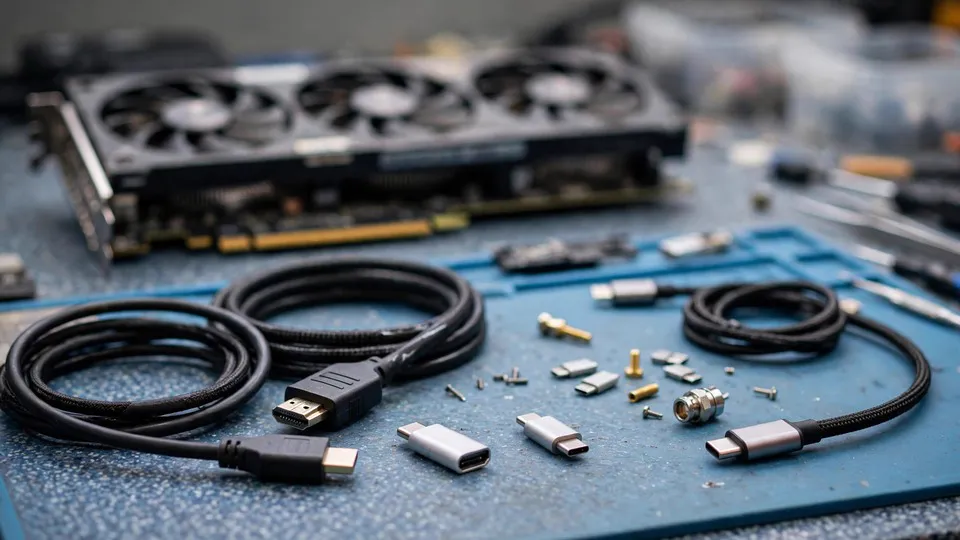
Key Takeaways
If a display works on a direct native cable but fails through an adapter or converter — no signal, flicker, a dropped resolution, lost HDR or VRR, or intermittent black screens — the adapter chain is the prime suspect. This guide tests protocol, bandwidth, EDID and HDCP step by step, one variable at a time.
The Strict Pattern This Guide Applies To
This guide applies to one narrow pattern only: a direct native cable connection works, but inserting an adapter, converter cable, or dongle into the chain fails repeatedly. The failure may take several forms: no signal at all, flicker, a forced drop in resolution or refresh rate, loss of HDR or variable refresh rate, or an intermittent black screen that comes and goes.
Two conditions define the pattern. First, the direct connection must genuinely work, with the same port, the same monitor, and comparable settings. Second, the fault must follow the adapter chain, not the port or the program. If the direct connection also fails, the problem is not adapter-specific. If the fault stays with one port regardless of which cable or adapter is used, the problem follows the port, not the adapter. If the fault stays with one monitor regardless of cable, port, or adapter, the monitor belongs in the investigation. The tests below are designed to keep those variables separate.
Passive Adapters, Active Adapters, and Protocol Conversion
Not every adapter does the same job. A passive adapter mainly re-routes existing signals between connector shapes where the source port already outputs a compatible signal. It adds no conversion logic of its own, and it cannot create a signal type the source does not already provide. A passive adapter used where the source lacks the required signal mode will fail, or fall back to a lower capability, no matter how well made the adapter is.
An active adapter converts one signal protocol to another: for example, converting a DisplayPort output into an HDMI signal, or converting between signal standards that are not electrically interchangeable. Active conversion requires circuitry, timing, and often power. That circuitry becomes a new link in the chain, with its own limits, its own firmware behaviour, and its own failure modes. A fault in the conversion step can produce exactly the symptoms in the strict pattern: the direct connection bypasses conversion entirely, so it works, while the converted connection fails.
Protocol conversion also explains why two adapters that look identical can behave differently. One may be passive where the setup needs active conversion, or active with a conversion limit below the resolution and refresh rate being requested. Connector shape alone does not describe what an adapter does. The conversion type, the supported standards, and the maximum bandwidth all matter, and they must be checked against the actual signal being sent.
Bandwidth: Resolution, Refresh Rate, and Colour Depth Together
Bandwidth is not set by resolution alone. The total signal load is set by resolution, refresh rate, and colour depth together, plus HDR metadata and variable refresh signalling where enabled. A chain that carries a moderate resolution at a moderate refresh rate may fail at the same resolution with a higher refresh rate, with deeper colour, or with HDR enabled, because each addition raises the total load past the ceiling of the weakest link.
That ceiling may sit in the adapter, in the cable, or in the combination of the two. An active adapter rated for one bandwidth tier cannot carry a higher tier simply because the cable is capable of more, and a capable adapter cannot compensate for a cable that cannot carry the tier requested. The diagnostic consequence is that lowering one element of the load — resolution alone, refresh alone, or colour depth alone — is a valid test, but only when done one element at a time. Lowering everything at once proves only that a lighter signal is easier to carry.
A useful first check is to set the display to a modest resolution and refresh rate with HDR and variable refresh disabled, through the adapter chain, and confirm whether the chain works at all at that level. If it works at a modest level and fails as load rises, the evidence points toward a bandwidth ceiling. If it fails even at a modest level, the evidence points toward protocol, EDID, HDCP, power, or a defective link rather than bandwidth alone.
EDID Pass-Through Failure
EDID is the data a monitor sends to the source describing what it can display: supported resolutions, refresh rates, colour formats, HDR capability, and variable refresh support. The source uses that data to offer only modes the monitor supports. An adapter in the chain must pass EDID through correctly, or in the case of an active converter, present a correct EDID of its own that reflects what the downstream monitor and the conversion step can both support.
When EDID pass-through fails, the source may receive no monitor data, incomplete data, or data for a different capability set. The visible results vary: no signal because the source cannot select a mode, a forced low resolution because only a fallback mode is offered, missing refresh rates, or missing HDR and variable refresh options that the monitor itself supports. The monitor is not at fault in this branch, and the port is not at fault either; the information about the monitor is being lost or altered in transit.
The distinguishing test is the direct comparison. If the full mode list, refresh options, and HDR and variable refresh options appear on the direct connection and disappear or shrink through the adapter chain, EDID handling in the chain is implicated. Swapping only the adapter, with the same cable, port, monitor, and settings, then isolates whether the EDID fault follows the adapter.
HDCP Relay and Handshake Failure
HDCP is a content protection handshake between source, intermediate devices, and display. Each link in the chain must participate correctly for protected content to display. An adapter or converter that does not relay the handshake correctly, that adds an extra link the handshake does not expect, or that resets the handshake intermittently can cause a black screen, flicker, or a failure that appears only with protected content while unprotected desktop output looks normal.
This branch is easy to confuse with a general signal failure, because the symptom — a black screen — looks the same. The distinguishing feature is content dependence: ordinary desktop output displays, but protected playback fails, or playback starts and then drops. Testing with unprotected content alone will miss this branch entirely, and testing with protected content alone will overstate it. Both content types should be observed through the same chain, with only the content type changing.
A related trap is to assume that a handshake failure means a faulty port or a faulty monitor. If the handshake succeeds on the direct connection with the same port, monitor, and content, and fails only when the adapter is inserted, the handshake failure follows the adapter chain. The port and monitor have already demonstrated that they can complete the handshake without the adapter in place.
Power for Bus-Powered Active Adapters
Some active adapters draw power from the port or from a USB power lead. If the available power is insufficient, or if the power lead is disconnected, loose, or attached to a low-power source, the conversion circuitry may behave intermittently: working at low load, dropping out at higher load, or failing to establish a link at all. Intermittent black screens that worsen with higher resolution or refresh rate can therefore have a power component as well as a bandwidth component.
Power should be tested as its own variable. Where the adapter has a separate power input, connect it to a known adequate power source and retest without changing resolution, cable, port, or monitor. Where the adapter is bus-powered with no separate input, the test is to swap only the adapter for a different unit of the same conversion type and observe whether the intermittent behaviour follows the unit. Power, bandwidth, and conversion quality interact, so the one-variable rule matters here more than anywhere: changing the power source and the resolution together cannot separate a power limit from a bandwidth limit.
Cable Quality, Cable Length, and the Port and Monitor as Controlled Variables
Cable quality and length affect signal integrity, and a marginal cable that works on a direct connection may fail when an adapter adds conversion loss or timing change to the chain. Length matters because longer runs attenuate the signal further, and a chain that combines a long cable with an adapter has two sources of loss instead of one. Swapping only the cable, with the same adapter, port, monitor, and settings, isolates the cable contribution.
The port and monitor must be treated as controlled variables, not as suspects by default. Test the adapter chain on another port of the same type, with everything else unchanged, to check whether the fault follows the port. Test with another monitor, with everything else unchanged, to check whether the fault follows the monitor. If the fault follows the adapter chain across ports and monitors, the chain is confirmed as the fault location. If the fault stays with one port across adapters and cables, the investigation moves to the port. If it stays with one monitor across ports, adapters, and cables, the investigation moves to the monitor.
Controlled Tests, One Variable at a Time
| Test | Change only this | Keep unchanged | What a clear result means |
|---|---|---|---|
| Direct comparison | Remove the adapter; connect direct native cable | Same port, monitor, settings, content | A working direct link confirms the pattern is adapter-chain-specific |
| Swap adapter only | Replace the adapter with another unit | Same cable, port, monitor, settings | Fault follows the adapter if the replacement works, or follows the setup if it does not |
| Swap cable only | Replace the cable, keeping the adapter | Same adapter, port, monitor, settings | Fault follows the cable if the replacement works |
| Lower resolution or refresh | One step down in resolution or refresh rate | Colour depth, HDR, VRR, cable, adapter | Clearing at a lower load points toward a bandwidth ceiling |
| Disable HDR or VRR | Turn off HDR alone, then VRR alone | Resolution, refresh, cable, adapter | Clearing on one disable points toward that feature's load or handling |
| Another port | Move the chain to another port of the same type | Adapter, cable, monitor, settings | Fault follows the port if it clears on the new port |
| Another monitor | Connect the same chain to another monitor | Adapter, cable, port, settings | Fault follows the monitor if it clears on the new monitor |
| Power check | Provide adequate power to an active adapter | Resolution, cable, port, monitor | Clearing points toward insufficient power for the conversion circuitry |
| Content type | Unprotected desktop output versus protected playback | Same chain, port, monitor, settings | Failure only on protected content points toward HDCP relay |
Record each result before moving to the next test. A chain of unrecorded swaps quickly becomes impossible to interpret, because no one can later tell which combination was actually tested.
Branch Differentiation
| Branch | Failure follows | Key distinguishing test |
|---|---|---|
| Passive versus active mismatch | The adapter type for the signal required | A correctly specified active converter works where the passive unit failed |
| Bandwidth ceiling | Total load: resolution plus refresh plus colour depth | Lowering one load element alone clears the failure, and restoring it alone brings it back |
| EDID pass-through failure | The information path through the chain | Mode list and feature options shrink through the adapter but are full on direct |
| HDCP relay failure | Protected content through the chain | Unprotected output displays while protected playback fails through the same chain |
| Adapter power shortfall | Power available to active conversion | Adequate separate power alone clears intermittent failure |
| Cable quality or length | The cable in the chain | Swapping only the cable clears the failure |
| Port or monitor fault | One port or one monitor across chains | Fault stays with that port or monitor when adapter and cable change |
| Driver output setting | The output mode the driver selects through the chain | The same mode fails through the adapter while the direct connection avoids unsupported modes; changing the output setting alone clears the failure |
Driver output setting deserves a note: sometimes the fault is not in the hardware chain but in an output mode the driver has selected that the monitor does not support. On a direct connection, complete EDID information lets the driver avoid unsupported modes; through an adapter with failed EDID pass-through, the driver may select the wrong mode. A direct connection that works and an adapter chain that fails therefore does not always mean the adapter itself is faulty — failed EDID pass-through plus a wrong output setting can produce the result together.
The branches overlap in symptoms — a black screen can belong to any of them — so symptom alone never decides the branch. The test that changes one variable and observes whether the failure moves is what decides it.
Common Misconceptions
An adapter is not just a cable. A passive unit re-routes signals; an active unit converts protocols, handles EDID, participates in HDCP, and consumes power. Treating every adapter as a passive piece of wire hides exactly the functions most likely to fail.
A dearer adapter does not always work. Cost does not guarantee the correct conversion type, the required bandwidth tier, correct EDID handling, or correct HDCP relay for a particular resolution, refresh rate, and monitor combination. Specification match matters more than cost: conversion type, bandwidth tier, and supported features must match the signal actually being sent.
No signal does not mean a dead port. A port that works on a direct connection has demonstrated that it can output a signal. If it fails only through an adapter chain, the chain — its conversion, bandwidth, EDID, HDCP, power, or cable — is the first place to look, not the port.
A higher resolution setting does not prove the chain is capable of that resolution. A setting offered in a menu may be offered from incomplete EDID data, or may be requested without regard to the adapter's bandwidth ceiling. The test is whether the mode displays stably through the chain, not whether the menu lists it.
Finally, one successful test at a low load does not clear the chain. A chain that works at a modest resolution and refresh rate may still fail at the target load. Bandwidth, EDID, and HDCP branches must each be tested at the load and content type actually intended for use.
When to Stop and Seek Inspection
Stop self-testing when the direct connection works but every correctly specified adapter chain fails, when the fault stays with one port or one monitor across chains, when the failure involves intermittent behaviour that swapping variables does not resolve, or when further testing would involve opening hardware. At that point the evidence — direct works, chain fails, and the recorded one-variable results — is exactly what inspection needs.
Inspection is available at the Shatin shop: Dali Plaza, Room 1209, Shatin. Telephone 2186 8010. WhatsApp 6558 6806. Bring the adapter, the cable, and a note of the direct result, the chain result, and each swap already tried. Testing the actual chain, rather than a description of it, is what allows the faulty link to be identified.
Frequently Asked Questions
My monitor works with a direct cable but shows no signal through an adapter. Is the port dead?
No, not on that evidence. A port that works direct has shown it can output a signal. The fault follows the adapter chain until the swap tests prove otherwise: swap only the adapter, then only the cable, and check whether the failure moves with either link.
Why does the adapter work at a lower resolution but fail at a higher one?
Because total signal load rises with resolution, refresh rate, and colour depth together. A chain with a bandwidth ceiling below the requested load will work at a modest load and fail as load rises. Lower one element at a time to find which element crosses the ceiling.
Why are some resolutions or HDR options missing through the adapter?
That points toward EDID handling. The source can only offer modes it knows the chain supports. If the full mode list appears direct and shrinks through the adapter, EDID data is being lost or altered in the chain, and swapping only the adapter isolates that link.
Why does normal desktop output display but protected video go black?
That pattern points toward HDCP relay. The handshake must succeed across every link for protected content. If the same port, monitor, and content succeed direct and fail only with the adapter inserted, the handshake failure follows the adapter chain.
Will buying a more expensive adapter fix the problem?
Not necessarily. The replacement must match the conversion type required, the bandwidth tier of the intended resolution and refresh rate, and the EDID and HDCP behaviour the setup needs. A costly unit with the wrong conversion type or an insufficient bandwidth tier will fail just as a cheap one does.
When should I stop swapping cables and seek inspection?
When a correctly specified adapter chain still fails while direct works, when the fault stays with one port or monitor across chains, or when intermittent failures persist after the one-variable swaps. Bring the adapter and cable to the Shatin shop listed above, with the recorded test results.