GPU Control Panel Won't Open? Panel App, Driver Service & System Version Diagnosis Guide
Key Takeaways
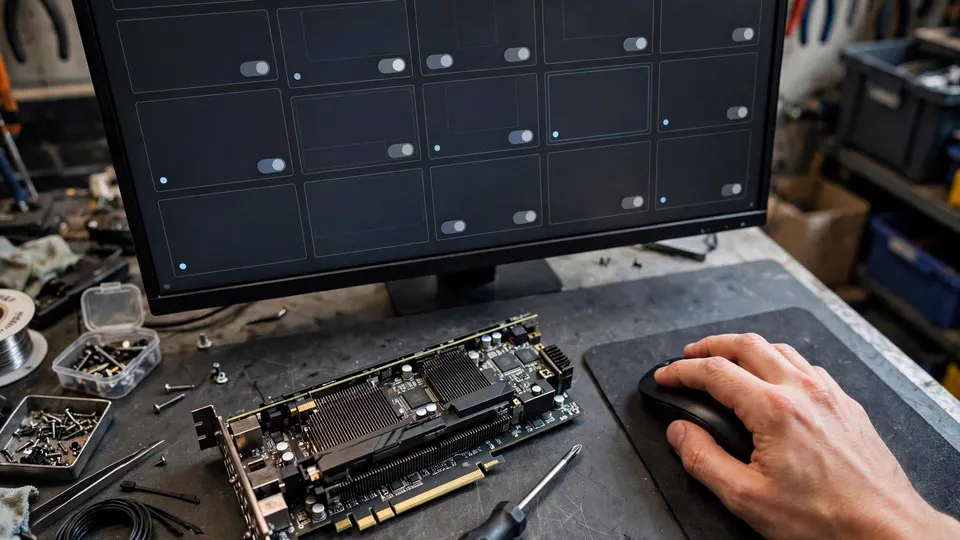
Display output and the control panel are separate layers, so a working screen does not prove the panel app is healthy. This guide separates a missing app, a stopped vendor service, a corrupted settings store, a driver-and-app version mismatch, and a permission fault — and shows why a full driver reinstall is a late step, not a first one.
The Premise: Display Works, Only the Panel Fails
This guide applies to one narrow premise, and it should be stated plainly before any step is taken: display output is present, the desktop loads, and only the panel app fails. The panel is NVIDIA Control Panel, the NVIDIA App, or AMD Software, Adrenalin Edition. It will not launch, it flashes and closes, it gives no response at all, or it shows an explicit error. Intel's panel is outside this guide's scope except for a single redirect: if the machine uses Intel graphics, the steps below do not apply, and the correct panel and driver package for that hardware must be found instead.
If the premise does not hold, stop. No display at all, a driver installer that itself fails, and laptop display-switching problems are different topics with their own diagnosis. A panel fix will not help a machine with no display, and chasing panel steps for a failed installer wastes the evidence those problems need. This guide redirects those cases rather than absorbing them.
Why a Working Display Does Not Mean a Working Panel
Display output and the control panel are separate layers. The display driver, loaded by Windows at a low level, can be working normally while the user-facing settings app fails, because the app depends on additional pieces: the app package itself, vendor background services and containers, the correct pairing between app version and driver version, the operating system's app-delivery path, and the user's profile and permissions.
That separation is the whole diagnostic logic of this guide. The screen works, so the driver must be fine is wrong as a conclusion about the panel, and the panel is missing, so reinstall the whole driver is wrong as a first step. Each branch below is separated by one observable check, and the cheapest, most discriminating check comes first.
Branch 0: Pin Down Exactly What Happens
Before touching anything, distinguish four symptoms, because they point to different branches.
- The panel app is not found at all: no Start menu entry, no entry in Installed apps, no desktop right-click entry.
- The panel app is installed but nothing happens on launch: no window, no error.
- The panel app flashes open then closes immediately, or crashes when a specific page is opened.
- The panel app opens but shows an explicit error, such as AMD's version-incompatibility warning.
Also record, before diagnosing, which graphics card is fitted, which app is failing, what changed just before the problem appeared, and whether the panel works from a different Windows user account. The changed item is often the branch selector on its own: a driver update, a Windows Update, a partial update, a new Windows user account, or a change to where Windows saves new apps each point in a different direction. A neighbouring symptom worth noting here is a panel that opens but will not save a setting, showing an access denied message when a setting is applied. That belongs to the permissions branch, not to launch failure, and it is covered briefly later rather than as a full section.
Which Settings App Is Actually Delivered
The classic NVIDIA Control Panel and the newer NVIDIA App are different apps with different delivery paths, and they must not be confused. A reader chasing a missing classic panel may not have a fault at all if the settings app delivered with their driver package is the NVIDIA App and that app opens normally.
The separating check is simple: open the NVIDIA App. If it opens and holds the needed setting, whether a 3D setting, a display setting, a synchronisation setting, a colour setting, or a custom resolution, then the problem is that the wrong app was expected, not that a panel is broken. Only if a genuinely needed setting is absent from the app that is actually delivered does the search for the other app begin, and then it begins through the official Store listing, not through an unofficial download. This guide makes no claim about future availability of either app, and readers should check the vendor's current driver and app pages at the time they read this, because app delivery changes over time.
Branch 1: The Panel App Is Missing, Not Just Failing to Launch
With modern DCH packaging, standing for Declarative, Componentized, Hardware Support App, the classic NVIDIA Control Panel is a separate Microsoft Store app, not bundled inside the driver package. A working DCH driver with no panel app is therefore a coherent state, not a contradiction. Reinstalling the driver to chase a missing panel misunderstands the packaging.
Work through the separating checks in order. First, open Settings, then Apps, then Installed apps, and look for the panel. If it is listed, this is not the missing-app branch; move to the service and settings-store branches. If it is not listed, confirm that a DCH driver is actually installed, because the Store listing requires one, and then install the official publisher's Store listing, published by NVIDIA Corp. for the classic panel.
Store-delivery failures are their own branch. If the Microsoft Store itself cannot install apps, repeated graphics driver reinstalls will not fix the panel; the Store path must be fixed first. One specific delivery trap is worth checking: sources report that the DCH Control Panel app must be installed on the C: drive, and that a Windows setting sending new apps to another drive can make it fail to open. If new apps are set to save elsewhere, change that setting back to C: and reinstall the panel app.
The AMD equivalent of this branch is straightforward: if AMD Software is not installed at all while a basic display driver is present, for example after Windows Update supplied a basic driver, the fix is installing the matched AMD package for that graphics card and Windows version, as described in the mismatch branch, not repairing a panel that does not exist.
Branch 2: The Panel Is Installed but Will Not Launch: Vendor Services
On NVIDIA systems, the panel depends on background services, principally NVIDIA Display Container LS and NVIDIA LocalSystem Container. Service names vary slightly by version, and some guides also list NVIDIA Display Container and NVIDIA Network Service Container. Open the Services console and check whether the display container services are running, set to Automatic, and running as Local System. A service that is Disabled, stuck on Starting, or stopped separates this branch from a missing-app or version-mismatch branch.
The separating test is low-risk and should come before anything more destructive: restart those services, then retry the panel. A stuck container process, such as the panel user interface process or the container process, that is ended in Task Manager and then relaunched is a related diagnostic restart. Present it for what it is, a diagnostic restart, not a permanent fix, and never advise disabling services wholesale as a solution.
A related Windows factor is Fast Startup, the hybrid boot feature. Under Fast Startup, a shutdown and start cycle may leave services and drivers incompletely re-initialised, so a genuine restart, as opposed to a shutdown and start, is a legitimate early test. This guide presents that as a test worth trying, not as a claim that Fast Startup is the cause in any individual case.
AMD Software similarly depends on its driver services, and the same logic applies: a stopped or stuck service can prevent the panel from initialising. On AMD systems, however, the most distinctive failure is version mismatch, covered in the next branch but one, so an explicit mismatch warning should be checked before assuming a service fault on AMD.
This branch is not the same as a save failure. If the panel opens but a setting will not save, that points to the permissions branch, although a broken service can also produce save failures, so the two symptoms should be kept distinct in the reader's notes.
Branch 3: The Panel Crashes on Launch or on One Page: Corrupted Profile or Settings Store
NVIDIA's per-profile settings database, the files under the ProgramData NVIDIA Drs folder, can corrupt. When it does, the panel may crash on launch or when a specific page or profile is opened. The cost of rebuilding that store must be stated plainly: custom per-game profiles are lost and must be recreated.
The separating checks decide how much to reset. If the panel crashes only when opening one game's Program Settings, while Global Settings opens normally, that points to a single bad profile, not a broken driver. Resetting that one profile is the proportionate fix, not wiping everything. If it crashes on any launch, that points to the wider settings store or the app package itself, and the proportionate steps are the Store app repair and reset sequence below.
For the Store version of the panel, Settings, then Apps, then Installed apps, then Advanced options offers Repair, which keeps data, followed by Reset, which deletes app data. Repair comes before Reset, and Reset comes before any driver reinstall. Third-party profile tools exist for single-profile resets. They may be mentioned only with a caution: they are advanced third-party tools, they should come from a reputable source only, and they should be used for a single-profile reset only, never as a routine step and never through a download link this article guarantees.
The AMD equivalent follows the same order: a corrupted AMD Software profile or settings store can produce the same pattern of opening and then stopping, and the proportionate steps are resetting app settings first, with a clean driver and app rebuild only if the mismatch or corruption persists.
Branch 4: Driver and App Version Mismatch, the Distinctive AMD Branch
AMD's explicit symptom is the clearest in this whole guide. On launching AMD Software, a warning states that the version of AMD Software launched is not compatible with the currently installed graphics driver, sometimes with a recommendation for a factory reset of the AMD Software installation. That warning means exactly what it says: the display driver Windows has loaded and the Adrenalin app no longer belong to the same package.
Common triggers reported by sources are Windows Update replacing the AMD driver with a Microsoft-approved or manufacturer driver, a partial Adrenalin update, leftover files from an earlier install, or a laptop switching between AMD's retail package and a manufacturer-customised driver. The separating checks are: Device Manager shows the AMD graphics card normally and display works, which confirms the driver layer is present and points away from no-driver explanations; and the warning appeared right after Windows Update or a driver change, which points to mismatch rather than to a broken panel app.
AMD provides a Software Compatibility Tool for exactly this warning. It checks the installed driver and installs a matching AMD Software version where one is available, and it is the first AMD-specific step, before any cleanup. The order of escalation for AMD is then: finish any pending Windows Update and restart, because installers refuse or misbehave while an update is pending, and AMD error codes in the 202 and 206 range describe exactly this situation; then use the Compatibility Tool or the Auto-Detect and Install Tool to get the package matched to the exact graphics card model and Windows version; if mismatch persists, rebuild cleanly from one package using the vendor Cleanup Utility, then install the matched package; and only then consider a deeper clean-removal tool in Safe Mode, presented as a last resort that removes all graphics driver traces, not as a first step.
NVIDIA has a parallel to this branch. DCH versus Standard packaging confusion, and a driver updated without its matching Store app, can produce a similar state in which panel and driver do not match. The separating question is the same: do the driver package type and the panel app source match? Reinstalling the matched Store app is the proportionate fix before reinstalling the driver.
One laptop boundary must be stated here. On laptops, the PC maker's driver may be the correct package even when AMD's retail package is newer. Check the laptop maker's driver page before assuming the retail package is correct. Laptop display switching itself is a separate topic and is not expanded in this guide.
Branch 5: Permission and Windows User-Account Faults
The symptom that separates this branch is a panel that opens, or partly works, but whose settings will not save, showing an access denied message when a setting is applied, or profiles that revert, or a panel that works from another Windows account but not from the reader's account.
Check in order: is the account an administrator account, since driver-level settings affect all users and a standard account may lack permission? Then try right-clicking and choosing Run as administrator. If that fixes it, the cause is permissions, not a broken driver. Note carefully that normal use should not require routine elevation, so a permanent elevation workaround is a diagnostic clue, not the recommended daily setup. Then, as a test, create a new local administrator account: if the panel works there, the original Windows user profile, with its app data, per-user settings, and permissions, is the suspect, not the driver.
Security software, Controlled Folder Access, and third-party overlays can also block panel processes. Sources name recording and monitoring overlays, RGB tools, and antivirus folder controls in this context. Present these as a temporary test without the overlay or block, followed by re-enabling, and never advise permanently disabling security software. Registry editing is not a routine step in this guide and is not recommended here; the new-account test and the app Reset above are preferred over registry work.
Branch 6: Operating System and Store-App Version Confusion
Two confusions need separating explicitly. First, the operating system store-app confusion: on DCH systems the panel is a Store app, so looking for it inside the driver installer, or expecting it to arrive with a driver-only download, is a category error. Second, the Windows version versus driver version confusion: a driver package for a different Windows version, or an old Windows build, may install a display driver but leave the panel mismatched or uninstallable. Confirm the Windows edition and version and the driver package's stated Windows support before reinstalling anything.
A pending Windows Update can also block or silently revert a driver install. The check is to let Windows Update finish, restart, then check which driver version is actually loaded, and only then reinstall the matched package if Windows reverted it. System-file corruption checks are reported by some guides as a late step and may be listed as a late, low-risk operating system check, but reinstalling Windows is not a routine recommendation. It is a last resort after the driver, app, profile, service, and permission branches are exhausted, and only with a backup warning.
A final honest limit belongs here. On a managed or organisation PC where the Microsoft Store is blocked by policy, no official standalone classic-panel installer is available for DCH systems. The NVIDIA App covers most day-to-day settings in that situation. State that limit honestly rather than offering an unofficial download.
The Test Order, Cheapest and Most Discriminating First
| Step | Check | What the result separates |
|---|---|---|
| 1 | Pin down the symptom and what changed just before it | Missing, no response, flashes and closes, or explicit error, each pointing to a different branch |
| 2 | Check which settings app is actually delivered and whether it opens | Wrong app expected versus a genuinely broken panel |
| 3 | Is the panel listed in Installed apps? | Missing app, installed from the official Store or vendor listing, versus a launch or service fault |
| 4 | Are the vendor services running, Automatic, and Local System? Restart them and retry | Stopped or stuck service versus a deeper fault |
| 5 | Does it crash only on one game's profile? Reset that profile. On any launch? Repair, then Reset, the Store app | Single bad profile versus a corrupted settings store or app package |
| 6 | Is there an explicit mismatch warning or a packaging mismatch? | Version mismatch, handled by the Compatibility Tool or a matched Store app reinstall |
| 7 | Does it work from another administrator account, or with Run as administrator? | Permission or profile fault versus a driver fault |
| 8 | Only now is a clean reinstall justified | A fault that survives every branch above |
| 9 | Stop rule | No display, installer failure, or laptop display switching means a different topic |
When a Clean Reinstall Is Justified, and When It Is Not
A clean reinstall is justified when an explicit version mismatch survives the Compatibility Tool or a matched Store-app reinstall, when corruption survives a service restart plus a profile reset plus an app Repair and Reset, or when a partial or interrupted driver update has left driver and app from different packages.
It is not justified as a first step in any of these cases: a panel merely missing from the Start menu, where Installed apps and the delivered-app check come first; a stopped service, which is restarted; a single bad game profile, which is reset alone; a permission fault, which is tested with another administrator account; a Store-delivery failure, which is fixed at the Store path first; or a pending Windows Update, which is finished first.
The cost of a clean reinstall must be stated before it is recommended. Custom per-game profiles and panel settings are lost and must be recreated. The reader must download the correct package for their exact graphics card and Windows version, and for laptops must check the manufacturer page. And a clean reinstall that Windows Update then reverts has fixed nothing, which is why the finish updates, then verify the loaded driver version step exists.
Common Misconceptions
No display problem means the driver is fine, so the panel should work. False: panel and driver are separate layers, and the panel can fail while display works.
The panel is gone, so the whole driver must be reinstalled. False: on DCH systems the panel is a separate Store app, and reinstalling the app comes first.
A newer driver always fixes the panel. False: a newer driver from the wrong package, the wrong graphics card family, the wrong Windows version, or a retail package where a manufacturer package is correct, can create a mismatch.
Windows Update drivers are always the right ones. False: Windows Update can replace a matched driver with a version the installed panel app does not match, and that is one AMD mismatch trigger.
Running as administrator fixed it, so the problem is solved. Not solved: it proves a permissions fault, and the underlying account or profile issue remains.
Clean reinstall fixes everything, so start there. False: it destroys custom profiles, and it does not fix a stopped service, a Store-delivery failure, a pending update, or a permissions fault.
NVIDIA Control Panel and the NVIDIA App are the same thing. False: they are different apps with different delivery paths, and checking which app is actually delivered is a diagnostic step in its own right.
When to Stop and Seek Inspection
Stop self-testing when display output is absent, flickering to black, or lost after a driver change, because that is not a panel-only problem. Stop when the panel failure returns immediately after every clean reinstall, or when Windows Update repeatedly reverts the driver to a mismatched version despite a matched reinstall, because that pattern points beyond panel troubleshooting, toward an operating system image problem, conflicting software, or a driver support limit. And stop before any step that would require registry surgery, permanent security-software disabling, or a Windows reinstall. Those are presented here as stop and get hands-on help for most readers, not as casual next clicks.
Inspection is available at the Shatin shop: Dali Plaza, Room 1209, Shatin. Telephone 2186 8010. WhatsApp 6558 6806. Bring a clear note of the exact symptom, what changed just before it, which branches have already been excluded, and whether the panel works from another Windows account. That note lets inspection start from the branch already established rather than repeating the same tests.
Frequently Asked Questions
The screen works fine, so why will the panel not open?
Because display output and the panel app are separate layers. The display driver can load normally while the panel app fails on its own package, its background services, its settings store, its version pairing with the driver, or the user's permissions. This guide separates those layers one check at a time.
Should I reinstall the driver if the panel is missing?
No, not first. On DCH systems the panel is a separate Store app. Check Installed apps first, then check which settings app your installation actually delivers, and install the official Store or vendor app before touching the driver.
What does the AMD version-incompatibility warning mean?
It means the AMD Software app version and the loaded driver version no longer belong to the same package, often after Windows Update replaced the driver or after a partial update. Finish pending updates, restart, run AMD's Compatibility Tool or Auto-Detect tool for a matched package, and only then consider a clean rebuild.
The panel opens but settings will not save. Is that the same problem?
No, it is a neighbouring symptom, and it points to permissions or profile faults rather than launch failure. Test Run as administrator and a new local administrator account to separate a permission fault from a driver fault.
Why should a clean reinstall be a last step?
Because it destroys custom per-game profiles and panel settings, and because it does not fix a stopped service, a Store-delivery failure, a pending Windows Update, or a permissions fault. Each of those has a cheaper, more discriminating test, and the clean reinstall is justified only after they are excluded.
When should I stop and seek inspection?
When display output itself is absent or lost, when the failure returns immediately after every clean reinstall, when Windows Update repeatedly reverts a matched driver, or when the next step would involve registry work, permanent security disabling, or a Windows reinstall. Bring the symptom, the change history, and the branches already excluded to the Shatin shop listed above.