External Monitor Brightness Won't Change from Software? DDC/CI Switch, Control Path & Cable Diagnosis Guide
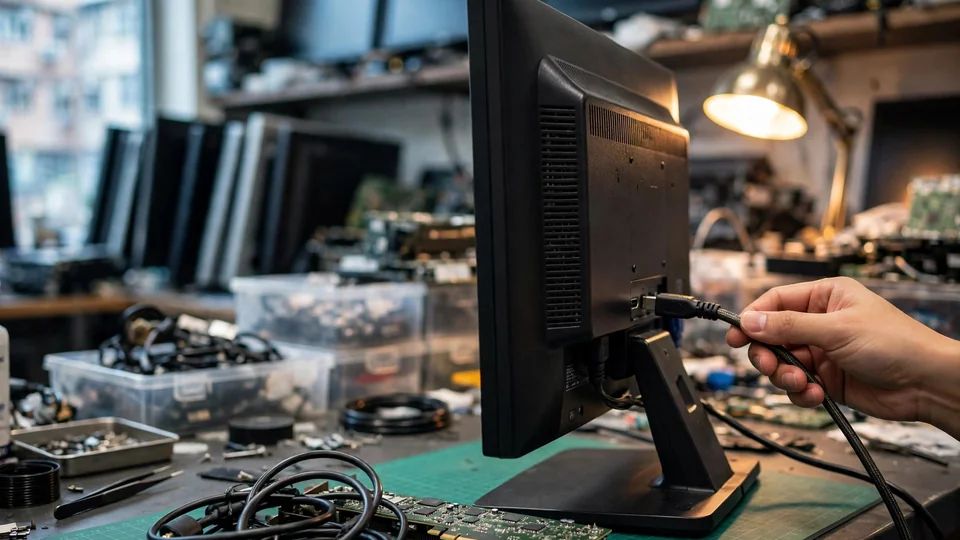
Key takeaway
When software cannot change an external monitor's brightness, the backlight is rarely at fault: the DDC/CI command channel is switched off, the wrong software is used, or a dock or adapter blocks the command. Three controlled comparisons separate the on-screen-display path, the DDC/CI switch, and the software tool.
Introduction
The picture is fine. The resolution is correct, the refresh rate is correct, and nothing flickers or changes colour. The only thing wrong is that the brightness slider in software does nothing. Dragging it from 50 to 80 leaves the screen exactly as bright as before, and dragging it down to 10 leaves it exactly as bright as before. Yet the buttons on the monitor itself work perfectly: press them, open the on-screen display, change the brightness there, and the picture follows at once.
That combination — a healthy picture, working monitor buttons, and software that cannot move the brightness at all — has a specific shape, and it points in a specific direction. The monitor's own backlight circuit is working, because the monitor's own buttons can drive it brighter and dimmer. What is failing is the command path between the computer and the monitor. The computer is sending an instruction that never arrives, or sending it down a channel the monitor is not listening to.
The channel has a name: DDC/CI, short for Display Data Channel / Command Interface. It is a VESA standard, and it carries commands — brightness, contrast, colour temperature, input source — over the I2C wires inside the display cable, using the Monitor Control Command Set (MCCS). It is separate from the picture channel. A cable can carry a perfect picture while carrying no commands at all, and a monitor can display that picture perfectly while ignoring every brightness instruction the computer sends.
This guide explains how that command channel works, how to prove where it breaks, and how to avoid the mistakes that make the diagnosis look confusing. It is a diagnostic guide for one narrow shape: an external monitor whose picture is normal, whose own buttons change the brightness, and whose brightness no software on the computer can move. If the monitor is not detected at all, if its brightness is stuck at maximum and still dim, or if its on-screen-display options are greyed out, different articles apply, and the boundary section near the end says which ones.
Symptom definition: what counts as this problem
This article covers one narrow shape. All three of the following must be true; if any one is missing, the problem belongs somewhere else.
First, the external monitor displays a normal picture and Windows recognises it. The resolution and refresh rate are correct. The picture is not black, not flickering, and not discoloured — only the brightness will not move from software. A monitor that is not recognised, or that shows no signal, follows the detection route in article #105 or article #259, not this one.
Second, the monitor's own on-screen-display (OSD) buttons can change the brightness. Press the physical buttons or joystick on the monitor, open the brightness option in the OSD, change the value, and the picture follows — brighter when the number rises, dimmer when it falls. If the OSD buttons cannot change the brightness either, the shape is different: brightness that stays dim even at maximum follows article #415, and OSD options that are greyed out follow article #422.
Third, the failure follows the control path, not the monitor model. The same monitor works when connected directly but not through a dock or KVM switch; or it works when DDC/CI is switched on in the OSD and stops working when it is switched off; or it works with one software tool and not with another. The brightness itself is not the problem. The question is which route the brightness instruction takes to reach the monitor.
These three shapes need to be kept apart because each one is measured differently. Brightness that is turned up to maximum and is still dim is a brightness-ceiling and backlight-output shape, covered by article #415. OSD options that are greyed out and cannot be pressed are a mode-interlock shape, covered by article #422. A laptop's built-in panel whose brightness keys do nothing is a built-in-panel shape, covered by article #398 — and article #398 says so itself in its introduction, handing the external-monitor case over to the monitor's own buttons and the monitor control channel, which is exactly the layer this article covers. This article is about the remaining shape: the external monitor can go bright and dim by itself, but no software on the computer can command it to do so.
Five layers of mechanism
Brightness on an external monitor is controlled by the monitor's own backlight circuit, not by the graphics card. The computer can only command it through a separate command channel, and that channel has five layers at which it can break. Four external sources agree on the mechanism, and the details below come from the sources listed at the end of this article.
Layer one: the control-path layer — the OSD buttons against the software tool. This is a main subject of this article. The physical buttons or joystick on the monitor are the most direct control path: they need no Windows, no DDC/CI, and no particular cable. A software tool is a second path that depends on the whole command chain. When one path works and the other does not, the fault is locked to the command chain, not to the backlight. The evidence for this layer is test T1. No other article in the library teaches an OSD-buttons-against-DDC-tool comparison as a decisive test.
Layer two: the DDC/CI switch layer — DDC/CI on or off inside the OSD. This is a main subject of this article. DDC/CI has its own switch inside the monitor's OSD, not inside Windows. The paths, as given in the ClickMonitorDDC guide, are Dell: Others, then DDC/CI; BenQ: System, then Advanced, then DDC/CI; LG: Option, then DDC-CI, on older models. Other brands have their own menu paths, and the monitor's own manual is the authority for the exact location. When the switch is off, no software can control the monitor; when it is on, software can recognise the monitor as controllable. The way to separate this layer is test T2. Across the whole article library, the string "DDC/CI" appears in English only in article #422, in a passing note about commands not passing through a dock or adapter — never as a brightness-control test: "DDC" appears only in article #259 (the EDID identity channel), article #422 (two mentions), and articles #424, #462, #464, #471 and #485 (all detection or EDID contexts), and article #398 contains zero occurrences of "DDC" at all.
Layer three: the software layer — the Windows built-in slider against a third-party DDC tool. This is a main subject of this article. The Windows built-in brightness slider and a third-party DDC tool are two different kinds of software. The built-in slider primarily controls a laptop's built-in panel; Microsoft's own guidance says that an external monitor may not expose the normal brightness slider, and recommends using the monitor's buttons instead. A third-party DDC tool — Monitorian, ClickMonitorDDC, Twinkle Tray, or Microsoft PowerToys Power Display — sends commands over DDC/CI to control an external monitor directly. A missing slider, or a slider that does nothing, does not mean the monitor cannot be controlled by software; a DDC tool that moves the picture proves the channel itself is healthy. The way to separate this layer is test T3. Article #398 only states the misconception that an external monitor should have a Windows brightness slider, and that having none is normal design — it never names any DDC tool, and it never teaches using a DDC tool instead of the slider.
Layer four: the cable-path layer — a dock, KVM switch, or adapter cutting the command. This is a boundary layer, not a main subject. The command has to travel a physical path: a direct connection to the graphics card's own output is the shortest path, while a dock, KVM switch, or adapter in between can pass the picture and still cut the command. A picture getting through proves only that the picture arrived; it proves nothing about the command. The separation for this layer — a direct connection compared against the same monitor through the dock, KVM switch, or adapter — belongs to the variable family of article #259 (the direct-connection comparison when EDID identification goes wrong) and article #485 (the dock detection layer), so this article uses it only as an auxiliary observation, labelled A1, and does not count it among the three decisive tests. Article #422 says the same thing in a passing note of its own: software control of a monitor through a dock or adapter may not get the command through, and it states explicitly that this belongs to the software-control layer, not to the greyed-out OSD options that are its own subject.
Layer five: the mode-lock layer — HDR, Eco, or a game mode holding the brightness. This is a boundary layer, not a main subject. When HDR is on, when an Eco or power-saving mode is on, or when a game mode or sRGB mode locks the brightness option, the OSD value may not move, or the brightness may be held down by the mode. That layer belongs to article #422 (greyed-out OSD options and mode interlocks) and article #415 (automatic brightness layers). One special case is worth naming here because it touches layer two directly: on BenQ monitors, an Eco or power-saving mode being on can disable the DDC/CI function, so a DDC/CI switch that looks on may still not work while Eco mode is active. The sources also advise temporarily disabling HDR while troubleshooting software brightness control. Test T2 must exclude this layer first, or the switch comparison will be misread.
The mechanism leads to one key distinction: software that cannot change the brightness is not a broken backlight, it is a command that never reached the monitor. The monitor can change its own brightness, which proves the backlight circuit is healthy. The task is to find which link in the chain broke — the switch not being on, the wrong software being used, or something in the middle cutting the command off.
Two channels in one cable, and why a picture proves nothing about commands
It helps to keep the two uses of the DDC wires apart, because the library already covers one of them and this article covers the other. Article #259 covers DDC as the EDID identity channel: the monitor tells the computer who it is and which modes it supports, over low-speed wires that are separate from the picture channel. This article covers DDC/CI as the brightness-command channel: the computer tells the monitor to change its brightness, contrast, or input source, using MCCS commands over the same I2C wires. They are the same physical wires used for two different jobs, and either job can break while the other works. A monitor can be identified correctly — EDID working — while its brightness commands are ignored because DDC/CI is switched off. A monitor can also be misidentified — EDID broken — while its OSD buttons still change the brightness, because the buttons need no DDC at all. That is why "the monitor is detected, so the cable must be fine" is not a valid inference, and why each test in this article changes one thing and watches the picture, not the detection status.
The tools all share one channel
Four tools are named in the sources — Monitorian, ClickMonitorDDC, Twinkle Tray, and Microsoft PowerToys Power Display — and a fifth, ControlMyMonitor, is named in one source. All of them send their commands over the same DDC/CI channel. None of them has its own separate way of reaching the monitor. That matters for diagnosis: if the channel itself is broken, because the switch is off or the path is cut, changing tools changes nothing, and trying tools one after another only wastes time. The tools differ in interface — Monitorian is a Microsoft Store app with one panel per monitor, ClickMonitorDDC is a free tray tool with command-line control, Twinkle Tray sits in the system tray, PowerToys Power Display controls each external monitor through DDC/CI — but they do not differ in the channel they use. When a tool does not recognise a monitor, or its slider moves and the picture does not, the fault is in the channel, not in the choice of tool. The sources are also careful about versions in a way this article follows: one older source and one newer source give different version numbers for ClickMonitorDDC, so this article does not state a version number at all, and readers should take their own version's behaviour as authoritative.
Seven-step diagnosis
- Characterise the shape. Decide which of the three shapes it is: software cannot move the brightness (this article), brightness turned to maximum is still dim (article #415), or OSD options are greyed out (article #422). Record the baseline: the monitor model, the connection method (direct, dock, KVM switch, or adapter), the cable type (HDMI or DisplayPort), and whether DDC/CI is currently on or off in the OSD.
- Check the state. Change the brightness with the monitor's own OSD buttons and watch whether the picture follows — that is the first half of T1. Then look in Windows Settings, under System and Display, for a brightness slider, and see whether moving it changes the external monitor's picture — that is the first half of T3.
- Compare the control paths. Run the OSD-buttons-against-DDC-tool comparison (T1). If the OSD buttons move the picture and the DDC tool does not, the fault is in the command chain, not the backlight, and the next step is the switch.
- Compare the DDC/CI switch. Open the OSD, find DDC/CI, and run the off-against-on comparison (T2). If turning it on fixes software control, record the menu path for the future — the fix is the switch itself. If it is on and software control still fails, move to the next step.
- Compare the software. Run the Windows-slider-against-third-party-DDC-tool comparison (T3). If a different tool works, the original software was the wrong tool for an external monitor, not a fault.
- Split by cable path. Compare a direct connection against the dock, KVM switch, or adapter path (A1). If the direct connection works and the path through the middle does not, the cable path is cutting the command: use the direct connection, or change to a dock or cable that passes DDC/CI commands.
- Stop. If the three tests plus the auxiliary observations still do not separate the cause, record the OSD DDC/CI state, the connection method, the cable type, and which tools were tried and what each one did, and bring those notes to a check. Do not reinstall drivers one after another — reinstalling a driver cannot change a switch inside the monitor's OSD.
Three decisive tests
Each test changes exactly one variable and watches the picture, not a number on a menu. Use the same monitor, the same cable, and the same brightness range for every run — for example, move the brightness from 50 to 80 and watch whether the picture changes by the same amount in both halves of the test. Always judge by the picture, never by the OSD number alone: article #415 states that a number can move while the picture does not, and that shape points to the monitor's internal layer, not to the control path.
T1: Control-path comparison — the same monitor, OSD buttons against a DDC tool, watching whether the picture moves
First, use the monitor's own physical buttons or joystick to open the OSD, change the brightness from 50 to 80, and watch whether the picture clearly gets brighter. Then, on the computer, open a DDC tool — Monitorian or ClickMonitorDDC, for example — and move the same monitor's brightness slider from 50 to 80, watching whether the picture changes in the same way.
- Variable: the control path — the monitor's OSD buttons against a DDC tool.
- Outcome variable: whether the external monitor's picture changes.
- If the OSD buttons move the picture and the tool does not, the control-path layer is confirmed: the fault is in the command chain, not the backlight. Move to T2.
- If neither moves the picture, this is not the shape this article covers. Follow article #415, for the backlight and control-chain layer.
- If both move the picture, there was no fault at all — the wrong software was used before. Move to T3 to record which software works.
Why this test is new: no article in the library teaches an OSD-buttons-against-DDC-tool comparison. Article #398 tests a laptop's brightness keys against the Windows slider, with the built-in panel as the outcome — the variable is "keys against slider" and the outcome is "the built-in panel's brightness". T1's variable is "OSD buttons against a DDC tool" and its outcome is "the external monitor's picture". Article #415 tests whether the OSD brightness number itself moves — a number moving while the picture does not points to the monitor's internal layer, and a number not moving at all points to the menu-lock or mode-lock layer. T1 does not ask about the number; it asks which of two different control paths reaches the same picture. Article #422 tests whether OSD options are greyed out or can be pressed, which is the mode-interlock layer, not a control-path comparison.
T2: DDC/CI switch comparison — the same monitor, the same DDC tool, DDC/CI off against on, watching whether software control works
First, find DDC/CI in the OSD — Dell: Others; BenQ: System, then Advanced; LG: Option, on older models; other brands follow their own manual — and note whether it is currently on or off. Then move the brightness slider in the DDC tool and record whether it works. Next, open the OSD, change DDC/CI to the other state (off to on, or on to off), exit the OSD completely, wait until the monitor has fully left the menu, and move the DDC tool's slider again, recording the result.
- Variable: the DDC/CI switch state inside the OSD.
- Outcome variable: whether the software can control the monitor.
- If turning it on makes software control work and turning it off stops it, the DDC/CI switch layer is confirmed, and the fix is to leave it on.
- If it is on and software control still fails, the fault is not in the switch. Move to layer four (the cable path) or layer five (the mode lock).
- If it was already on and the tool still fails, the same applies: move to layer four or layer five.
Before running T2, exclude layer five: check that HDR is off and that no Eco or power-saving mode is active, because a BenQ Eco mode can disable the DDC/CI function even when the switch itself reads as on, and the sources advise disabling HDR temporarily while troubleshooting. A switch comparison run while a mode is holding the brightness will be misread as a switch failure.
Why this test is new: no article in the library teaches that the OSD contains a DDC/CI switch, let alone teaches an on-against-off comparison of it. Article #259 covers DDC as the EDID identity channel — low-speed, separate pins — and its test is a direct-connection-against-adapter comparison of whether the monitor is recognised, with "recognised or not" as the outcome. T2's variable is the DDC/CI switch state in the OSD and its outcome is "software control works or not". Article #422 mentions DDC/CI only in a passing note, and states explicitly that it belongs to the software-control layer and is not the cause of its own greyed-out OSD options. Article #398 contains zero occurrences of "DDC" and never mentions the switch at all.
T3: Software comparison — the same monitor, the Windows built-in slider against a third-party DDC tool, watching which one moves the picture
First, open Windows Settings, go to System and then Display, and look for a brightness slider. If there is one, move it and watch whether the external monitor's picture changes. Then open a third-party DDC tool — Monitorian, ClickMonitorDDC, Twinkle Tray, or PowerToys Power Display — move its slider, and watch whether the picture changes.
- Variable: the controlling software — the built-in slider against a DDC tool.
- Outcome variable: whether the external monitor's picture changes.
- If the Windows slider is missing, or does nothing, but the DDC tool moves the picture, the software layer is confirmed: the wrong tool was used before, and there is no fault.
- If neither moves the picture, move to T2, the switch layer.
- If the Windows slider does move the external monitor, that monitor takes a different route — some monitors are supported through their driver — so record that fact and do not write "no slider" as a general rule.
Why this test is new: article #398 only states, as a misconception, that an external monitor should have a Windows brightness slider and that having none is normal design. It says "do not expect a slider"; it never teaches "use a DDC tool instead of the slider". Article #398 contains no mention of Monitorian, ClickMonitorDDC, Twinkle Tray, or PowerToys at all. T3's variable is the controlling software and its outcome is "the external monitor's picture moves or not"; article #398's variable is "shortcut keys against the slider" and its outcome is "the laptop's built-in panel brightness". Both the variable and the outcome are different.
Auxiliary observations
These are useful supporting observations. They are deliberately not counted among the three decisive tests.
A1: Direct connection against dock, KVM switch, or adapter. Connect the monitor directly to the graphics card's own output and see whether the DDC tool can move the brightness; then reconnect through the dock, KVM switch, or adapter and see whether it still can. If the direct connection works and the path through the middle does not, the cable-path layer is cutting the command. This is deliberately not counted among the three tests: its variable, the connection method, belongs to the same family as article #259's EDID direct-connection comparison and article #485's dock detection layer, and the same variable family is not counted twice. Article #422's passing note describes the same behaviour.
A2: HDMI against DisplayPort. Use the same monitor, change the cable from HDMI to DisplayPort, and see whether the DDC tool can move the brightness. This is deliberately not counted among the three tests: its variable, the cable type, belongs to the same family as the cable layers in articles #259 and #485, and DDC/CI commands can in theory travel over either HDMI or DisplayPort, so the cable type itself is rarely the main cause — changing the cable mainly rules out a poor-quality cable or adapter.
The OSD brightness number. Use it only to confirm the premise — whether the OSD number moves at all. It is not a decisive test in this article, because "the number moves but the picture does not" is article #415's test, not this article's.
The three tests, in one table
| Test | Variable changed | Outcome variable | What a positive result means |
|---|---|---|---|
| T1: OSD buttons vs DDC tool | Control path | External monitor's picture moves or not | Command chain is broken; backlight is healthy |
| T2: DDC/CI off vs on | DDC/CI switch state in the OSD | Software control works or not | The switch was the fault; leave it on |
| T3: Windows slider vs DDC tool | Controlling software | External monitor's picture moves or not | The wrong software was used; no fault |
| A1 (auxiliary): direct vs dock / KVM / adapter | Connection method | DDC tool moves the picture or not | Cable path cuts the command |
| A2 (auxiliary): HDMI vs DisplayPort | Cable type | DDC tool moves the picture or not | Rules out a poor cable or adapter |
Common misconceptions
- "An external monitor should have a Windows brightness slider." Wrong. Article #398 states this as a misconception itself: an external monitor having no system brightness slider is normal design. Microsoft's guidance says the same thing — an external monitor may not expose the normal brightness slider, and the monitor's buttons should be used instead. A missing slider is not a fault; it means the brightness should be changed with a DDC tool or with the OSD buttons.
- "Software cannot change the brightness, so the monitor or its backlight must be broken." Wrong. If the OSD buttons can change the brightness, the backlight circuit is healthy; the fault is that the command never reached the monitor. Run T1 first, and do not start by replacing the monitor.
- "Installing the graphics driver means software should be able to change the brightness." Wrong. The driver handles the picture, not the DDC/CI switch; the switch sits inside the monitor's OSD, and reinstalling the driver any number of times will not turn it on. Run T2 first.
- "A picture getting through means the cable passes everything." Wrong. The picture channel and the command channel are separate. A dock, KVM switch, or adapter can pass the picture and still cut the DDC/CI command. A picture proves only that the picture arrived; it proves nothing about the command.
- "Trying another brightness app will fix it." Wrong. Monitorian, ClickMonitorDDC, Twinkle Tray, and PowerToys Power Display all use the same DDC/CI channel. If the channel itself is broken — the switch off, or the path cut — every tool gives the same result. Check the switch and the cable path first, and do not try tools one after another.
- "The OSD brightness number moving means the picture moved." Wrong. Article #415 states this directly: a number moving while the picture does not points to the monitor's internal layer, or to an automatic layer holding the brightness down. The number is a menu reading; the picture is the truth. Tests T1, T2, and T3 all judge by the picture, never by the number alone.
Boundary cases: what this article is not
| Situation | Which route applies | Why it is not this article |
|---|---|---|
| A laptop's built-in panel brightness keys do nothing | #398 | Built-in panel layer, not the external monitor's DDC/CI layer |
| An external monitor's brightness turned to maximum is still dim | #415 | Brightness ceiling and backlight output layer, not the control-path layer |
| Some display OSD options are greyed out and cannot be pressed | #422 | Mode-interlock layer; DDC/CI is only one passing note there |
| The monitor is recognised as a generic PnP monitor, or resolution options are incomplete | #259 | EDID identity channel layer; DDC there identifies the monitor, it does not change brightness |
| The monitor changes its own brightness by itself (ambient light sensor, dynamic contrast) | #238 | Automatic brightness layer, not the software-control layer |
| The picture flickers at low brightness | #387 | PWM dimming and backlight flicker layer |
| The resolution or arrangement changes after the monitor wakes from sleep | Backup item FS10 | Arrangement layer, not the brightness-control layer |
| There is no brightness slider in Windows at all, on a laptop | #398 | Built-in panel layer; an external monitor having no slider is normal design, not a fault |
Neighbour articles and the boundary map
This article is #563, and its companion in the same batch is #564, which covers LoRA training running out of memory halfway through a run. The two share a batch and a diagnostic style — five layers, seven steps, three decisive tests — but nothing else: one is a monitor command channel, the other is a training memory pool, and they share no test, no variable, and no outcome.
The closest neighbours, read closely. Article #398 is the laptop brightness-keys article. Its introduction states that an external monitor is not adjusted with the laptop's keys, and that an external monitor should be adjusted with its own buttons or its monitor control channel; its fifth step hands the external case over explicitly, saying it belongs to the monitor-buttons and monitor-control-channel layer, not to that article. Its misconception about the Windows slider — that an external monitor should have one — is the starting point of this article's layer three, not a test. Article #398 contains zero occurrences of "DDC" and names no DDC tool. Article #415 is the brightness-ceiling article: its symptom is brightness turned to maximum and still dim, and its test is whether the OSD brightness number itself moves — a number moving while the picture does not points to the monitor's internal layer, and a number not moving at all points to the menu-lock or mode-lock layer. Its symptom is "brightness cannot reach the top"; this article's symptom is "software cannot command the brightness at all". Article #415 also contains zero occurrences of "DDC". Article #422 is the greyed-out OSD article: its test is whether OSD options are greyed out or can be pressed, under HDR, variable refresh rate, game mode, and sRGB mode interlocks. It mentions DDC/CI twice — once in a section heading, once in a passing note — and states explicitly that software control through a dock or adapter belongs to the software-control layer and is not the cause of its greyed-out options. Article #259 is the EDID and DDC article: it covers DDC as the identity channel, over low-speed, separate pins, and its test is a direct-connection-against-adapter comparison of whether the monitor is recognised. It proves that the DDC wires can break independently, but its outcome is "recognised or not", not "brightness moves or not". Articles #464 and #471 also mention DDC, both in EDID or detection contexts — #464 is the second-monitor detection article ("Windows Detects the Second Monitor but It Shows No Picture?") and #471 is the DisplayPort reconnection article ("Have to Unplug and Replug the DisplayPort Cable Every Boot?") — and neither teaches brightness control. Article #485 is the dock article: it covers the dock detection layer, and its test is whether a dock connects a second monitor at all, not whether DDC/CI commands pass through it. Article #139 covers colour-gamut clamping and sRGB mode, not DDC/CI; this article's layer five borrows only its mode concept and does not rewrite it.
The library scan. Across the whole article library, "DDC" in English appears in articles #259, #422, #424, #462, #464, #471, and #485, all in EDID or detection contexts, never in brightness control; articles #398 and #415 contain zero occurrences. "DDC/CI" appears only twice in the English library, both in article #422 — once in a section heading and once in a passing note that DDC/CI commands may not pass through a dock or adapter — never as a brightness-control test. The names Monitorian, ClickMonitorDDC, Twinkle Tray, and Power Display appear nowhere in either language before this article. The combination of "external monitor" and "brightness" has never before had a software-control topic.
Sources and honesty gaps
The facts in this article come from the following sources, checked by search on 2026-11-23: the ClickMonitorDDC guide "How to Enable DDC/CI on Your Monitor", at https://clickmonitorddc.net/enable-ddc-ci-monitor/, for the statement that DDC/CI must be switched on in the monitor's own OSD before any Windows tool can control an external monitor, for the Dell, BenQ, and LG menu paths, for the Eco-mode warning, and for Dell's own description of DDC/CI as allowing display settings to be adjusted using software on the computer; the iTechGuides guide "How to Change Brightness on a Second Monitor in Windows 11", at http://itechguides.com/how-to-change-brightness-on-a-second-monitor-in-windows-11-a-complete-guide/, for the statement that the Windows 11 brightness slider primarily controls a laptop's built-in display and may be absent for an external monitor, for Microsoft's guidance recommending the monitor's buttons, for the statement that Twinkle Tray and Monitorian both depend on DDC/CI support and a cable, adapter, dock, or KVM path that passes DDC/CI commands, and for the advice to enable DDC/CI, test a direct connection, and temporarily disable HDR while troubleshooting; the navthemes guide "What Is DDC/CI and How to Use It", at https://www.navthemes.com/what-is-ddc-ci/, for the statement that DDC/CI is a VESA standard using I2C, that disabling it in the OSD means Windows cannot change brightness on an external monitor and software will not detect the display as controllable, and that the built-in brightness slider usually works only for laptop screens; the ClickMonitorDDC against Monitorian comparison, at https://clickmonitorddc.net/clickmonitorddc-vs-monitorian/, for the shared complaint that Windows gives no slider for an external monitor; and the gHacks guide "ClickMonitorDDC: Change Monitor Brightness on PC", at https://www.ghacks.net/2017/01/08/clickmonitordcc-control-your-monitors-brightness-and-contrast/, for the statement that ClickMonitorDDC changes brightness, contrast, volume, and colour over DDC/CI, needs a working graphics driver and a monitor with DDC/CI and MCCS support, and that the DDC/CI setting should be checked in the monitor's own menu if the sliders do nothing.
Three honesty gaps must be stated plainly. First, there was no local reproduction: Monitorian, ClickMonitorDDC, Twinkle Tray, and PowerToys Power Display were not run on a local machine for this article, so the actual effect of the DDC/CI switch comparison and the exact behaviour of each tool when it does or does not recognise a monitor all come from the external sources listed above, and wording or behaviour may differ between versions. Readers should take their own version's behaviour as authoritative. Second, the brand menu paths — Dell Others, BenQ System then Advanced, LG Option — come from the ClickMonitorDDC guide's citation of each brand's own guidance, and paths may differ between models; readers should check their own model's manual rather than treating one path as fixed. Third, macOS DDC tools are mentioned only as a boundary and are not expanded here, because this article is written for Windows; DDC/CI behaviour in the VGA and DVI era, and on projectors, is also not expanded. Two source conflicts were handled by not stating a fixed fact: the ClickMonitorDDC version number differs between sources — an older gHacks article gives 3.9 and a comparison article gives 7.2 as the latest version — so no version number is given; and the sources differ on whether DDC/CI is on or off by default, so this article only teaches the reader to look in the OSD and see what it is now, without stating a default.
Frequently asked questions
Why does the Windows brightness slider not appear for my external monitor?
Because the slider primarily controls a laptop's built-in panel, and an external monitor may not expose it at all. Microsoft's guidance says the same thing and recommends using the monitor's buttons instead. A missing slider is normal design, not a fault. Use a third-party DDC tool, or the monitor's own OSD buttons, to change an external monitor's brightness. If the monitor's own buttons change the brightness, the backlight circuit is healthy; the fault is in the command chain between the computer and the monitor. Run test T1 to confirm the split, then test T2 to check whether DDC/CI is switched on in the OSD.
Where is the DDC/CI switch?
Inside the monitor's own on-screen display, not inside Windows. The paths given in the ClickMonitorDDC guide are Dell: Others, then DDC/CI; BenQ: System, then Advanced, then DDC/CI; LG: Option, then DDC-CI, on older models. Other brands have their own menu paths, so check the monitor's own manual for the exact location. If the switch is off, no software can control the monitor until it is turned back on.
I have switched DDC/CI on, but software still cannot control the brightness. What now?
First check whether an Eco or power-saving mode is on — on BenQ monitors, Eco mode can disable DDC/CI. Then run auxiliary observation A1: connect the monitor directly to the graphics card's own output, without a dock, KVM switch, or adapter, and try the DDC tool again. If the direct connection works and the path through the middle does not, the cable path is cutting the command.
I installed a brightness app and it still does nothing. Should I try another one?
Trying another app is unlikely to help, because Monitorian, ClickMonitorDDC, Twinkle Tray, and PowerToys Power Display all use the same DDC/CI channel. If the channel is broken — the switch is off, or a dock or adapter is cutting the command — every tool gives the same result. Check the DDC/CI switch first, then test a direct connection, before trying another tool.
Does reinstalling the graphics driver fix software brightness control?
No. The driver handles the picture, not the DDC/CI switch inside the monitor's OSD, and reinstalling it cannot turn that switch on. If the switch is off, or the cable path is cutting the command, a driver reinstall changes nothing. Check the switch and the connection path first.
The OSD brightness number moves, but the picture does not change. Is that this problem?
No. A number moving while the picture stays the same is article #415's shape, pointing to the monitor's internal layer or an automatic layer holding the brightness down. This article judges every test by the picture, never by the number alone, and a number that moves without the picture moving means the diagnosis belongs to #415, not here.
I have run all three tests and the auxiliary observations and still cannot separate the cause. What now?
Record the OSD DDC/CI state, the connection method, the cable type, and which tools were tried and what each one did, and bring those notes to a check. Do not reinstall drivers one after another — reinstalling a driver cannot change the switch inside the OSD. If there is a hardware suspicion (for example, the OSD buttons themselves are starting to fail, or the picture shows other abnormalities), the monitor can be taken to the workshop for a further check.
Conclusion
Software that cannot change an external monitor's brightness is a command-path problem with a fixed shape: a monitor whose own buttons work, a picture that is normal, and a command that never arrives. The three comparisons in this article — OSD buttons against a DDC tool, DDC/CI off against on, and the Windows slider against a DDC tool — separate the control path, the switch, and the software with the picture as the only judge, and each one changes exactly one variable on the same monitor.
When to seek professional help: if the OSD buttons cannot change the brightness either, or the brightness stays dim at maximum, or the OSD options are greyed out — or if all three tests and both auxiliary observations fail to separate the cause — the problem is no longer a switch or a cable path. It may involve the monitor's internal control chain, its backlight, or the graphics hardware itself, and is worth having checked by a technician.
If the tests point to a hardware fault rather than a setting — the monitor is not detected, the machine crashes, or the picture itself fails — the card and the setup can be checked at the Shek Mun workshop: Dali Plaza, Room 1209, Shek Mun, Hong Kong. Phone 2186 8010, WhatsApp 6558 6806. Diagnosis and repair pricing follows the workshop's published three-tier range of HK$400–HK$2,800, quoted before any work begins.