Exported Video Has Picture but No Sound at All? Output Settings, Track Mapping & Encode Diagnosis Guide
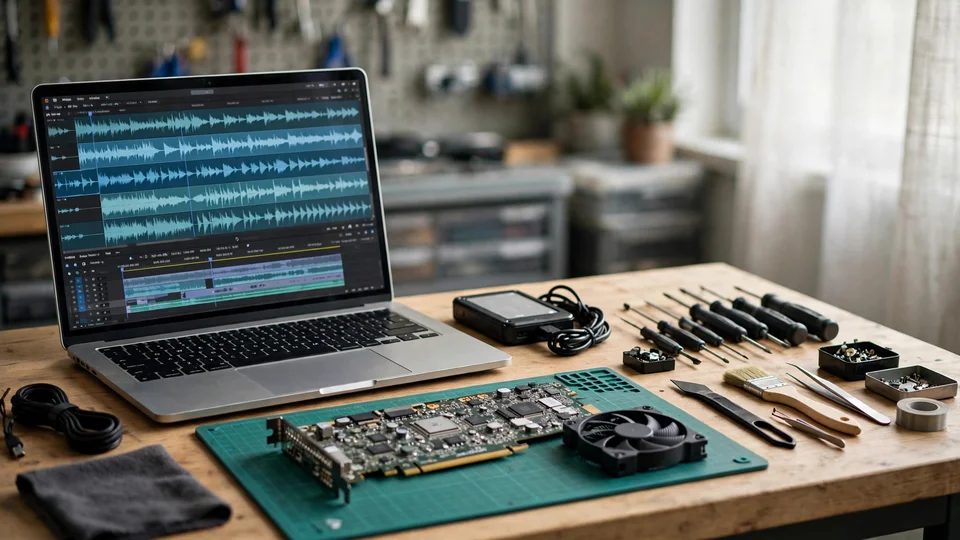
Key takeaway: An exported video with normal picture and no sound at all is not necessarily corrupt: the file may contain no audio track, or an audio track that no player can decode. Check first whether the file has an audio stream, then whether a second player hears it, then the export settings and track routing, one change at a time.
A video is exported, and the picture plays normally from start to finish, but there is no sound at any point: not quiet sound, not fading sound, not sound in some parts and silence in others. The whole file is silent, from the first second to the last. That combination — picture normal throughout, zero sound throughout — is the whole problem this guide addresses, and the combination itself is the first piece of evidence.
The instinct is to call the file corrupt, to reinstall the editor, or to blame the graphics card. All three instincts are premature. A video-only MP4 with no audio stream is usually a structurally valid file that was exported exactly as configured: corruption typically breaks playback, truncates the file, or produces errors, not a clean, full-length, silent picture. Reinstalling the editor resets settings to defaults, which can accidentally fix a toggled-off export option and then get the credit, but a reinstall is not a diagnosis. And the audio path does not run on the video encoder, so a graphics card fault cannot selectively remove the audio stream from an otherwise successful export. The first job is not to replace anything, but to define the shape precisely, then to check whether the file contains an audio stream at all, and only then to look at the export settings, the track routing, and the codec.
This guide covers only a narrow shape. Three conditions must all be present. First, the finished exported file has normal picture throughout. Second, it has no sound at any point: not one section, not the opening, not the ending. If any section has sound, the shape is wrong, and the diagnosis belongs to the guide on exported video silent in some parts but not others, which maps silent sections against the timeline. Third, the file plays: it opens, it runs to the end, and the picture is intact. A file that will not open, or an export that fails or crashes, is an export-failure problem, not this guide's shape. The editor name and version, the export preset name, and whether the timeline itself has sound must all be written down before anything is changed.
The boundary with the partial-silence guide
The neighbouring guide on partial silence states its own boundary plainly, and this guide starts where that one stops. That guide's symptom is the exact complement of this one: some sections entirely silent, other sections entirely normal, picture unaffected. Its own boundary table states that a whole exported file silent from start to finish belongs to the export audio setting, or to a recording that had no sound at all. Its layer on export settings is a negative control, written in so many words: turning the audio export option back on must never be presented as the fix for partial silence, because that option is a whole-file switch. In this guide, that same switch is the protagonist, not a negative control.
What this guide must not repeat from that guide is the partial-silence machinery: mapping silent sections by timecode, aligning edit points, random encoder drop-outs, or phase and channel explanations for a single line of dialogue disappearing in one player. In this guide there are no silent sections to map and no boundaries to align; the question of where the silence starts and stops has a trivial answer, which is everywhere. The diagnosis must therefore be built on a different axis: does the file contain an audio track at all, and if it does, why can no player hear it?
What this guide legitimately reuses is the shared plumbing: the pipeline model from timeline to export, the timeline-preview versus export comparison as a first fork, the player-comparison test, and the re-export reproducibility test. Each must be re-aimed at the whole-file question. In the partial-silence guide the player test asks about the same timecode in different players; in this guide it asks about the whole file in different players, and the conclusion is binary: the file has no audible audio anywhere, or there is a codec and player gap. The recording-stage silence, where the source clip itself had no audio, the preview-only problem, where the preview is wrong and the export is right, and the sample-rate pitch and speed problems are all different premises, and each has its own guide.
The export pipeline: video can pass every stage while audio fails at one
Export is not a photocopy of the timeline. Sound travels through separate stages, and video can pass every stage while audio fails at any one of them, which is exactly why picture fine and no sound at all is a coherent symptom rather than a contradiction.
First is the timeline and sequence layer: clips on audio tracks, each with mute, solo, volume and gain, and in some editors a per-track output switch. Preview playback reads this layer. Second is the track output, bus, and routing layer: tracks are summed into buses, and a track that is not routed to the bus that feeds the export contributes nothing to the mixdown, even though it plays in preview. Third is the mixdown: the routed tracks are mixed to the export's channel layout, typically stereo, and a mixdown can be empty if every contributing track was muted, zeroed, solo-isolated away, or unrouted, so the encoder receives silence, or nothing. Fourth is the encoder: audio is encoded, typically AAC for MP4 delivery, and video is encoded, typically H.264, as two independent streams. The video encoder succeeding says nothing about the audio encoder; they are separate jobs that happen to share a render pass. Fifth is muxing and the container: the encoded audio and video streams are wrapped into the container, MP4, MOV, or MKV. If the export settings disable the audio stream, the muxer writes a video-only file: a structurally valid MP4 with no audio track at all. The file is not corrupt; it simply never contained audio.
The key point is that no audio track in the file and an audio track present but silent are two different findings with different causes, and the first test in this guide, the stream inspection, exists precisely to separate them. A file with no audio stream cannot be fixed by changing players; a file with a present but undecodable stream cannot be fixed by re-checking the mute buttons.
The export-settings toggle: the protagonist of this guide
Every major editor has an explicit switch for including audio in the export, and it is a global switch: off means the whole file has no audio, which is why it can only explain whole-file silence, and why the partial-silence guide correctly treats it as a negative control for partial silence.
In Premiere Pro and Adobe Media Encoder, the Export Settings dialog has separate Export Video and Export Audio checkboxes, confirmed in Adobe Community threads and in Larry Jordan's documentation. Unchecking Export Audio exports video only. Adobe Community threads also note the timeline-side equivalent: clicking M to mute an audio track disables it on export, and unchecking the audio box in Media Encoder exports video only. A related trap is reported in Adobe forums: in a multi-track sequence, only the tracks selected or targeted are exported. That is a user report, not an Adobe statement, and it is used here as a check — are the intended tracks targeted and selected — not as a stated rule.
In DaVinci Resolve, on the Deliver page, the Render Settings have Export Video and Export Audio checkboxes, and the Audio tab then sets the codec and format. The Deliver Audio Output Track selector picks which bus feeds the export: if it points at a bus that carries nothing, or at individual timeline tracks instead of the main mix, the export can be silent even though the timeline sounds fine. The Audio Only preset renders the Main 1 bus by default, according to the Resolve manual as summarised by DaVinci Resolve Club. Hollyland's Resolve guide states the rule plainly: tracks not connected to the Master bus will be silent in the output.
In CapCut on desktop, the Export dialog has separate video-export and audio-export toggles. CapCut's own help page instructs the reader to choose MP4, enable Export audio, set the audio codec to AAC, and set the sample rate to 44.1 kHz or 48 kHz. Hollyland's CapCut guide lists muted or zeroed timeline tracks as the most common cause, and a missing audio output in export settings as the PC-specific cause. On mobile CapCut, each clip has a speaker icon, crossed out when that clip's native audio is muted, and there is an Original Sound toggle; background music is a separate layer with its own mute state. One CapCut trap belongs in a boundary note, not in the core diagnosis: in-app licensed music can be stripped on export, or muted after upload, by platform copyright enforcement, according to CapCut's help page. That is silence imposed after export by the platform, not by the export itself, and it matters only if the file plays with sound locally but goes silent after uploading.
In Shotcut, the Export panel has separate Video, Audio, and Codec tabs, and the audio tab sets the codec, channels, and sample rate. Shotcut mixes all unmuted audio tracks down to stereo on export, according to forum guidance, and its speaker icons on timeline tracks mute per track. A Shotcut forum case for version 23.05.14 is instructive as a reported encoder-layer phenomenon: the audio track was present in MediaInfo, AAC LC, two channels, 48 kHz, yet zero audio packets reached the players, and the user resolved it by disabling the hardware encoder, switching from h264_nvenc to libx264. That is an encoder interaction reported by a user, not a confirmed Shotcut bug. It is used here only as an example of the shape track exists but plays silent, so the reader should suspect the encode and mux layer and try a software-encoder re-export as a test, never as a claim that a Shotcut version is broken.
The general convention is that MP4 with H.264 video and AAC audio is the widely compatible delivery combination, following YouTube's recommended upload encoding settings and multiple guides. Sample rates of 44.1 kHz and 48 kHz are the standard choices. A non-standard sample rate can make some players reject the audio, according to troubleshooting guides; that is presented here as a check, not a certainty.
Bus, mapping, and routing: the silent-mixdown fork
In DaVinci Resolve and Fairlight, Bus 1 is the default main output. Fairlight's Bus Format creates buses, and each track's Bus Output assignment decides where its sound goes. If no track is sent to the bus selected as the Deliver output, or the Main Out is not patched to an output, the result is silence. The Index and Tracklist eye icon controls whether Bus 1 is even visible in the mixer, and a hidden bus can be an unnoticed unmapped bus, according to the Tuts+ Fairlight guide. The Patch Input and Output settings, under Fairlight and Patch Input/Output, decide where Bus Out goes. The terminology discipline carried over from the partial-silence guide matters here: Premiere does not use Bus 1; Resolve does, and the vocabularies must not be mixed.
In Premiere, the equivalent is sequence output mapping and track output assignment, the A1 and A2 output switches, plus the Audio Track Mixer master. A sequence whose output mapping is set to nothing, or whose tracks are assigned to an output the export does not include, exports silent.
In CapCut and simpler editors there is no bus concept. The equivalent is per-clip mute, per-layer volume, and the master and Original Sound toggles. The routing fork here is much smaller, and it is essentially one question: is every layer that should be heard actually unmuted and above zero, including layers below the visible timeline area?
Preview can lie, and that is the central teaching point of this guide. Preview and export do not necessarily follow the same routing. In Resolve the preview monitors the Fairlight mixer path while the Deliver page renders the selected Output Track bus; in Premiere the preview plays the sequence while the export follows the export-settings track selection. Timeline sound proves only the sequence layer. It does not prove the routing or the export layers, and that is why the step order in this guide puts the stream inspection first and the settings check after it.
Codec and container: the file is fine, the player cannot hear it
A container, MP4, MOV, or MKV, is a wrapper, and the audio inside uses a codec. If the codec is one the player cannot decode, the picture plays and the sound is missing even though the audio data is present and intact.
The concrete, documented instance is AC-3, Dolby Digital, on Windows 11 version 24H2. Microsoft's own support page states that beginning with Windows 11 version 24H2, the AC-3 codec is no longer included with Windows. It is retained on upgrades from earlier versions, and it is often pre-installed by device makers. Built-in players that rely on system codecs, such as Windows Media Player and Media Player, can then play the picture silently, while VLC, which ships its own decoders, plays the same file with sound. Multiple Microsoft Learn answers and gHacks confirm this. This is the strongest sourced example for the player-comparison fork, and it is used here as the worked example rather than an invented one.
Other codec and container mismatches are general and well attested, and they are presented as checks, not as guaranteed failures: E-AC-3 and DTS in files played on players without those decoders; Opus audio in an MP4 container, which is poorly supported in some players and editors; multichannel 5.1 audio downmixed or dropped by a stereo-only player path; and PCM and WAV audio in MP4, valid but not universally played. The instruction is to check the codec MediaInfo reports, then check whether the player supports it.
The re-encode to AAC test is the confirmation step. If the file plays with sound in VLC but not in the default player, re-exporting, or re-encoding just the audio, to AAC is the standard confirmation recommended across guides. AAC is the codec every modern device and browser plays, according to those guides. If the AAC re-export has sound everywhere, the original problem was codec and container, not the timeline.
What the graphics card does and does not do here
Hardware video encoders, NVENC, Quick Sync, and AMF, encode the video stream. They do not encode, mix, or mute audio. A graphics card or driver problem can in principle corrupt a render or crash an export, but it cannot selectively remove the audio stream from an otherwise successful export. The Shotcut forum case above points the other way: disabling the hardware video encoder changed the mux outcome, which is an encoder-interaction report, not a graphics card fault. The plain statement is that whole-file silence after a completed export is not a graphics card symptom, and reinstalling the editor or updating the graphics driver is not a diagnosis for it. This keeps the article honest for a graphics card repair site: the honest answer is usually settings, not hardware. The one legitimate hardware-adjacent check is that if the export fails or the machine crashes during render, that is a different symptom, export failure, and it is outside this article's scope.
The seven suspect layers
| Layer | What it means | Decisive comparison |
|---|---|---|
| Stream layer | Whether the exported file contains an audio stream at all | MediaInfo or ffprobe stream inspection |
| Export-settings layer | The Export Audio toggle, the audio format, the sample rate, and the preset | Export dialog re-check against the stream result |
| Timeline layer | Mute, solo, volume, clip gain, and keyframes at zero on every audio track | Timeline playback plus a track-by-track mute and volume check |
| Routing and mapping layer | Bus assignment, output-track selection, and track output mapping between timeline and export | Output-track and bus check in Resolve, track targeting in Premiere |
| Codec and container layer | The audio codec, the channel layout, and whether the player can decode it | Player comparison, then re-export or re-encode to AAC |
| Player and device layer | The player's codecs, its audio-track selection, and the output device | Same file in VLC and a second player, then another video as a control |
| Source-recording layer | The timeline is silent too, because the source clip itself has no audio | Timeline comparison; re-record or re-attach audio, not an export-settings problem |
Each layer has its own comparison, and no single comparison covers all seven. The stream inspection splits the universe in two: no audio in the file, or audio in the file but unheard, and each half has a different next step. The player comparison separates a codec gap from a silent mixdown. The export-settings check separates a toggled-off switch from a routing fault. The timeline check separates a sequence fault from an export fault. The re-export test confirms the diagnosis, provided the stream inspection confirms the audio stream is now present. The order in the seven steps below is the order that wastes the least time.
Seven diagnostic steps
Step 1 — Define the shape
Play the exported file end to end, or spot-check the start, the middle, and the end. Confirm that the picture is normal throughout and that there is no sound at any point, not just in one section. Any sound anywhere means the shape is wrong: stop, because that is the partial-silence shape, not this article. A file that will not play at all is an export failure, out of scope. Write down the baseline before changing anything: the editor name and version, the export preset name, whether the timeline has sound, and which players have been tried.
Step 2 — Inspect the stream with MediaInfo
Open the exported file in MediaInfo, or use VLC, Tools, Codec Information, or ffprobe with the show-streams option. Ask one question: is there an audio stream at all? Note the codec, the channels, the sample rate, and the bit rate.
If no audio stream is listed, the export never wrote audio. Skip the player tests entirely, and go to Step 4, the export settings, then Step 5, the timeline and routing. If an audio stream is present, the audio data exists, and the next step is Step 3, the player comparison. A stream with zero bit rate or zero packets is a reported edge case, from the Shotcut forum, and it is treated as present but empty, which points at the encode and mux layer, Step 6.
Step 3 — Compare players
Play the same file in VLC, then in a second player, the system default player, a browser, or a phone. If there is sound in VLC and silence in the other player, the fault is a codec and player gap, and the next step is Step 6, with the AC-3 on Windows 11 24H2 case as the documented example. If the file is silent in all players and the stream is present, the track may be encoded silence, because all sources were muted or zeroed at mixdown, or there is an encode and mux fault: go to Steps 5 and 6. If there is sound in all players, the file was fine, and the original silence was the first player's volume, output, or device: re-check the device volume, the Bluetooth and headset routing, and the tab mute. That thirty-second check belongs before any re-export. One more line belongs here: a file can contain several audio streams while the player defaults to a silent or empty one, so check the player's audio-track selection, in VLC under the Audio menu, before concluding that the file is silent.
Step 4 — Check the export settings
Reopen the export dialog or preset. Is Export Audio, in Premiere, Media Encoder, and Resolve, or Export audio, in CapCut, enabled? Is the audio format AAC, with a sample rate of 44.1 or 48 kHz? Is the correct audio track or output track selected? Was a video-only or audio-disabled preset used by mistake?
If the toggle is off, that is the finding: the file in Step 2 has no audio stream because the setting excluded it, and re-exporting with it on is both the fix and the confirmation. If the toggle is on but the file still has no stream, the setting is not the cause, and the next step is Step 5.
Step 5 — Check the timeline and the routing
Play the timeline: does it have sound? Then check every audio track: mute, shown as M, solo, shown as S, the volume fader, the clip gain, and keyframes at zero, the per-clip Original Sound toggle in CapCut, the track output assignment in Premiere, the A1 and A2 switches, and in Resolve the bus assignment plus the Deliver Output Track bus: is every intended track routed to the bus the export renders, and is that bus the one selected? Check tracks below the visible timeline area too.
If the timeline is silent too, the problem is in the sequence, a muted, zeroed, or unrouted track, not in the export: fix it there and re-export. If the timeline has sound but the export is silent, the routing and mapping between the timeline and the export is the gap, and the output-track selection in Resolve, or the track targeting in Premiere, is the usual suspect.
Step 6 — Check the codec and the container
Take the MediaInfo readout from Step 2. Is the codec AC-3, E-AC-3, DTS, Opus, or PCM in MP4? Is the layout multichannel? Is the sample rate unusual? If it matches a known player gap, and AC-3 on a clean install of Windows 11 24H2 is the documented one, re-export or re-encode the audio to AAC stereo at 48 kHz, and re-test in the failing player. If the AAC version plays everywhere, the diagnosis is confirmed as codec and container, not timeline or settings.
Step 7 — Re-export as a confirmation test, and the stop line
Change one thing at a time: first the export toggle on plus AAC, and if the file is still silent, then the routing fix. Re-export a short test range if the editor allows it, and check the new file with Step 2, MediaInfo, before listening. If the new file has an audio stream and sound, the changed setting was the cause. If the result is the same after the settings fix, the cause is upstream, in the routing, or in the encode layer: note the editor version number before escalating, because version-specific encoder behaviour can only be discussed with the version recorded. A single successful re-export after a random failure is not proof of a fix. If silence returns at random, that is encoder-layer behaviour, and the reader should record the version and stop guessing.
If the seven steps are complete and the fault still cannot be divided, or if a hardware fault is suspected, stop and bring the written record to Room 1209, Dali Plaza, Shek Mun for inspection. The telephone number is 2186 8010 and WhatsApp is 6558 6806. There is no Mong Kok shop, and there is no on-site service. The record should list the MediaInfo readout, which players were tried and the result in each, the export preset name and the Export Audio state, the editor name and version, and whether the timeline has sound.
Boundary cases
The source clip itself having no audio, a recording made without sound, a screen recording without system audio, or a clip imported as video-only, means the timeline will also be silent. Step 5 catches this, because the timeline is silent too, but the fix is re-recording or re-attaching audio, not export settings. It is named here as a fork outcome, not solved here.
Partial silence, some sections silent and others fine, is the partial-silence guide. It is handed off explicitly and not re-diagnosed here. Sound present but wrong, pitch or speed changed, out of sync, too quiet, or crackling, is a sample-rate, sync, or level problem, and a too-quiet mix is not no sound: the article must say so, because readers conflate them. Preview silent but export fine is the opposite direction, and it is out of scope. Export failure, a crash, or a file that will not open is export-failure territory, not a silent-file diagnosis.
Silence only after upload, to YouTube, TikTok, or a social platform, is a boundary note of one paragraph: if the local file plays with sound, and Steps 2 and 3 pass, the export is exonerated, and platform re-encoding or copyright muting, including CapCut and TikTok, is the suspect. Silence only on one device or through one output, a Bluetooth headset, a muted tab, or the system volume, is device and output routing, not the file, and Step 3's sound in all players branch plus a try another video control covers it. Multi-track and multi-language files are covered by the audio-track selection line in Step 3. Hardware is covered above: graphics card and driver faults do not selectively delete the audio stream from a completed export, and any in-person check should be framed as settings, routing, and encode verification, not a hardware repair claim.
Pre-export checklist
Before exporting, play the timeline from start to end, and check every audio track's mute, solo, and volume, including tracks below the visible area and any background-music layer. In the export dialog, confirm the audio export toggle is on, the format is MP4 with H.264 and AAC, and the sample rate is 44.1 or 48 kHz. In Resolve, confirm the Deliver Output Track bus is the main mix bus. In Premiere, confirm the intended tracks are targeted. After exporting, check the file with MediaInfo, whether an audio stream is present and which codec, before listening, then play it in two players. Keep the project file, the export preset name, and the editor version number: a re-export test is only meaningful if the settings can be reproduced exactly.
Ten common misconceptions
- "The file is corrupt." Wrong. A video-only MP4 with no audio stream is usually a structurally valid file that was exported exactly as configured. Corruption typically breaks playback, truncates the file, or produces errors, not a clean, full-length, silent picture. MediaInfo, in Step 2, is what separates corrupt from never contained audio.
- "Reinstall the editor, or update the graphics driver." Wrong. Reinstallation resets settings to defaults, which can accidentally fix a toggled-off Export Audio, and then gets the credit. Check the toggle first: a reinstall is not a diagnosis, and a graphics card driver does not mix audio.
- "It is the graphics card." Wrong. The audio path, mixdown, audio encoder, and muxer, does not run on the video encoder. Whole-file silence after a successful export is not a graphics card symptom.
- "Timeline has sound, so the export must have sound." Wrong. Preview and export follow different paths: routing, output-track selection, and export toggles. Timeline sound proves only the sequence layer.
- "One player is silent, so the file is broken." Wrong. A player can lack the codec while the file is fine. AC-3 on Windows 11 24H2 is the documented case. Always test a second player, ideally VLC, before touching the project.
- "Turning the volume up, or unmuting the computer, fixes it." Wrong. That only helps if all media is silent. If other videos play with sound, device volume is already exonerated, and the problem is in the file or the export.
- "Re-exporting once with sound proves it is fixed." Wrong, with one distinction. A single successful re-export after changing nothing proves nothing about a random or encoder-layer fault. But a verified re-export is confirmation when Step 2 shows the stream is now present and the sound is heard in two players: confirmation is the stream plus sound in two players, not it played once.
- "AAC is the only codec that works, and MP4 always has sound." Wrong. MP4 is a container, not a guarantee: it can legally hold AC-3, DTS, Opus, or PCM audio that a given player cannot decode, and it can legally hold no audio at all. MP4 tells nothing about the audio inside. MediaInfo does.
- "Muting a track in the timeline only affects preview." Wrong. In Premiere, muting a track disables it on export. In CapCut, a crossed-out speaker or zeroed volume exports as silence. In Shotcut, all unmuted tracks are mixed down, so a muted track is simply absent from the mix. Mute state is an export setting.
- "Export Audio off can explain why only the music is missing." Wrong. It is global. If dialogue is present and only music is missing, the cause is track-level: that track muted, unrouted, or zeroed, not the global toggle. This is the mirror image of the partial-silence guide's negative control, and it is the most likely reader error when arriving from a search.
What is confirmed, what is only a user report
The confirmed parts of this guide are the ones the sources state in their own words: Premiere Pro, Media Encoder, Resolve, and CapCut each have an explicit export-audio switch, and switching it off produces a video-only file; in Resolve, tracks not connected to the Master bus are silent in the output; MP4 with H.264 and AAC is the widely compatible delivery combination; and beginning with Windows 11 version 24H2, the AC-3 codec is no longer included with Windows, according to Microsoft's own support page, while VLC ships its own decoders and plays the same file with sound.
Two points below are user reports, openly labelled as such, rather than vendor confirmations. The Adobe forum report that only selected or targeted tracks are exported in a multi-track sequence is a user report, not an Adobe statement. The Shotcut forum case, an audio track present in MediaInfo with zero audio packets, resolved by disabling the hardware encoder, is a user report, not a confirmed Shotcut bug. No figure in percentages, no case count, no success rate, and no fee beyond the site's published three-tier fee appears in this guide, because none is supported by the sources used.
Sources and what they do and do not establish
Adobe Community threads on Premiere Pro and Media Encoder, on no audio on export and on removing audio, confirm the Export Audio checkbox, that muting a timeline track disables it on export, and the multi-track selection report, which is a user report. Larry Jordan's Media Encoder documentation confirms the Export Video and Export Audio checkboxes. Hollyland's creator guides confirm the Premiere Pro audio export, the Resolve Master-bus rule, and the CapCut causes: muted or zeroed timeline tracks as the most common cause, and a missing audio output in export settings as the PC-specific cause. DaVinci Resolve Club's guide confirms the Deliver Audio panel, the Output Track bus selection, and Main 1 as the default. The Tuts+ Fairlight tutorial confirms Bus 1 as the main output, the hidden-bus visibility, and the patch settings.
CapCut's official help page confirms the export audio toggle with AAC at 44.1 or 48 kHz, and platform copyright muting as a separate cause after upload. CapCut export guides confirm the desktop Export audio toggle and the muted or hidden track as the most common cause. Shotcut forum threads confirm the AAC, stereo, and MP4 recommendation, the version 23.05.14 case of a present track with zero packets resolved by disabling the hardware encoder, which is a user report, and that Shotcut mixes down all unmuted tracks to stereo. The xconvert guide confirms VLC as the reference player, AC-3 as the classic undecodable codec, and re-encoding to AAC. Microsoft's support page on codecs in Media Player confirms that AC-3 is no longer included from Windows 11 24H2, retained on upgrade, with an OEM pre-install exception, via gHacks and Microsoft Learn answers.
The partial-silence guide, read in full in both languages, is used here for the boundary, the pipeline model, the negative control on Export Audio, and the player and re-export tests, each re-aimed at the whole-file question. A library search found that Export Audio appears only in that guide, as a negative control, and that the exact whole-file-silent framing appears nowhere else in the library, which is why the export toggle as protagonist is new ground rather than a repeat of earlier coverage.
FAQ
Does a silent exported file mean the file is corrupt?
No. A video-only MP4 with no audio stream is usually a structurally valid file that was exported exactly as configured. Corruption typically breaks playback, truncates the file, or produces errors, not a clean, full-length, silent picture. MediaInfo, in Step 2, is what separates corrupt from never contained audio: if no audio stream is listed, the export never wrote audio, and the file is not corrupt.
If the timeline has sound, must the export have sound?
No. Preview and export follow different paths: routing, output-track selection, and export toggles. Timeline sound proves only the sequence layer. In Resolve the preview monitors the Fairlight mixer path while the Deliver page renders the selected Output Track bus, and in Premiere the preview plays the sequence while the export follows the export-settings track selection. A track can sound fine in the timeline and still be unrouted, muted, or untargeted at export.
One player is silent, does that mean the file is broken?
No. A player can lack the codec while the file is fine. The documented case is AC-3 audio on Windows 11 version 24H2: Microsoft's own support page states that the AC-3 codec is no longer included with Windows from that version, so built-in players that rely on system codecs play the picture silently, while VLC, which ships its own decoders, plays the same file with sound. Always test a second player, ideally VLC, and check the codec in MediaInfo before touching the project.
Is turning Export Audio back on the only fix?
No. It is only the fix for the toggle side: if MediaInfo proves the file has no audio stream at all, turning Export Audio on and re-exporting is both the fix and the confirmation. But if the file has an audio stream and still no sound, the problem is in the codec, the container, or the mixdown layer, and Export Audio has nothing to do with it. And if dialogue is present and only the music is missing, the cause is track-level, not the global toggle.
Will reinstalling the editor or updating the graphics driver definitely fix it?
No. Reinstalling the editor resets settings to defaults, which can accidentally fix a toggled-off Export Audio, and then gets the credit, but a reinstall is not a diagnosis. Updating the graphics driver does not help either: the audio path, mixdown, audio encoder, and muxer, does not run on the video encoder, and a graphics card fault cannot selectively remove the audio stream from an otherwise successful export. Check the export toggle first, then the timeline and the routing.
Does one successful re-export prove the problem is fixed?
Not on its own. It depends on how the re-export was done. A single successful re-export after changing nothing proves nothing about a random or encoder-layer fault. Confirmation is sharper than that: one specific setting must be changed, the new file must show an audio stream in MediaInfo, Step 2, and sound must be heard in two players, Step 3. If silence returns at random, record the editor version number and stop guessing.
If the fault still cannot be divided
Bring the written record described in Step 1 to Room 1209, Dali Plaza, Shek Mun for inspection. The telephone number is 2186 8010 and WhatsApp is 6558 6806. There is no Mong Kok shop, and there is no on-site service. The site's published three-tier fee is HK$400–780, HK$480–1,380, and HK$680–2,800, an overall range of HK$400–2,800, with the actual fee quoted after inspection. Do not change several settings at once before coming in; the record of which comparison produced which result is the comparison material.